

Client Management Software with Full Service History
Client management software built for service work: contacts, several addresses, your own fields, and every task that client has ever had. Create a job straight from the client card, and the history stays with the customer, not with the technician who happened to be there.

Client Management Software with One Record per Customer
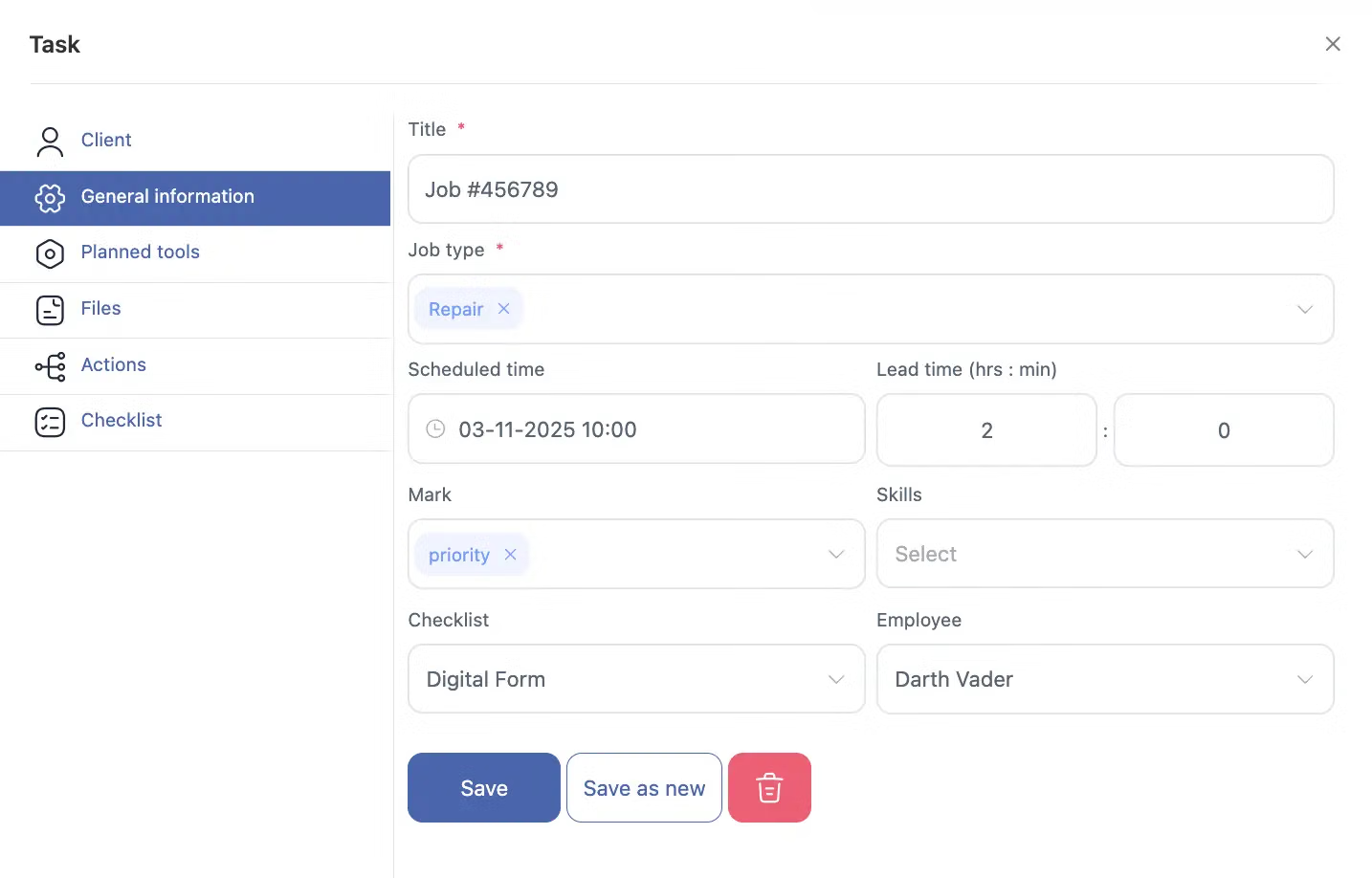
A client profile holds contact details, one or more addresses and the fields your business defines, and below them the list of every task linked to that client, current and completed. Clients are created in the Clients section or during task creation, and a client created inside a task is added to the database automatically.
Client management software keeps the customer, the addresses and the job history as one record instead of three lists.
Client Fields You Configure Before Adding Clients
Client fields decide what the database stores, and it is worth configuring them before clients are added. The supported types are text, number, checkbox, drop-down, multi-select, date, date range, phone and e-mail, which covers site names, client categories, contract periods and internal identifiers.
A configured client database is searchable in the moment a dispatcher needs it.
Addresses That Decide Who Can Be Dispatched
A client can hold several addresses, and one is chosen when the task is created. The address determines the service area it falls into, and the system then offers only the technicians assigned to that area.
Dispatch errors of the ordinary kind are removed at the point where the address is entered.
Service History That Stays With the Client
Completed jobs remain attached to the client with their checklist answers, photos and signatures. Access follows the role: owners and administrators work with the full database, while employees see the client details carried by the jobs assigned to them.
Knowledge about the site stays in the system when the technician who held it leaves.
Start with the Free Plan
No time limits. Get full access to core features and upgrade when you're ready.
How client management works in field service
What client management software does for a service business
A service company returns to the same sites: the same address, the same equipment, a different technician, months later. Client management software exists so that the second visit has the record of the first one, without a call to the office to reconstruct it.
In Shifton the client is a record, not a line in a spreadsheet. It holds contact details, one or more addresses, the fields your own business needs, and underneath them the list of every task ever linked to that client, current and completed. Open the client, and the whole relationship is on one screen.
Client fields you define yourself
Before you add clients it is worth setting up client fields, because they decide what the database actually stores. The available types cover most of what a service business tracks:
- Text and long text, for site names, access notes and service conditions
- Number, for a client ID, a site number or the count of branches
- Checkbox, for flags such as VIP or contract client
- Drop-down and multi-select, for client type, region, service zones or categories
- Date and date range, for contract dates and first visit
- Phone and e-mail, validated as such
Each field can be made mandatory, searchable, shown next to the client name, or shown in the client list. These settings are what make the database searchable in daily dispatch.
Clients and jobs are the same record
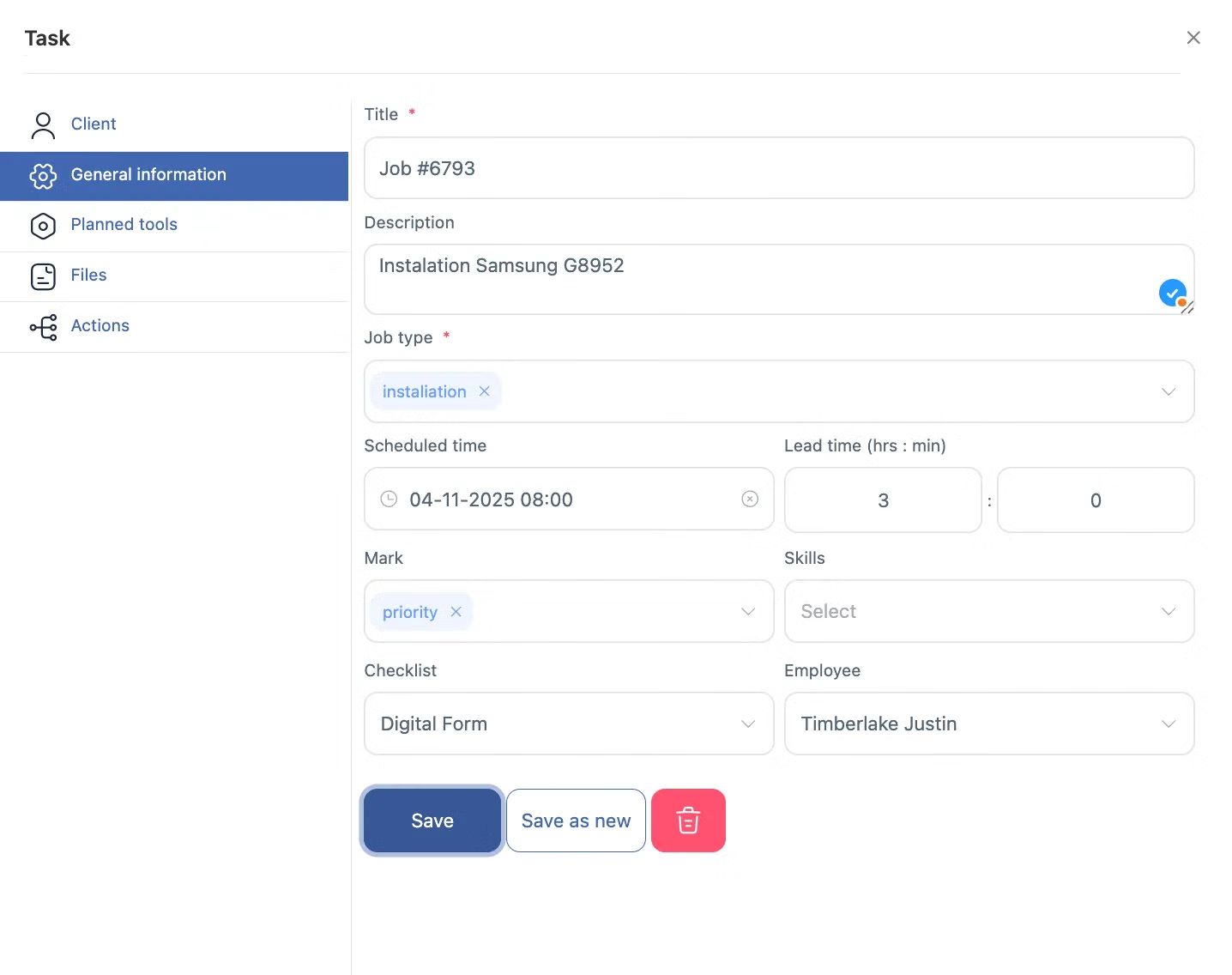
A task can be created from the client card, and the client is then filled in automatically, including the address chosen when a client has several. The client can also be created during task creation and enters the database at that moment. In both cases there is no second list to keep in sync.
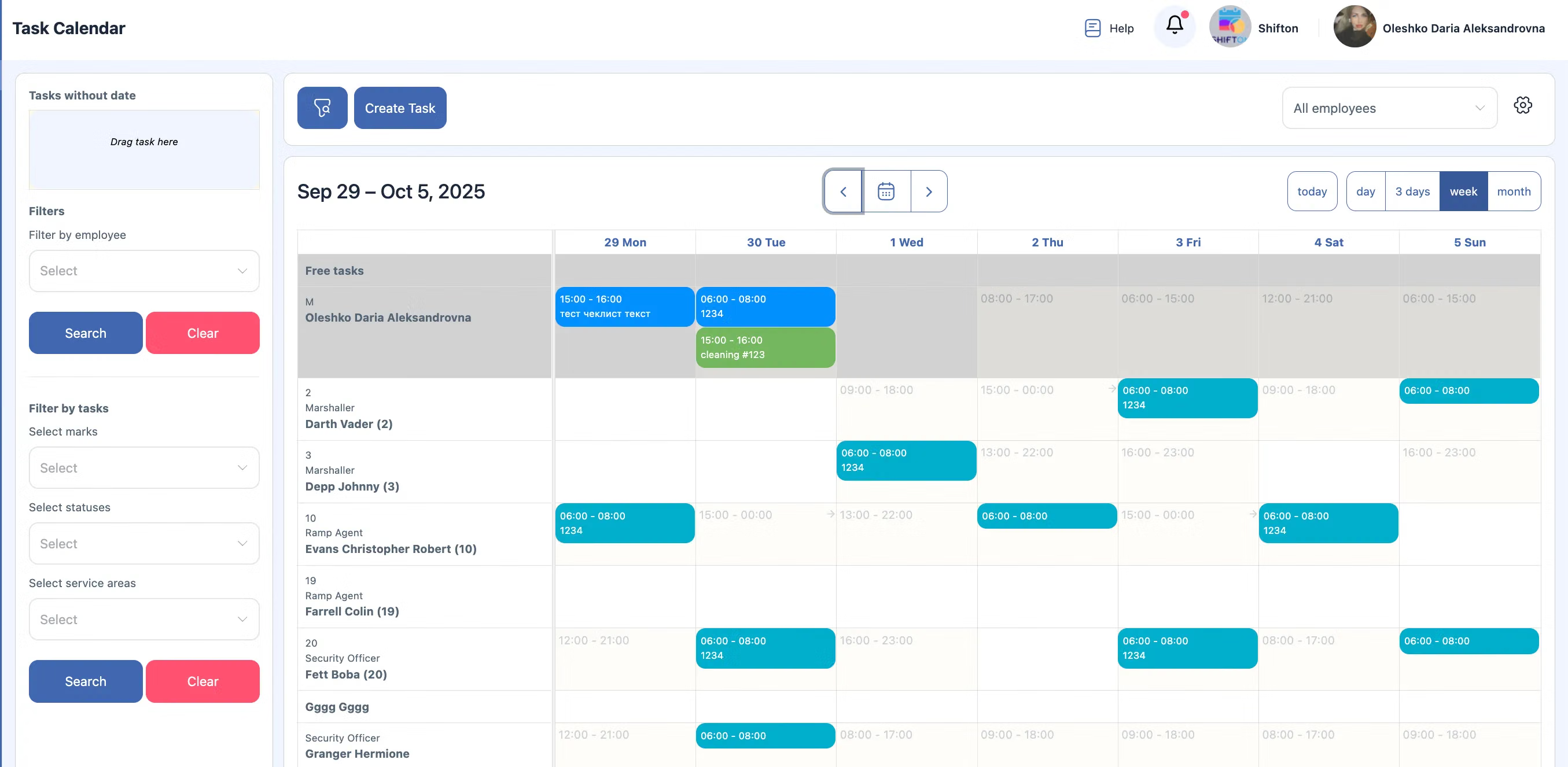
Because the address decides the service area, the client record also decides who can be sent. Enter the address, and the system shows only technicians assigned to the area that covers it. See service area management for how the boundaries are drawn.
What the office and the field each see
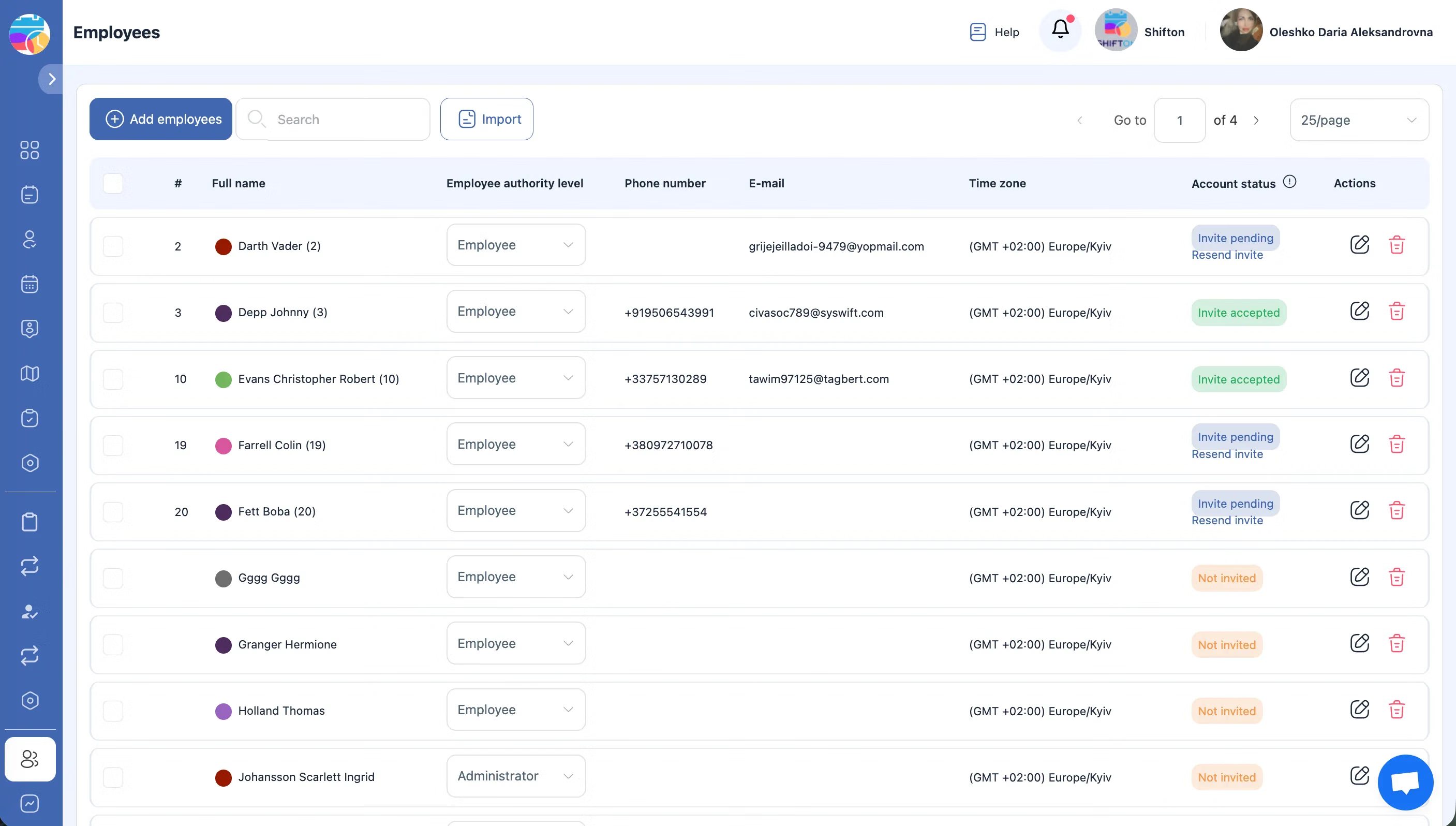
Roles decide the answer. The Owner and Administrators work with the full client database. Employees by default see the tasks assigned to them, with the client details and address the job carries, and their permissions can be widened when the work calls for it. So a technician arrives knowing the site and the contact, while the full client history stays where it belongs.
Service history that survives staff turnover
Every completed task stays attached to the client: what was done, by whom, when, with the checklist, photos and signature collected at the time. When the technician who knew the site leaves, the record remains. When a client disputes an invoice, the evidence is in the job rather than in private correspondence.
What it costs
Client management is part of the Tasks base module. Up to two employees it is free, with no time limit and no card. Above that the base module is $5.00 per employee per month, 20% less on annual billing. If you want clients to follow their own jobs, add the Customer Portal module, and if you bill from completed work, add Invoicing. Both are $5.00 per employee per month with a trial of up to 55 days. Details on the pricing page.
Frequently Asked Questions
What does client management software do for field service?
It keeps customer data in one searchable database: contacts, addresses, your own custom fields, and the full list of tasks linked to that client, current and completed. Office and field teams read the same record instead of separate spreadsheets.
Can technicians see the client details before arriving on site?
Yes. The task carries the client, the chosen address and the contact details, so the technician has them in the app before the visit. The full client database with every past task is opened by users whose role gives them access to the Clients section.
Can I store my own data about a client?
Yes. Client fields are configurable: text, number, checkbox, drop-down, multi-select, date, date range, phone and e-mail. A field can be mandatory, searchable, shown next to the client name or shown in the client list.
Can a client have more than one address?
Yes. A client profile holds several addresses and contacts, and when you create a task you choose which address the job is for. The address also decides which service area the job belongs to.
How do I add a client?
Either from the Clients section with the Create Client button, or during task creation: pick an existing client or create a new one on the spot, and it is added to the database automatically.
Does it track communication with clients?
Job-related updates, notes, comments and photos are tied to the client through their tasks, so every interaction stays on the record rather than in private chats.
Can I create a task straight from the client card?
Yes. The client profile lists every task for that client and has its own Create Task button, and a task created there has the client already selected.
Can clients see their own jobs?
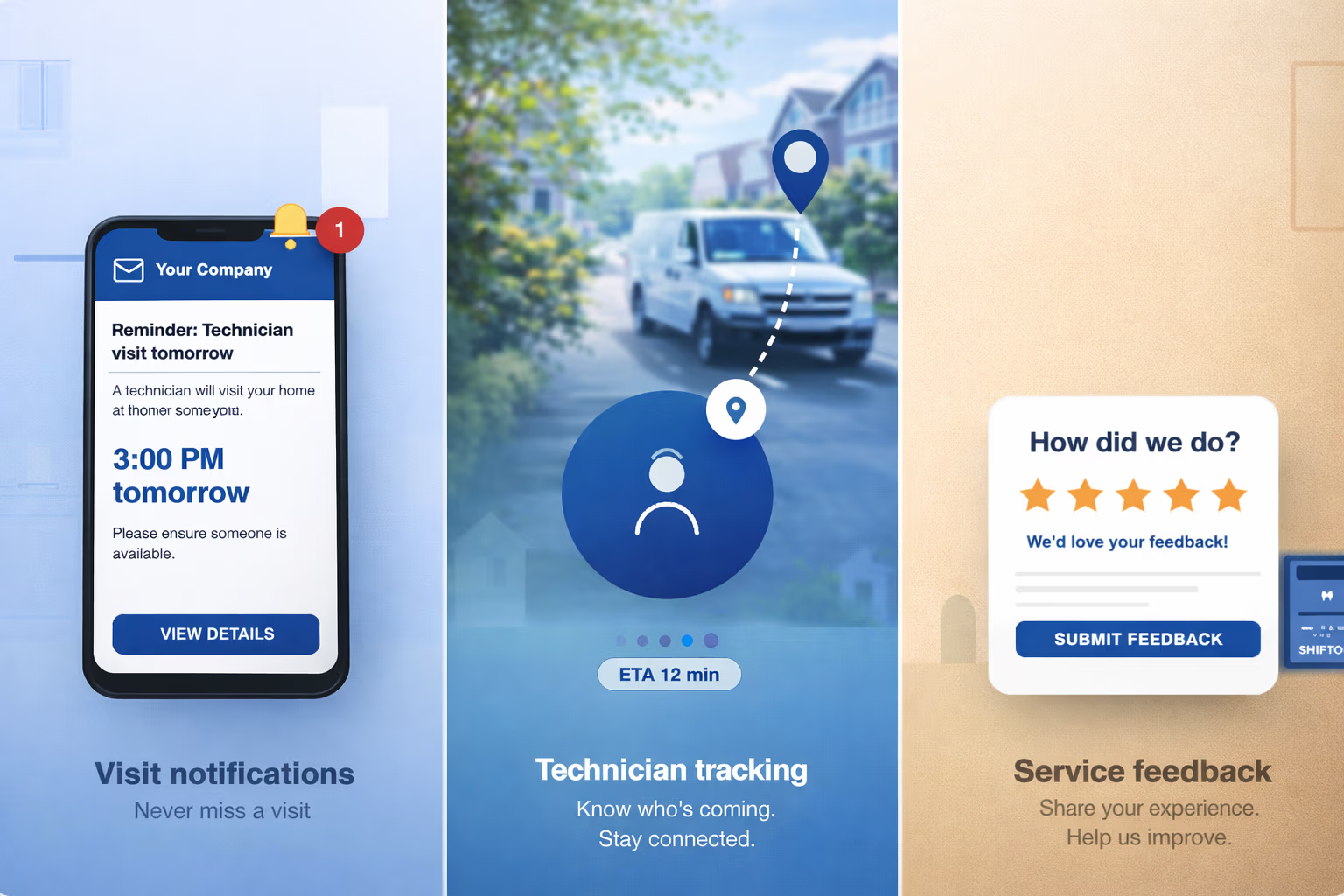
With the Customer Portal module, yes. The client gets visit reminders, a link with the technician location and estimated arrival, a quick way to call or chat, and a review form after the job.
What happens if I delete a client?
Deletion is permanent and a deleted client cannot be restored, so it is worth checking the linked tasks in the profile before removing anyone.
Is client management included in the base plan?
Yes. It is part of the Tasks base module, free for up to 2 employees with no time limit. Above that the module costs $5.00 per employee per month, and annual billing saves 20%.

Ready to transform your field operations?
Join thousands of field service companies that trust Shifton to run smarter every day.