

Digital Job Forms and Checklists for Field Work
Digital job forms software that attaches a checklist to the task and returns it filled in during the visit: photos from the camera, a signature on the screen, numbers, drop-downs and free text. Edit a form and finished jobs keep the version they were done with.
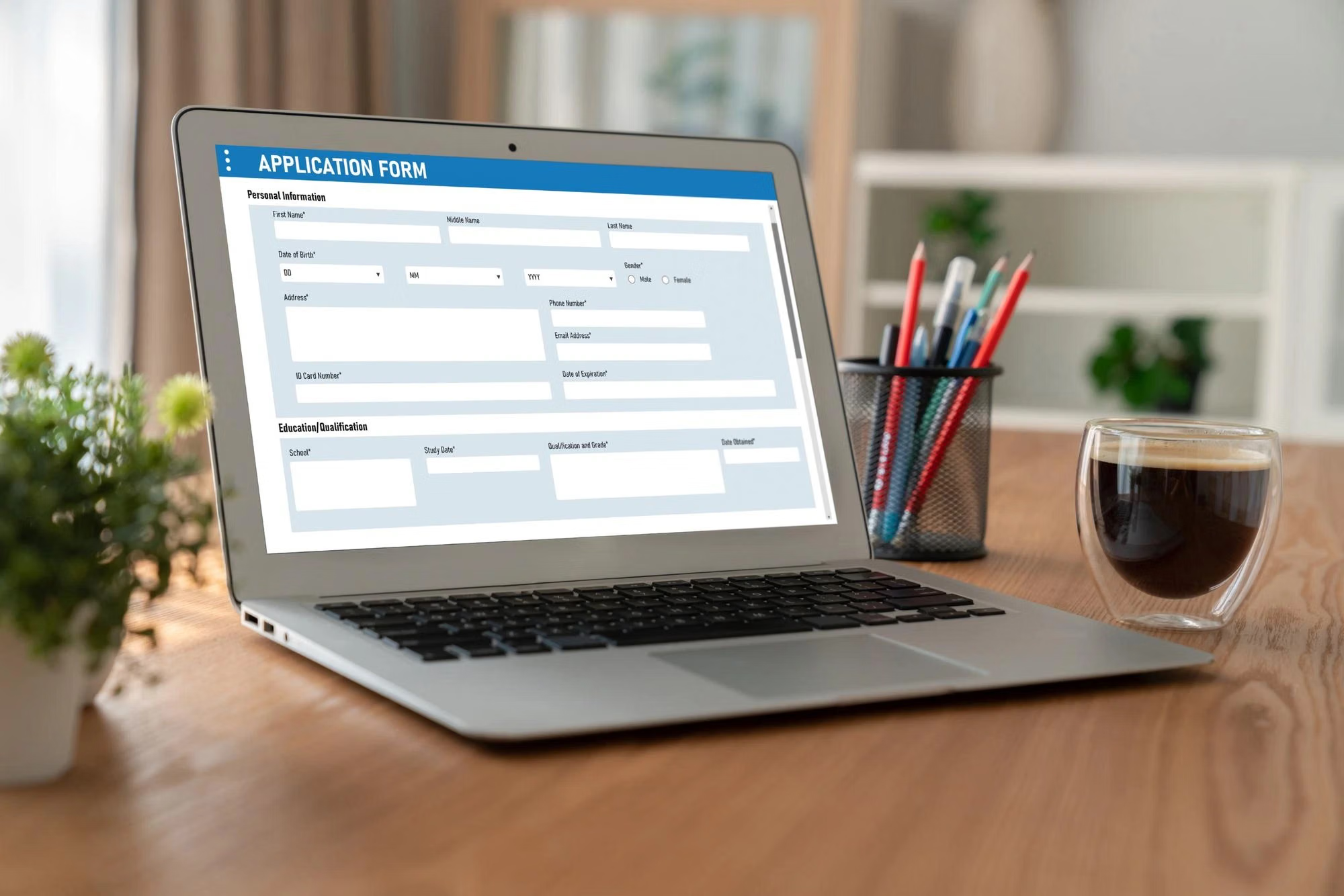

Digital Job Forms Attached to the Task
A checklist is a digital form attached to a task and completed by the employee during execution. An unlimited number of checklists can be created, and each task carries one, so the form is designed around the type of work it documents.
Digital job forms replace paper records with answers the office can read the same day.

Field Types Including Photo and Signature
Each checklist item has its own data type. Text and long text, number, checkbox, drop-down and multi-select cover structured answers, while file items capture a photo from the camera and the signature item collects the client's confirmation on the screen.
Proof of work is collected as part of the job rather than assembled afterwards.
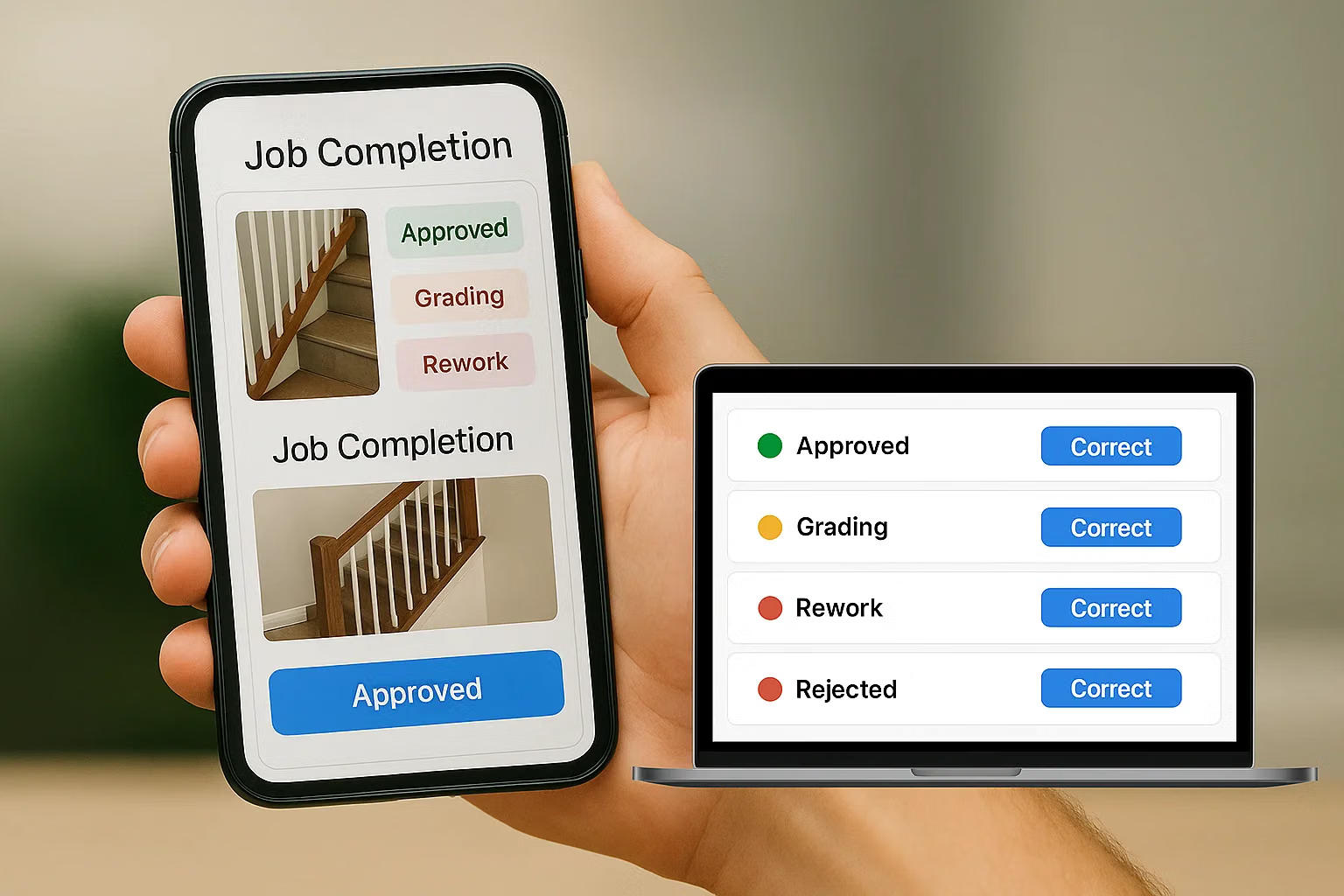
Form Versions That Protect Completed Jobs
Checklists are created and edited in Task Settings. Changes apply only to tasks created after the edit: existing jobs keep the version of the form they were performed with, together with the answers submitted into it.
Historical records stay usable for audits and disputes.
Standardised Execution Across Crews
A checklist is a structured list of verification steps. It defines how a job of a given type is performed, which is what makes the work of a new technician comparable with the work of an experienced one.
Mobile forms give the office structured data, not scanned paper.
Start with the Free Plan
No time limits. Get full access to core features and upgrade when you're ready.
How digital job forms are built and used
Digital job forms that come back filled in
Digital job forms software answers the question every service visit raises afterwards: what was actually checked. Paper forms answer it late and often incompletely. A checklist inside the job records the answer while the work is being done.
In Shifton a checklist is a digital form attached to a task and completed by the technician during execution. You can create as many checklists as you like, and each task carries one, which is why it is worth deciding what a given type of job has to prove before you build the form.
Field types a checklist item can use
- Text and long text field, for short answers and detailed notes
- Number, for readings and quantities
- Checkbox, a mandatory confirmation
- Drop-down and multi-select, when the answer has to be one of a known set
- File, to upload a photo or take one with the camera on the spot
- Phone and e-mail, validated as such
- Signature, a signing box shown both in the web version and in the mobile app
Where forms are set up
Checklists live in Task Settings. Create one, name it, add the items with their data types, and, if it applies to everything you do, mark it as the default checklist so it attaches to every new task automatically. Editing a checklist affects new tasks only: jobs already created keep the version they were given, along with the answers already submitted. That is deliberate, and it is what makes historical records trustworthy.
Photo and signature as proof
A file item turns the technician's camera into evidence collection, and the signature item closes the visit with the client's confirmation on the same screen. Both are stored with the task, which is where invoicing and job history read them from later. A dispute about work that was done three months ago becomes a matter of opening the job.
Standardising how a job is done
The second benefit is consistency. A checklist is a structured list of verification steps, so every visit of the same type follows the same procedure regardless of who performs it. Inspections, safety checks, maintenance routines and handover procedures are all defined the same way.
Deleting and keeping
A checklist that is attached to any task cannot be deleted, only ones never used can be removed. Existing tasks keep their attached form and the data submitted into it. In practice this means the form library grows deliberately rather than being pruned in a way that quietly erases evidence.
What it costs
Digital forms are part of the Tasks base module, and the base module is free for up to two employees with no time limit. Above that it is $5.00 per employee per month, 20% less on annual billing. See the pricing page, and the mobile app for what filling a form looks like on site.
Frequently Asked Questions
What is a checklist in Shifton?
A digital form attached to a task and completed by the technician while the job is being done. It collects structured data instead of free-form notes, so every visit of the same type comes back in the same shape.
How many checklists can I create?
An unlimited number. Each task carries one checklist, so it is worth planning the structure of each form before creating it.
What kinds of questions can a form contain?
Text, long text, number, checkbox, drop-down, multi-select, file upload or camera photo, phone, e-mail and signature.
Can technicians attach photos from the job?
Yes. A file item lets them upload a photo or take one with the camera during the visit, and it is stored with the task.
Can the client sign on the phone?
Yes. A signature item shows a signing box in the mobile app and in the web version, and the signature stays attached to the job.
Where do I create and edit forms?
In Task Settings, in the Checklists section. Create a checklist, add the items and their data types, and optionally mark it as the default so it attaches to all new tasks.
What happens to existing jobs when I edit a form?
Nothing. Changes apply only to tasks created after the edit, and existing tasks keep the version of the checklist they were given, together with the answers already submitted.
Can I delete a checklist?
Only if it has never been used. A checklist already attached to a task cannot be deleted, so historical records stay intact.
Are digital forms included in the free plan?
Yes. They are part of the Tasks base module, which is free for up to 2 employees with no time limit, then $5.00 per employee per month.



Ready to transform your field operations?
Join thousands of field service companies that trust Shifton to run smarter every day.