

 English
  Español
  Português
  Deutsch
  Français
  Italiano
  日本語
日本語  中文
中文  हिन्दी
  עברית
עברית  العربية
  한국어
한국어  Nederlands
  Polski
  Türkçe
  Українська
  Русский
  Magyar
  Română
  Български
  Čeština
  Ελληνικά
  Svenska
  Dansk
Dansk  Norsk
Norsk  Suomi
Suomi  Bahasa
  Tiếng Việt
  Tagalog
  ไทย
ไทย  Latviešu
  Lietuvių
  Eesti
Eesti  Slovenčina
  Slovenščina
  Hrvatski
  Македонски
  Қазақ
Қазақ  Azərbaycan
  Afrikaans
  বাংলা
বাংলা The To Do feature is part of the Tasks module and does not require any additional activation or configuration.
A To Do is a simple text-based task assigned to an employee, with a description and a deadline.
To view, create, edit, or delete To Dos, open the “To Do List” section in the side menu.
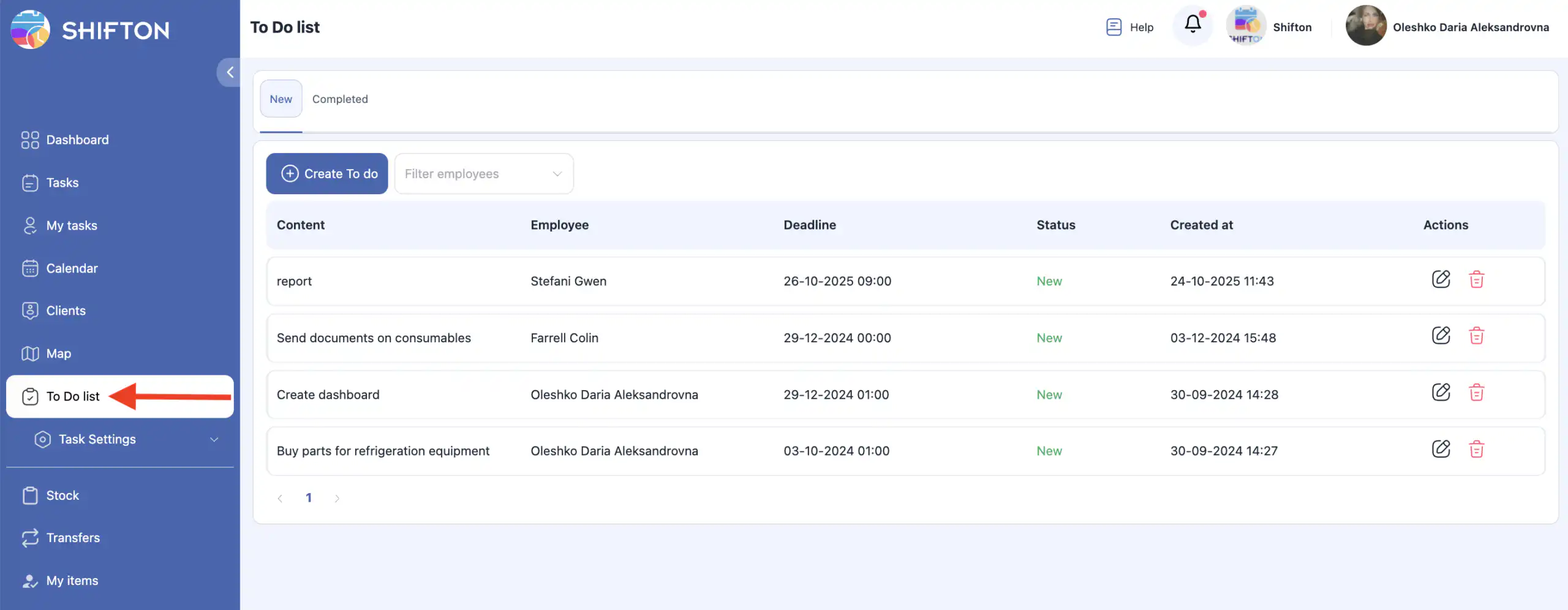
The page contains two tabs:
-
Active To Dos
-
Completed To Dos
You can filter To Dos by one or several employees.
To clear the filter, click the X next to the employee’s name.
Working With Active To Dos
Creating a To Do
-
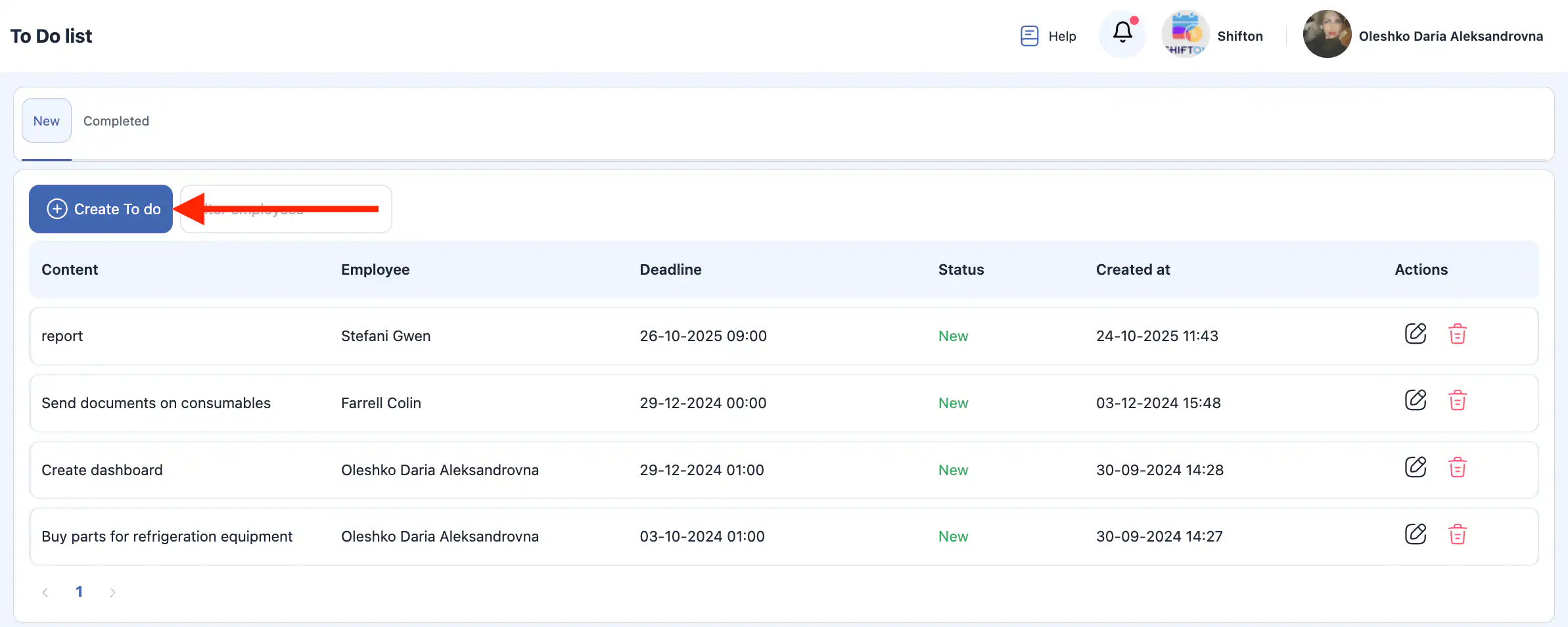
Click “Create To Do.”
-
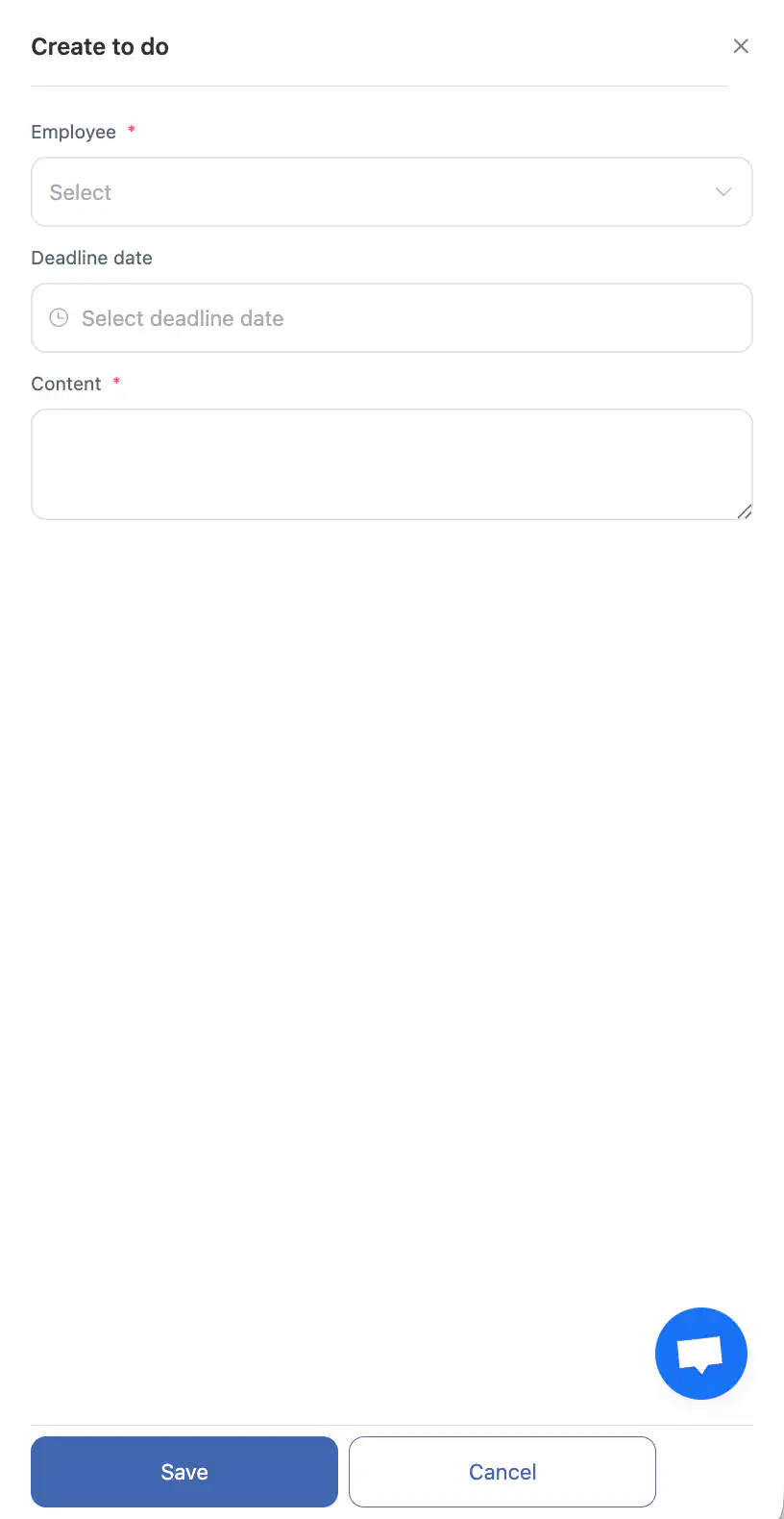
In the side panel, select the employee who will receive the task.
-
Set the deadline date.
-
Enter the task description.
-
Click “Save.”
-
To cancel, click “Cancel.”
Editing an Active To Do
-
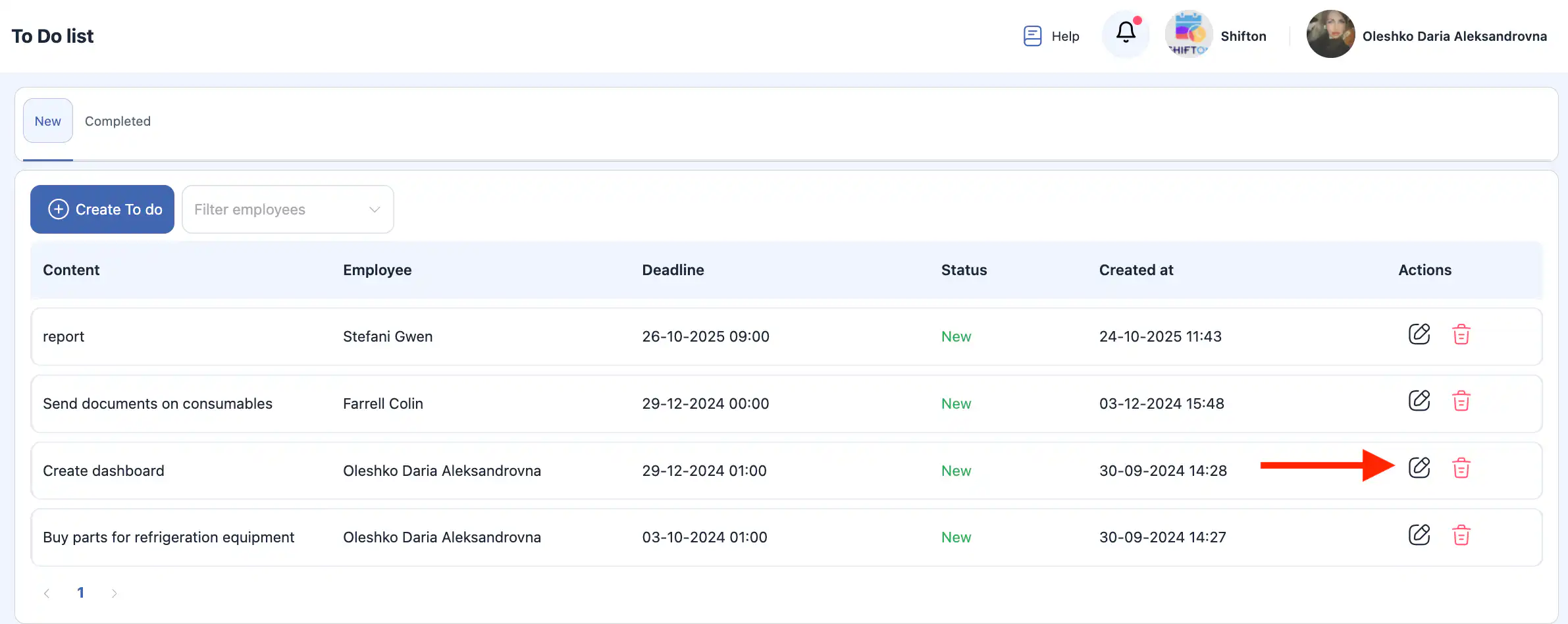
Click the pencil icon next to the To Do.
-
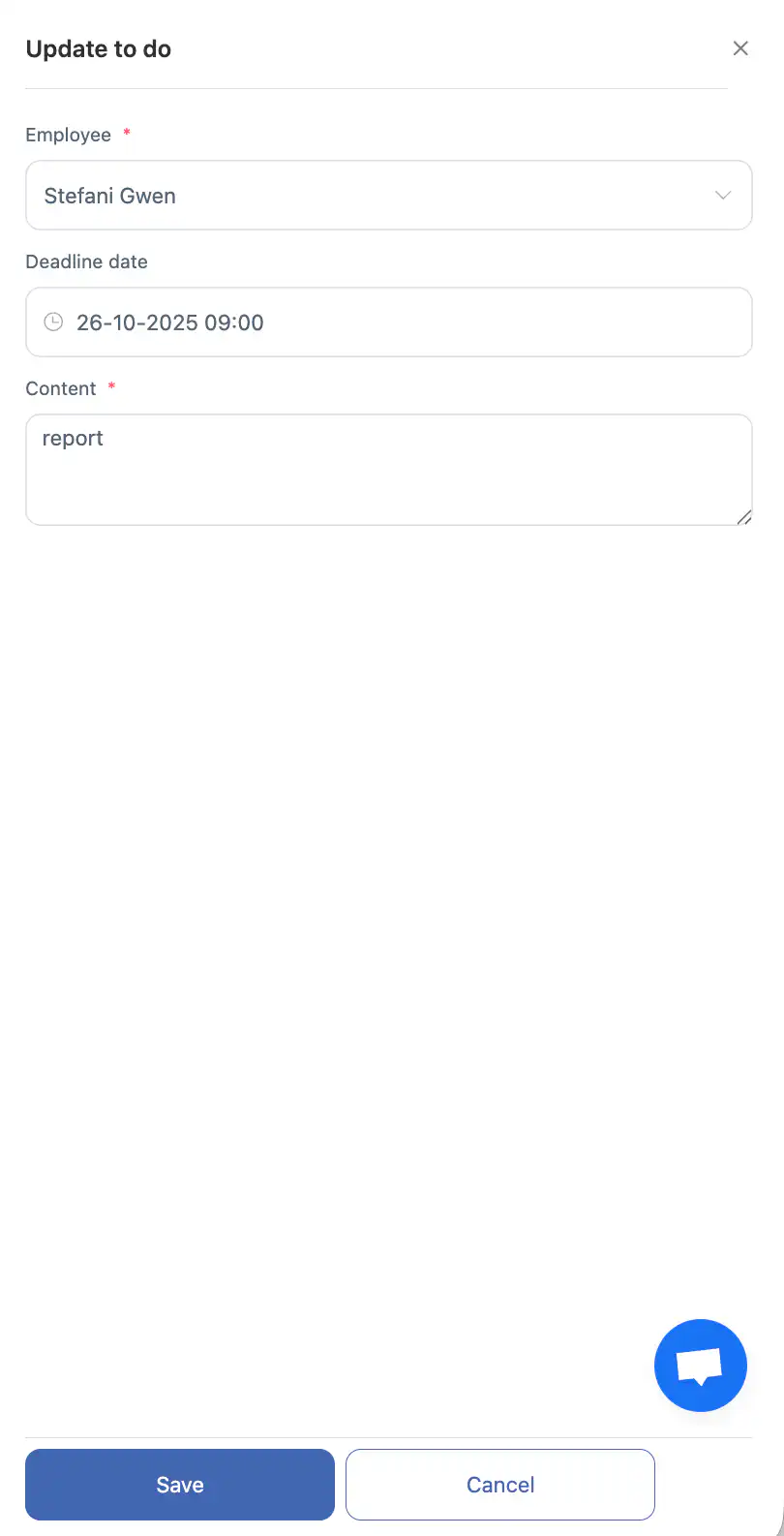
In the side panel, you can change:
-
the assigned employee;
-
the deadline date;
-
the description.
-
-
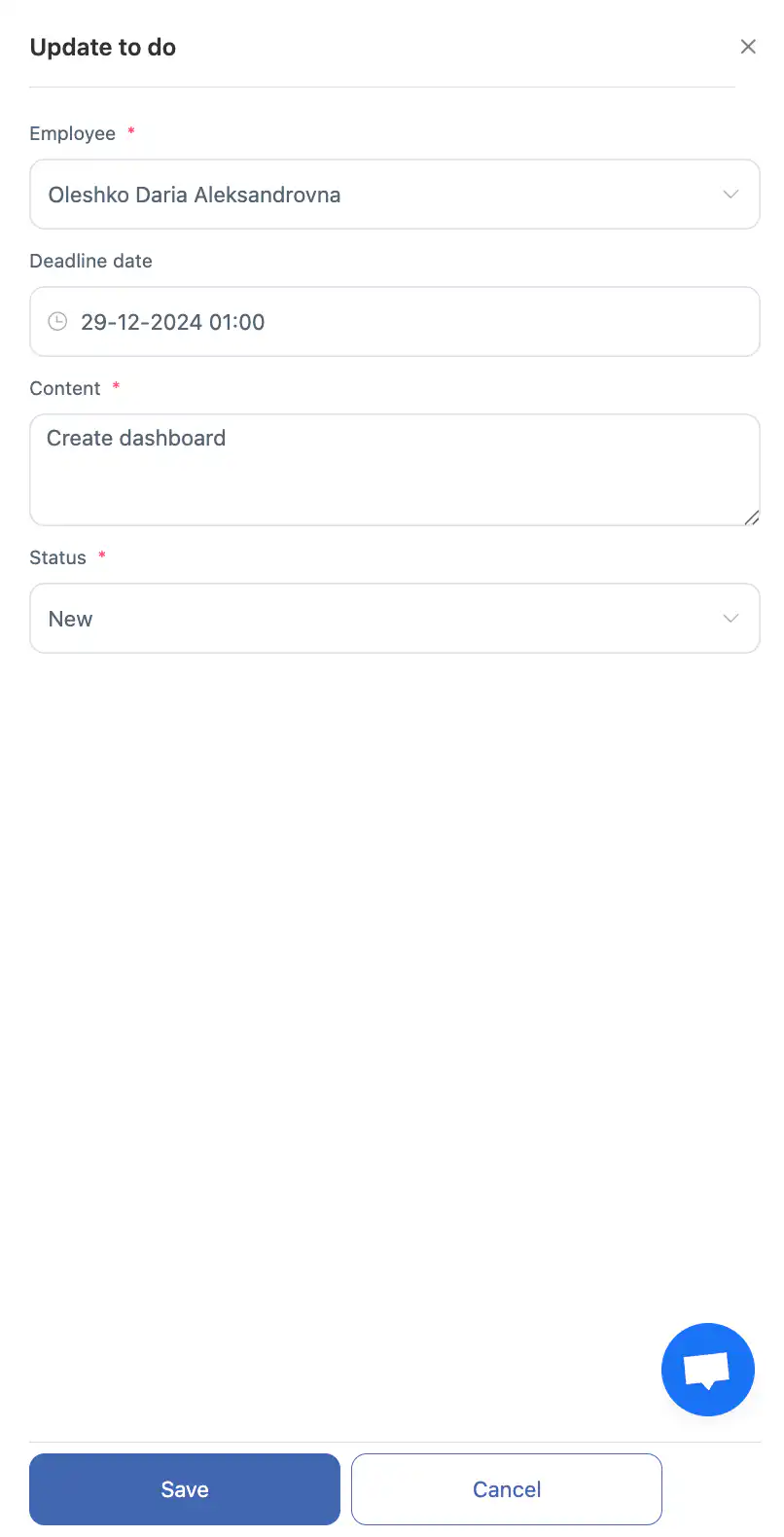
If the To Do is assigned to you, you can also change its status from New to Completed.
-
Click “Save” or “Cancel.”
Deleting an Active To Do
-
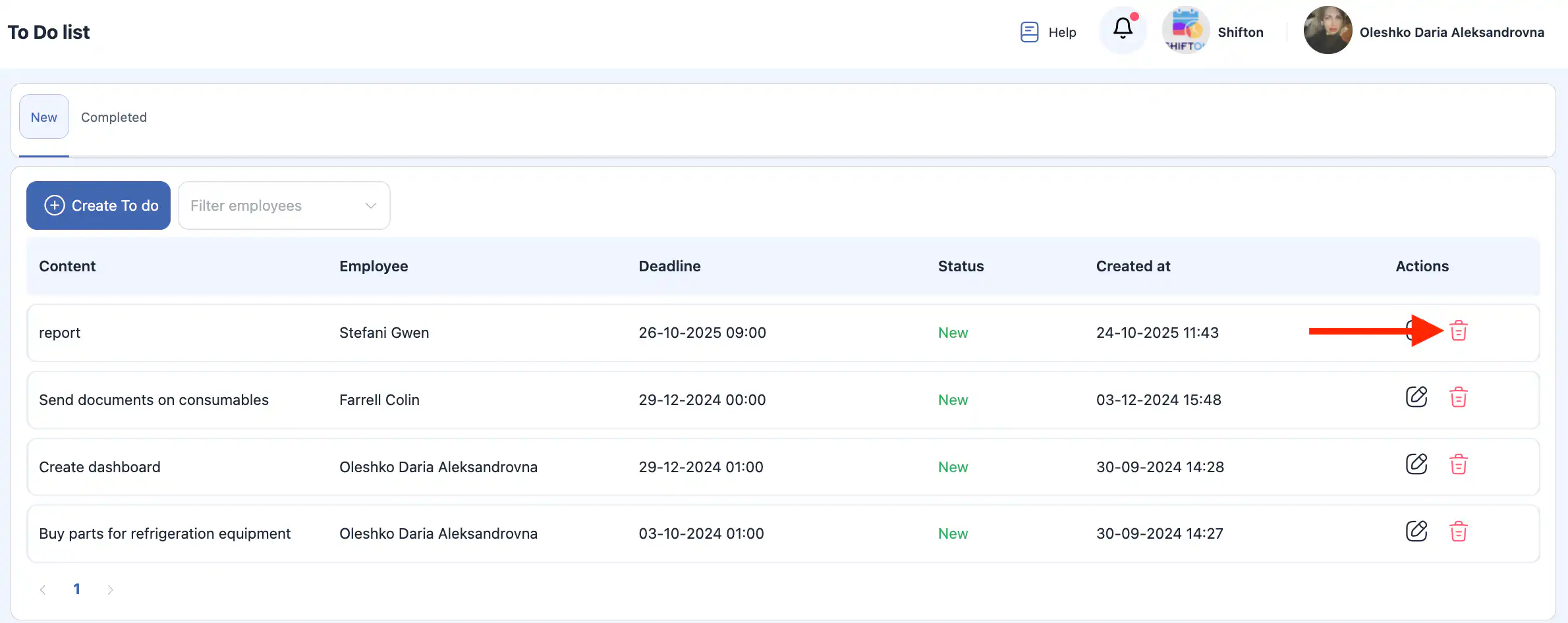
Click the trash icon next to the To Do.
-
Confirm or cancel the action in the pop-up window.
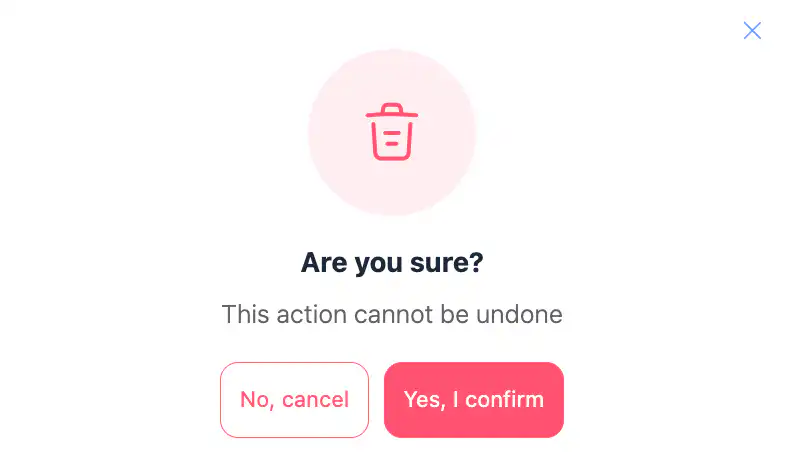
This action is irreversible.
Completed To Dos
This section displays all To Dos that have been completed.
You can filter them by one or multiple employees.
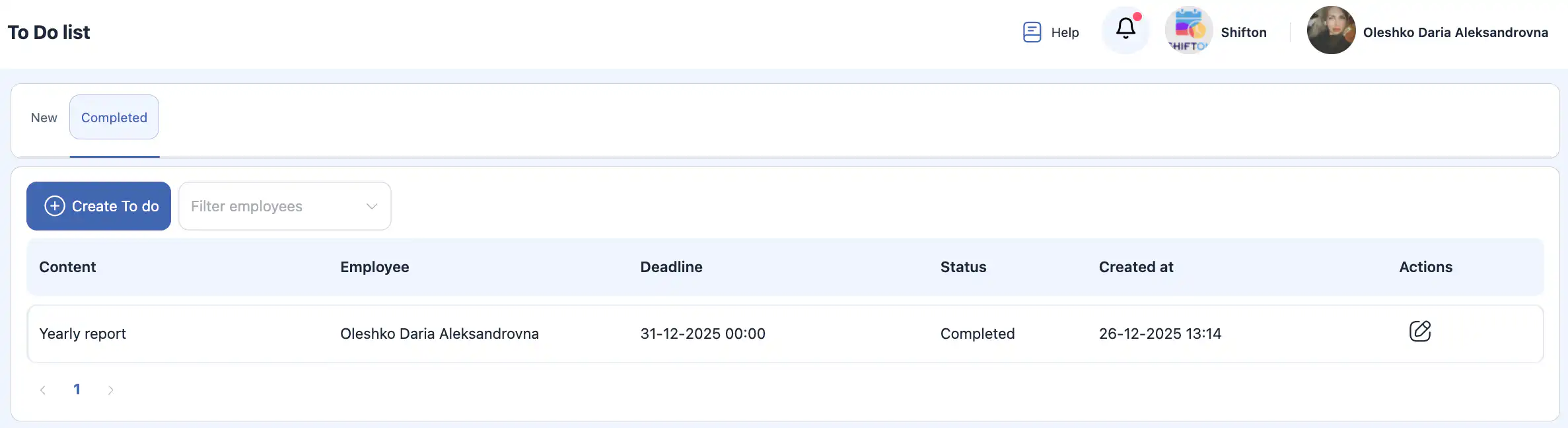
If a To Do was assigned to you, you can change its status from Completed back to New.
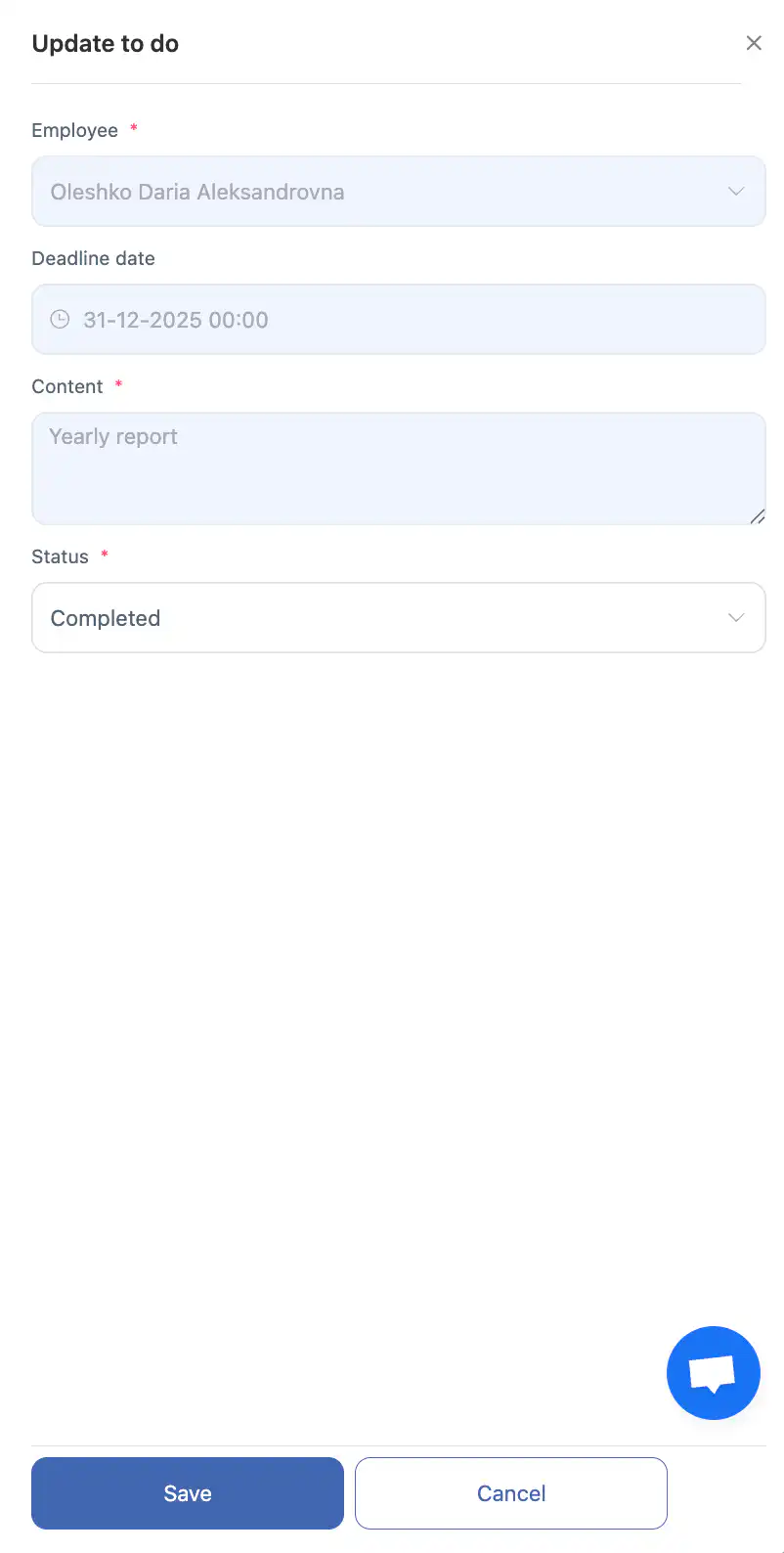
In this case, the task will move to the Active To Dos section.
Dashboard
The dashboard shows an overview of To Dos:
-
new To Dos;
-
To Dos with an overdue deadline;
-
completed To Dos.
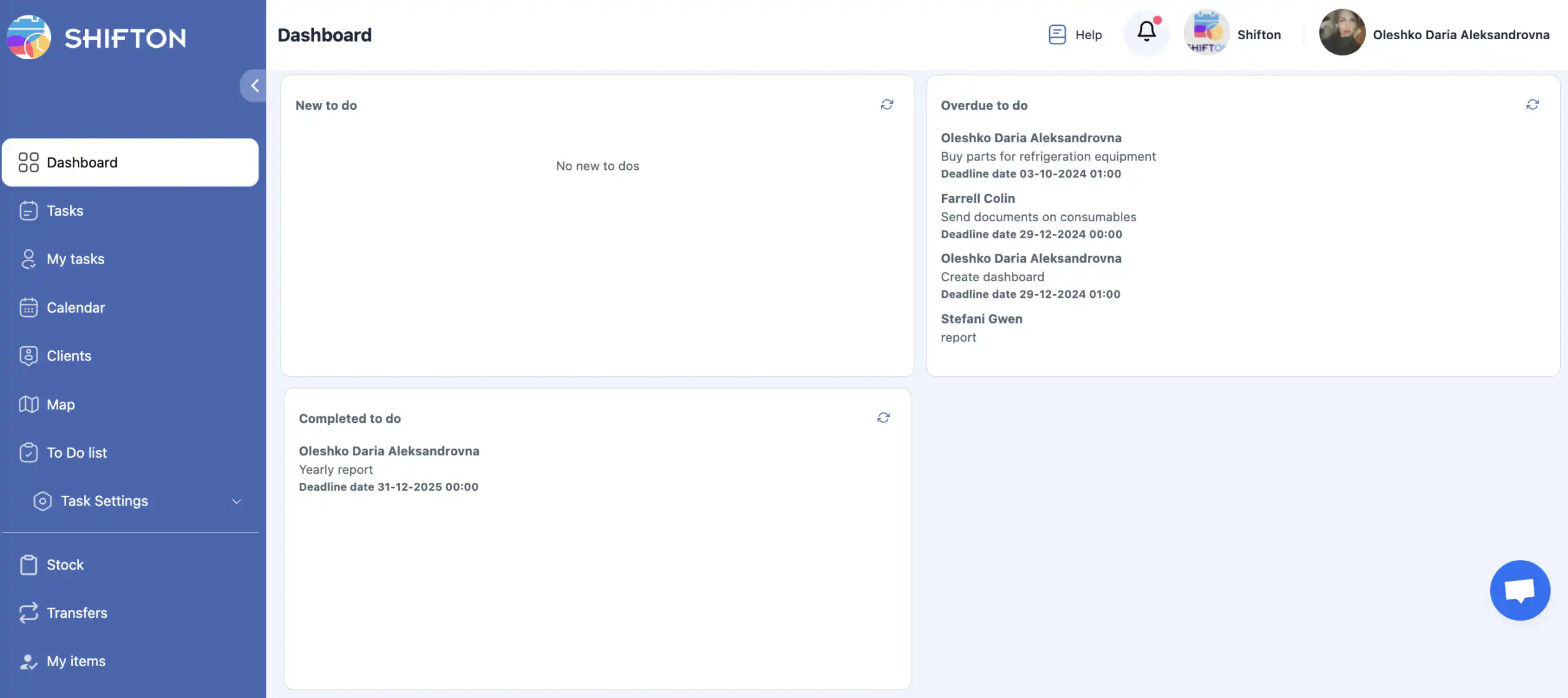
This provides a quick overview of the current workload and progress.
Frequently Asked Questions (FAQ)
Q: What is a To Do in the Tasks module?
A: A To Do is a simple text-based task assigned to an employee with a description and a deadline. It does not require additional configuration and is part of the Tasks module.
Q: Where do I find the To Do feature?
A: Open the To Do List section in the side menu of the Tasks module. You can view, create, edit, or delete To Dos there.
Q: How do I create a new To Do?
A: Click “Create To Do”, select the employee, set a deadline, enter a description, and click Save. To cancel, click Cancel.
Q: Can I change who a To Do is assigned to?
A: Yes. Click the pencil icon next to an active To Do to edit the assigned employee, deadline, or description in the side panel.
Q: How do I delete a To Do?
A: Click the trash icon next to the To Do and confirm or cancel the deletion. This action is irreversible.
Q: What are “Active” and “Completed” To Dos?
A:
-
Active To Dos are not yet finished.
-
Completed To Dos have been marked as finished and are shown in a separate tab. Both views support filtering by employee.
Q: Can I reopen a completed To Do?
A: Yes. If a To Do was completed by you, you can change its status back to New, and it will return to the Active To Dos list.
Q: How can I filter To Dos by employee?
A: Use the employee filter at the top of the list to show To Dos assigned to one or more employees. Click the X next to a name to clear a filter.
Q: Is there a dashboard for To Dos?
A: Yes. The To Do dashboard shows an overview of:
-
new To Dos;
-
To Dos with overdue deadlines;
-
completed To Dos.
Q: Do To Dos affect task assignments?
A: A To Do is separate from regular tasks — it’s a simple action item. It does not replace full task scheduling but helps track smaller items or reminders.