

 English
  Español
  Português
  Deutsch
  Français
  Italiano
  日本語
日本語  中文
中文  हिन्दी
  עברית
עברית  العربية
  한국어
한국어  Nederlands
  Polski
  Türkçe
  Українська
  Русский
  Magyar
  Română
  Български
  Čeština
  Ελληνικά
  Svenska
  Dansk
Dansk  Norsk
Norsk  Suomi
Suomi  Bahasa
  Tiếng Việt
  Tagalog
  ไทย
ไทย  Latviešu
  Lietuvių
  Eesti
Eesti  Slovenčina
  Slovenščina
  Hrvatski
  Македонски
  Қазақ
Қазақ  Azərbaycan
  Afrikaans
  বাংলা
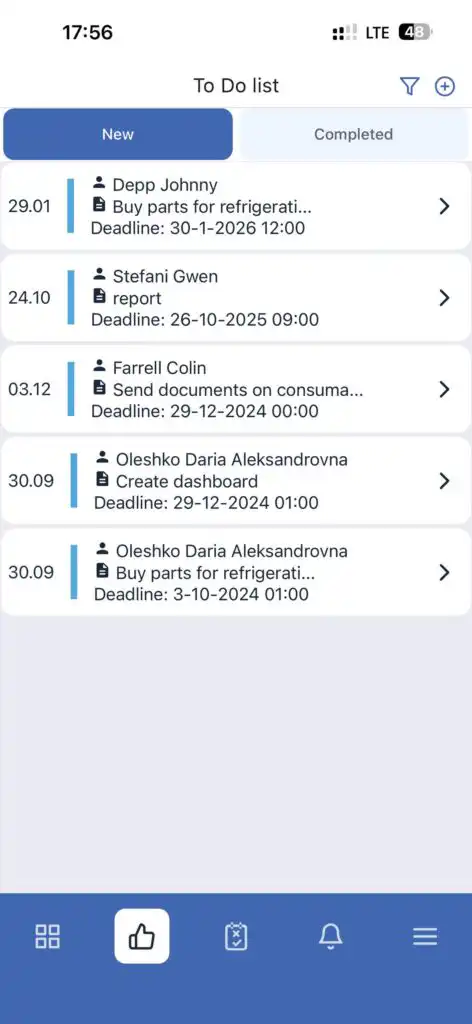
বাংলা In the mobile app, in addition to standard tasks, there is To-Do — assignments with text descriptions and deadlines.
Viewing To-Do
- Go to the To-Do section in the app.
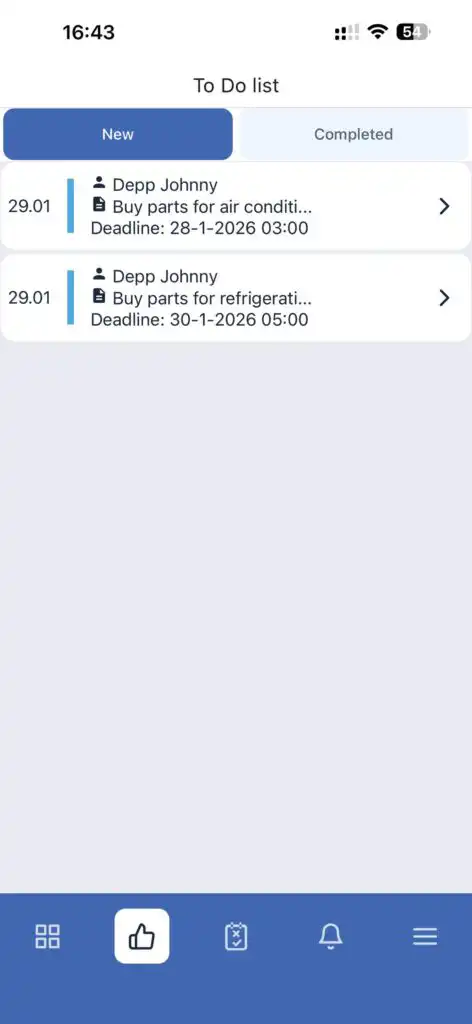
- The screen is divided into New and Completed assignments.
- Tap a To-Do to view its details.
- On the detail screen, you can:
- See the text description
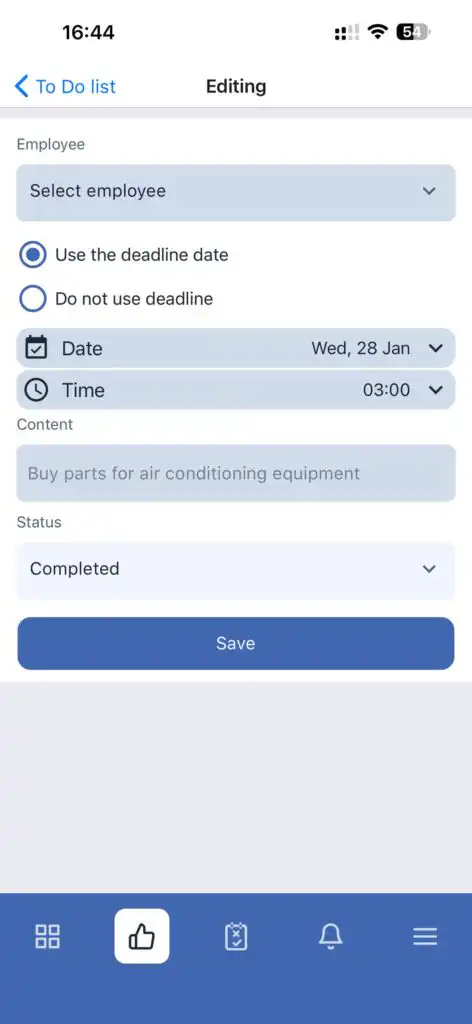
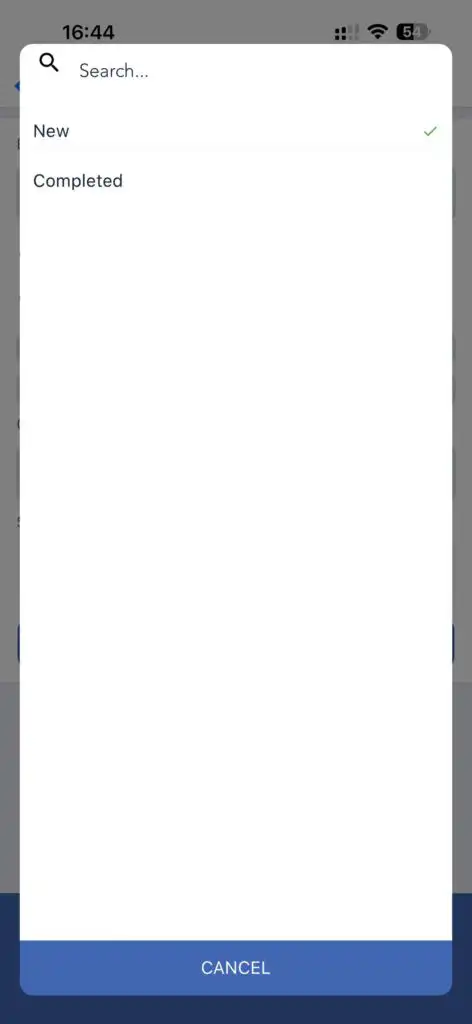
- Change status from New to Completed
- See the text description
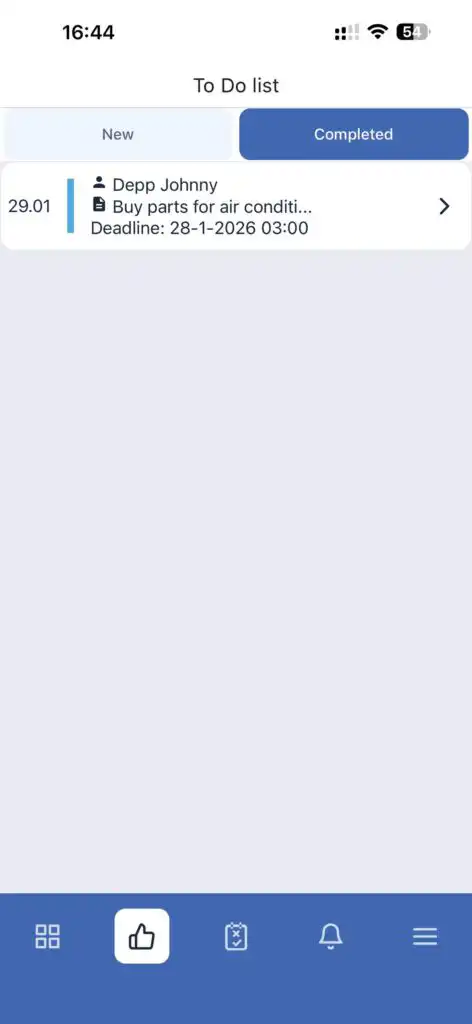
To view completed To-Do, go to the To-Do — Completed section.
Creating To-Do (Administrator or Owner Only)
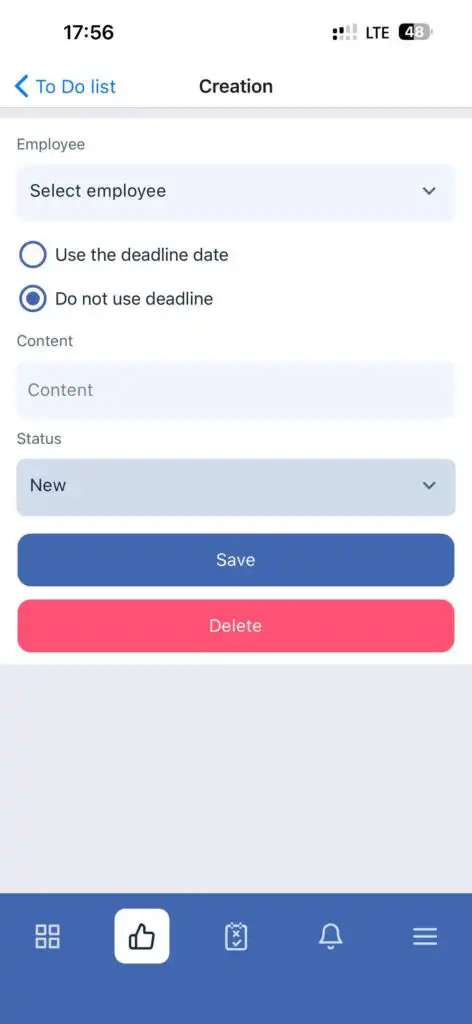
- Tap the + button in the To-Do section.
- Select the assignee.
- Decide whether to use a deadline.
- Add a comment if necessary.
- Tap Save.
Filtering To-Do (Administrator or Owner Only)
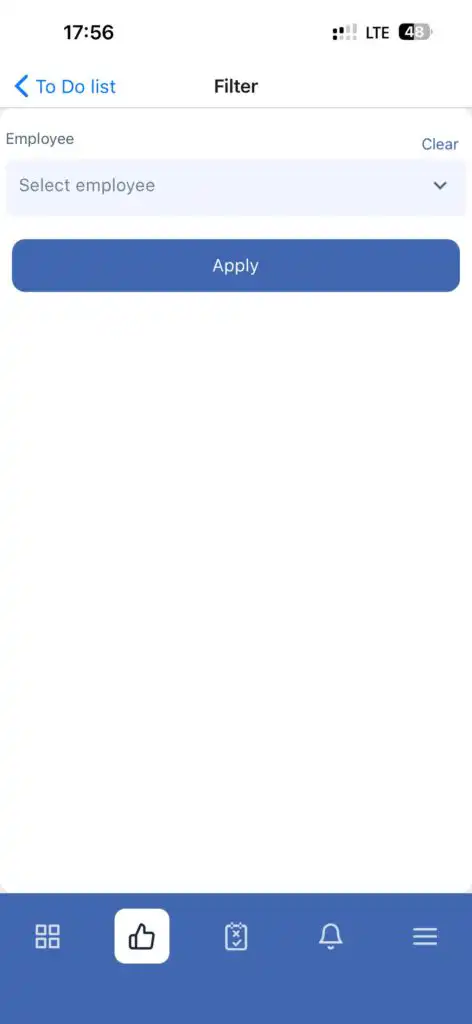
- Tap the filter icon.
- Select employees to display only the relevant To-Do assignments.
Deleting To-Do
To delete a To-Do, open it and tap the Delete button.
FAQ
Q: Who can create To-Do assignments?
A: Only administrators and company owners.
Q: Can I set a deadline for a To-Do?
A: Yes. You can enable or disable the deadline when creating a To-Do.
Q: How do I mark a To-Do as completed?
A: Open the To-Do and change its status from New to Completed.
Q: Where can I find completed To-Do?
A: In the To-Do — Completed section.
Q: Can I delete a To-Do?
A: Yes. Open the To-Do and tap Delete.
Q: Can To-Do be filtered by employee?
A: Yes, filtering is available only for administrators and owners via the filter icon.