

 English
  Español
  Português
  Deutsch
  Français
  Italiano
  日本語
日本語  中文
中文  हिन्दी
  עברית
עברית  العربية
  한국어
한국어  Nederlands
  Polski
  Türkçe
  Українська
  Русский
  Magyar
  Română
  Български
  Čeština
  Ελληνικά
  Svenska
  Dansk
Dansk  Norsk
Norsk  Suomi
Suomi  Bahasa
  Tiếng Việt
  Tagalog
  ไทย
ไทย  Latviešu
  Lietuvių
  Eesti
Eesti  Slovenčina
  Slovenščina
  Hrvatski
  Македонски
  Қазақ
Қазақ  Azərbaycan
  Afrikaans
  বাংলা
বাংলা Task Statuses: Standard Workflow & Advanced Customization
Task statuses help you track every step of a job — from the moment it appears in the system to its successful completion.
Shifton includes a default status workflow used by most companies, while also allowing you to configure a more detailed status process if your operations require it.
✅ Default Status Workflow
By default, every task follows three key stages:
| Status | Visibility | Purpose |
|---|---|---|
| TO DO | hidden from technicians | Internal system start point that defines the first selectable statuses |
| Check In | visible | Technician has started the job |
| Check Out | visible | Technician has completed the job |
Standard Workflow
This workflow is ideal for a simple process:
start task → complete task → move to next one.
✨ Advanced Status Workflow (Optional)
If your processes include:
-
job acceptance,
-
travel to client,
-
approvals and confirmations,
-
temporary pauses,
-
return visits or warranty work,
you may want to expand the workflow with additional statuses.
Example of an extended process
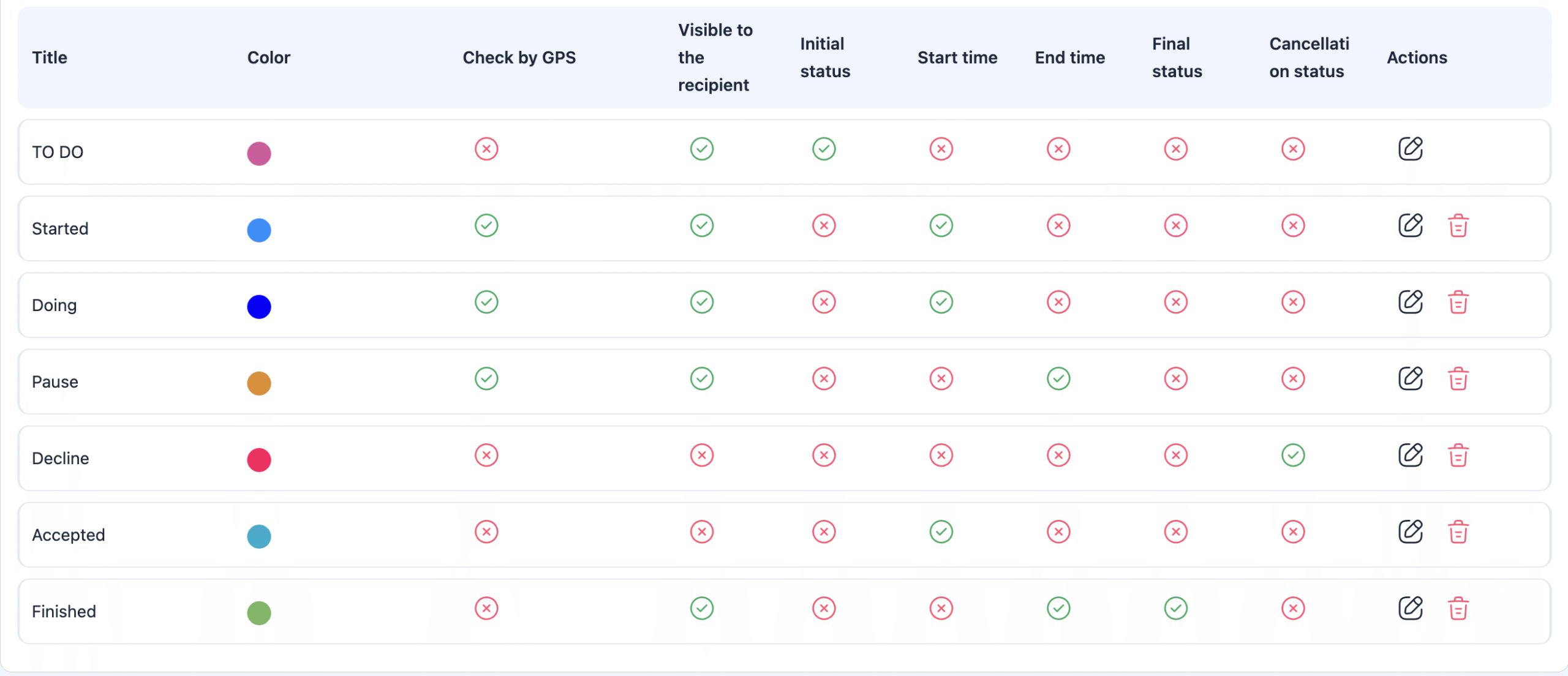
🧩 TO DO — Internal Hidden Status
Even in advanced workflows, TO DO remains hidden and is used only to define the first visible statuses.
Available choices from TO DO:
-
Accept — technician takes the job into work
-
Decline — technician rejects the job
❌ Decline is a final status — no further actions are available.
🔄 Main Execution Flow
Once the job is Accepted:
-
Doing = technician is actively working
Next step is a single choice from available transitions:
⏸ Pause — Temporary Suspension
Used when the technician must stop the task for a period of time:
-
waiting for parts,
-
client unavailable,
-
scheduling a return visit.
Allowed transitions from Pause:
-
Started — preparing to resume execution
-
Finish — task can be closed at this stage
🏁 Finish / Check Out — Final Status
The job has been fully completed by the technician.
Optionally, the task can be reopened by an administrator if further work is needed (e.g. warranty adjustments).
Creating special statuses for return visits is recommended:
-
Warranty work
-
Second visit
-
Follow-up required
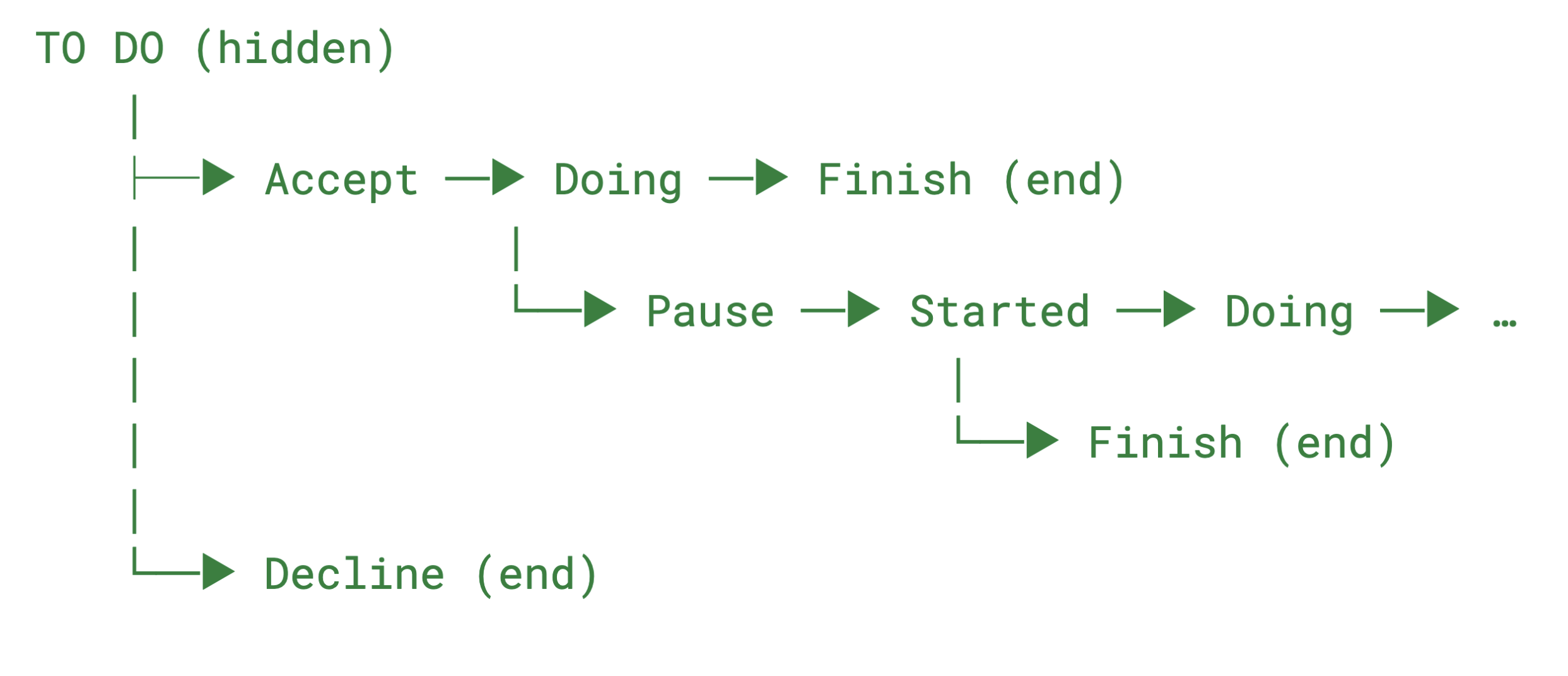
📊 Extended Workflow Example Diagram
🎯 Choosing the Right Workflow
| Use the Default Workflow When | Use the Advanced Workflow When |
|---|---|
| Tasks are simple and linear | Tasks have multiple execution steps |
| Office-based work | Field service with travel |
| Every task can be completed in one visit | Delays, returns, and approvals happen |
| No need for task confirmation | Confirmers or dispatchers are involved |
🛠 How to Configure Advanced Statuses
1️⃣ Go to Task Settings → Statuses
2️⃣ Add custom statuses
3️⃣ Define allowed transitions for each status
4️⃣ Make sure each status leads to a logical next step (except final statuses)
✅ Benefits of a Well-Configured Workflow
-
Technicians always know what action to take next
-
Dispatchers monitor progress in real time
-
Managers gain insight into task performance and field operations
-
Workflows become structured, automated, and predictable
Frequently Asked Questions (FAQ)
Q: What are task statuses in Shifton?
A: Task statuses help track every step of a job — from the moment it appears in the system to its successful completion.
Q: What is the default task workflow?
A: The default status workflow includes three main stages:
-
TO DO (internal start point),
-
Check In (when the technician starts the job),
-
Check Out (when the technician completes the job).
Q: What does the TO DO status mean?
A: “TO DO” is an internal, hidden status used to define the first visible statuses technicians can choose from.
Q: Can the default workflow be extended?
A: Yes — if your process requires steps like job acceptance, travel, approvals, pauses, follow-ups, or warranty visits, you can configure an advanced status workflow with custom statuses.
Q: What is the advanced workflow example?
A: One extended workflow example could be:TO DO → Accept → Doing → (Pause) → Finish, reflecting acceptance, execution, temporary stops, and completion.
Q: What does the Accept status mean?
A: “Accept” means the technician has taken the job into work. It transitions from TO DO and is part of an expanded workflow.
Q: What does Doing indicate?
A: “Doing” means the technician is actively working on the task after acceptance.
Q: When should the Pause status be used?
A: “Pause” is used when a technician must temporarily stop working — for example, while waiting for parts, client unavailability, or planning a return visit.
Q: What happens when a task reaches Check Out / Finish?
A: When a task is moved to Check Out / Finish, it is fully completed by the technician. Some workflows also allow administrators to reopen a finished task if further work is needed.
Q: Can I customize task statuses?
A: Yes — you can configure advanced workflows by creating custom statuses and defining allowed transitions to reflect your company’s real process.
Q: Why should I use an advanced workflow?
A: Advanced task workflows help represent real field processes with intermediate steps (e.g., acceptance, pauses, follow-ups), making monitoring and execution more flexible and accurate.