

 English
  Español
  Português
  Deutsch
  Français
  Italiano
  日本語
日本語  中文
中文  हिन्दी
  עברית
עברית  العربية
  한국어
한국어  Nederlands
  Polski
  Türkçe
  Українська
  Русский
  Magyar
  Română
  Български
  Čeština
  Ελληνικά
  Svenska
  Dansk
Dansk  Norsk
Norsk  Suomi
Suomi  Bahasa
  Tiếng Việt
  Tagalog
  ไทย
ไทย  Latviešu
  Lietuvių
  Eesti
Eesti  Slovenčina
  Slovenščina
  Hrvatski
  Македонски
  Қазақ
Қазақ  Azərbaycan
  Afrikaans
  বাংলা
বাংলা Skills allow you to identify employees who have specific abilities required to complete tasks.
When creating a task, you can specify the required skills, and only employees who have these skills assigned will appear in the available list.
An employee can have one or multiple skills assigned.
When creating a task, you can also specify one or several required skills.
Examples of Skill Usage
-
languages spoken by the client and the technician;
-
professional skills such as installation, repair, and similar.
How to Open the Skills Section
To manage skills:
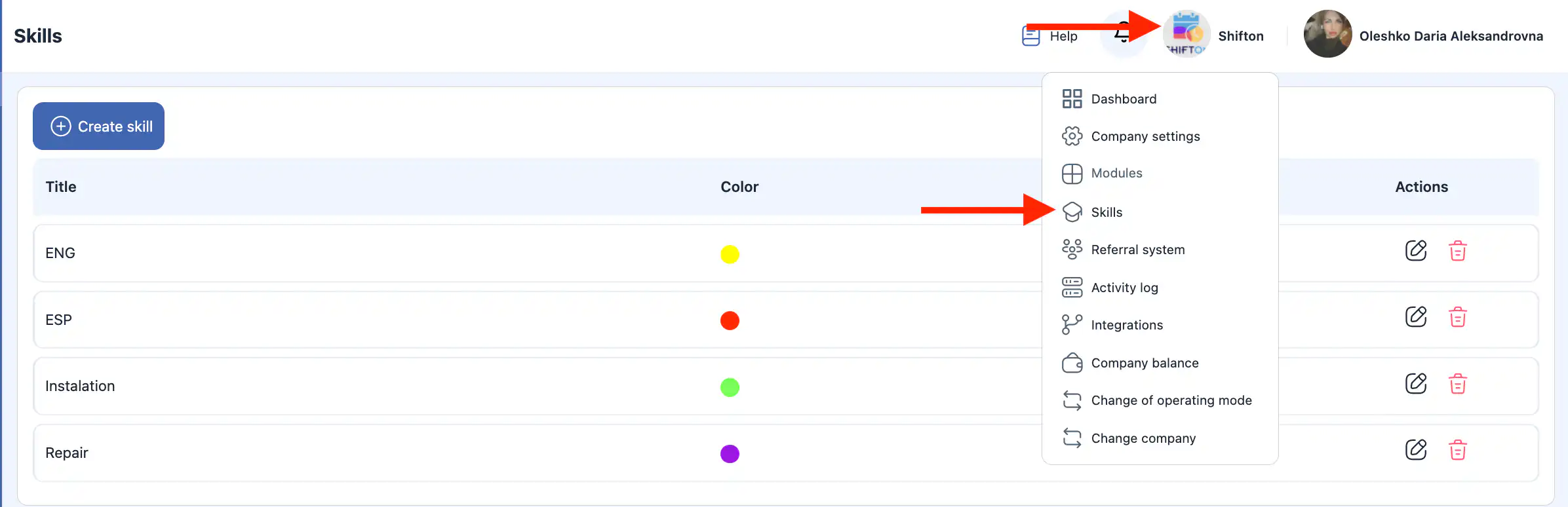
-
Click the company name at the top of the page.
-
Select “Skills.”
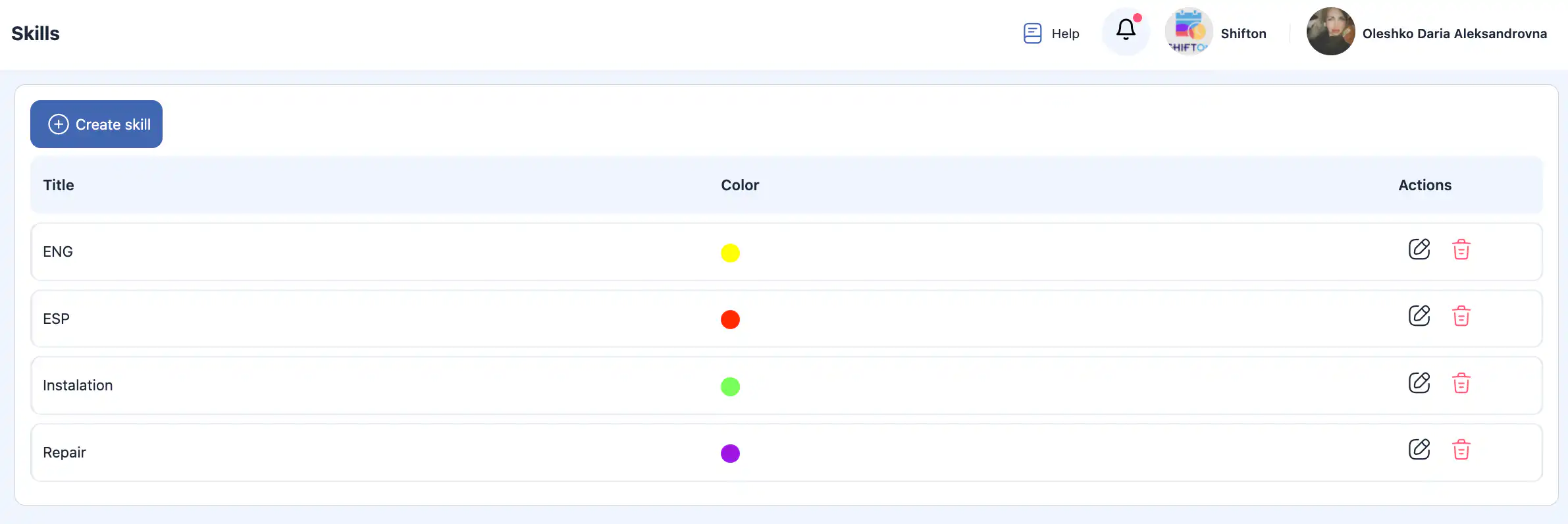
On this page, you can:
-
view existing skills;
-
create a new skill;
-
edit a skill;
-
delete a skill.
Creating a Skill
-
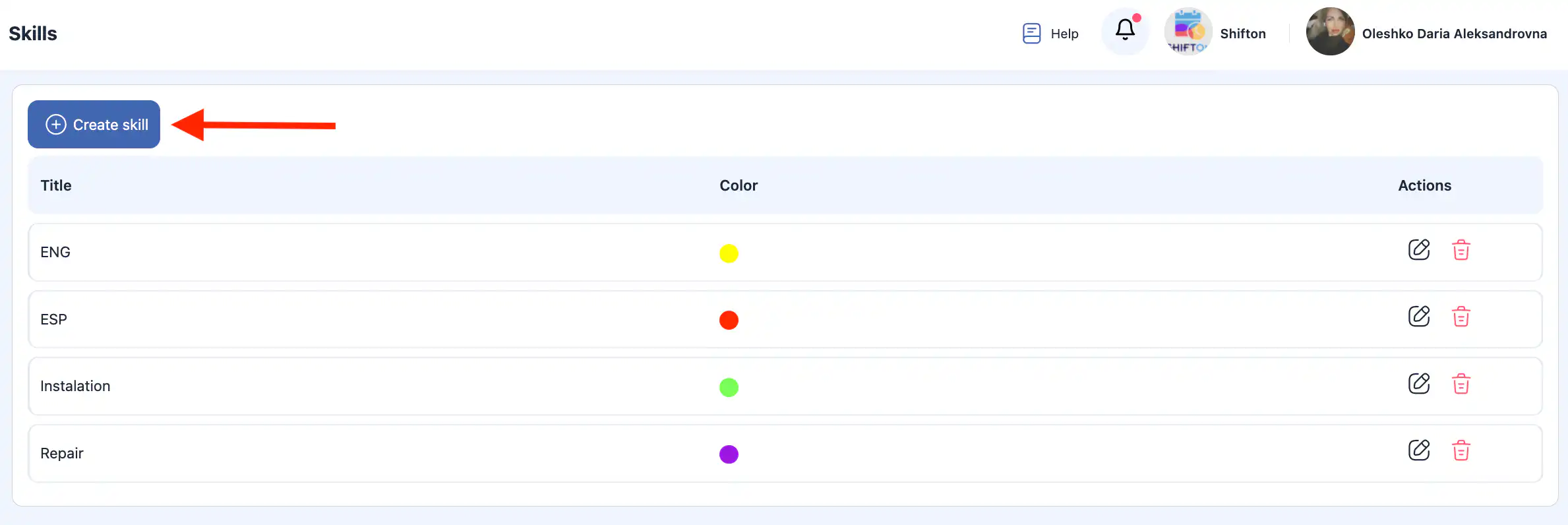
Click “Create Skill.”
-
In the side panel, specify:
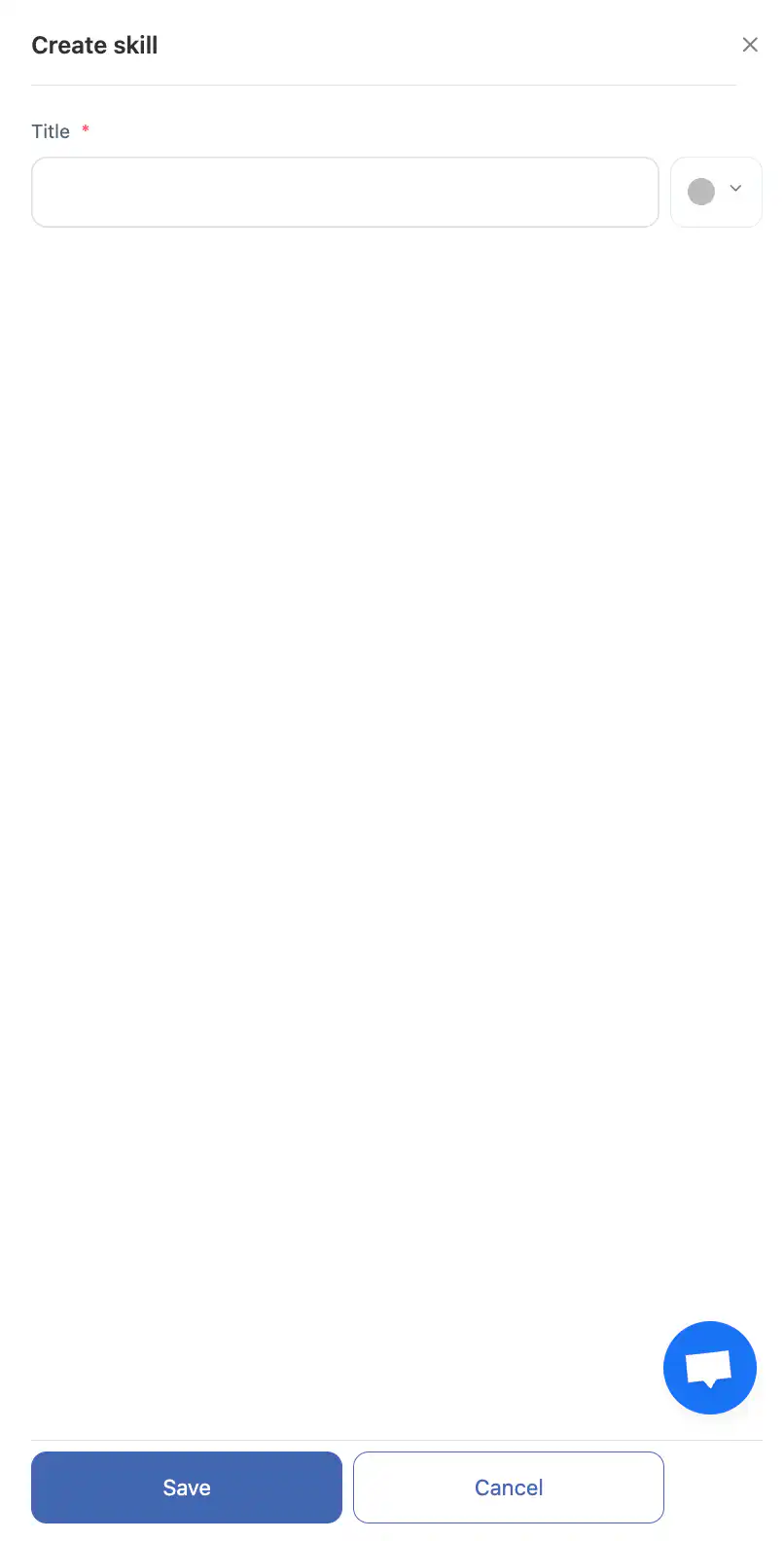
the skill name;
the skill color. -
Click “Save.”
-
To cancel creation, click “Cancel.”
Editing a Skill
-
Click the pencil icon next to the skill.
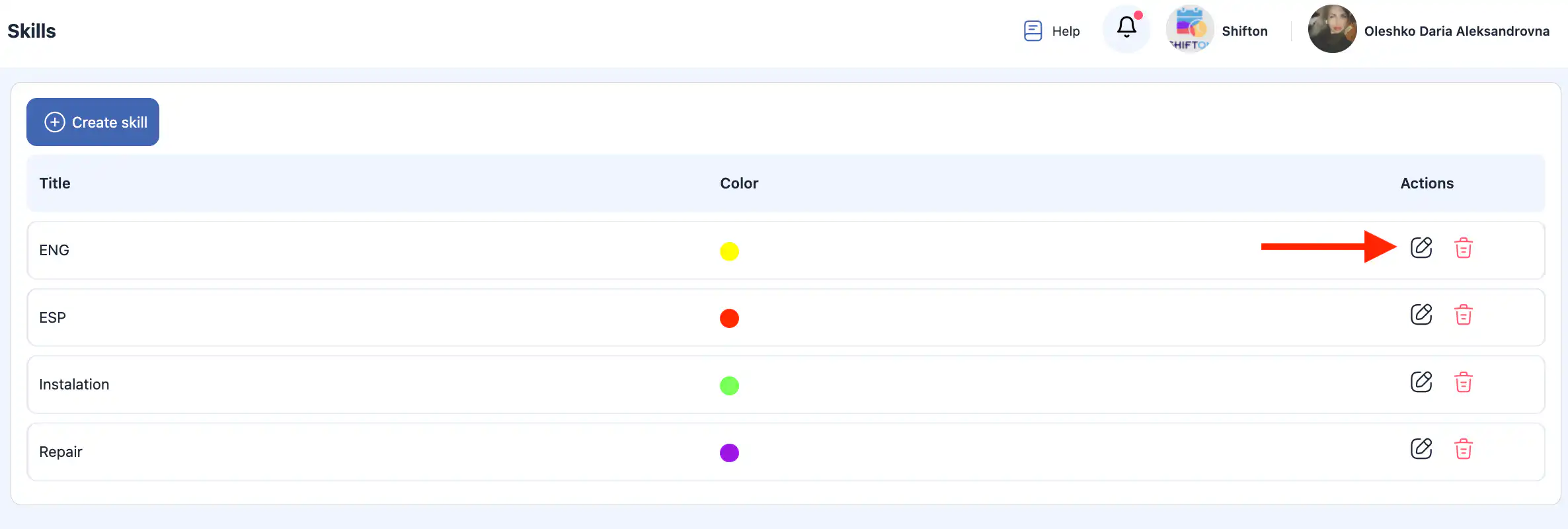
-
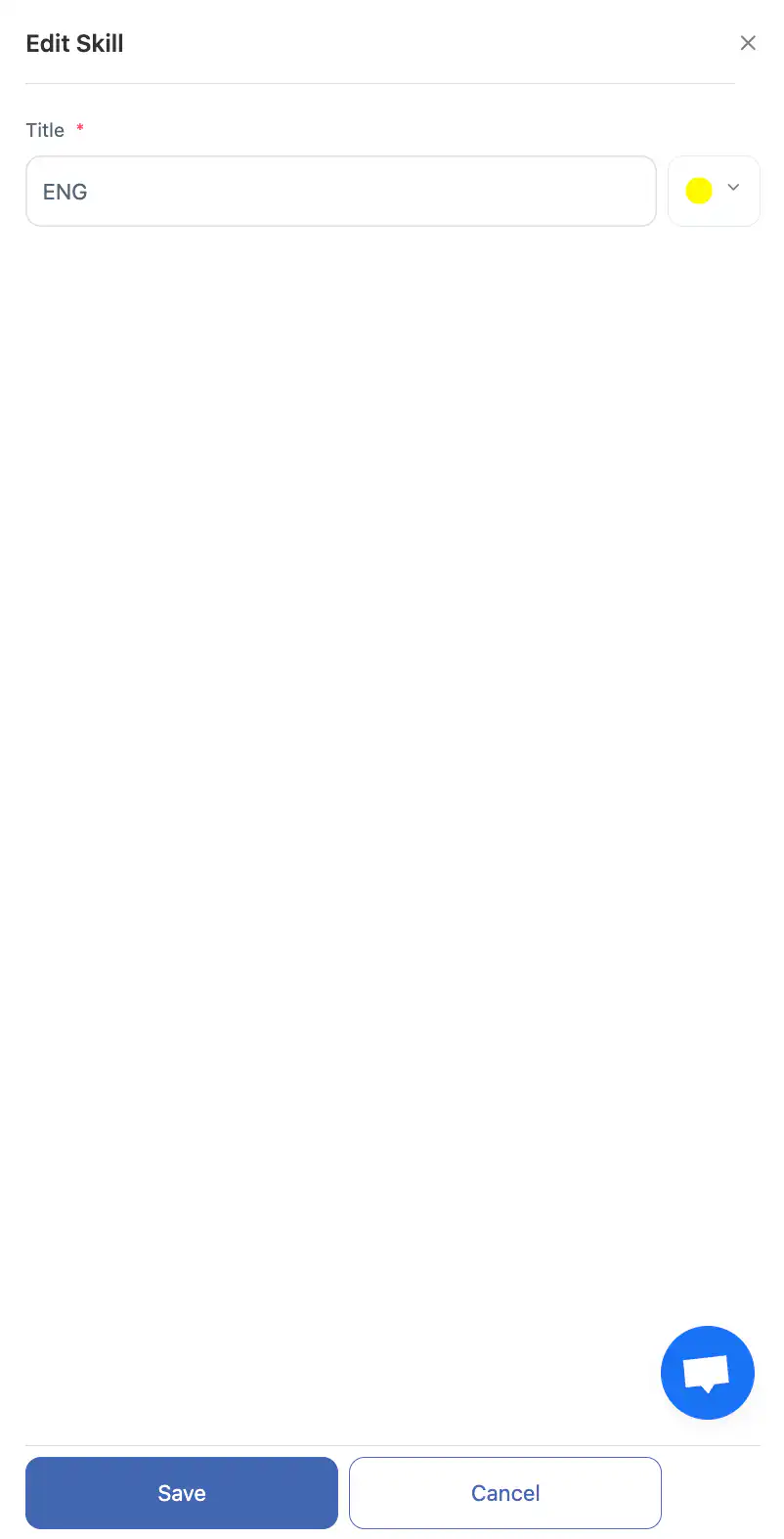
In the side panel, update:
the skill name;
the skill color.
-
Click “Save.”
-
To discard changes, click “Cancel.”
Deleting a Skill
-
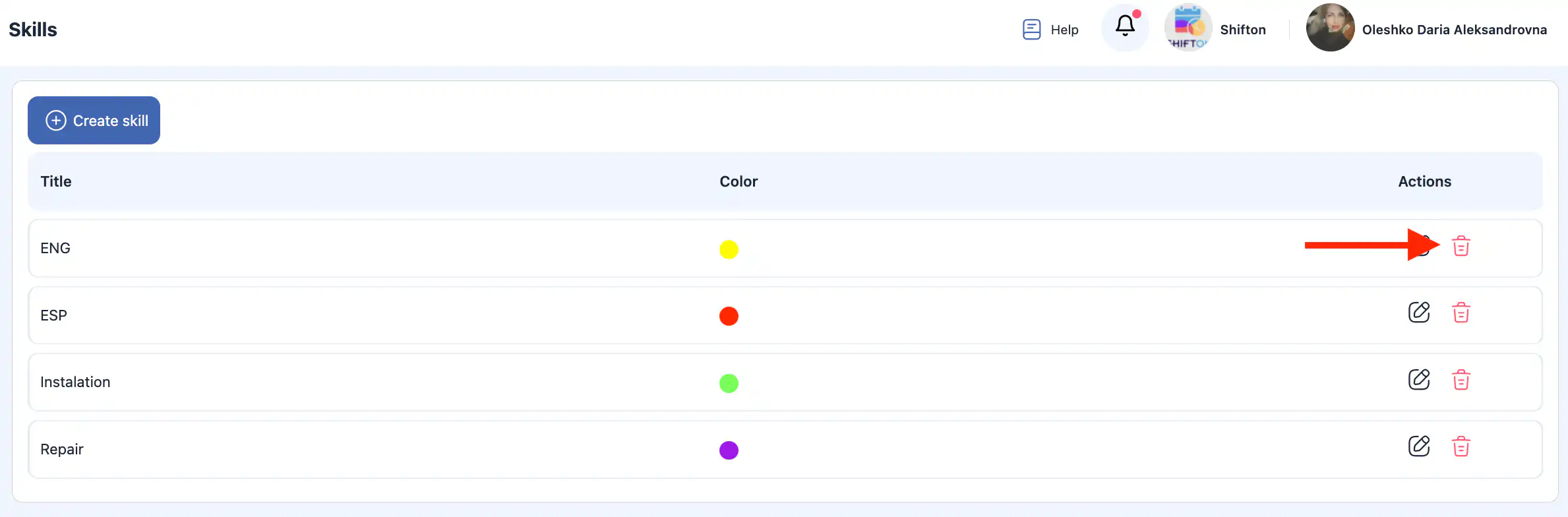
Click the trash icon next to the skill.
-
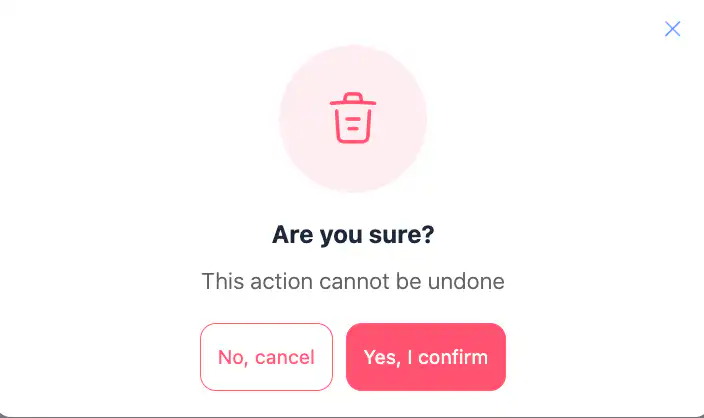
In the confirmation window, confirm deletion or cancel the action.
Assigning Skills to an Employee
Skills must be created before they can be assigned.
-
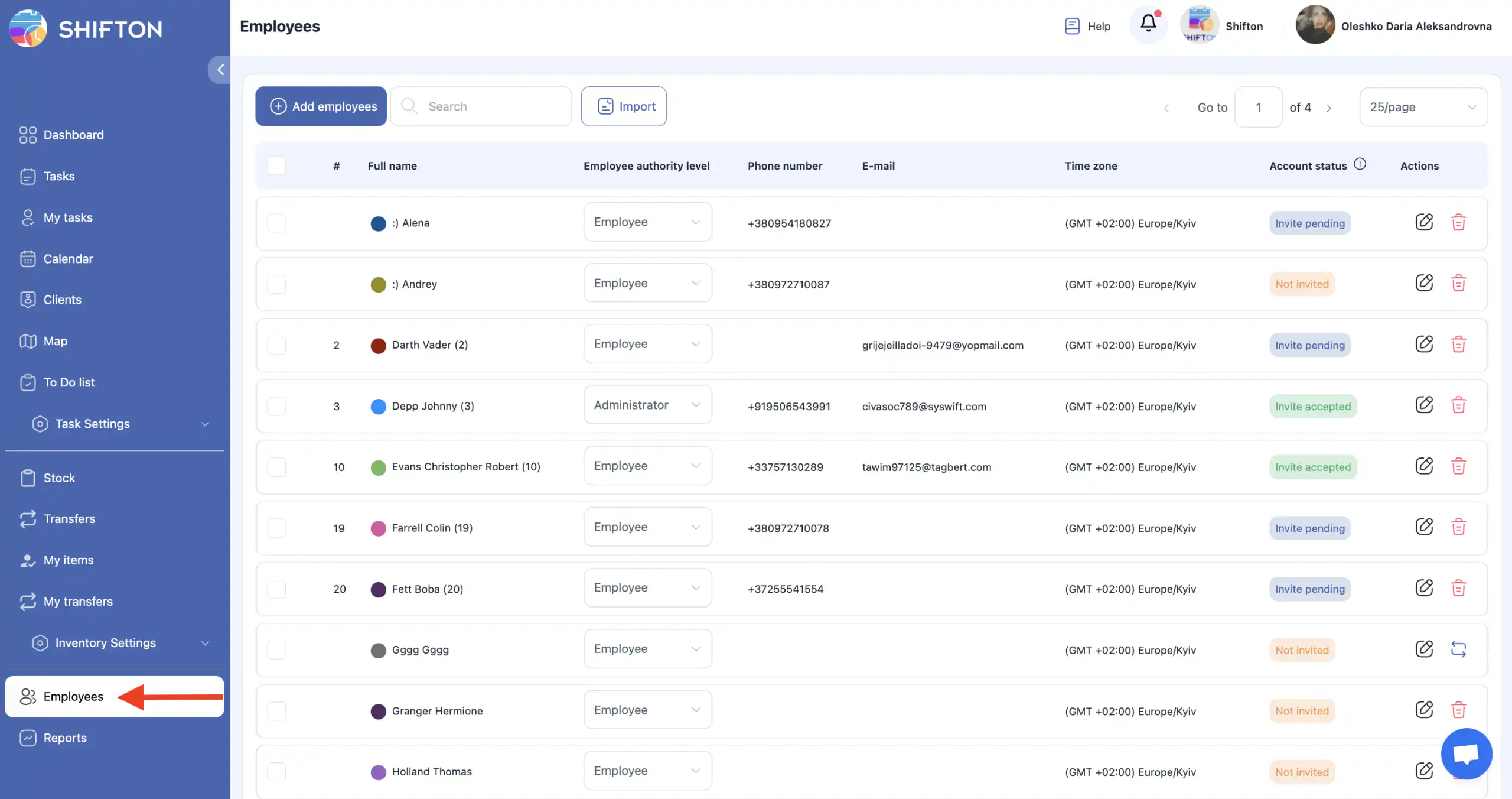
Go to the “Employees” section
(people icon in the side menu).
-
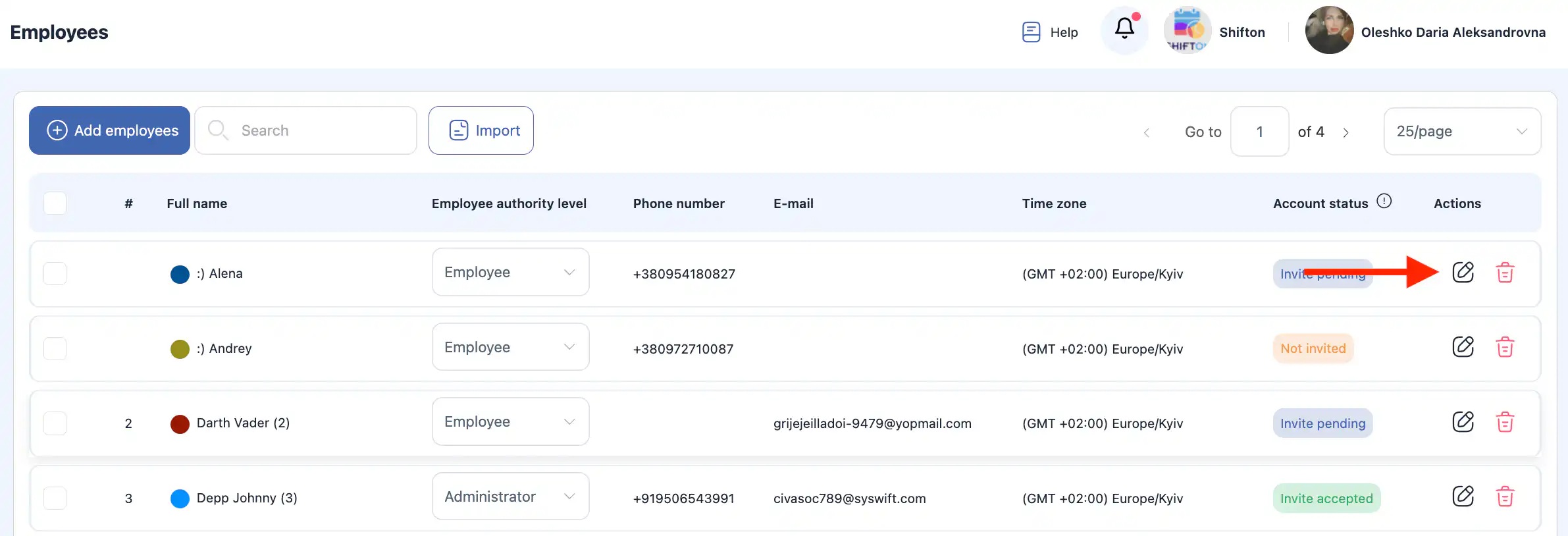
Click the pencil icon next to the required employee.
-
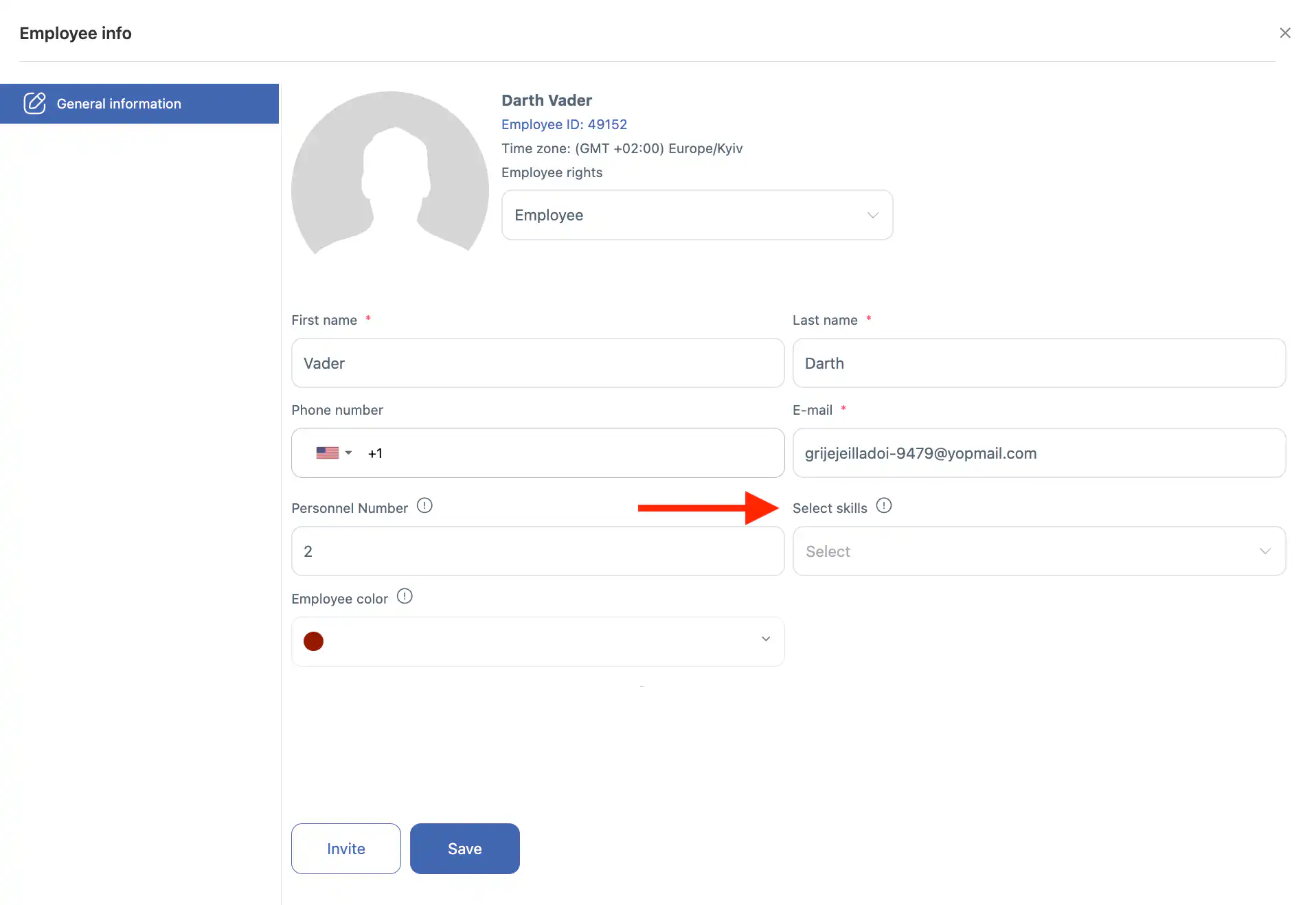
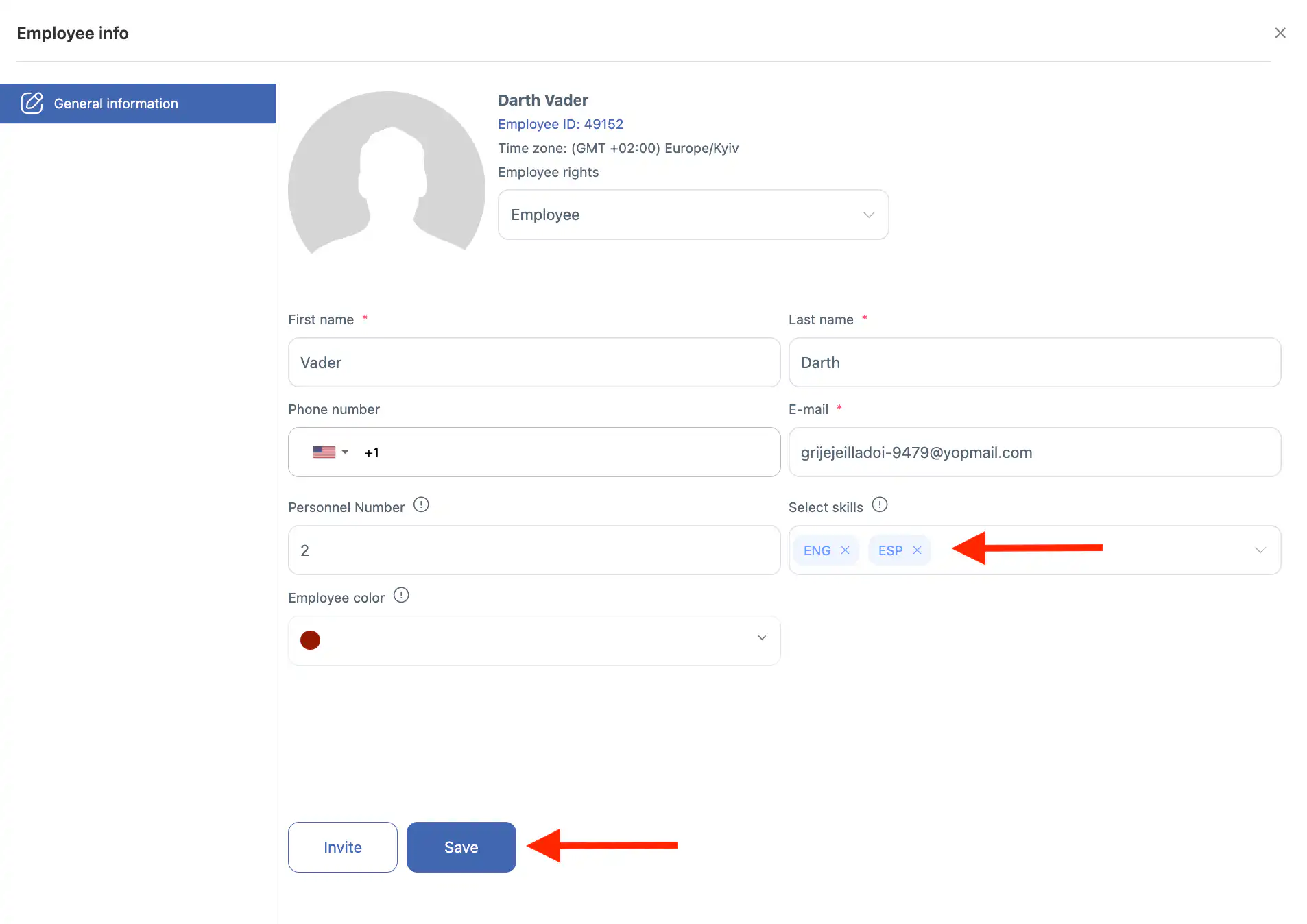
In the side panel, in the “Select Skills” field, add one or more skills.
-
Click “Save.”
If you do not click “Save,” the changes will not be applied.
Removing Assigned Skills
-
Go to the “Employees” section.
-
Click the pencil icon next to the employee.
-
In the “Select Skills” field, remove one or more skills.
-
Click “Save.”
If you do not click “Save,” the changes will not be saved.
Frequently Asked Questions (FAQ)
Q: What are skills in Shifton?
A: Skills represent specific abilities an employee has that may be required to complete certain tasks. They help match tasks with the right people.
Q: Why should I use skills when creating tasks?
A: When creating a task, you can specify required skills. Only employees who have those skills assigned will appear in the list of available workers, making assignment more accurate.
Q: Can an employee have more than one skill?
A: Yes. An employee can be assigned one or multiple skills depending on their abilities and responsibilities.
Q: How do I open the Skills section?
A: Click your company name at the top of the page, then select “Skills” from the menu.
Q: How do I create a new skill?
A: In the Skills section, click “Create Skill”, enter the skill name and select a color, then click “Save.”
Q: How do I edit an existing skill?
A: Click the pencil icon next to the skill you want to edit, update the name or color in the side panel, then click “Save.”
Q: How do I delete a skill?
A: Click the trash icon next to the skill and confirm deletion in the popup dialog. Deleted skills cannot be restored.
Q: How do I assign skills to an employee?
A: Go to the Employees section (people icon), click the pencil icon next to the employee, use the “Select Skills” field to add one or more skills, then click “Save.”
Q: What if I remove a skill from an employee?
A: Go to the employee’s profile, remove the skill in the “Select Skills” field, and then click “Save.” If you don’t click Save, changes won’t be applied.
Q: Do skills affect task assignment automatically?
A: Yes. When you specify required skills for a task or schedule, only employees with those skills will be shown as eligible.
Q: Is it possible to create skill categories or group skills?
A: Currently, skills are standalone and assigned to employees; grouping or hierarchical categories are not supported in this section.
Q: What color option is used for when creating a skill?
A: The color selected for a skill helps visually represent that skill in interfaces and reports where color coding applies.