

 English
  Español
  Português
  Deutsch
  Français
  Italiano
  日本語
日本語  中文
中文  हिन्दी
  עברית
עברית  العربية
  한국어
한국어  Nederlands
  Polski
  Türkçe
  Українська
  Русский
  Magyar
  Română
  Български
  Čeština
  Ελληνικά
  Svenska
  Dansk
Dansk  Norsk
Norsk  Suomi
Suomi  Bahasa
  Tiếng Việt
  Tagalog
  ไทย
ไทย  Latviešu
  Lietuvių
  Eesti
Eesti  Slovenčina
  Slovenščina
  Hrvatski
  Македонски
  Қазақ
Қазақ  Azərbaycan
  Afrikaans
  বাংলা
বাংলা Shifton provides several types of reports to analyze completed tasks and employee working time.
Task Report (PDF)
The task report is available in the “Tasks” section.
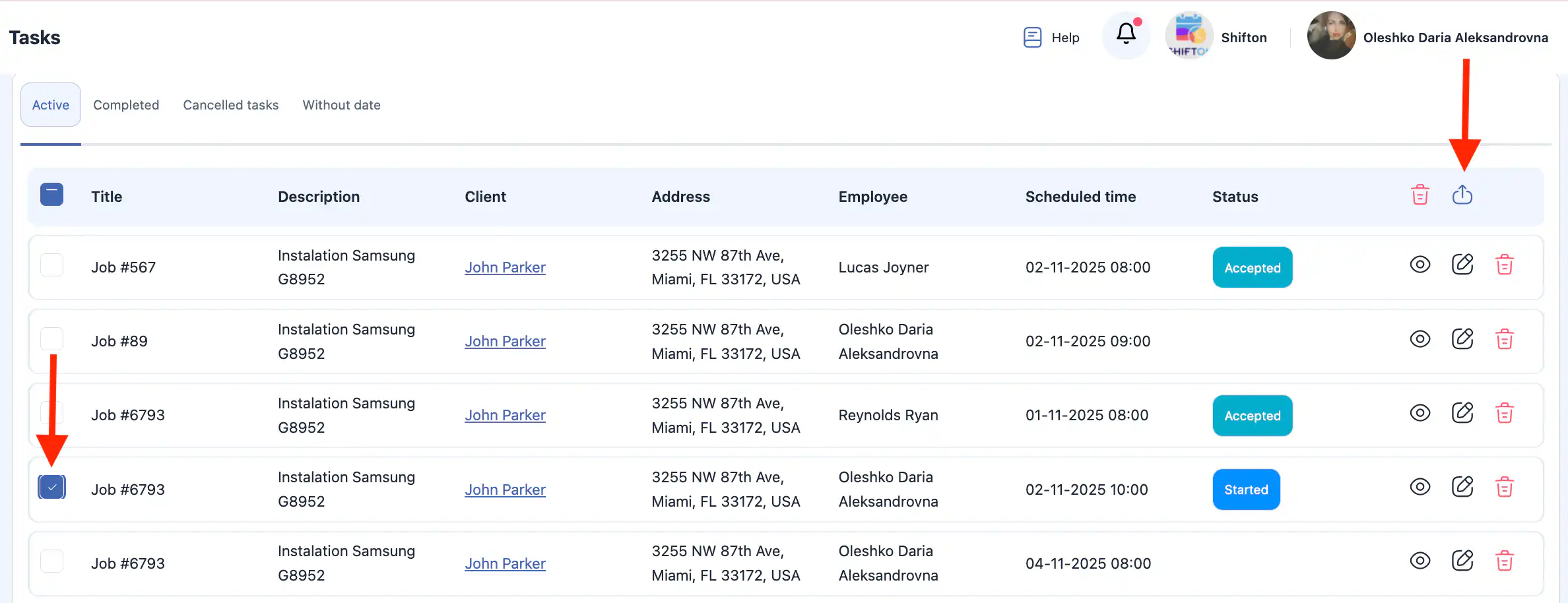
It is a PDF file that contains full information about the task, including:
- client details;
- task description;
- status and deadlines;
- completed checklist;
- company logo.
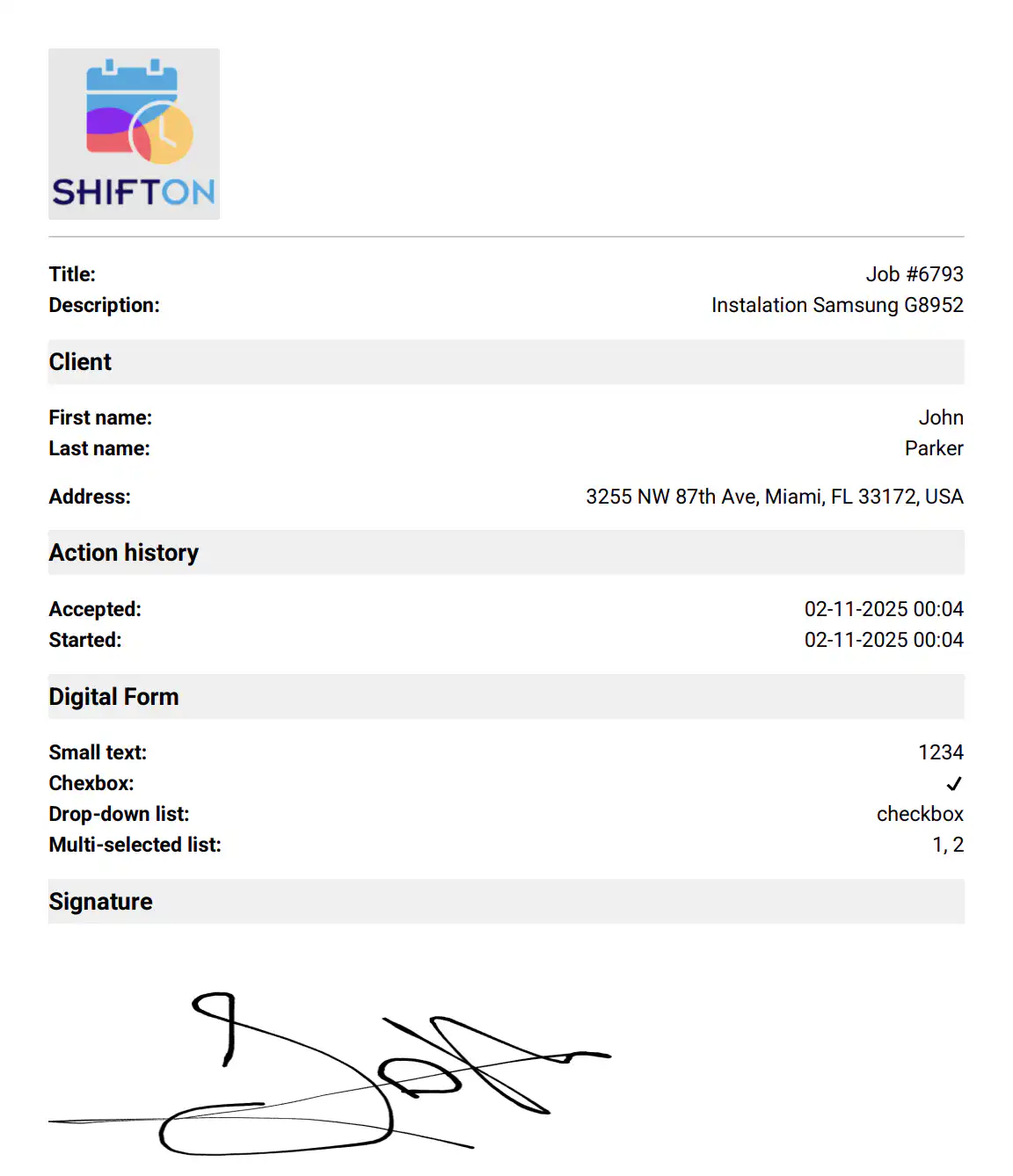
This report can be used for printing or sharing with a client.
Reports in the “Reports” Section
There is a “Reports” section in the side menu.
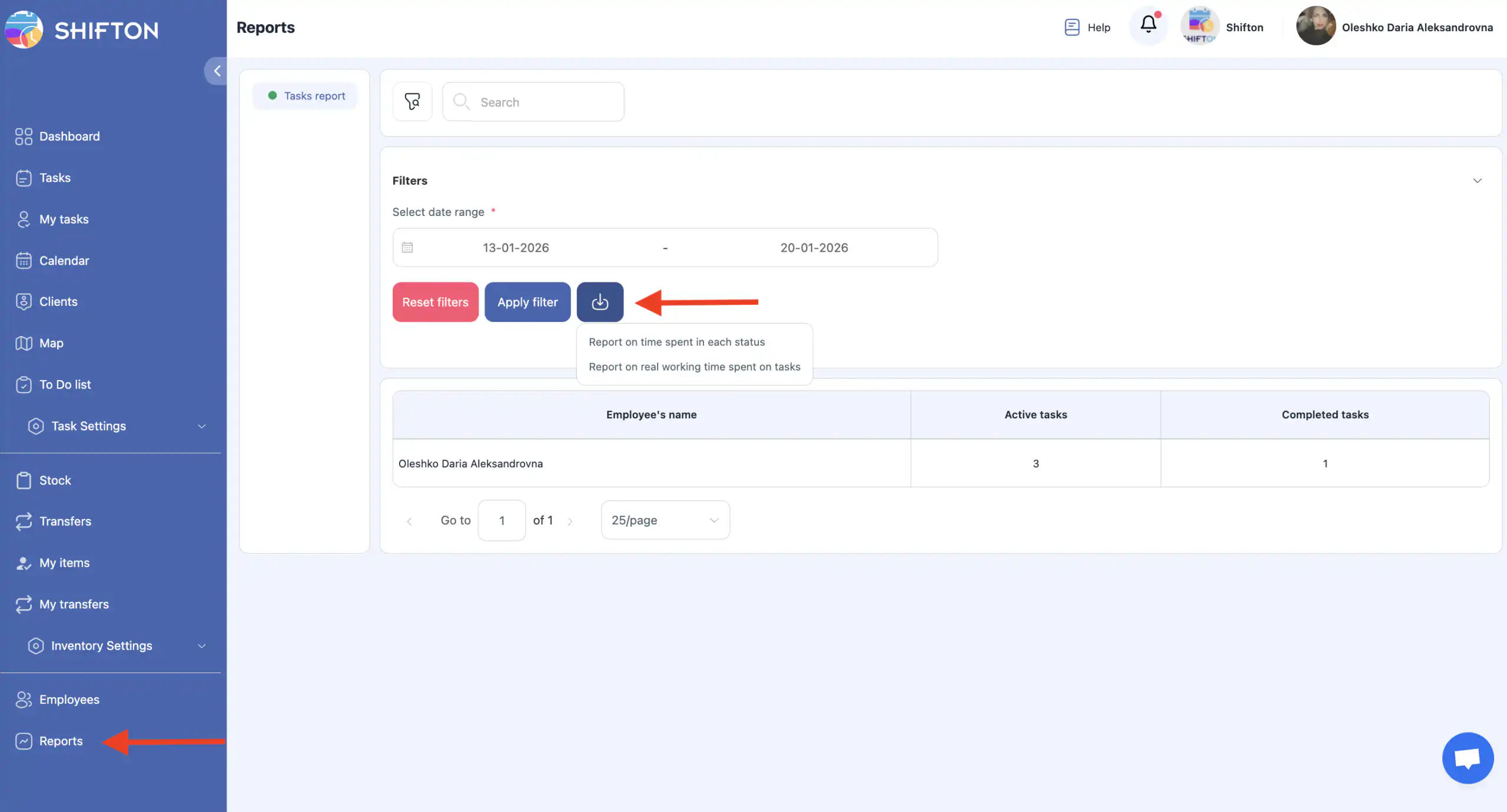
It displays a web-based report with information about:
- the number of active tasks;
- the number of completed tasks;
- the selected time period.
Downloading Reports
In the “Reports” section, click the download icon.
Two report types are available:
- Report on time spent in each status — shows how much time tasks are spent in each status;
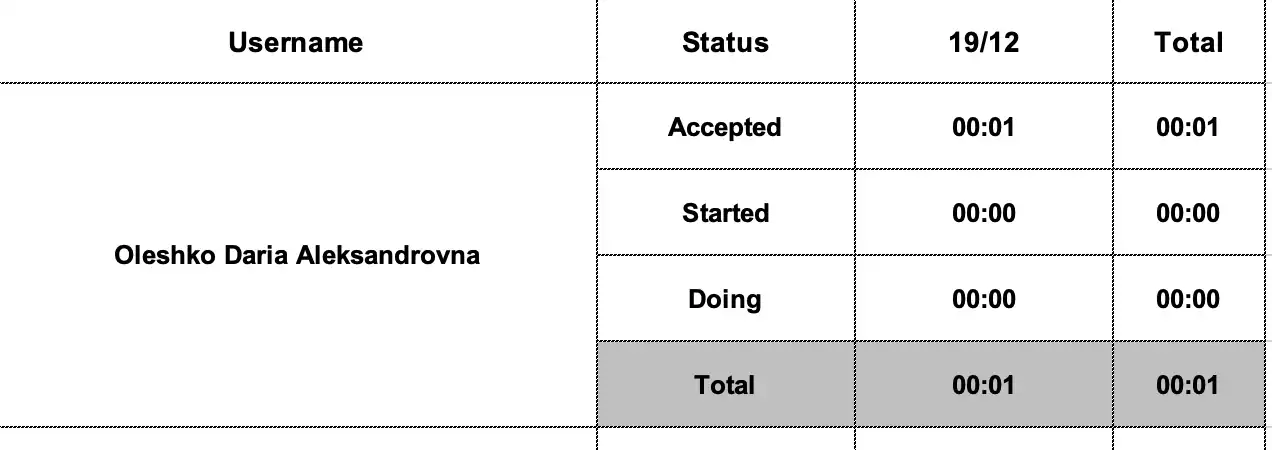
- Report on real working time spent on tasks — shows the actual working time spent on completing tasks.

Both reports are generated for the selected period.
Frequently Asked Questions (FAQ)
Q: Where can I find the Reports section in Shifton?
A: Open the Reports section from the main menu on the left. This is where downloadable reports are available.
Q: What types of reports are available?
A: Shifton provides two main types of reports:
- Excel reports in the Reports section.
- PDF task reports generated from individual tasks.
Q: In which format are reports from the Reports section downloaded?
A: All reports generated from the Reports section are downloaded in Excel (.xlsx) format.
Q: In which format is the Task Report downloaded?
A: Task reports generated from the task page are downloaded in PDF format.
Q: What is included in the Task Report (PDF)?
A: The PDF task report contains client information, task description, statuses and deadlines, completed checklist, and the company logo.
Q: What data is included in Excel reports?
A: Excel reports may include:
- number of active and completed tasks;
- time spent in each task status;
- actual working time spent on tasks;
- selected reporting period.
Q: How do I download an Excel report?
A: Go to Reports, click the download icon, select the report type and time period, and the file will be downloaded in Excel format.
Q: Can I edit Excel reports after downloading?
A: Yes. Excel reports can be edited, filtered, and analyzed using spreadsheet software such as Microsoft Excel or Google Sheets.
Q: Are reports updated in real time?
A: Yes. The data used for reports reflects the latest information available in the system at the time of generation.
Q: Do user roles affect access to reports?
A: Yes. Access to reports depends on user permissions. If you do not see the Reports section, your role may be restricted.