

 English
  Español
  Português
  Deutsch
  Français
  Italiano
  日本語
日本語  中文
中文  हिन्दी
  עברית
עברית  العربية
  한국어
한국어  Nederlands
  Polski
  Türkçe
  Українська
  Русский
  Magyar
  Română
  Български
  Čeština
  Ελληνικά
  Svenska
  Dansk
Dansk  Norsk
Norsk  Suomi
Suomi  Bahasa
  Tiếng Việt
  Tagalog
  ไทย
ไทย  Latviešu
  Lietuvių
  Eesti
Eesti  Slovenčina
  Slovenščina
  Hrvatski
  Македонски
  Қазақ
Қазақ  Azərbaycan
  Afrikaans
  বাংলা
বাংলা The My Profile section is used to manage your personal account information.
In this section, you can:
-
view and edit your profile details;
-
upload and update your profile photo;
-
download your profile data in JSON format;
-
configure time zone, time format, date format, and interface language.
How to Open the “My Profile” Section
-
Click your name or profile icon at the top of the interface.
This is the rightmost icon in the top-right corner.

-
Select “My Profile.”
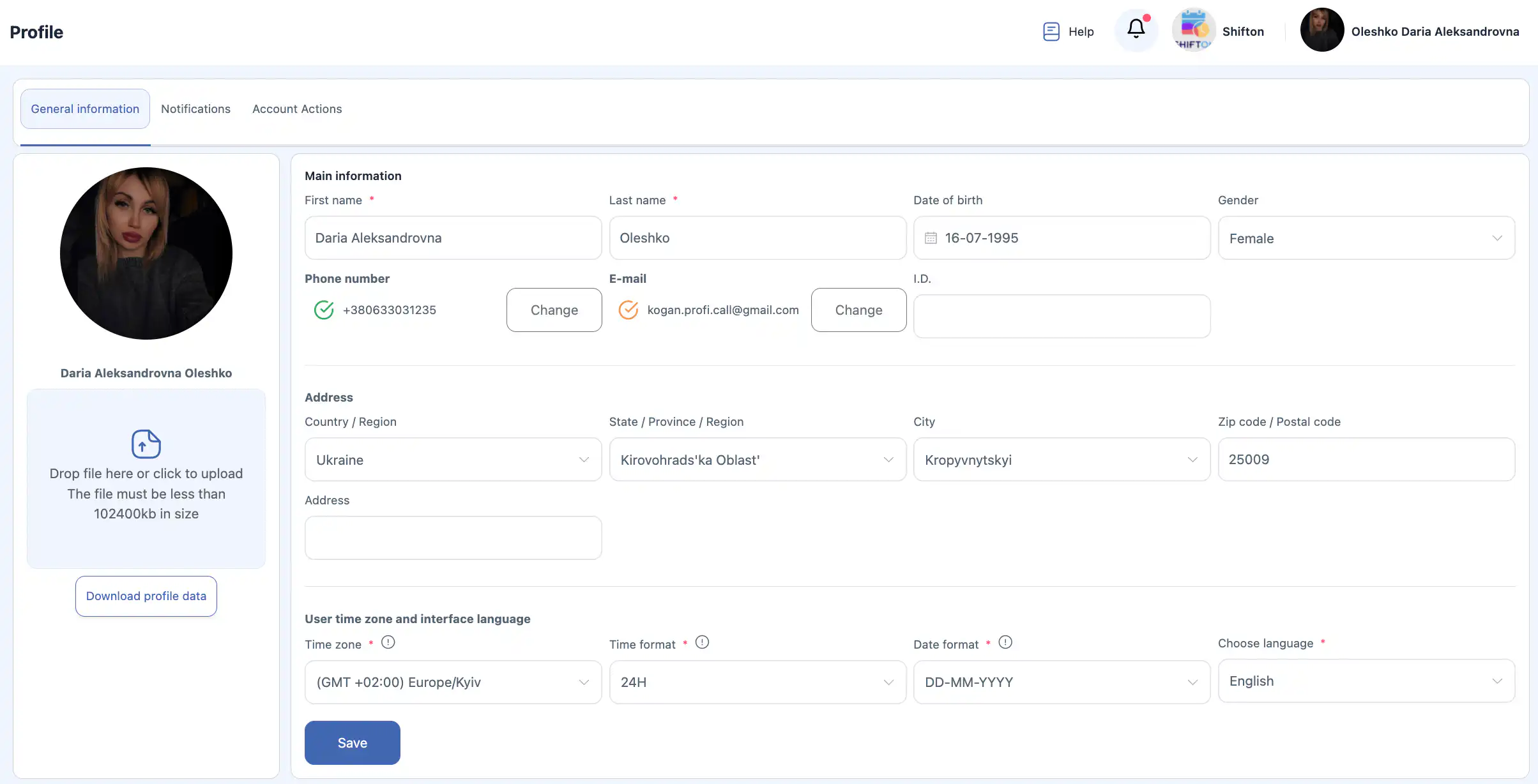
Main Information
The Main information block contains the main user details.
Fields:
-
First name * — user’s first name.
-
Last name * — user’s last name.
Note: Company settings may include an option to display the name specified when the employee was invited.
If this option is enabled, changes to your first and last name in your profile will only be visible to you and will not be shown to other users.
-
Date of birth — date of birth.
-
Gender — gender.
-
Phone number — phone number.
-
E-mail — email address.
-
I.D. — internal user identifier.
Fields marked with * are required.
After making changes, click “Save.”
If you do not click “Save,” the changes will not be applied.

Address
The Address block is used to specify your address information.
Fields:
-
Country / Region — country or region.
-
State / Province / Region — state or region.
-
City — city.
-
Zip code / Postal code — postal code.
-
Address — full address.

After editing, click “Save.”
User Time Zone and Interface Language
The User time zone and interface language block is used to configure how time, date, and language are displayed in the system.
Field descriptions
-
Time zone * — your time zone.
Used for correct display of task times, notifications, and reports. -
Time format *:
-
12-hour— 12-hour format (for example, 02:30 PM); -
24-hour— 24-hour format (for example, 14:30).
-
-
Date format *:
-
DD.MM.YYYY— day.month.year (for example, 16.07.1995); -
MM.DD.YYYY— month.day.year (for example, 07.16.1995).
-
-
Choose language * — system interface language.
Available interface languages
The following languages are available in the system:
-
English
-
Русский
-
עִבְרִית
-
Українська
-
Deutsch
-
Polski
-
Español
-
Ελληνικά
-
العربية
-
Azərbaycan
-
বাংলা
-
Български
-
Magyar
-
Tiếng Việt
-
Dansk
-
Bahasa Indonesia
-
Italiano
-
Қазақ
-
한국어
-
Latviešu
-
Lietuvių
-
Македонски
-
普通话
-
Nederlands
-
Norsk
-
Português
-
Română
-
Slovenčina
-
Slovenščina
-
Türkçe
-
Suomi
-
हिन्दी
-
Hrvatski
-
Čeština
-
Svenska
-
Eesti
-
日本語
-
Français
-
ไทย
-
Filipino (Tagalog)
-
Afrikaans

After changing the settings, click “Save.”
Profile Photo
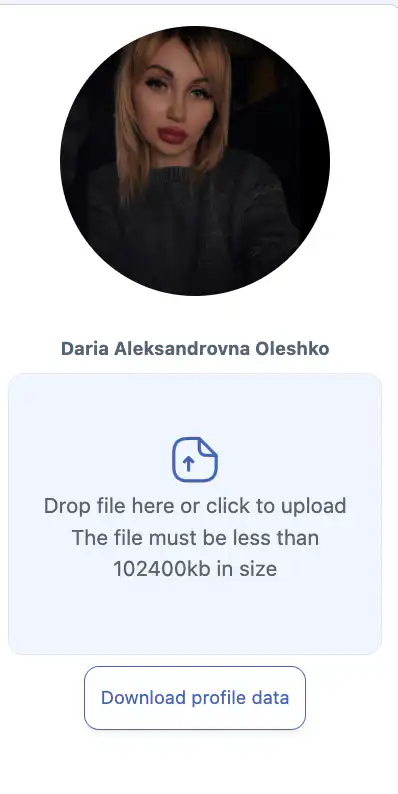
Your current profile photo is displayed in this section.
Uploading a New Photo
-
Click the upload area or drag and drop a file into it.
-
Select an image from your device.
A note is displayed under the upload field:
Drop file here or click to upload
The file must be less than 102400kb in size
-
Click “Save” after selecting the file.
If you do not click “Save,” the new photo will not be applied.
Downloading Profile Data
A button is available to download your account data.
To download your data:
-
Click the profile data download button.
-
The file will be downloaded in JSON format.
Saving Changes
When modifying any profile data, including:
-
main information;
-
address;
-
time and date formats;
-
interface language;
-
profile photo;
you must click “Save.”
If the button is not clicked, the changes will not be saved.
Notifications
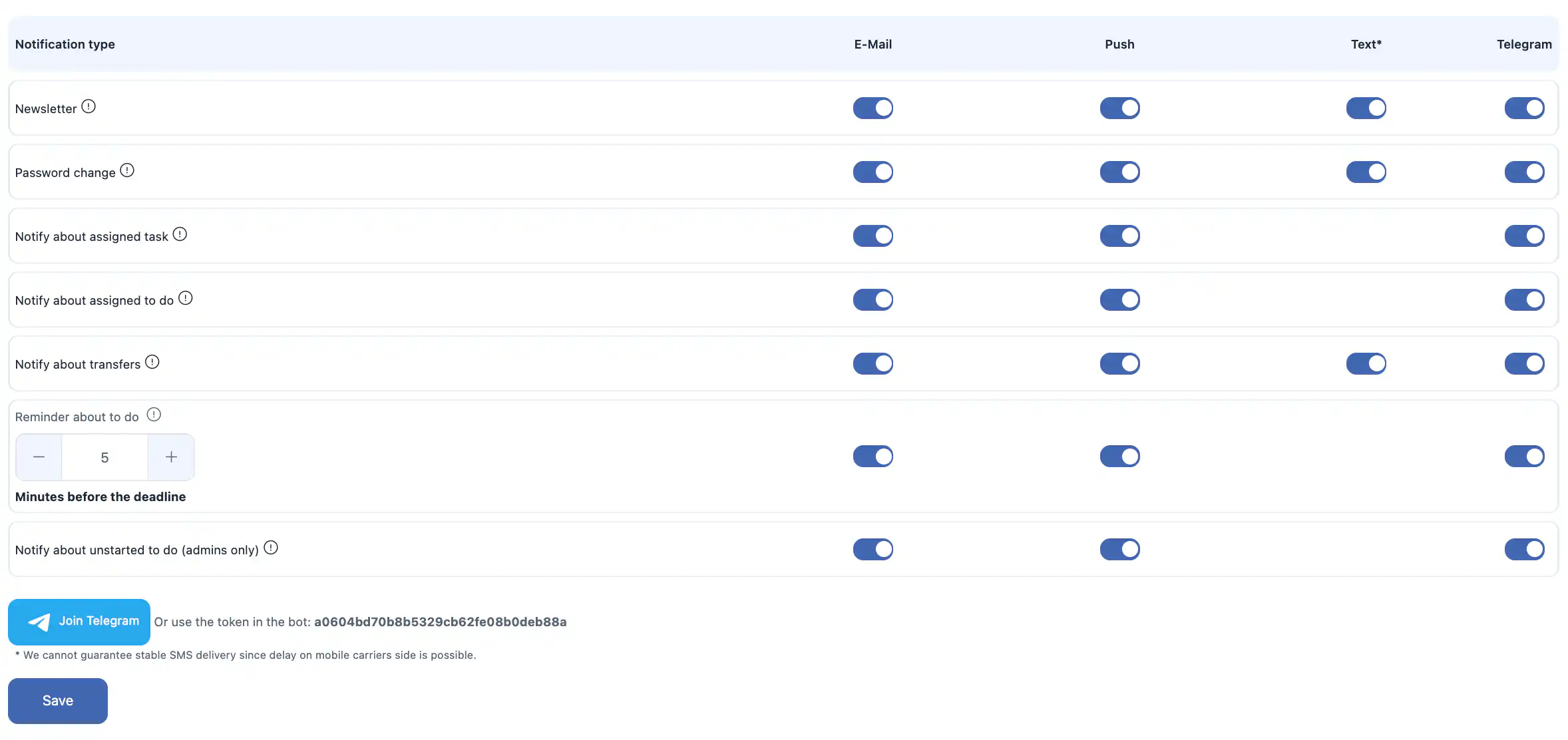
The Notifications section is used to configure how you receive system messages and reminders.
For each notification type, you can choose one or multiple delivery channels:
-
E-mail
-
Push (browser or mobile app notifications)
-
Text (SMS)
-
Telegram
Available Notification Types
You can enable or disable notifications for the following events:
-
Newsletter — product updates and system news.
-
Password change — notifications when your account password is changed.
-
Notify about assigned task — when a task is assigned to you.
-
Notify about assigned to-do — when a to-do item is assigned to you.
-
Notify about transfers — notifications about inventory transfers between warehouses / locations.
-
Reminder about to-do — reminder before a to-do deadline.
The reminder time can be configured, for example:
5 minutes before the deadline. -
Notify about unstarted to-do (admins only) — notifications for administrators about to-do items that have not been started.
Telegram Notifications
To receive notifications via Telegram, you can:
-
connect Telegram through the system interface; or
-
use a bot token:
SMS Notifications
The following conditions apply to SMS notifications:
-
SMS notifications are a paid feature.
-
To use SMS delivery, your company balance must be topped up.
-
The cost of one SMS depends on the country and carrier and usually ranges from $0.20 to $0.70 USD per message.
Additionally:
We cannot guarantee stable SMS delivery since delays on the mobile carrier side are possible.
Saving Notification Settings
After changing any notification settings, click “Save.”
If you do not click “Save,” the changes will not be applied.
Account Actions
The Account Actions section contains security and account management options.

Log out from all devices
This option allows you to sign out of your account on all devices where you are currently logged in.
Use this feature if:
-
you suspect unauthorized access;
-
you logged in on a shared or public device;
-
you want to reset all active sessions.
To apply the action, confirm your decision in the dialog window.
This action cannot be undone.
Delete account
You can delete your own account if you are not the company owner.
After deletion:
-
your user account will be permanently removed;
-
you will lose access to the system;
-
this action cannot be undone.
If you are the company owner
If you are the owner of the company, deleting your account is not possible.
To delete your account as an owner, you must first:
-
Transfer owner rights to another employee in Company Settings.
If you need to delete the entire company, you can do this on the:
Manage Company Settings page.
Frequently Asked Questions (FAQ)
Q: Why are my profile changes not visible to other users?
A: Your company may have an option enabled to display the name used during the invitation. In this case, changes to your first or last name are visible only to you.
Q: What happens if I don’t click “Save” after making changes?
A: None of your changes will be applied. You must click Save to store any updates.
Q: Can I change my email address in the profile?
A: Yes. Update the email field and click Save to apply the change.
Q: Why is my new profile photo not displayed?
A: Make sure you clicked Save after uploading the image.
Q: Is there a file size limit for profile photos?
A: Yes. The file must be smaller than 102400 KB.
Q: In which format is profile data downloaded?
A: Your data is downloaded in JSON format.
Q: Can I change my time zone without changing my country?
A: Yes. Time zone is configured independently in profile settings.
Q: What time formats are supported?
A: 12-hour and 24-hour formats.
Q: What date formats are supported?
A: DD.MM.YYYY and MM.DD.YYYY.
Q: Why am I not receiving email notifications?
A: Check that email notifications are enabled in the Notifications section and verify your email address and spam folder.
Q: Why am I not receiving SMS notifications?
A: SMS requires a positive company balance and enabled SMS notifications. Delivery also depends on mobile carriers.
Q: Is SMS notification free?
A: No. SMS is a paid feature and costs approximately $0.20–$0.70 USD per message, depending on the country.
Q: How do I enable Telegram notifications?
A: Connect Telegram in the Notifications section or use the provided bot token.
Q: What does “Log out from all devices” do?
A: It ends all active sessions on every device where your account is logged in.
Q: Can I delete my account?
A: Yes, if you are not the company owner. Owners must transfer ownership first.