

 English
  Español
  Português
  Deutsch
  Français
  Italiano
  日本語
日本語  中文
中文  हिन्दी
  עברית
עברית  العربية
  한국어
한국어  Nederlands
  Polski
  Türkçe
  Українська
  Русский
  Magyar
  Română
  Български
  Čeština
  Ελληνικά
  Svenska
  Dansk
Dansk  Norsk
Norsk  Suomi
Suomi  Bahasa
  Tiếng Việt
  Tagalog
  ไทย
ไทย  Latviešu
  Lietuvių
  Eesti
Eesti  Slovenčina
  Slovenščina
  Hrvatski
  Македонски
  Қазақ
Қазақ  Azərbaycan
  Afrikaans
  বাংলা
বাংলা Marks are visual indicators used to filter tasks in the calendar and categorize them by work type or other identifiers. They help teams quickly distinguish tasks without opening full task details.
Where to Manage Marks
-
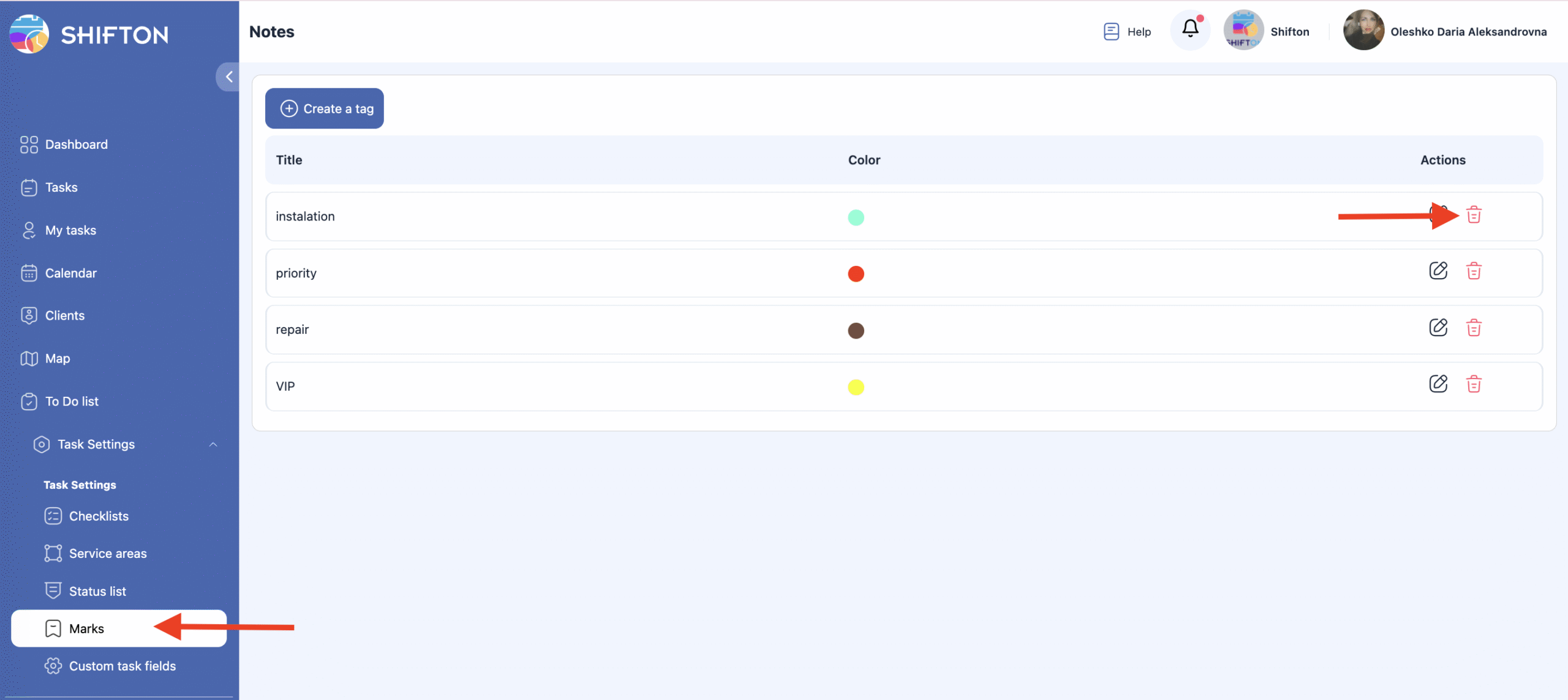
Open the side panel.
-
Go to Task Settings.
-
Select Marks.
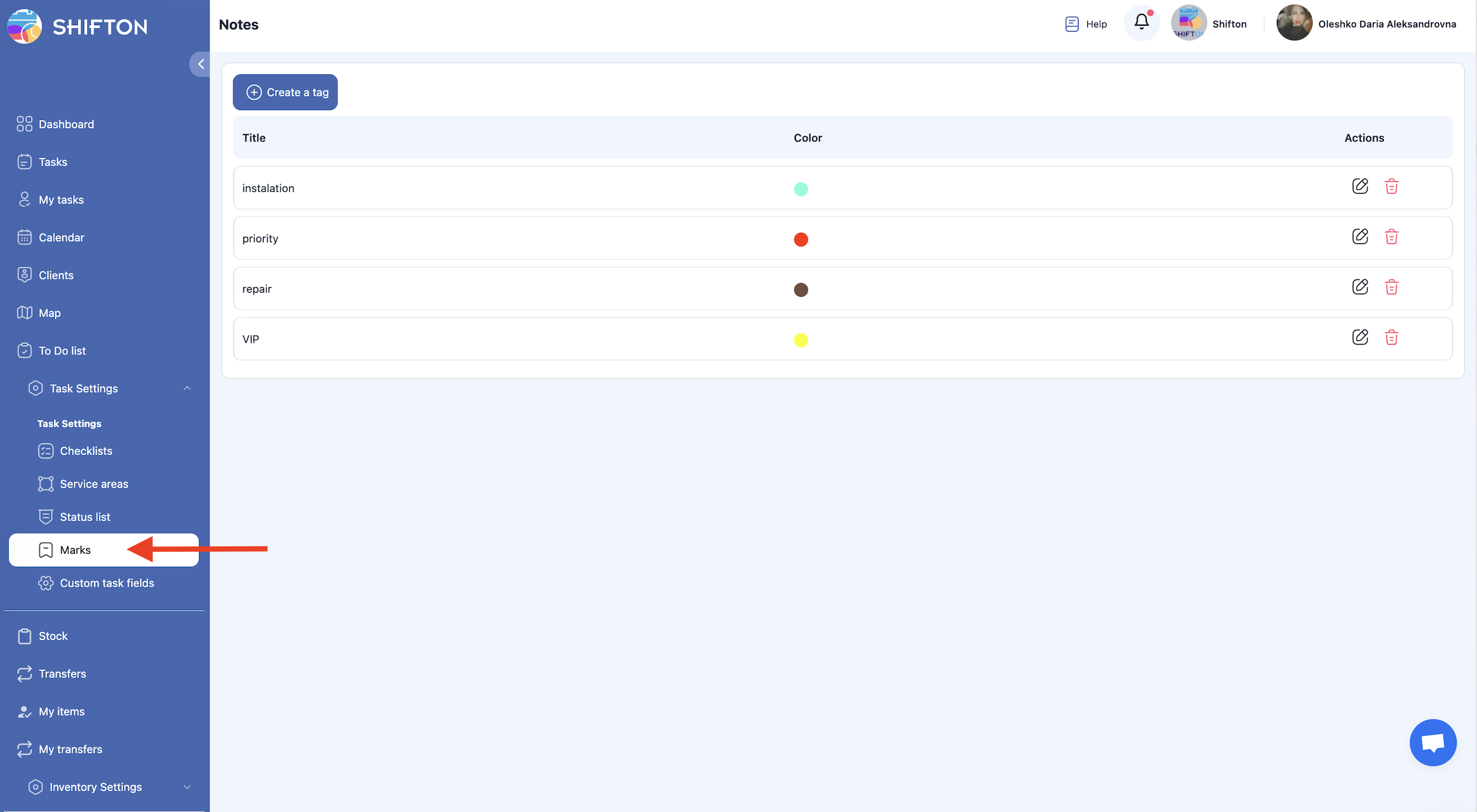
This page displays all existing marks and allows you to create, edit, or delete them.
Creating a Mark
-
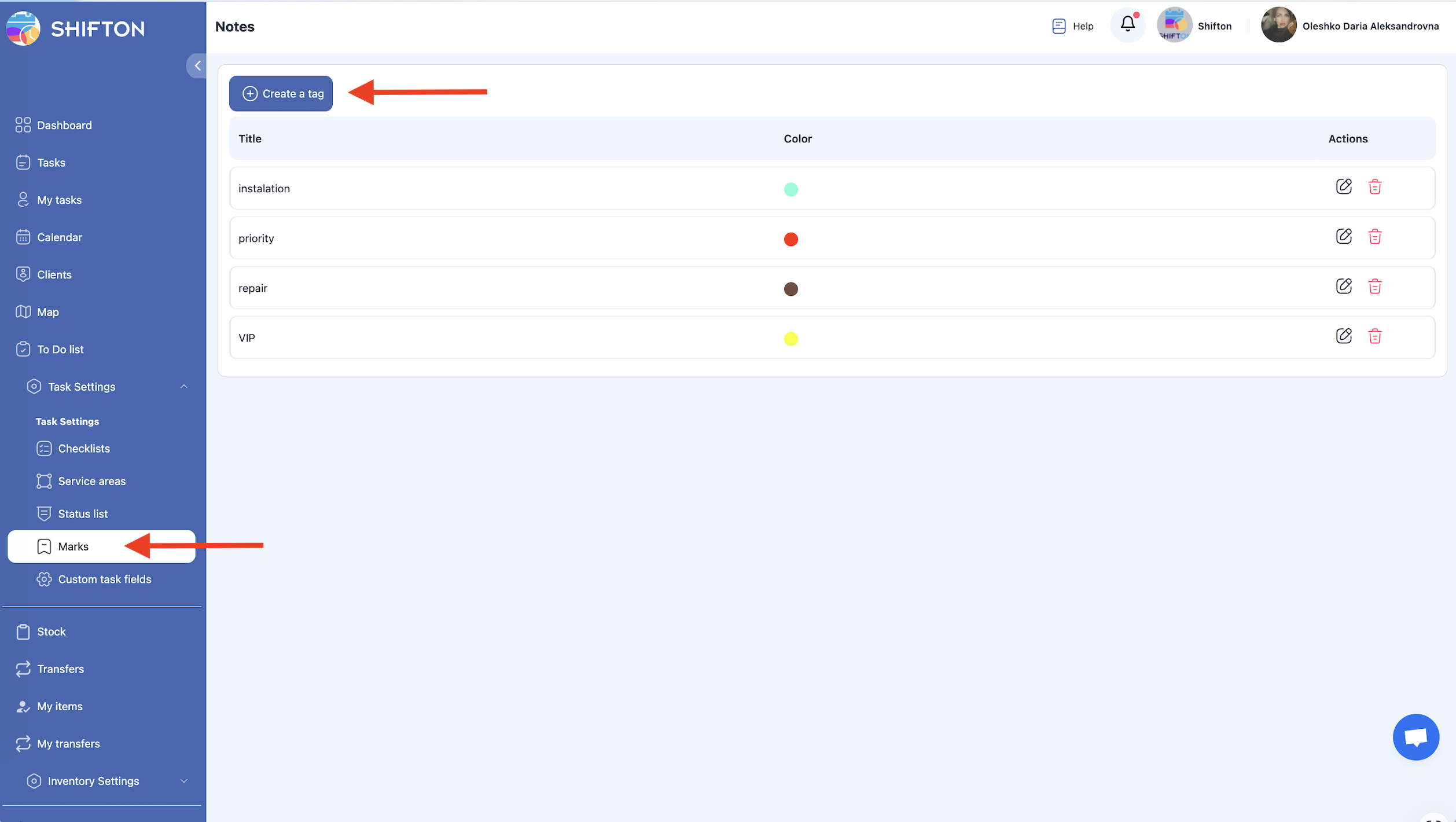
Open the Marks section.
-
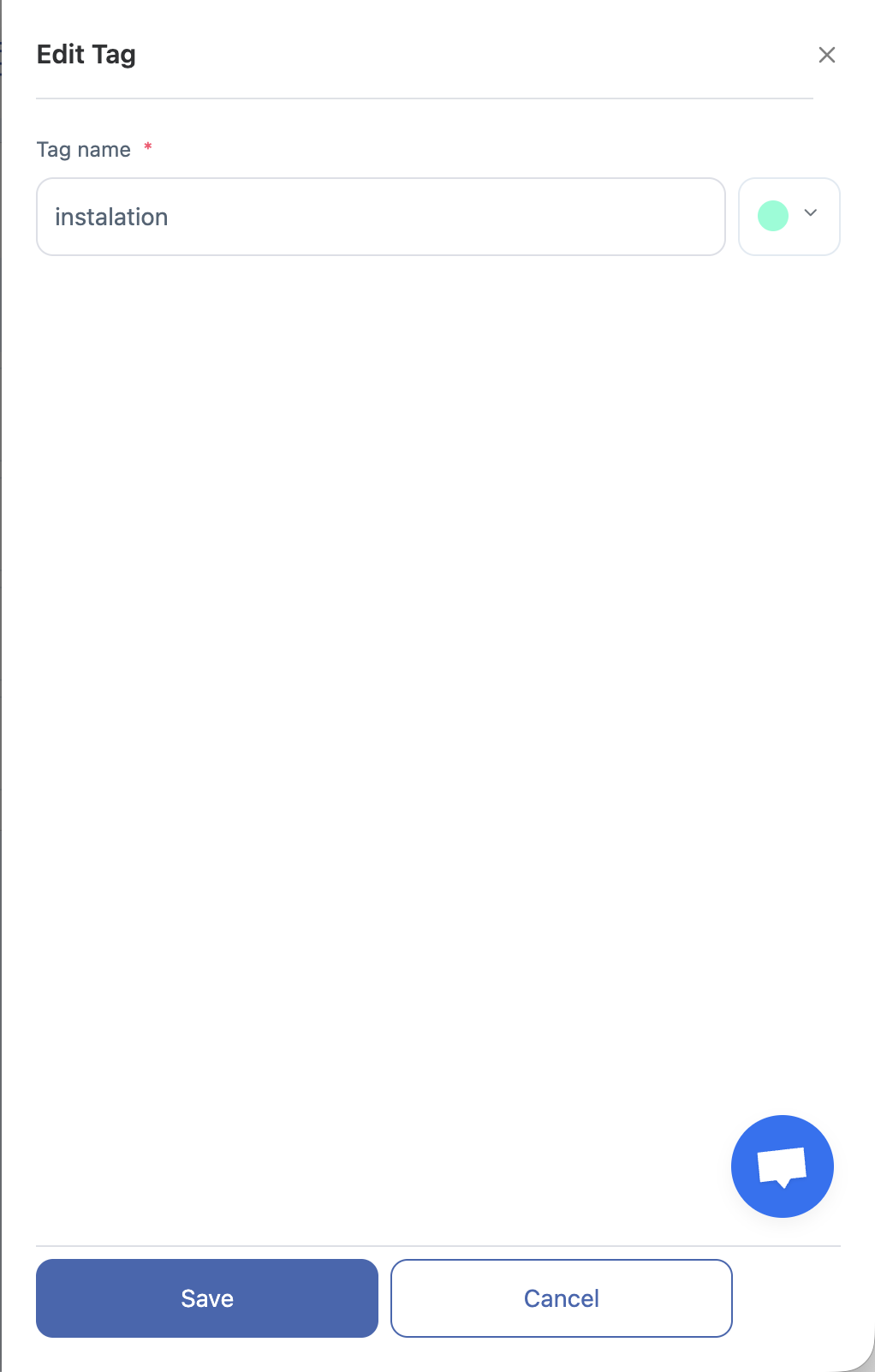
Click Create a Tag.
-
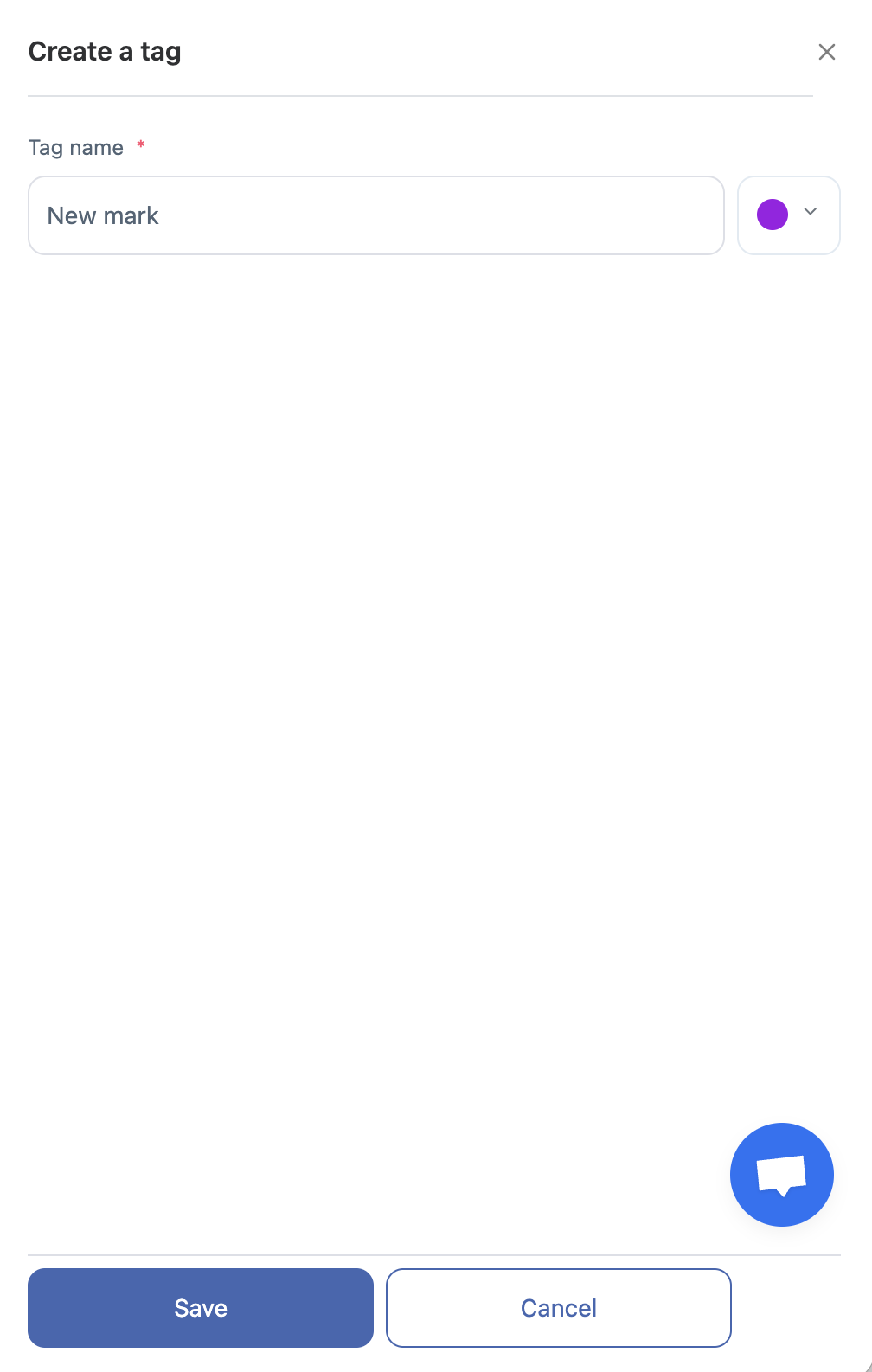
In the panel that appears, enter:
-
the name of the mark,
-
the color of the mark.
-
-
Save the changes.
Editing a Mark
-
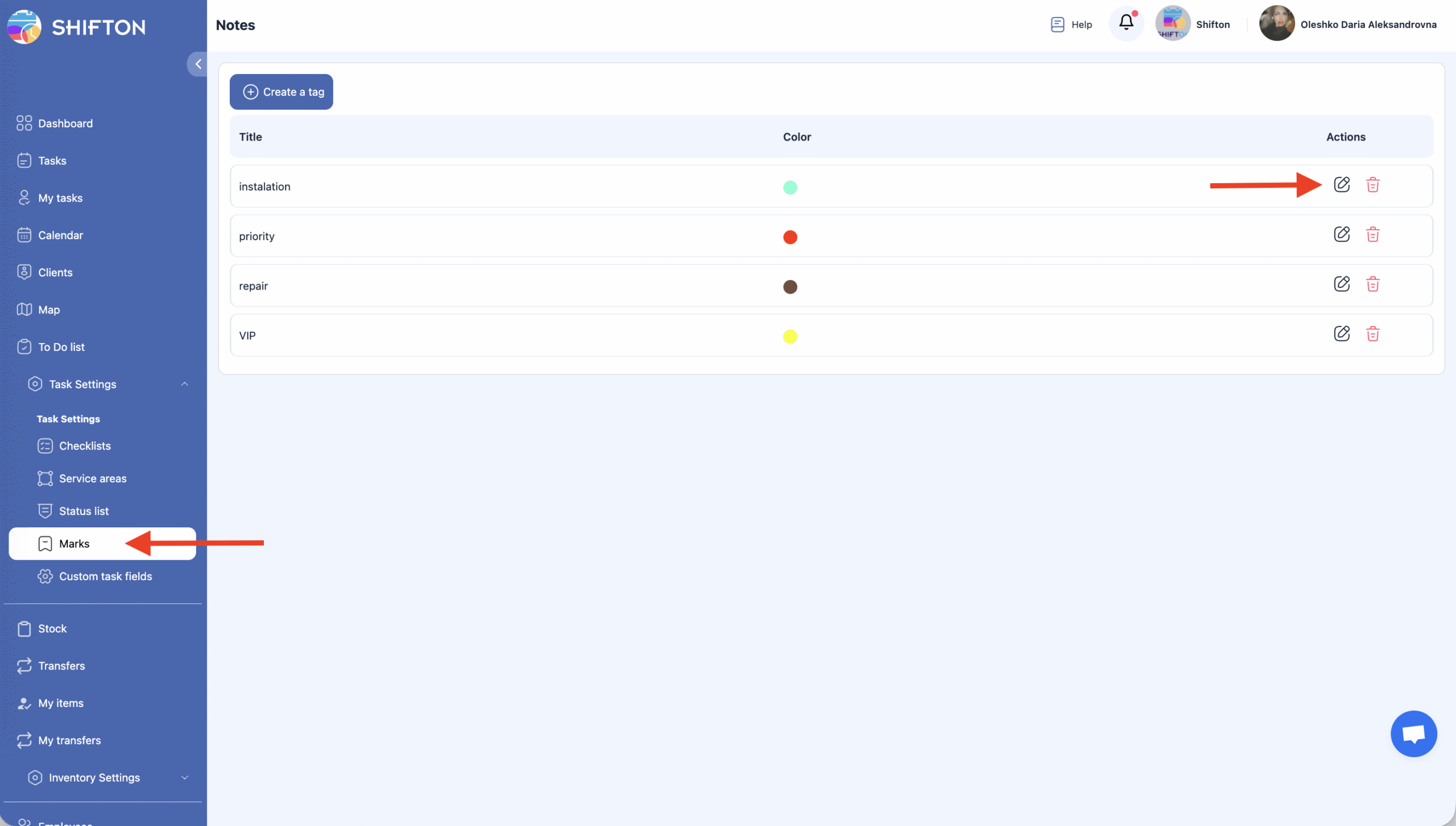
Go to the Marks section.
-
Click the pencil icon next to the mark you want to edit.
-
Update the mark name or change its color.
-
Click Save to apply the changes.
-
If you do not want to save the edits, click Cancel.
Deleting a Mark
-
Open the Marks section.
-
Click the trash bin icon next to the mark you want to delete.
-
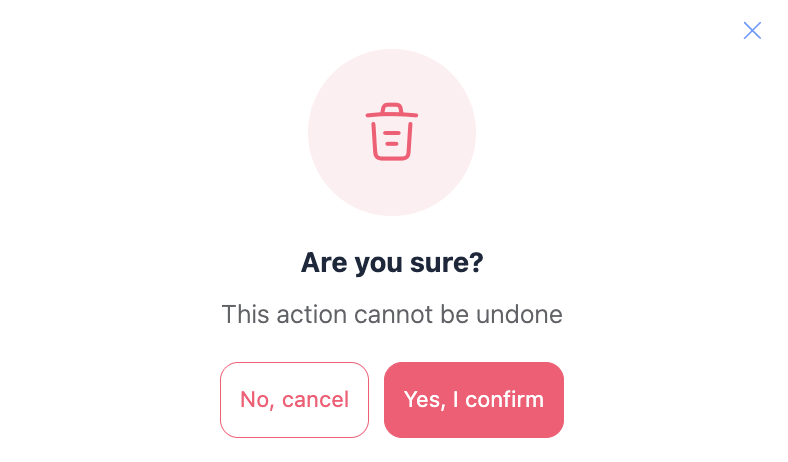
Confirm the action.
Important: Deleted marks cannot be restored.
Frequently Asked Questions (FAQ)
Q: What are marks in Shifton?
A: Marks are visual indicators used to filter and categorize tasks in the calendar. They help teams quickly distinguish tasks by work type or other identifiers without opening full task details.
Q: Where can I manage marks in Shifton?
A: Open the side panel, go to Task Settings, and select Marks. This page displays all existing marks and lets you create, edit, or delete them.
Q: How do I create a new mark?
A: In the Marks section, click “Create a Tag,” enter the mark name and choose a color, then click Save to add it.
Q: Can I cancel creating a mark?
A: Yes — if you decide not to proceed while creating a mark, click Cancel before saving and the changes won’t be applied.
Q: How can I edit an existing mark?
A: Click the pencil icon next to the mark you want to change, update the name or color in the panel, and click Save.
Q: How do I delete a mark?
A: Click the trash bin icon next to the mark and confirm the action. Deleted marks cannot be restored.
Q: Why might I use colors for marks?
A: Colors help visually identify tasks at a glance, making it easier to sort, filter, and prioritize work in calendars and lists.
Q: Do marks affect task filtering?
A: Yes — marks can be used as filters in task views and calendars to display only tasks with specific tags or work types.
Q: Can tasks have more than one mark?
A: Yes, you can assign as many marks as you need.