

 English
  Español
  Português
  Deutsch
  Français
  Italiano
  日本語
日本語  中文
中文  हिन्दी
  עברית
עברית  العربية
  한국어
한국어  Nederlands
  Polski
  Türkçe
  Українська
  Русский
  Magyar
  Română
  Български
  Čeština
  Ελληνικά
  Svenska
  Dansk
Dansk  Norsk
Norsk  Suomi
Suomi  Bahasa
  Tiếng Việt
  Tagalog
  ไทย
ไทย  Latviešu
  Lietuvių
  Eesti
Eesti  Slovenčina
  Slovenščina
  Hrvatski
  Македонски
  Қазақ
Қазақ  Azərbaycan
  Afrikaans
  বাংলা
বাংলা The Map section in the side menu allows you to:
- view tasks on the map;
- create tasks (if a client with an address exists);
- track employee movement in real time;
- view employee route history for any period.
Note: To track employees, the “Work Location Control” module must be enabled.
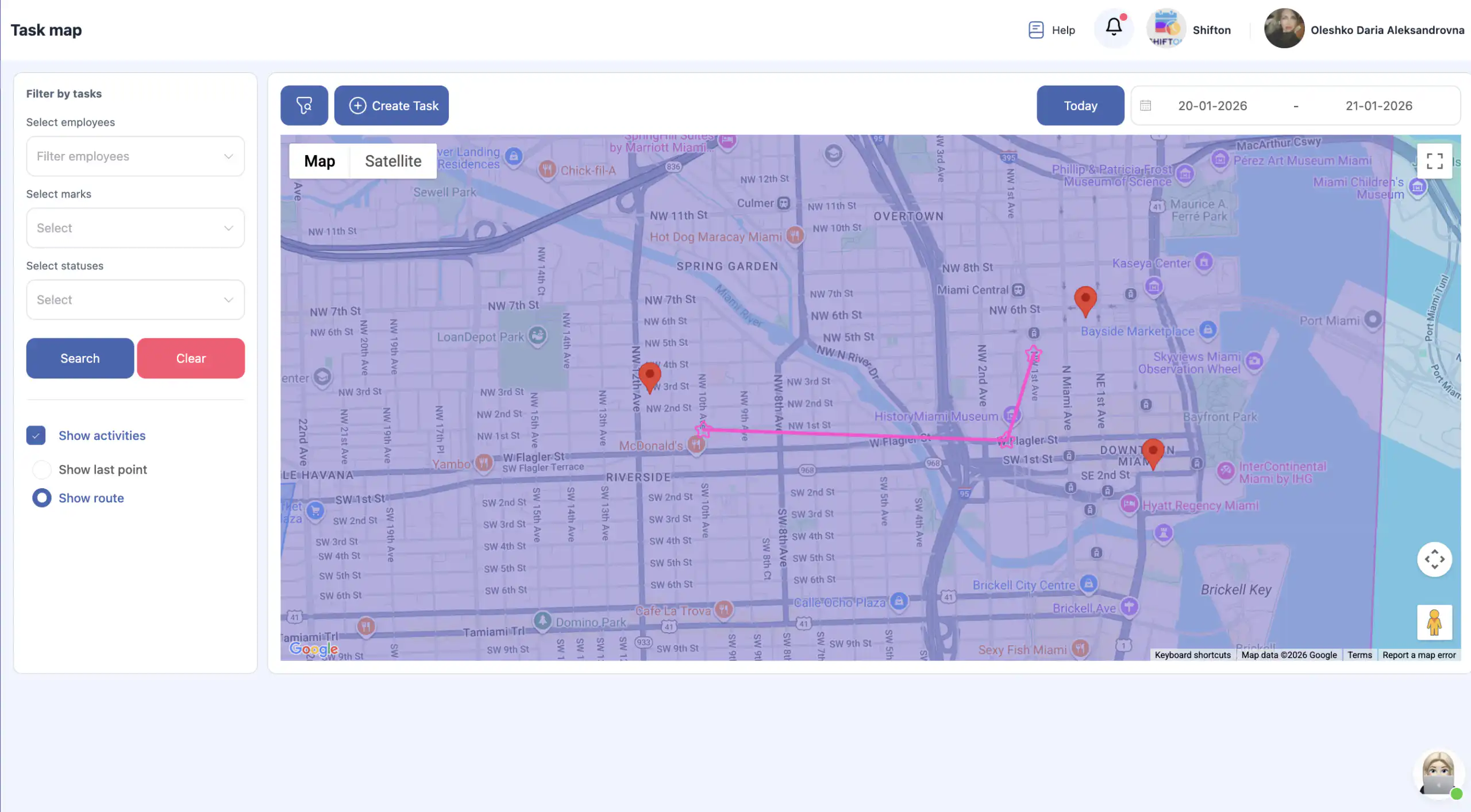
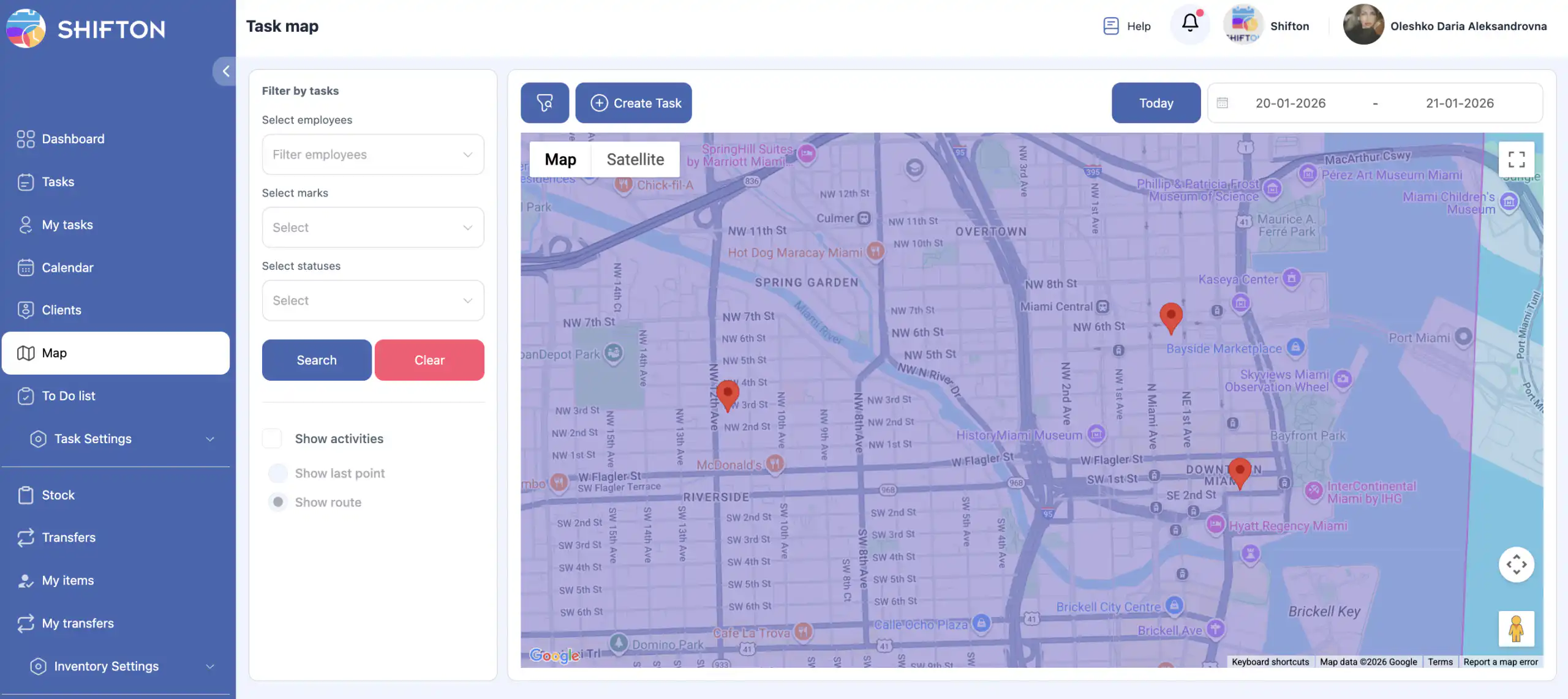
How to Open the Map Section
In the side menu, select “Map.”
On this page, you can:
- view tasks;
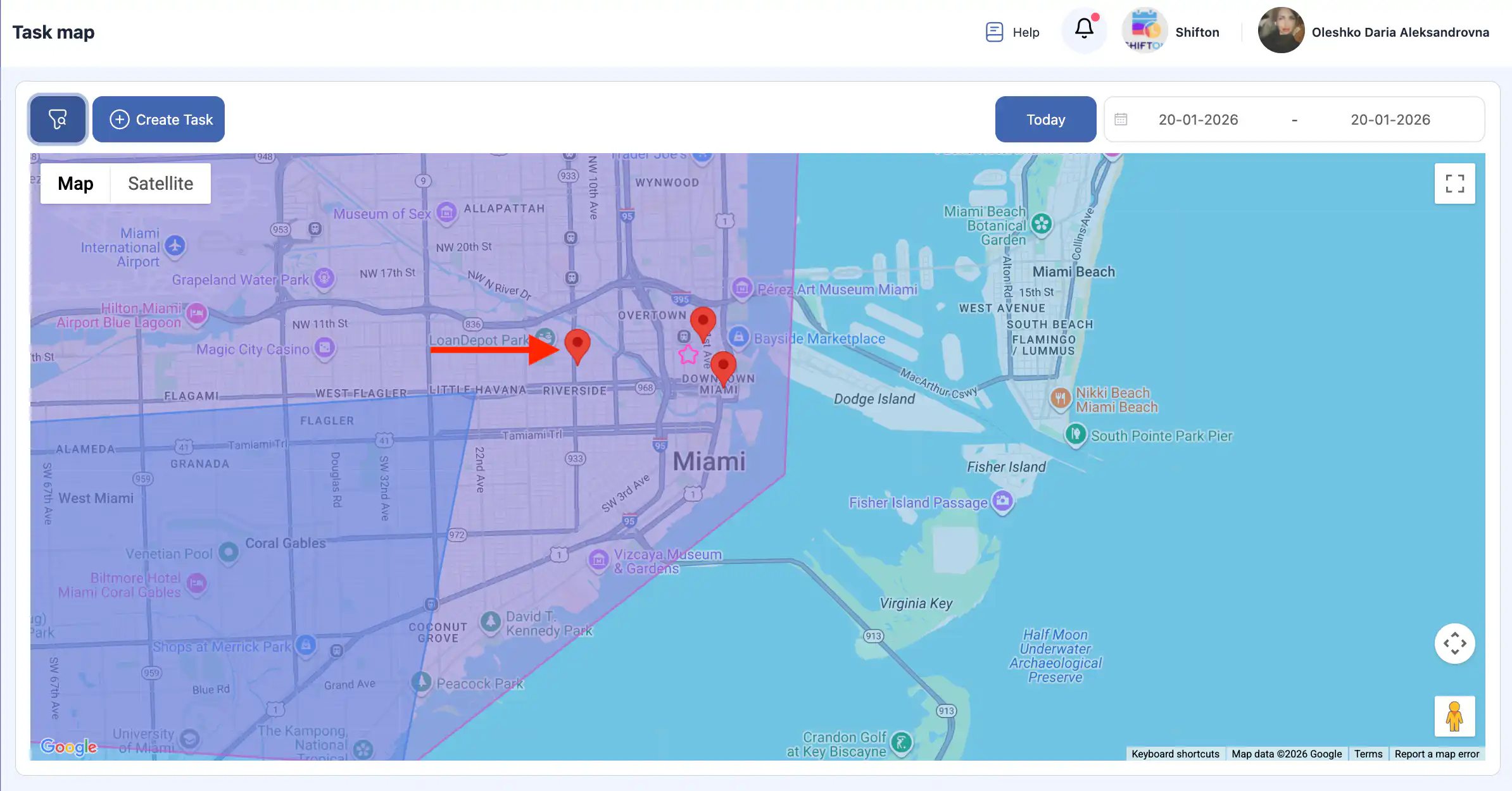
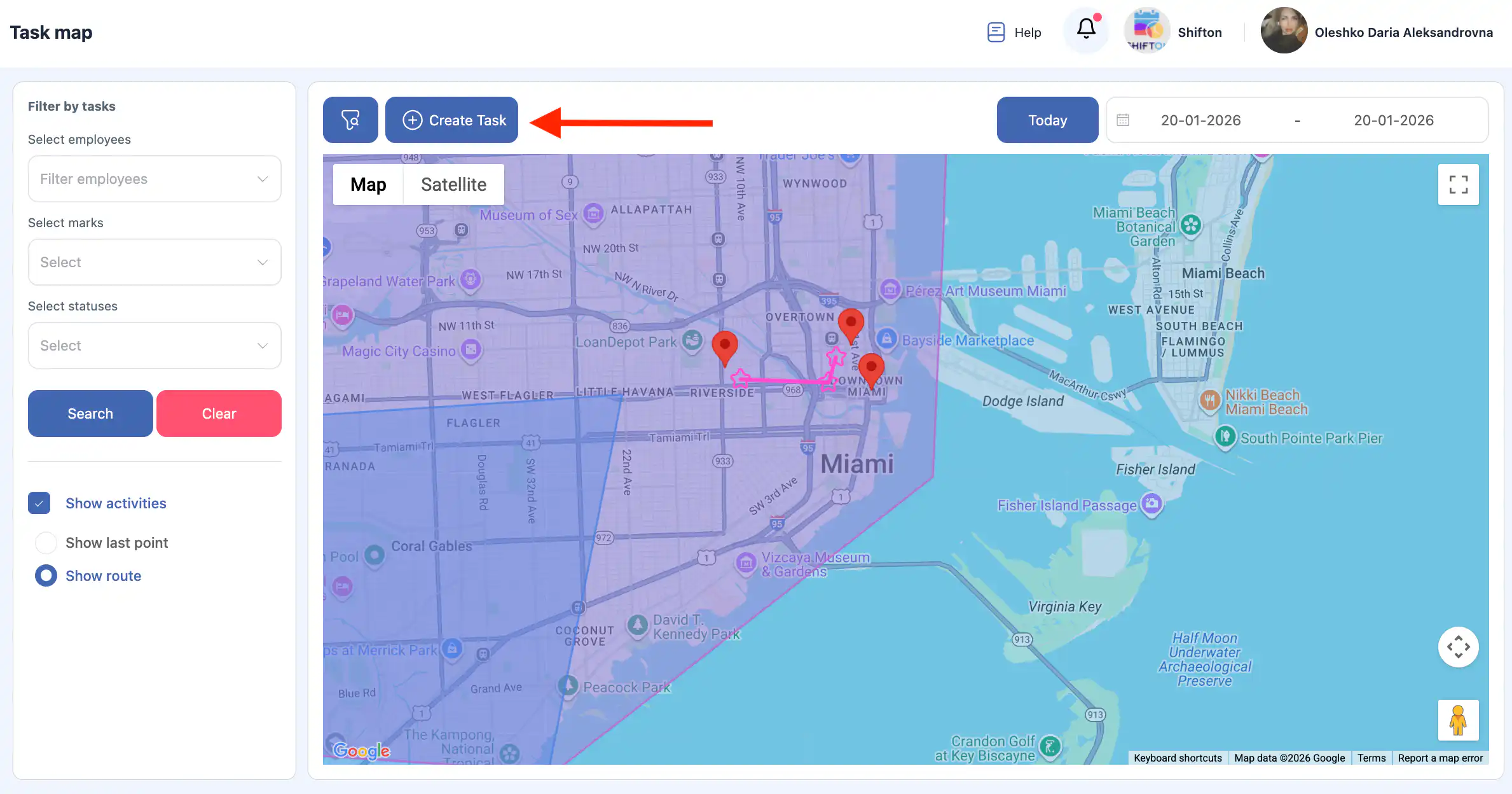
- create new tasks;
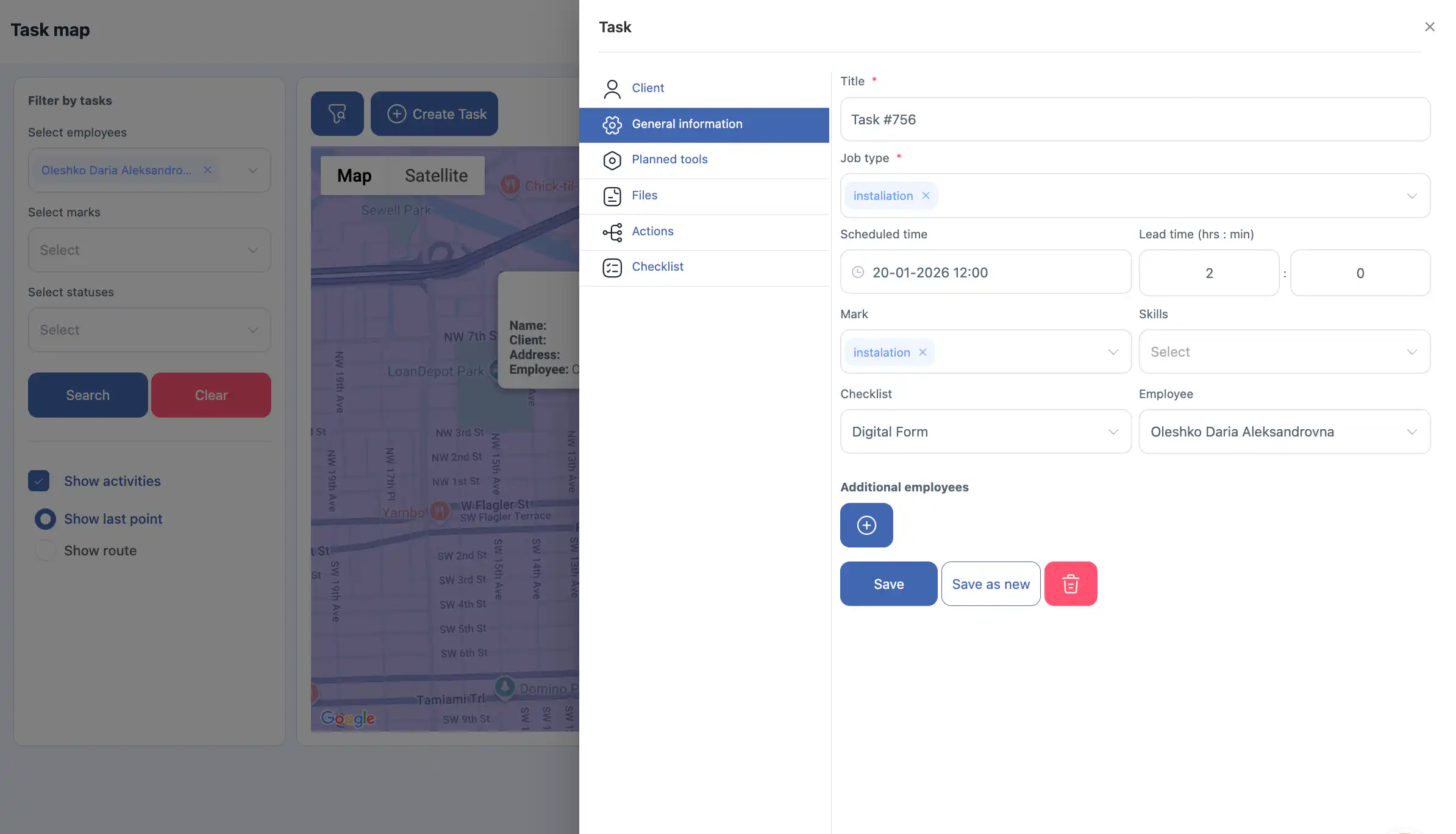
- open existing tasks;
- track employee movement.
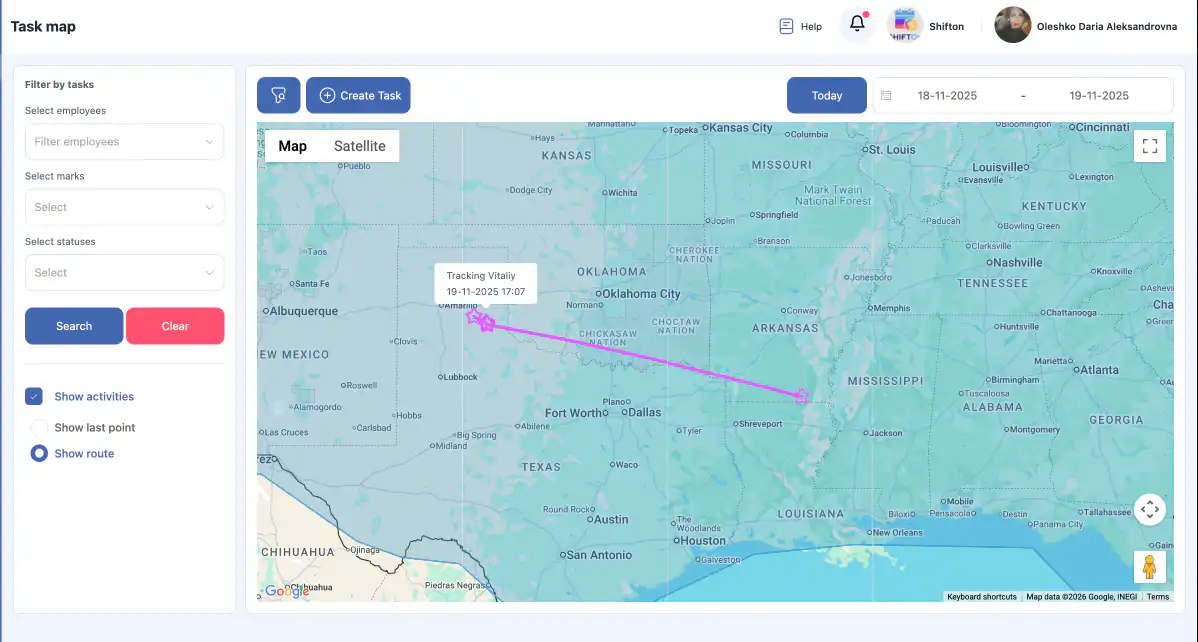
Map Filters
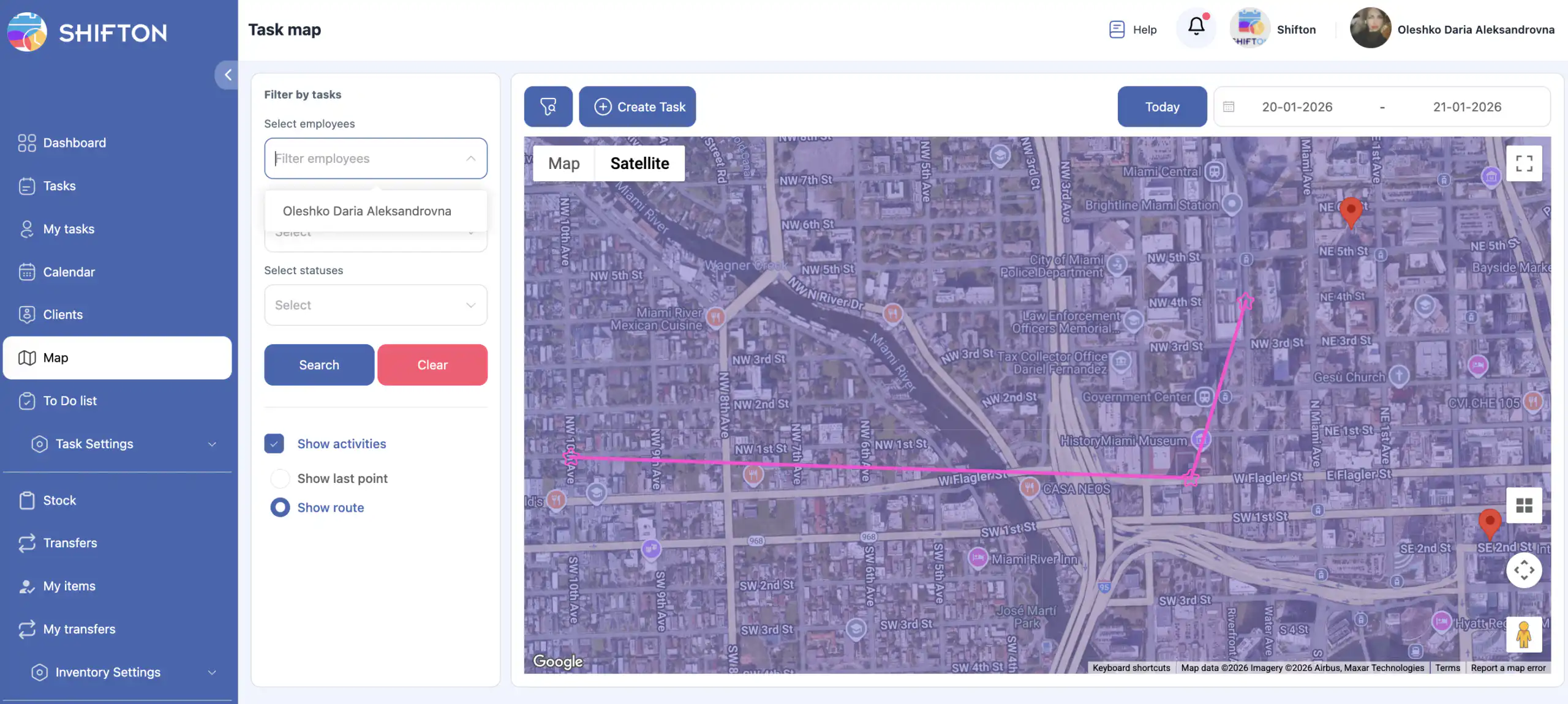
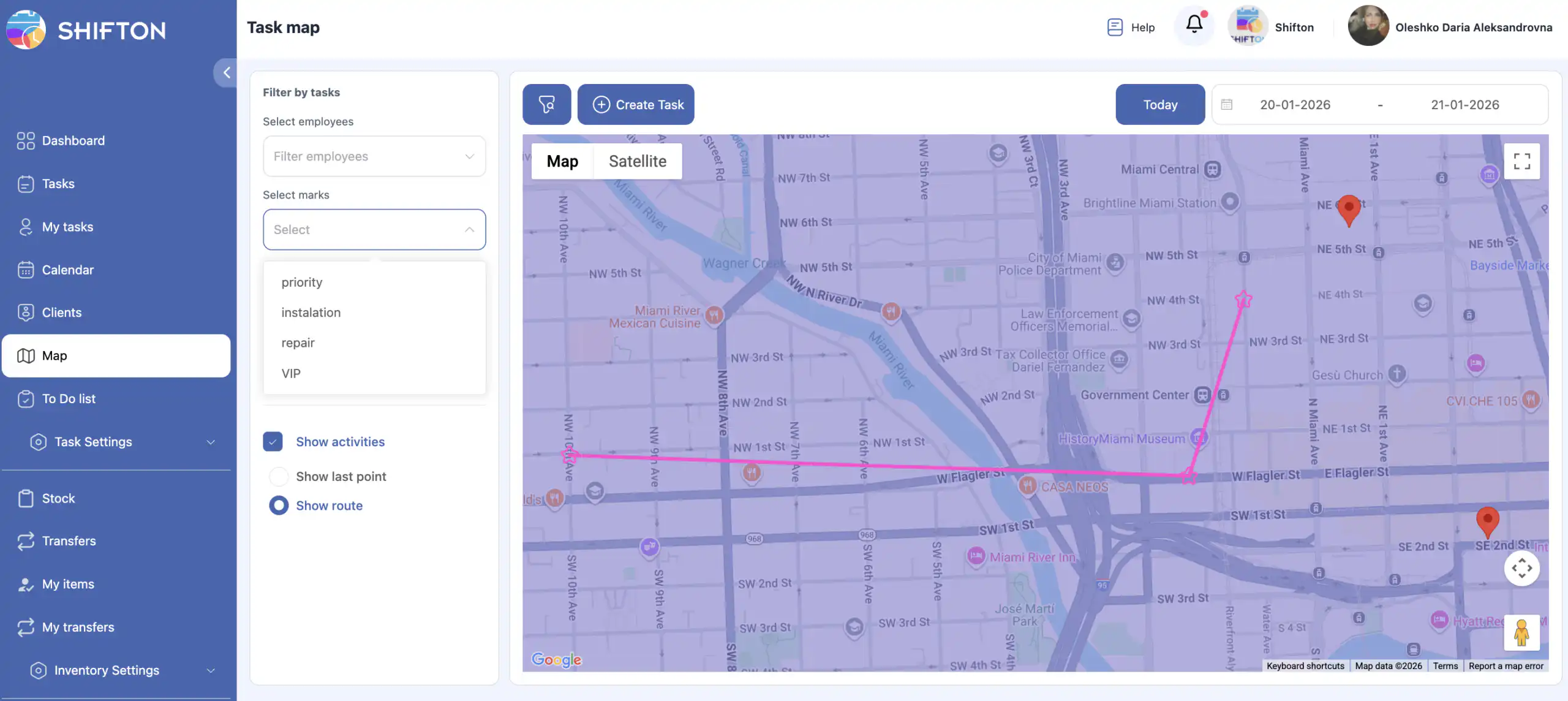
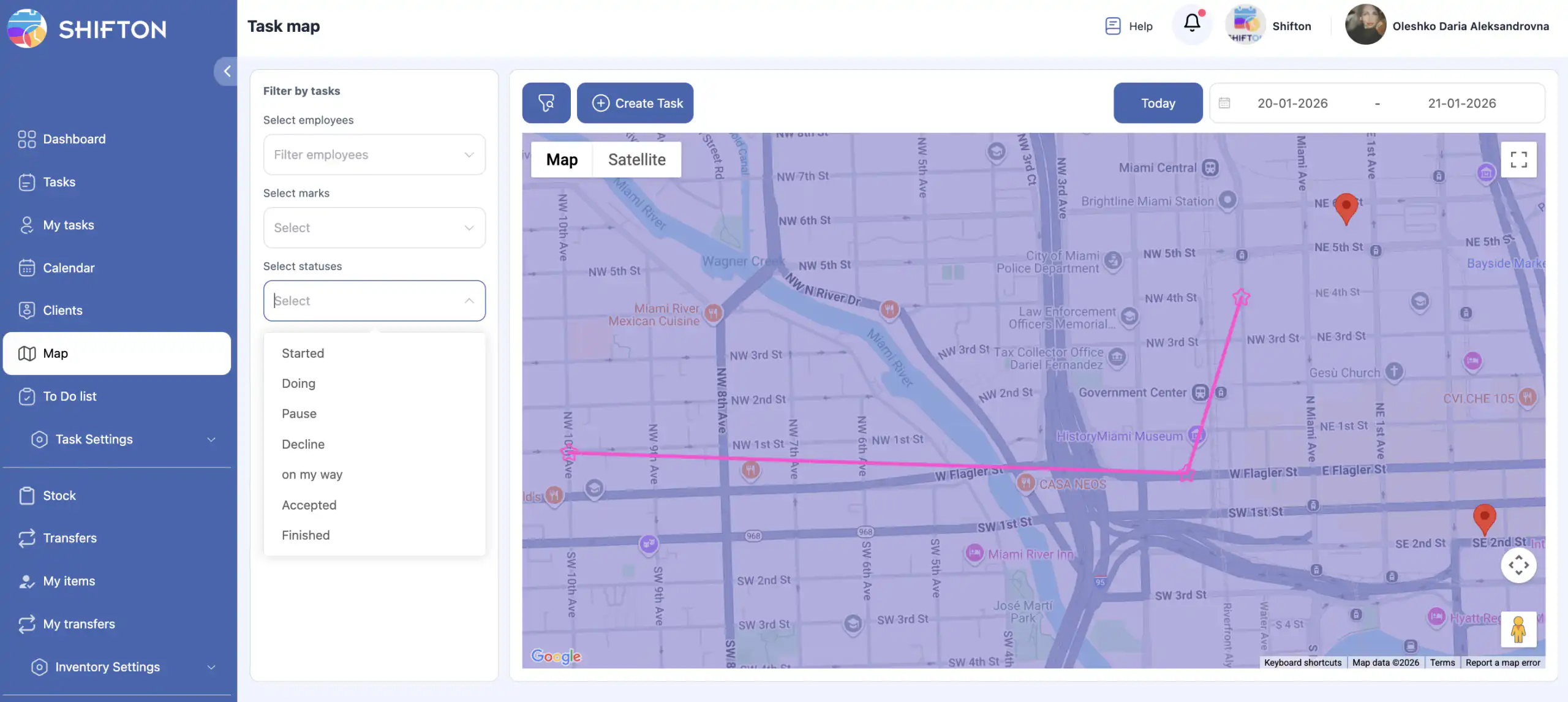
Filters are available on the left side of the page:
- By employee / employees — display one or multiple employees on the map;
- By task marks — show only tasks with selected tags;
- By status — show tasks with a specific status;
- Search and Reset filters buttons.
Employee Activity Display
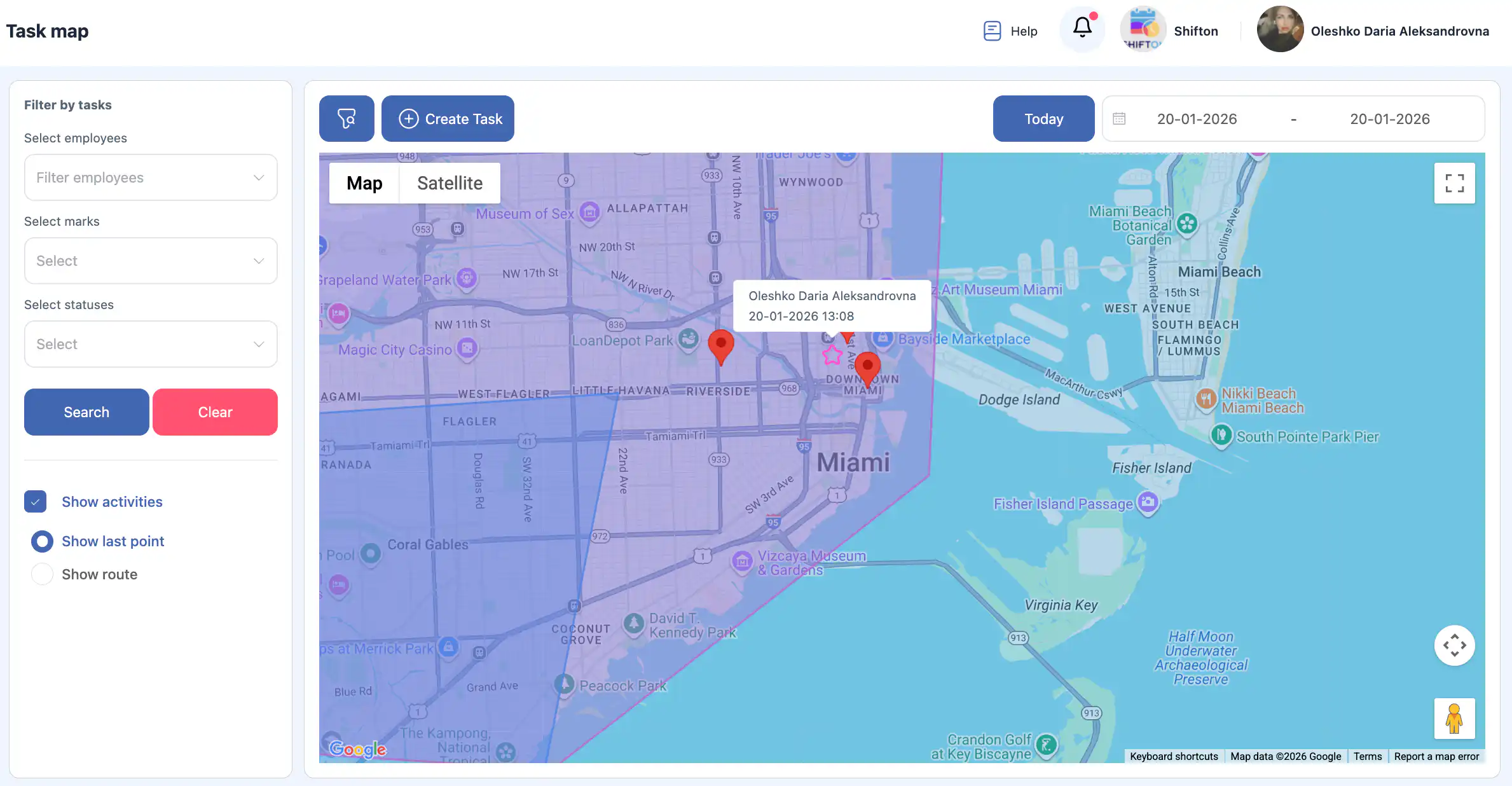
The “Show activities” button is part of the “Work Location Control” module and is used to display employee movement:
- show the last location point on the map;
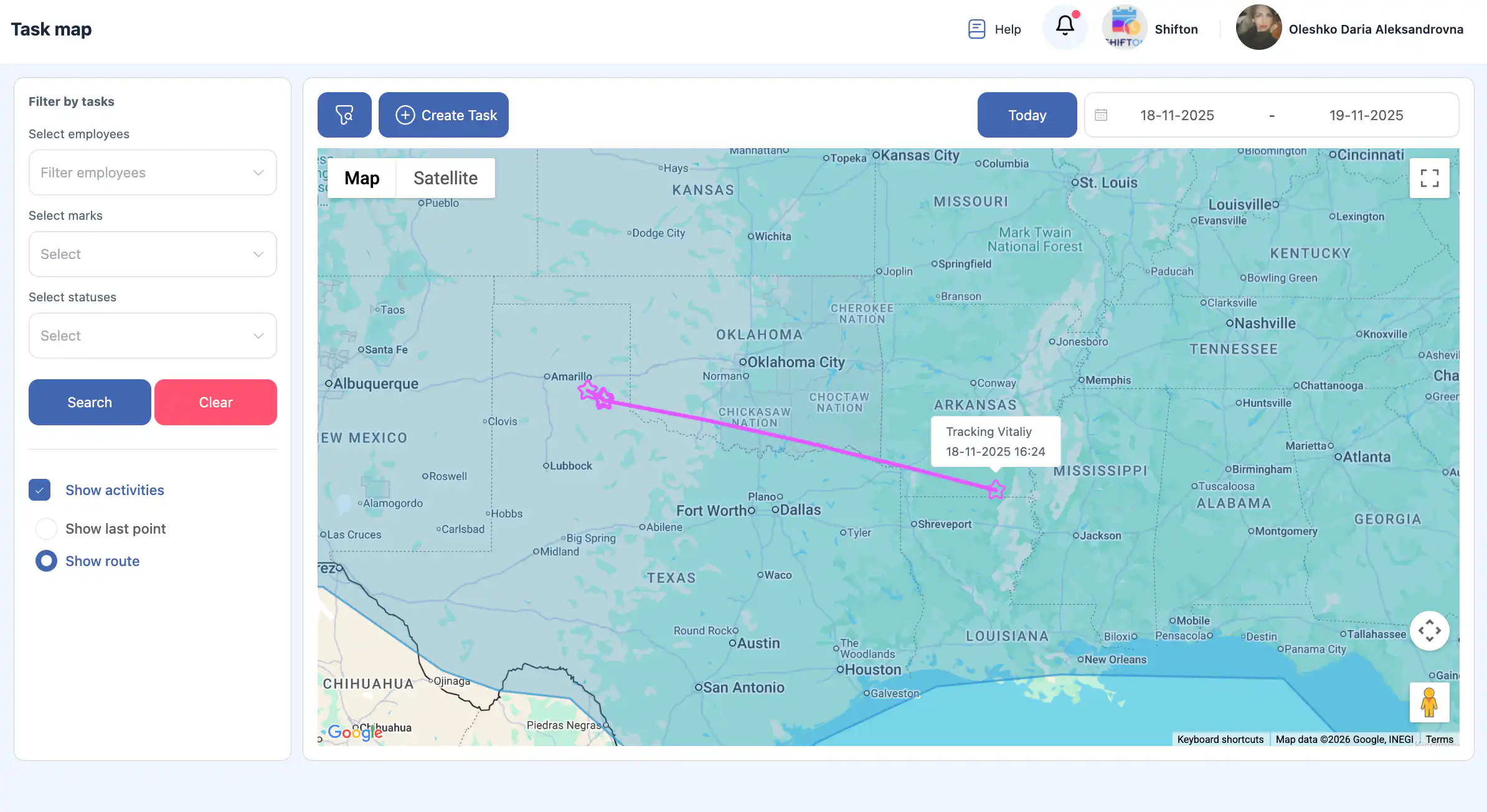
- show the full route.
Map View Controls
- The “Filters” button above the map hides the side filter panel to enlarge the map area.
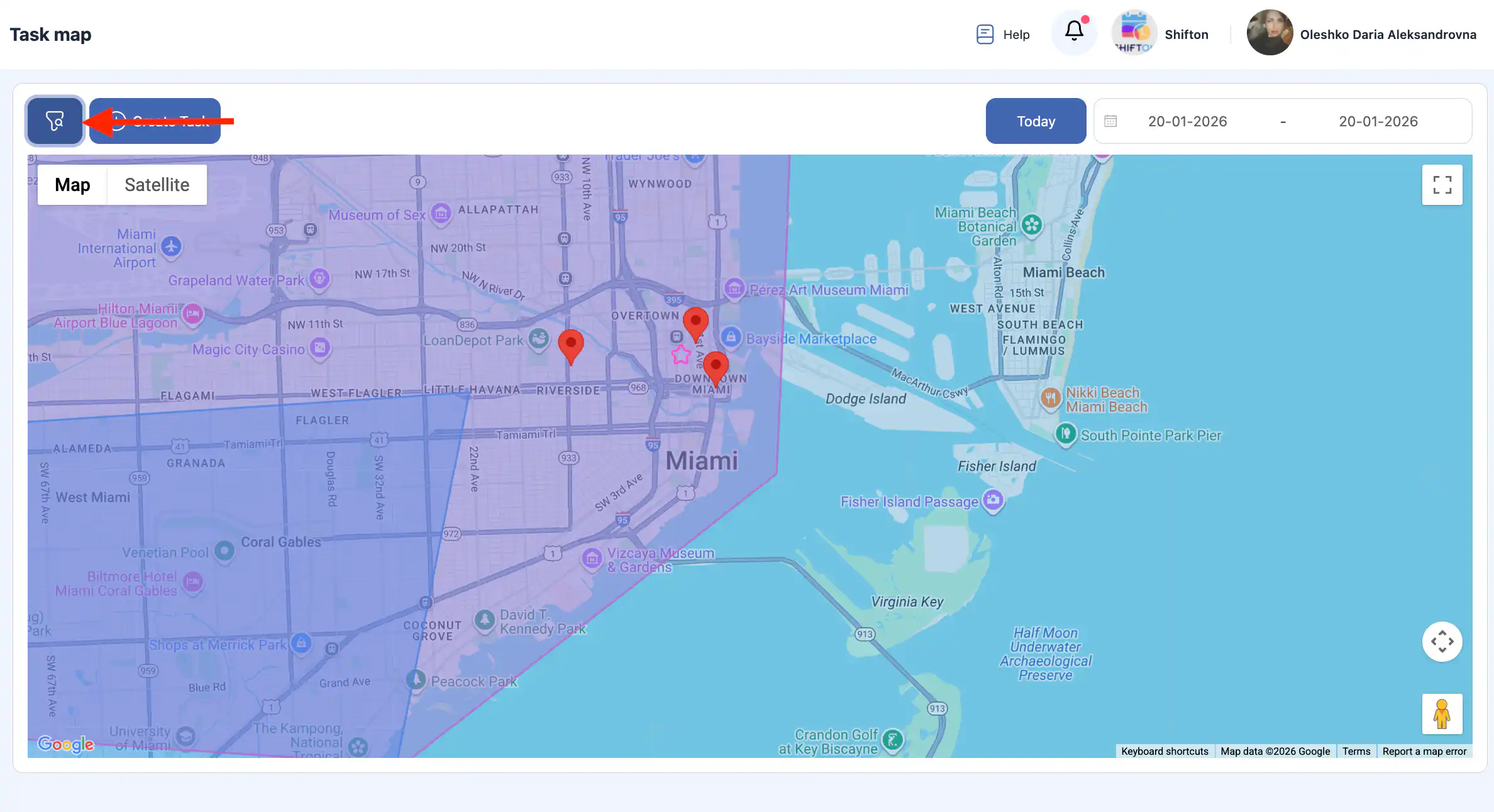
- The “Create task” button allows you to create a task directly from the map page.
- The “Today” button returns the map view to the current date.
Date Selection
A date selector is available on the right side of the page.
You can:
- view tasks for any specific date;
- select a date range;
- view employee routes for the selected period.
Working with Tasks on the Map
Tasks are displayed on the map as red markers.
When you click a marker:
- A side panel with task details opens.
- The task can be edited if it has not been started yet.
- If the task is already in progress, it is available in view-only mode.
Frequently Asked Questions (FAQ)
Q: What can I do in the Map section?
A: In the Map section, you can view tasks on the map, create tasks (if a client with an address exists), track employee movement in real time, and view employee route history over any selected period.
Q: How do I open the Map section?
A: In the side menu, select “Map.” This will open the map interface with tasks and employee tracking features.
Q: Why don’t I see any employee movement on the map?
A: To track employee movement, the Work Location Control module must be enabled in your company settings.
Q: How can I create a task from the Map?
A: Use the Create task button on the map page. A task can be created directly if a client with an address already exists in the system.
Q: What filters are available on the Map page?
A: Filters on the left side allow you to display map items by:
-
employee or multiple employees,
-
task marks (tags),
-
task status.
There are also Search and Reset filters buttons.
Q: What does the “Show activities” button do?
A: When the Work Location Control module is active, the Show activities button lets you display the last location point and the full route of an employee on the map.
Q: How do I zoom or reposition the map?
A: Use scroll to zoom in/out and click-drag to move the map view. (Standard map navigation applies.)
Q: What happens when I click a task marker on the map?
A: Clicking a task marker opens a side panel with task details. If the task has not been started, you can edit it; if it’s in progress, you can view it in read-only mode.
Q: How can I view tasks for different dates?
A: Use the date selector on the right side of the map page to choose a specific date or date range to view tasks and employee routes for that period.
Q: What does the “Today” button do?
A: Pressing Today resets the map view to show tasks and movements for the current date.
Q: Why aren’t some task actions available from the map?
A: If a task is already in progress or completed, only view-only mode is available from the map. Editing is allowed only for tasks that have not started yet.