

 English
  Español
  Português
  Deutsch
  Français
  Italiano
  日本語
日本語  中文
中文  हिन्दी
  עברית
עברית  العربية
  한국어
한국어  Nederlands
  Polski
  Türkçe
  Українська
  Русский
  Magyar
  Română
  Български
  Čeština
  Ελληνικά
  Svenska
  Dansk
Dansk  Norsk
Norsk  Suomi
Suomi  Bahasa
  Tiếng Việt
  Tagalog
  ไทย
ไทย  Latviešu
  Lietuvių
  Eesti
Eesti  Slovenčina
  Slovenščina
  Hrvatski
  Македонски
  Қазақ
Қазақ  Azərbaycan
  Afrikaans
  বাংলা
বাংলা The transfer function is used to move tools, items, and materials between facilities and technicians.
The detailed process of creating a transfer is described in the article “Facility Inventory Overview in the Inventory Module.”
The “Transfers” section allows you to view all created, confirmed, declined, and cancelled transfers and track their status in real time.
How to Open the Transfers Section
-
In the side menu, select “Transfers.”
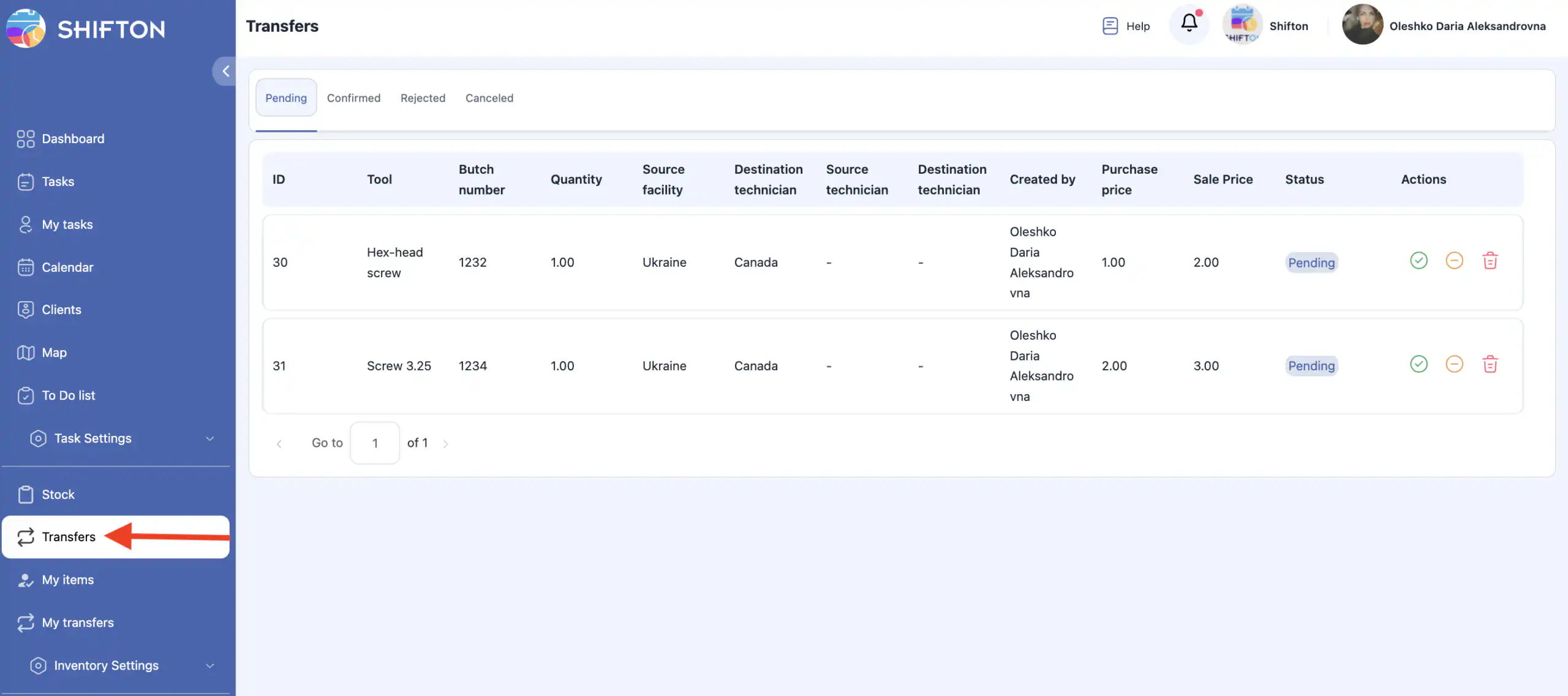
The page displays all item movement operations, grouped by status.
Transfer Status Types
The system uses four main transfer statuses.
Pending Transfers
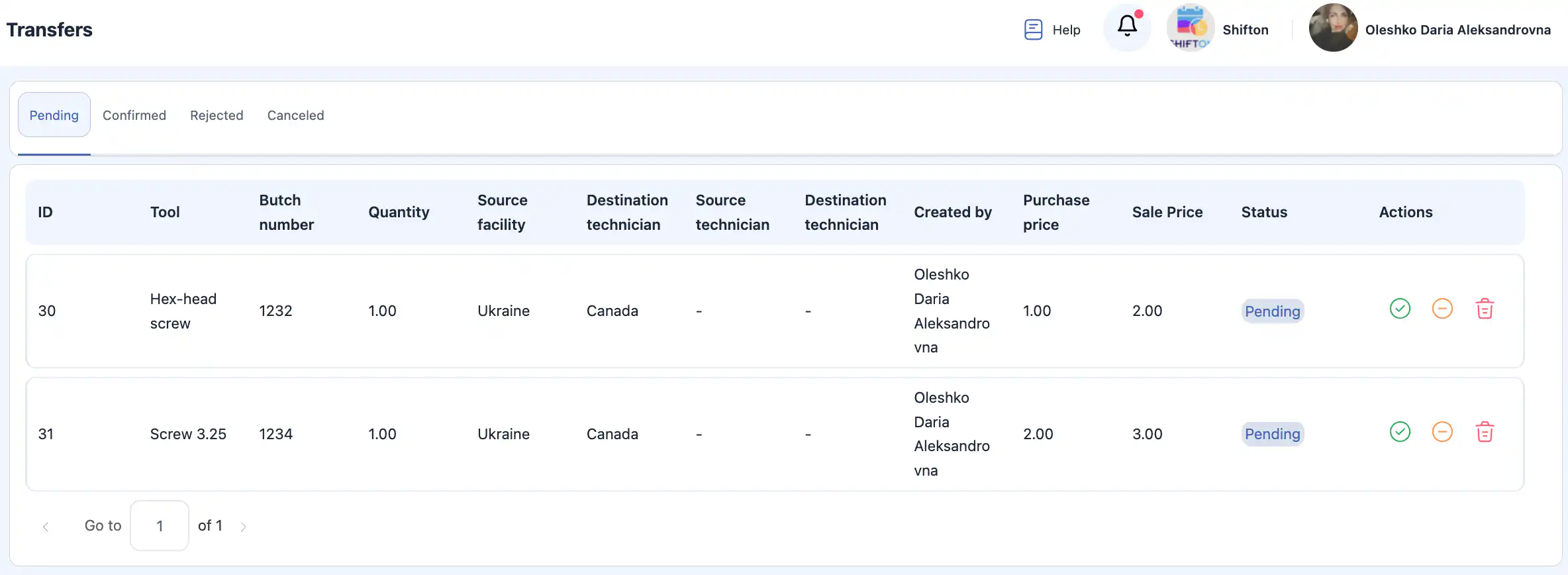
These are transfers that have been created but not yet confirmed by the recipient
(either a facility or a technician).
A transfer remains in Pending status until it is confirmed or declined.
Confirmed Transfers
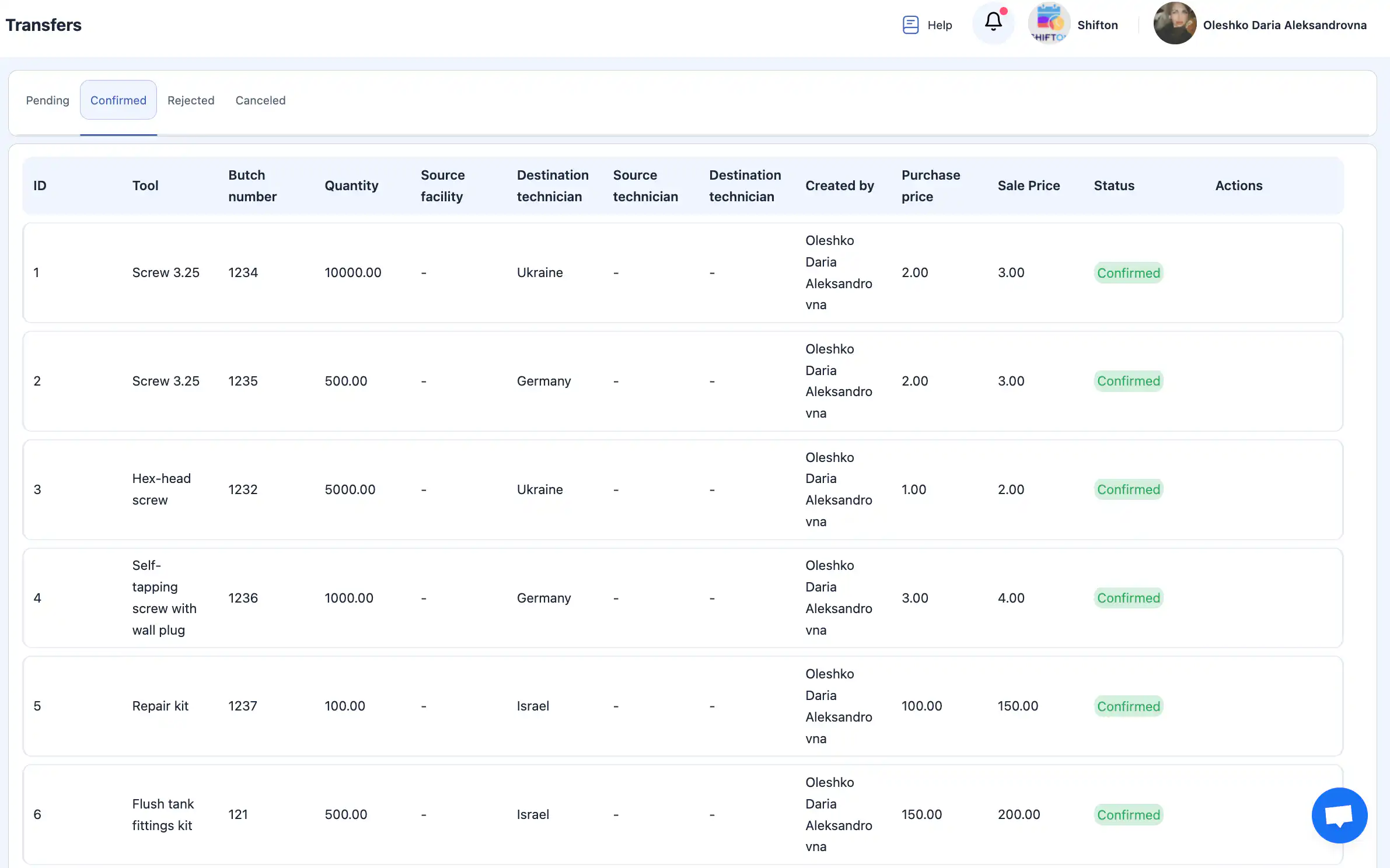
This list contains all transfers that were successfully accepted by the recipient.
After confirmation, item quantities are updated automatically.
Declined Transfers
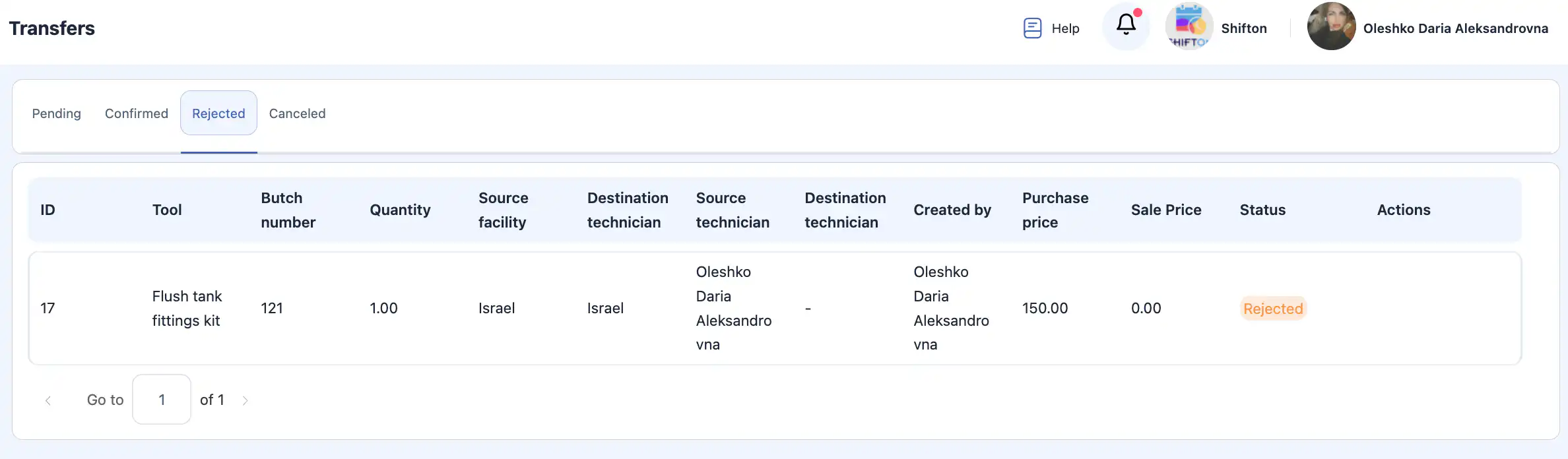
These are transfers that were declined by the receiving side.
Declined transfers do not affect item quantities.
Cancelled Transfers
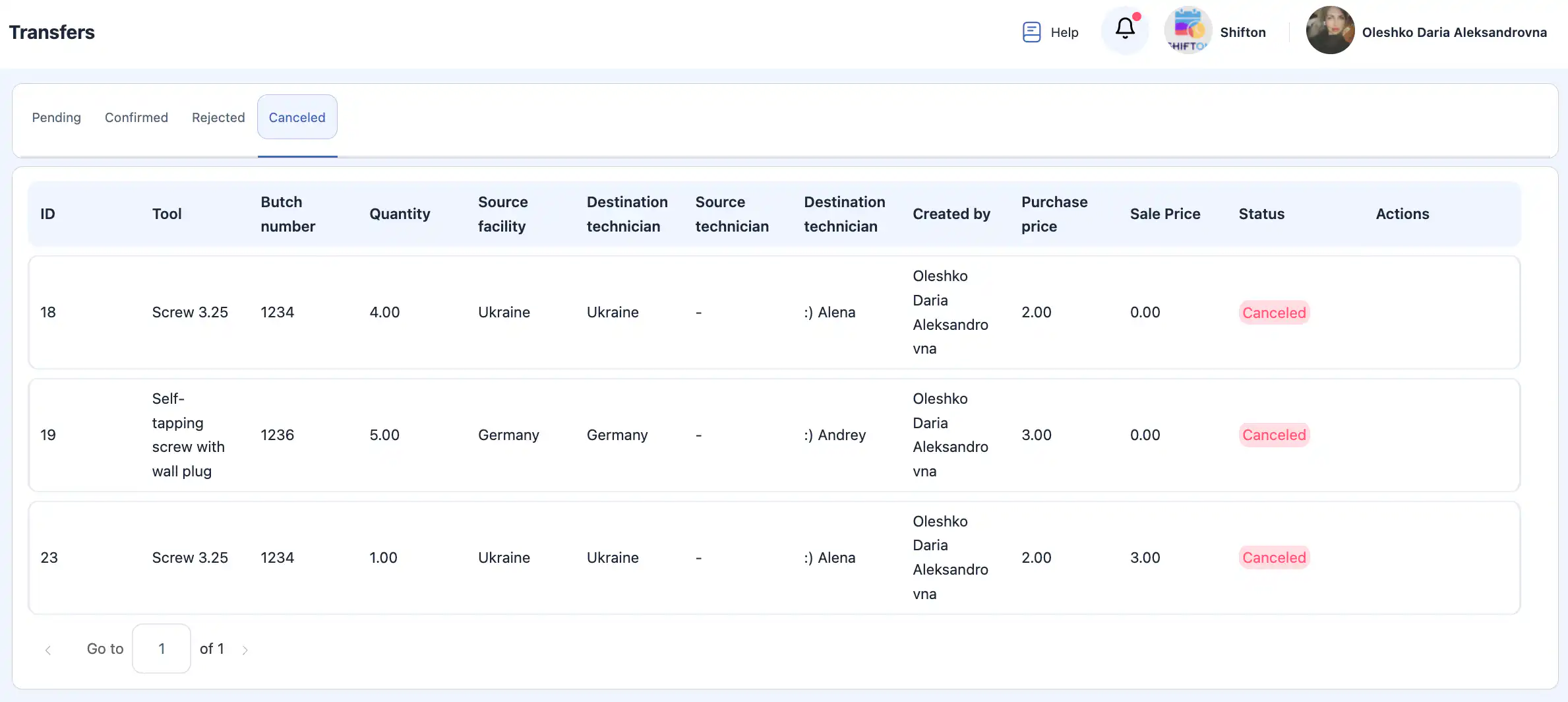
This category includes transfers that were cancelled by the sender before confirmation.
Cancelled transfers do not change inventory levels.
My Transfers Page
In addition to the general Transfers section, the system includes a dedicated “My Transfers” page.
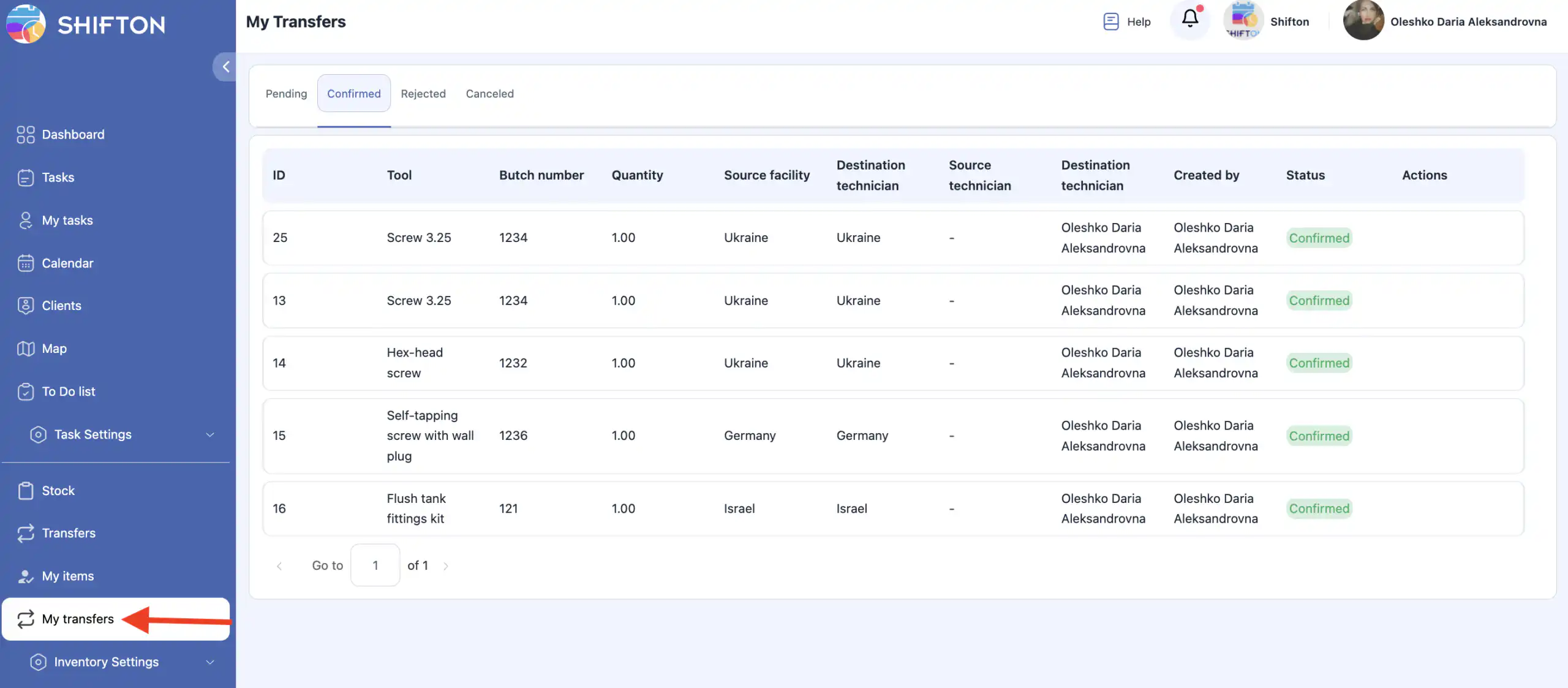
This page displays only the transfers that were created by the currently logged-in user.
All transfers on this page are shown with the same four statuses:
-
Pending
-
Confirmed
-
Declined
-
Cancelled
This allows each user to quickly track only their own transfer operations without viewing transfers created by other team members.
Frequently Asked Questions (FAQ)
Q: What is an item transfer in the Inventory module?
A: An item transfer is a record of moving tools, items, or materials between facilities or technicians within the Inventory module. You can view and manage these operations in the Transfers section.
Q: Where do I find the Transfers section?
A: In the side menu, select “Transfers.” This page shows all inventory movement operations grouped by status.
Q: What are the main transfer statuses?
A: The system uses four main statuses for transfers:
-
Pending — created but not confirmed by the recipient.
-
Confirmed — accepted and applied, inventory quantities updated.
-
Declined — rejected by the recipient, no quantity changes.
-
Cancelled — cancelled by the sender before confirmation.
Q: What does “Pending” mean?
A: Pending means the transfer has been created but not yet confirmed by the receiving facility or technician. The inventory change is not applied yet.
Q: What happens when a transfer is confirmed?
A: When confirmed, the recipient accepts the transfer and the item quantities are updated automatically in the inventory.
Q: Does a declined transfer affect inventory levels?
A: No. Declined transfers do not change inventory quantities.
Q: What happens if a transfer is cancelled?
A: Cancelled transfers are those stopped by the sender before confirmation. They do not affect inventory levels.
Q: What is “My Transfers”?
A: The My Transfers page shows only the transfers you personally created, displayed with the same four statuses (Pending, Confirmed, Declined, Cancelled). This helps you track your own transfer operations.
Q: Can I track real-time transfer status?
A: Yes — the Transfers page allows you to track the status of all transfer operations in real time.
Q: Does a transfer immediately update inventory anywhere?
A: Inventory levels are only updated after a transfer is confirmed. Pending, declined, or cancelled transfers do not change quantities.