

 English
  Español
  Português
  Deutsch
  Français
  Italiano
  日本語
日本語  中文
中文  हिन्दी
  עברית
עברית  العربية
  한국어
한국어  Nederlands
  Polski
  Türkçe
  Українська
  Русский
  Magyar
  Română
  Български
  Čeština
  Ελληνικά
  Svenska
  Dansk
Dansk  Norsk
Norsk  Suomi
Suomi  Bahasa
  Tiếng Việt
  Tagalog
  ไทย
ไทย  Latviešu
  Lietuvių
  Eesti
Eesti  Slovenčina
  Slovenščina
  Hrvatski
  Македонски
  Қазақ
Қазақ  Azərbaycan
  Afrikaans
  বাংলা
বাংলা Module Activation and Setup Order
The Inventory module is used to manage tools, materials, warehouses, and storage locations.
Before using it, the module must be activated.
How to activate the module
You can enable the module in two ways.
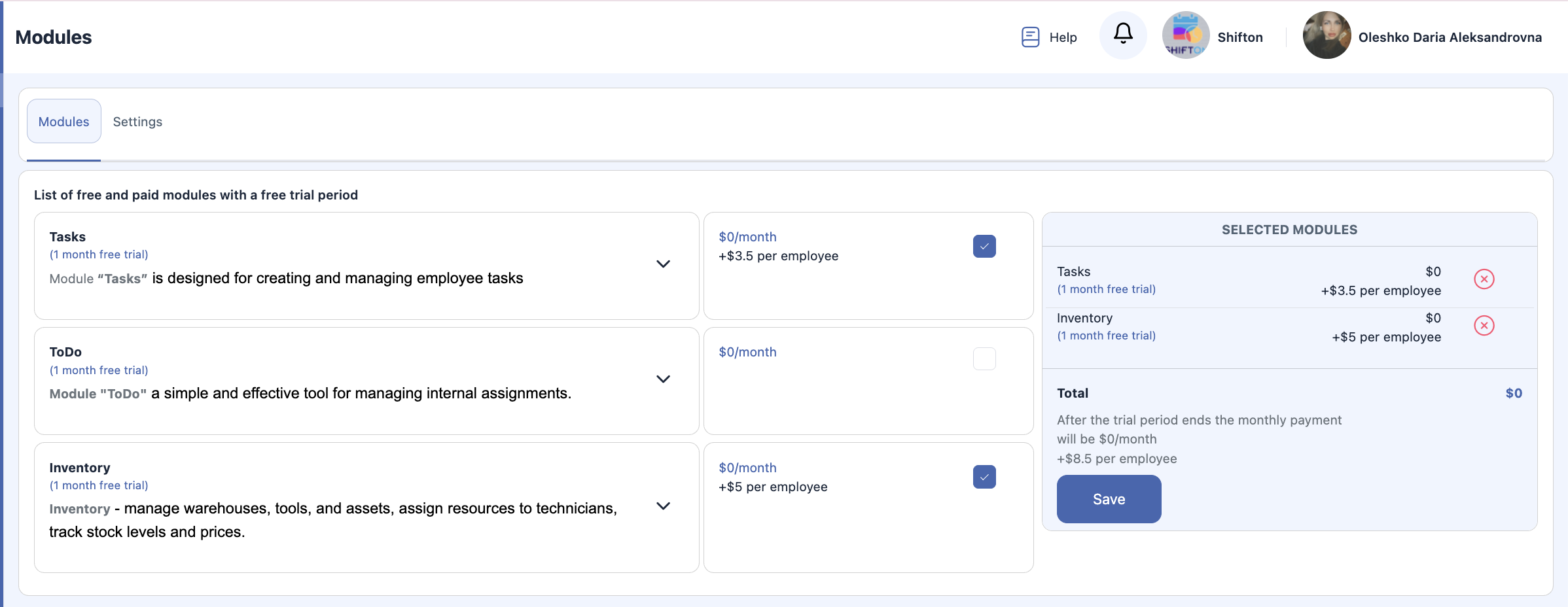
Option 1. Via company settings
-
Open Company Name (top menu).
-
Go to Modules.
-
Find the Inventory module.
-
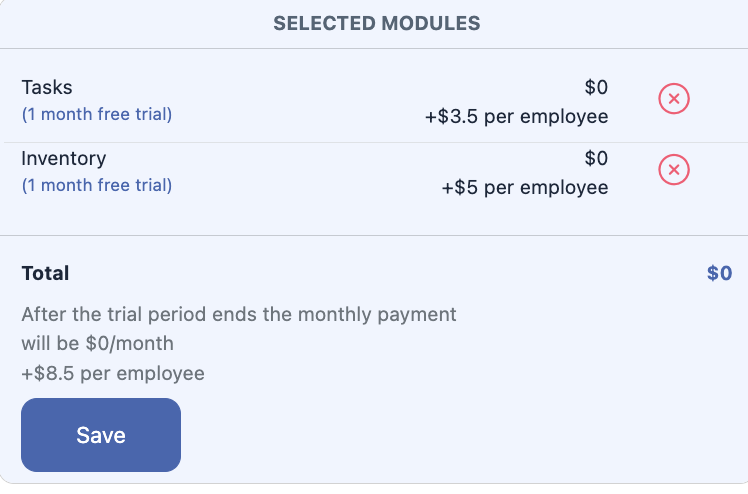
Check the box next to it.
-
Click Save.
Option 2. From the sidebar
-
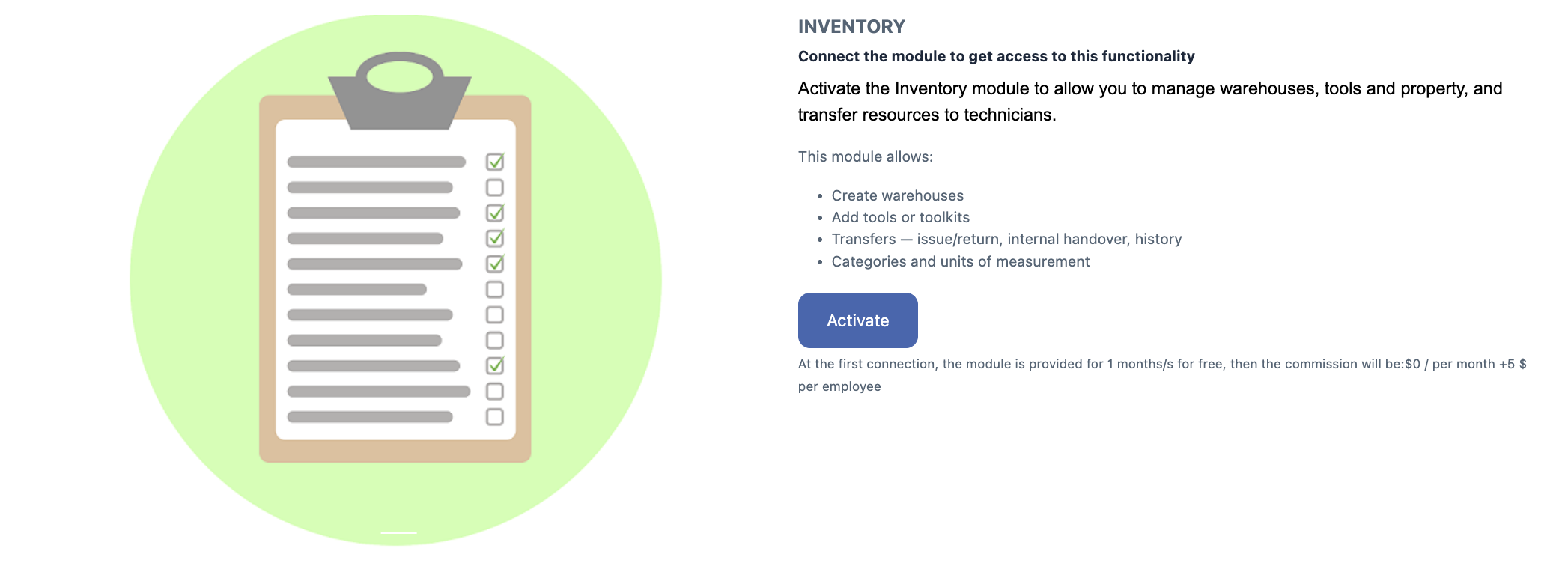
In the left sidebar, click Inventory.
-
Then click Enable Module.
How to disable the module
-
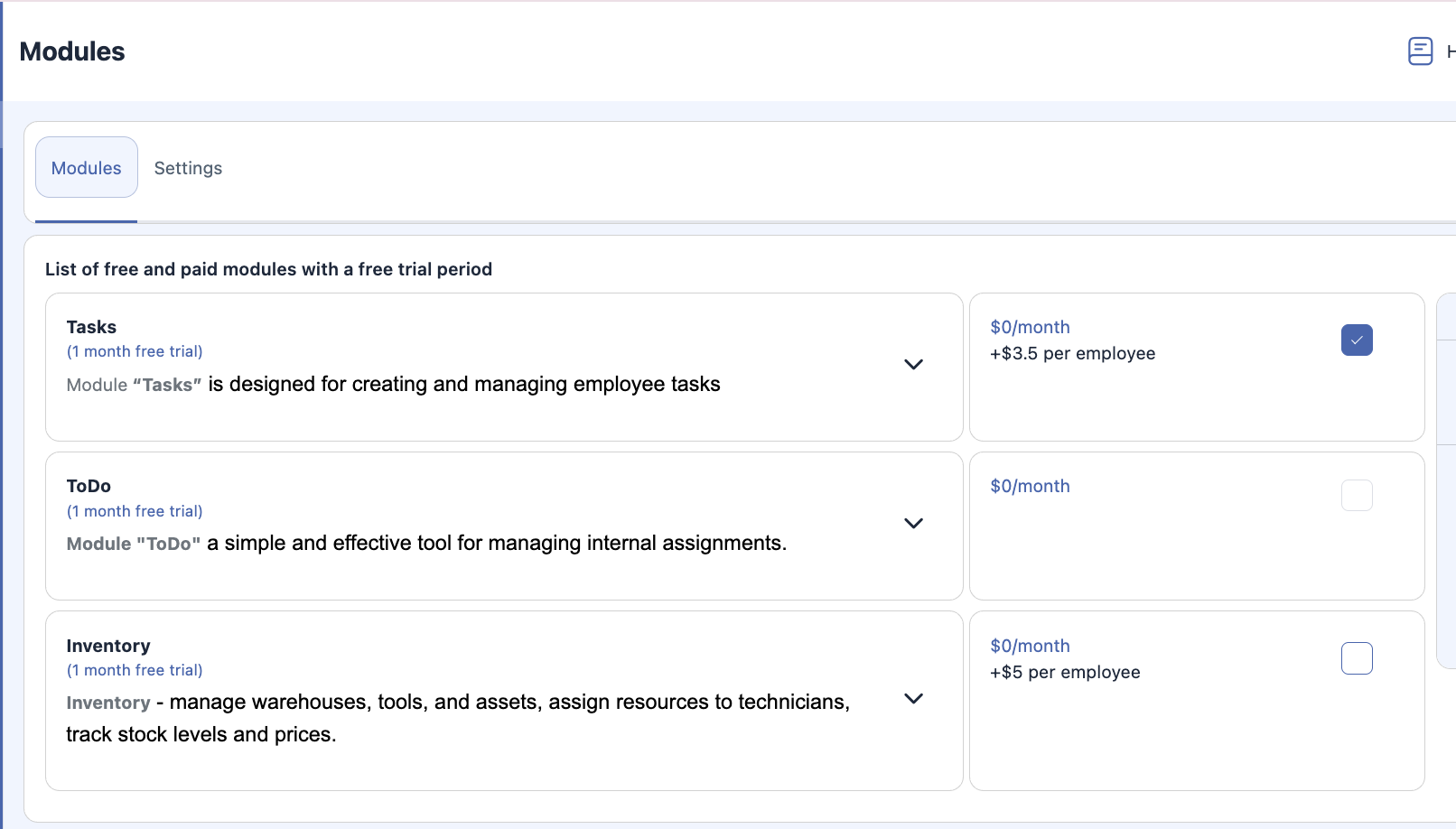
Open Company Name (top menu).
-
Go to Modules.
-
Find Inventory.
-
Uncheck the box.
-
Click Save.
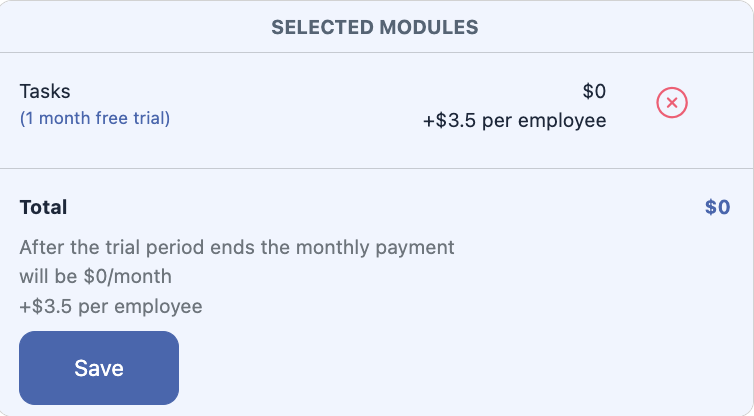
Once disabled, the module will be removed from the sidebar and all inventory functions will become unavailable.
General setup order
To correctly configure the Inventory module, it is important to follow the required sequence.
To create a tool, you must first:
-
Create a Category
-
Create a Unit of Measurement
-
Create the Tool
To create a warehouse, you must:
Step-by-step setup
1. Tool setup
1.1. Create category
Defines the type or group of tools or materials.
1.2. Create a unit of measurement
Defines how the tool is counted or stored (pcs, liters, meters, rolls, sets).
1.3. Create tool
Specify:
-
tool name;
-
category;
-
unit of measurement;
-
description (optional);
-
additional parameters if required.
2. Warehouse setup
3.1. Create tool
A tool must be created first to be available for warehouse storage.
3.2. Create storage locations (warehouses list)
Add all possible storage locations used in the system: office, workshop, vehicle, container, etc.
3.3. Create warehouse
Specify:
-
warehouse name;
Final setup scheme
Frequently Asked Questions (FAQ)
Q: What is the Inventory module in Shifton?
A: The Inventory module lets you manage tools, materials, warehouses, and storage locations — providing stock control, transfers, reporting, and item tracking across facilities.
Q: How do I activate the Inventory module?
A: You can enable the Inventory module in two places:
-
Via Company Settings → Modules by checking the Inventory box and saving;
-
From the sidebar by clicking Inventory → Enable Module.
Q: What should I do before adding tools to inventory?
A: Before adding tools, you need to:
-
Create inventory Categories;
-
Create Units of Measurement;
-
Then create the Tool.
Q: How do I create a warehouse or facility?
A: First create a tool, then create storage locations (warehouses list), and then add the warehouse itself.
Q: What inventory actions are available once the module is enabled?
A: Once enabled, you can:
-
add and adjust items in stock;
-
organize inventory by facilities;
-
transfer items to technicians or other facilities;
-
track movement history;
-
manage categories, bundles, tools, and units of measurement.
Q: Do I need a specific role or permission to use the Inventory module?
A: Access to inventory functionality depends on your user role and permissions within the Shifton company settings. Admins and managers usually have full access.
Q: What does “Inventory & Warehouse Management” cover?
A: Inventory & Warehouse Management includes stock control, facility organization, item transfers, and reporting on quantities and movements.
Q: Will disabling the Inventory module delete existing data?
A: Disabling the Inventory module removes access from the sidebar and makes inventory functions unavailable, but it does not automatically delete historical item and transfer data — you can enable it again later.
Q: Is the Inventory module available during a free trial?
A: Yes — Inventory typically comes with a 30-day free trial when activated for the first time. After the trial, standard subscription fees apply per employee.
Q: Where can I find detailed help for specific inventory features?
A: Related help articles include: