

 English
  Español
  Português
  Deutsch
  Français
  Italiano
  日本語
日本語  中文
中文  हिन्दी
  עברית
עברית  العربية
  한국어
한국어  Nederlands
  Polski
  Türkçe
  Українська
  Русский
  Magyar
  Română
  Български
  Čeština
  Ελληνικά
  Svenska
  Dansk
Dansk  Norsk
Norsk  Suomi
Suomi  Bahasa
  Tiếng Việt
  Tagalog
  ไทย
ไทย  Latviešu
  Lietuvių
  Eesti
Eesti  Slovenčina
  Slovenščina
  Hrvatski
  Македонски
  Қазақ
Қазақ  Azərbaycan
  Afrikaans
  বাংলা
বাংলা The employee profile contains the main information and settings of an employee in the system.
To open an employee profile:
-
Go to the “Employees” section.
-
Click the pencil icon next to the required employee.
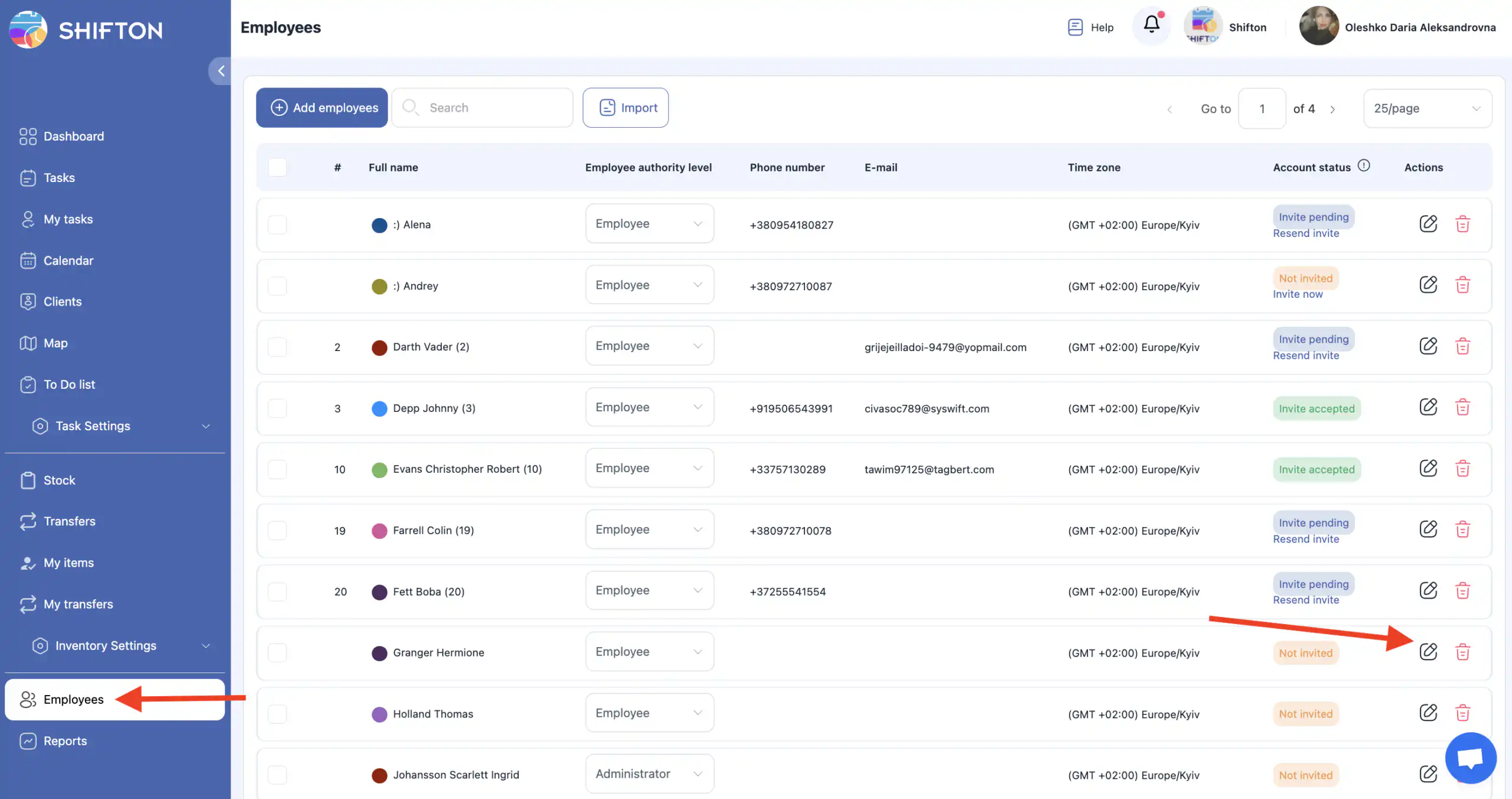
A side panel with the employee’s profile data will open.
Employee Profile Fields
The following fields are available in the profile:
-
Employee ID — internal employee identifier in the system;
-
Time zone — employee time zone (for example, GMT +02:00 Europe/Kyiv);
-
Employee rights — employee access permissions;
-
First name — first name;
-
Last name — last name;
-
Phone number — phone number;
-
E-mail — email address;
-
Personnel Number — personnel (employee) number;
-
Select skills — employee skills
(see the “Skills” article for details); -
Employee color — employee color on the map.
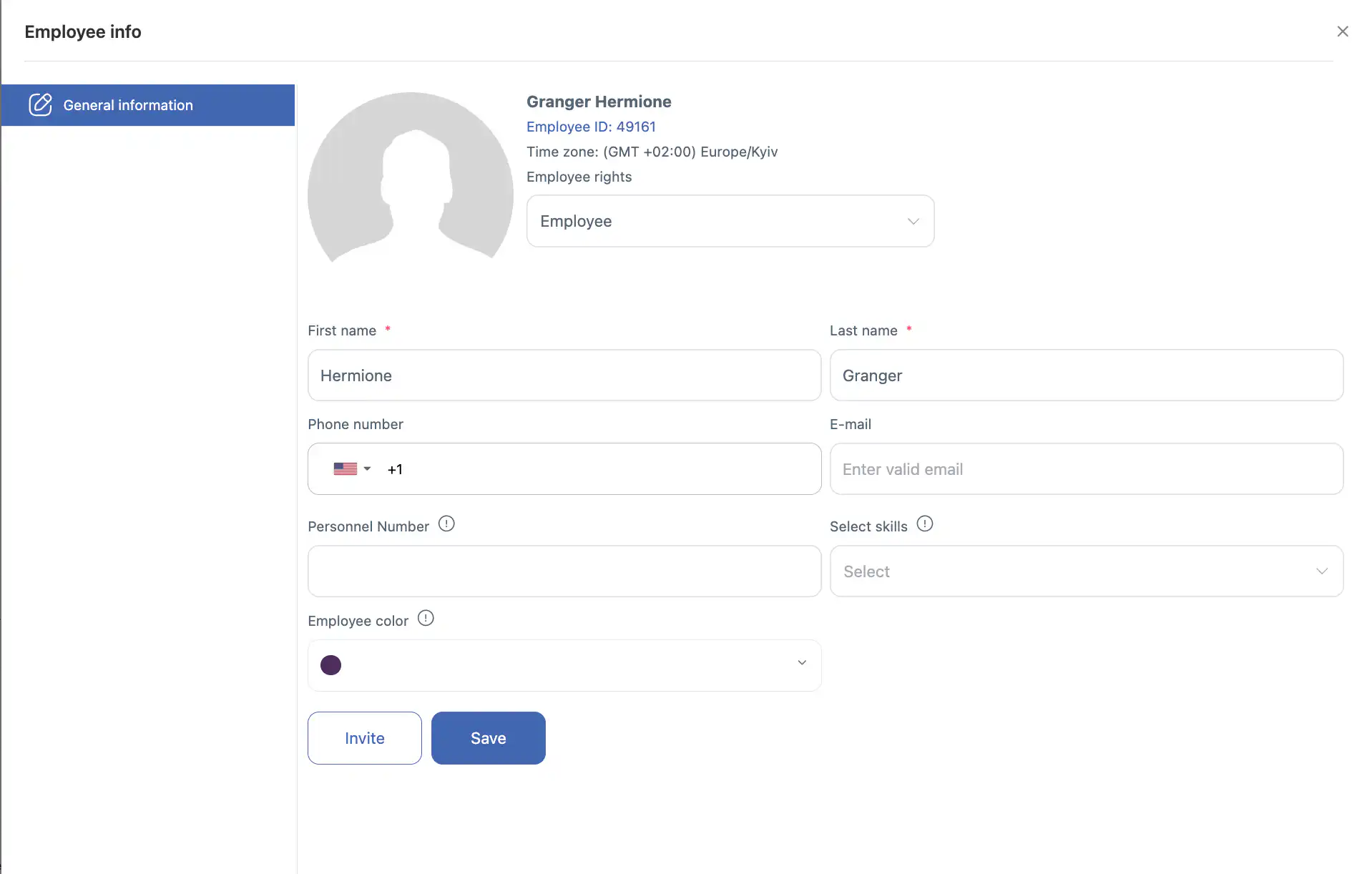
The employee color is used to display the employee’s route on the map when the “Work Location Control” module is enabled.
Editing the Employee Profile
Employee data can be edited only before the employee is invited to the system.
If the employee has already been invited, they can edit the following fields in their own profile:
-
first name;
-
phone number;
-
email address.
- photo
Frequently Asked Questions (FAQ)
Q: What is the Employee Profile used for?
A: The employee profile contains the main information and settings for a user within the system. It lets admins view and, in some cases, edit key employee details.
Q: How do I open an employee’s profile?
A: Go to the Employees section and click the pencil icon next to the employee you want to view. A side panel with the employee’s profile will open.
Q: Which fields can I see in an employee profile?
A: The profile shows Employee ID, Time Zone, Employee Rights, First Name, Last Name, Phone Number, E-mail, Personnel Number, Selected Skills, and Employee Color.
Q: What does “Employee Color” mean?
A: Employee Color is used on the map when the Work Location Control module is enabled — it helps visually differentiate an employee’s route.
Q: Which fields can be edited after an employee is invited?
A: After invitation, the employee can edit their own first name, phone number, email address, and profile photo.
Q: Can admin users edit other fields like Employee ID or Time Zone?
A: No — only the fields listed above (name, phone, email, photo) can be changed once the employee is invited. Other fields such as Employee ID or time zone remain set by the company until further admin functionality is added.
Q: Why can’t I change certain fields in the profile?
A: Some fields are only editable before invitation, or may be controlled by company settings and permissions. If a field is locked, it’s due to system restrictions.
Q: Do skills shown in the profile affect task assignments?
A: Yes — the Select skills field links to employee skills used in tasks and scheduling. To assign skills, see the Skills article for details.
Q: Where do the employee rights come from?
A: Employee Rights reflect the access permissions assigned to that user (e.g., admin, manager, regular employee). These control what they can see and do in the system.
Q: Will changes to the employee profile reflect immediately in scheduling and maps?
A: Yes — updates to name, skills, or color are reflected in schedules and maps once the profile is saved.