

 English
  Español
  Português
  Deutsch
  Français
  Italiano
  日本語
日本語  中文
中文  हिन्दी
  עברית
עברית  العربية
  한국어
한국어  Nederlands
  Polski
  Türkçe
  Українська
  Русский
  Magyar
  Română
  Български
  Čeština
  Ελληνικά
  Svenska
  Dansk
Dansk  Norsk
Norsk  Suomi
Suomi  Bahasa
  Tiếng Việt
  Tagalog
  ไทย
ไทย  Latviešu
  Lietuvių
  Eesti
Eesti  Slovenčina
  Slovenščina
  Hrvatski
  Македонски
  Қазақ
Қазақ  Azərbaycan
  Afrikaans
  বাংলা
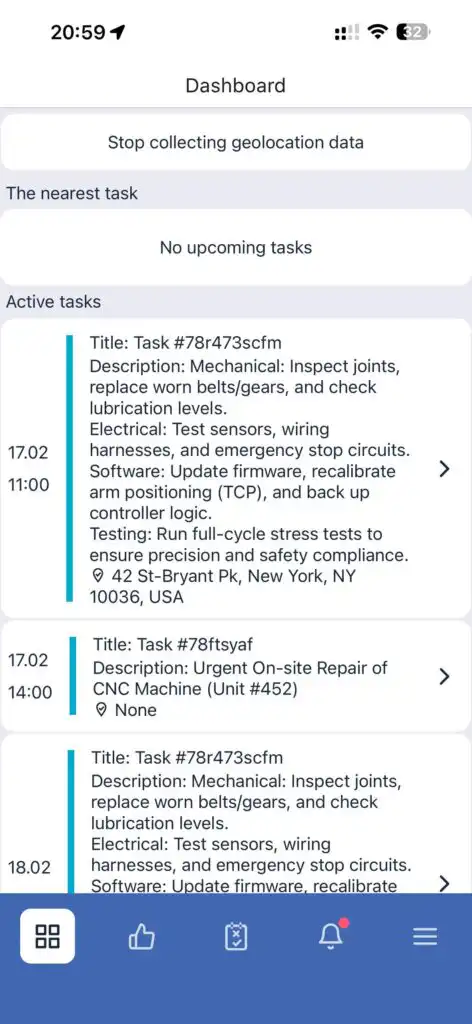
বাংলা The Dashboard is the main screen of the mobile application.
It displays task-related data and allows you to manage location tracking (if the Work Location Control module is enabled).
From the Dashboard, you can:
- View current task information
- Enable or disable location tracking
- Monitor activity status
Location Tracking
If the Work Location Control module is enabled, employees manage tracking directly from the Dashboard.
🔹 Location tracking must be enabled at the beginning of the working day.
🔹 Location tracking must be disabled at the end of the working day.
This ensures accurate tracking of working time and movements during the shift.
When launching the app for the first time, you must grant all required permissions:
- Location access
- Background location access
- Activity tracking permission
- Data collection permission
- Physical activity access
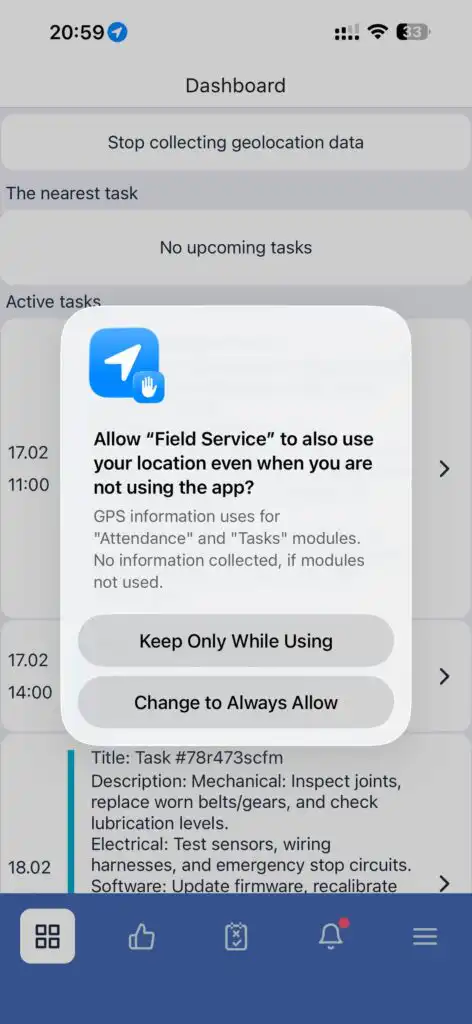
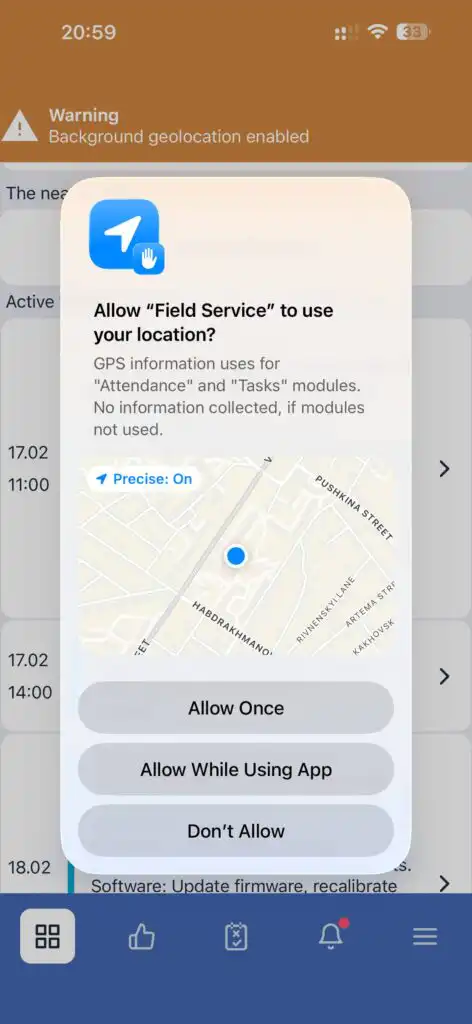
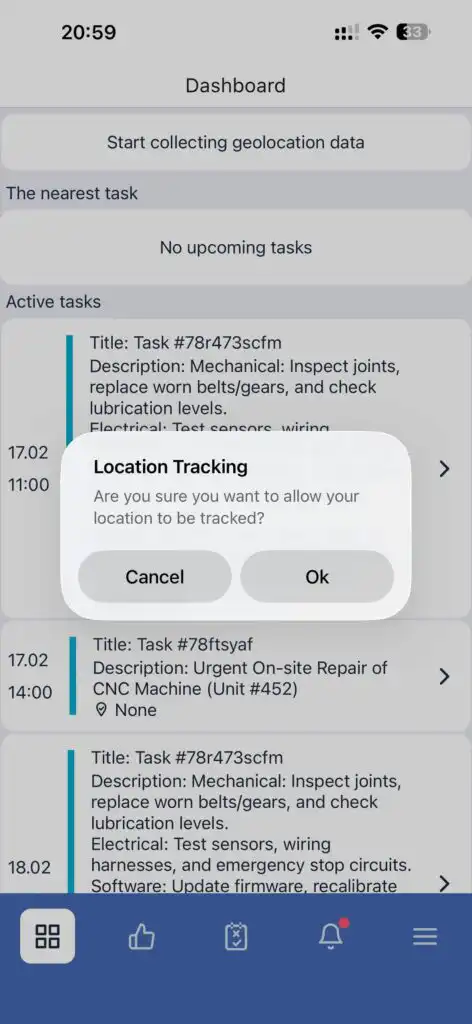
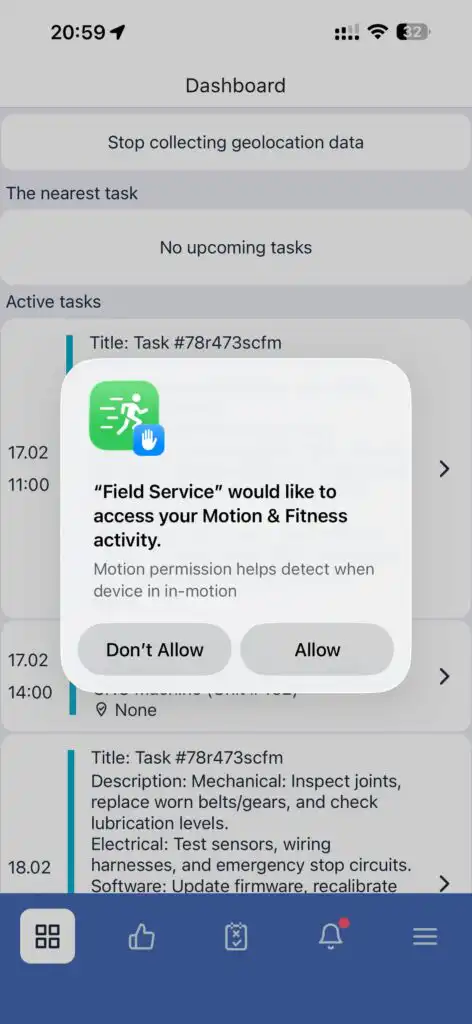
Without these permissions, location tracking may not function properly.
Task Execution
To start working on a task:
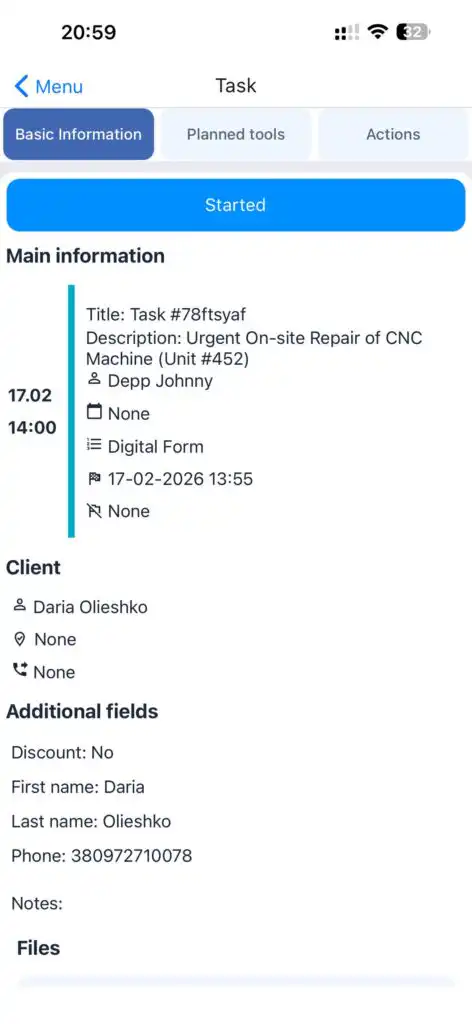
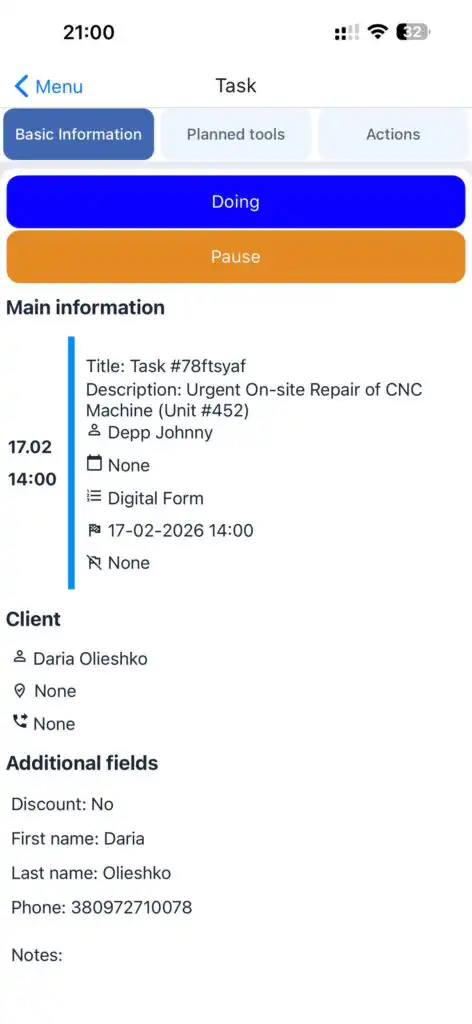
1.Open the selected task from the list.
2.Tap the status button at the top of the screen.
3.Choose the appropriate status (statuses are configured separately in the system).
Location Restriction
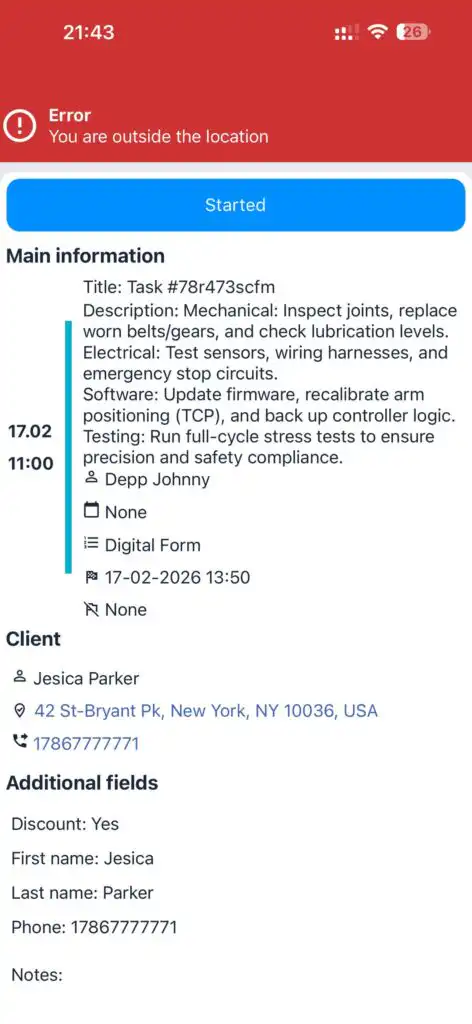
If a task requires presence at the client’s address, it can only be started when physically located at that address.
If the technician is outside the required location, the task cannot be started.
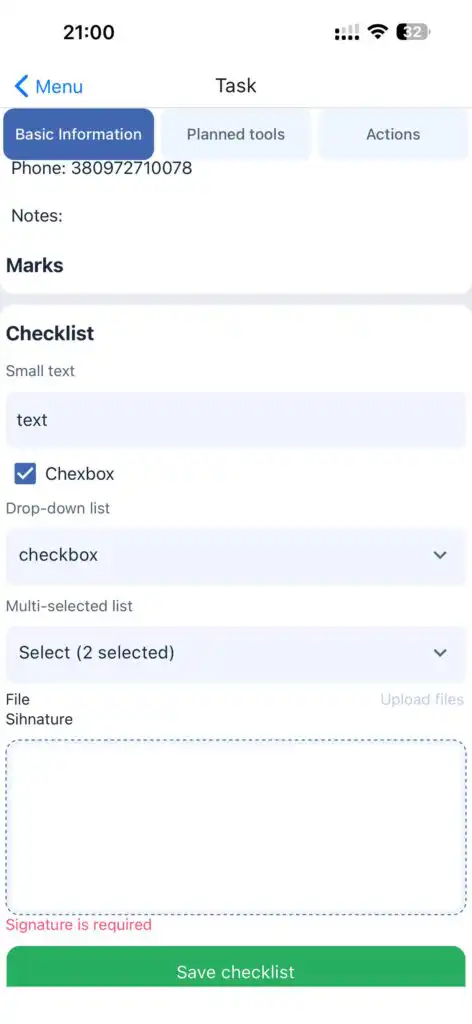
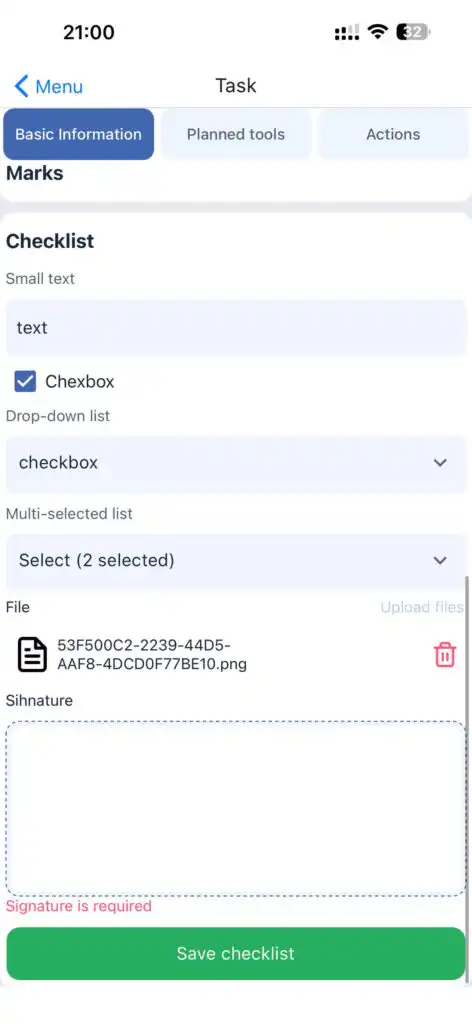
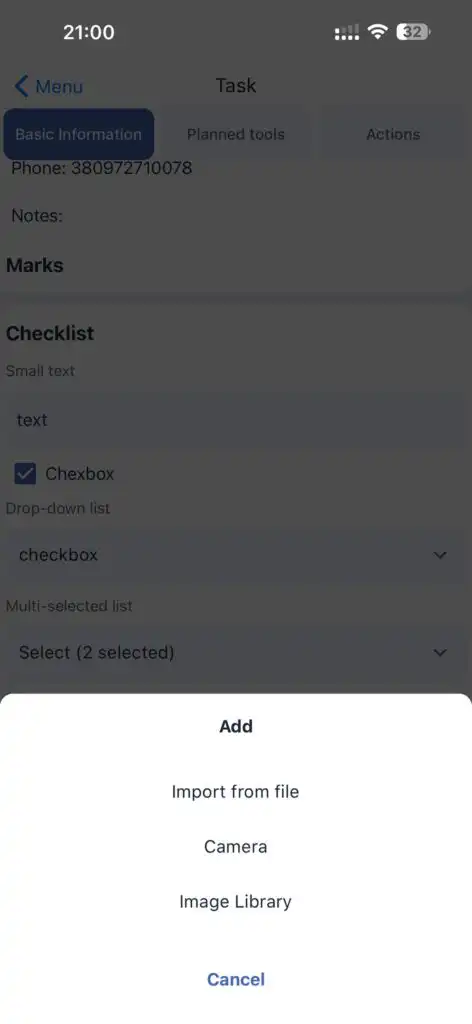
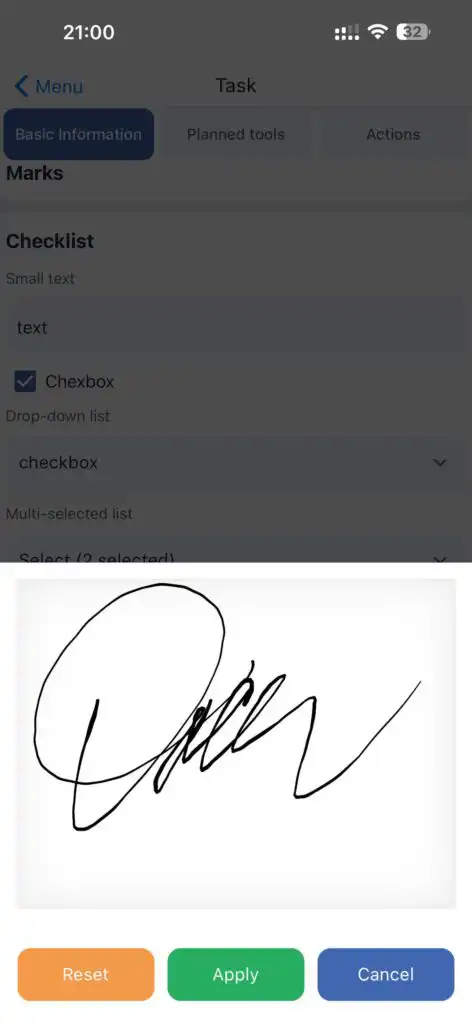
Checklist in a Task
If a checklist is attached to the task, it must be completed during execution.
Task completion may be restricted until the checklist is fully filled out (depending on system settings).
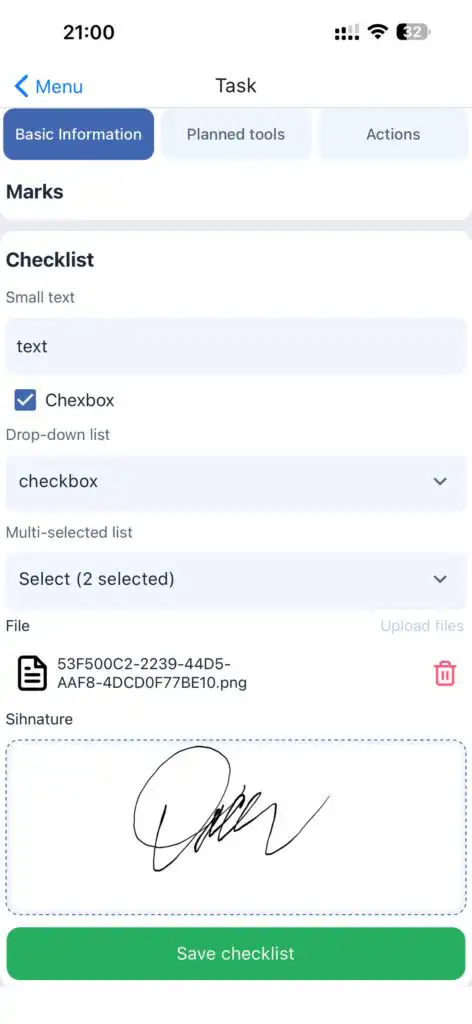
Using the Inventory Module
If the Inventory module is enabled, during task execution you must:
- Select the tools used
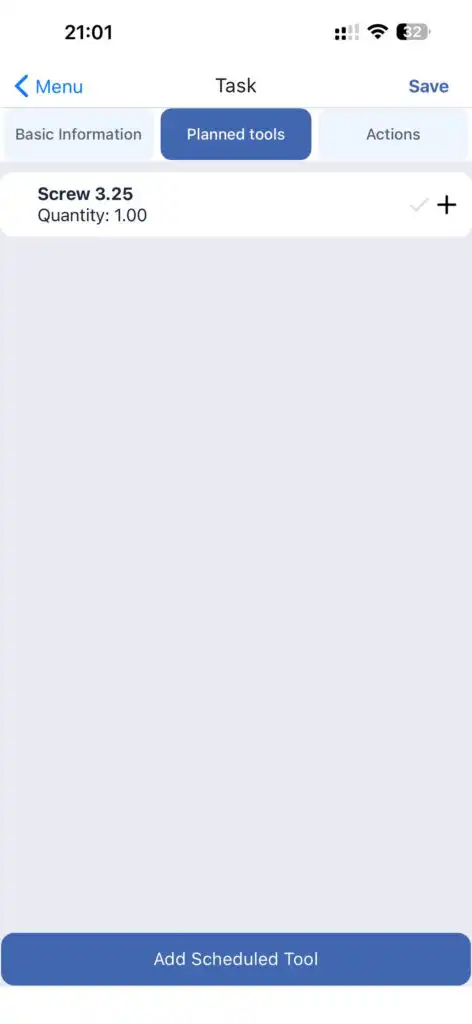
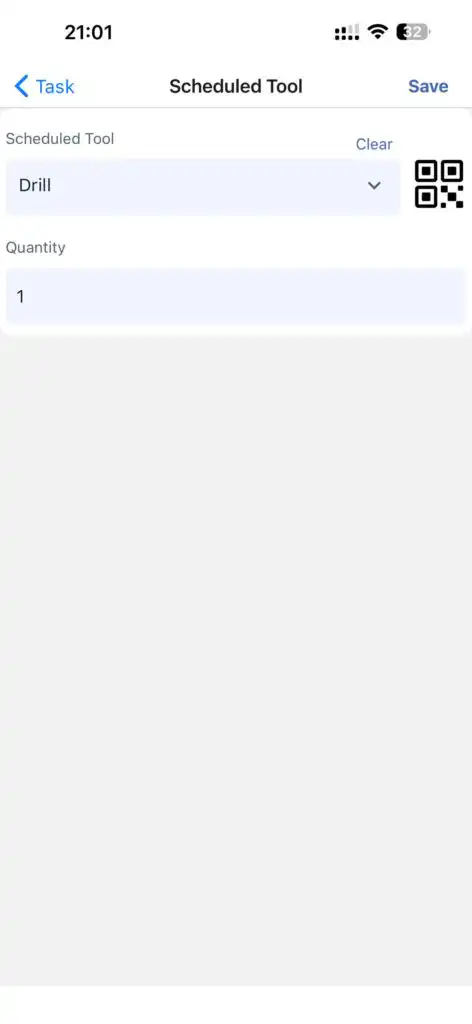
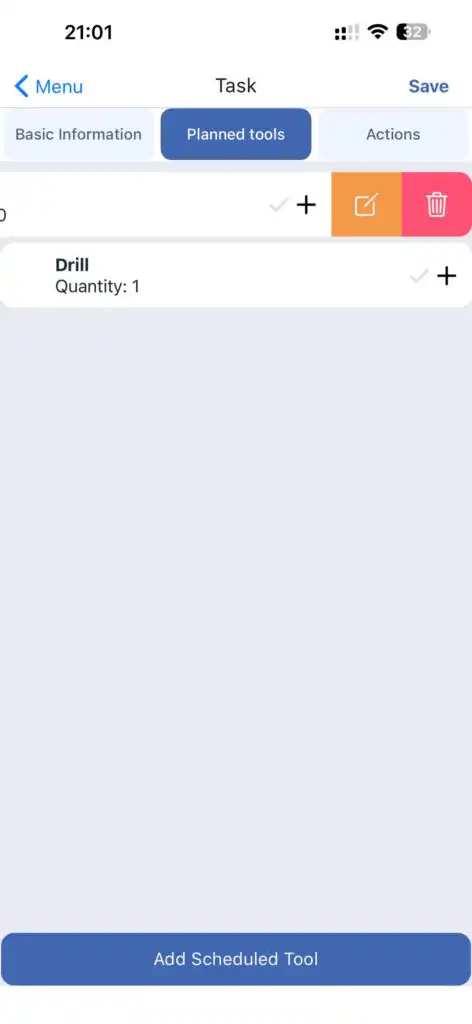
- Indicate the materials consumed
Task completion may be restricted if tools and materials are not selected (depending on configuration).
FAQ
Q: Where is the Dashboard located?
A: It is the main screen of the mobile application after login.
Q: Can I disable location tracking?
A: Yes, if the Work Location Control module is enabled, tracking can be toggled on or off from the Dashboard.
Q: Why does the app request multiple permissions?
A: These permissions are required for proper background tracking and activity monitoring.
Q: Why can’t I start a task?
A: The task may require you to be physically present at the client’s address.
Q: Is completing the checklist mandatory?
A: Yes, if it is attached to the task and required by system settings.
Q: Why do I need to select tools and materials?
A: This ensures accurate inventory tracking and resource management.