

 English
  Español
  Português
  Deutsch
  Français
  Italiano
  日本語
日本語  中文
中文  हिन्दी
  עברית
עברית  العربية
  한국어
한국어  Nederlands
  Polski
  Türkçe
  Українська
  Русский
  Magyar
  Română
  Български
  Čeština
  Ελληνικά
  Svenska
  Dansk
Dansk  Norsk
Norsk  Suomi
Suomi  Bahasa
  Tiếng Việt
  Tagalog
  ไทย
ไทย  Latviešu
  Lietuvių
  Eesti
Eesti  Slovenčina
  Slovenščina
  Hrvatski
  Македонски
  Қазақ
Қазақ  Azərbaycan
  Afrikaans
  বাংলা
বাংলা The Company Settings section allows you to manage general company information, billing details, payment methods, invoices, transactions, and active modules.
To open the Company Settings page, click the company name at the top of the screen and select “Company Settings.”
General Information
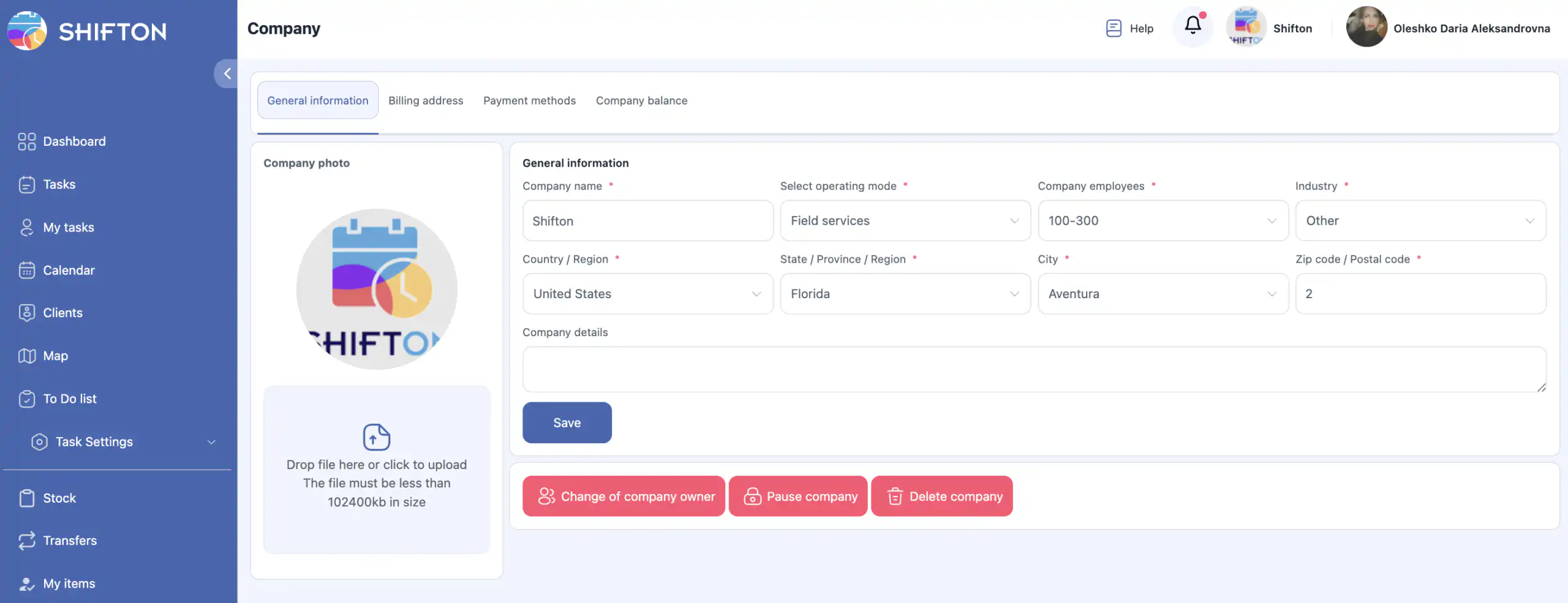
In this section, you can fill in the basic details of your company:
-
company name;
-
work mode (Office mode or Field Service);
-
number of employees;
-
country / region;
-
state / province / region;
-
city;
-
additional company details.
You can also upload a company logo.
The logo is displayed in task reports (see the article “Reports” for more details).
After making changes, click “Save.”
Company Actions
Change Company Owner
You can transfer ownership to another user.
After the transfer, your access level will automatically change from Owner to Employee.
-
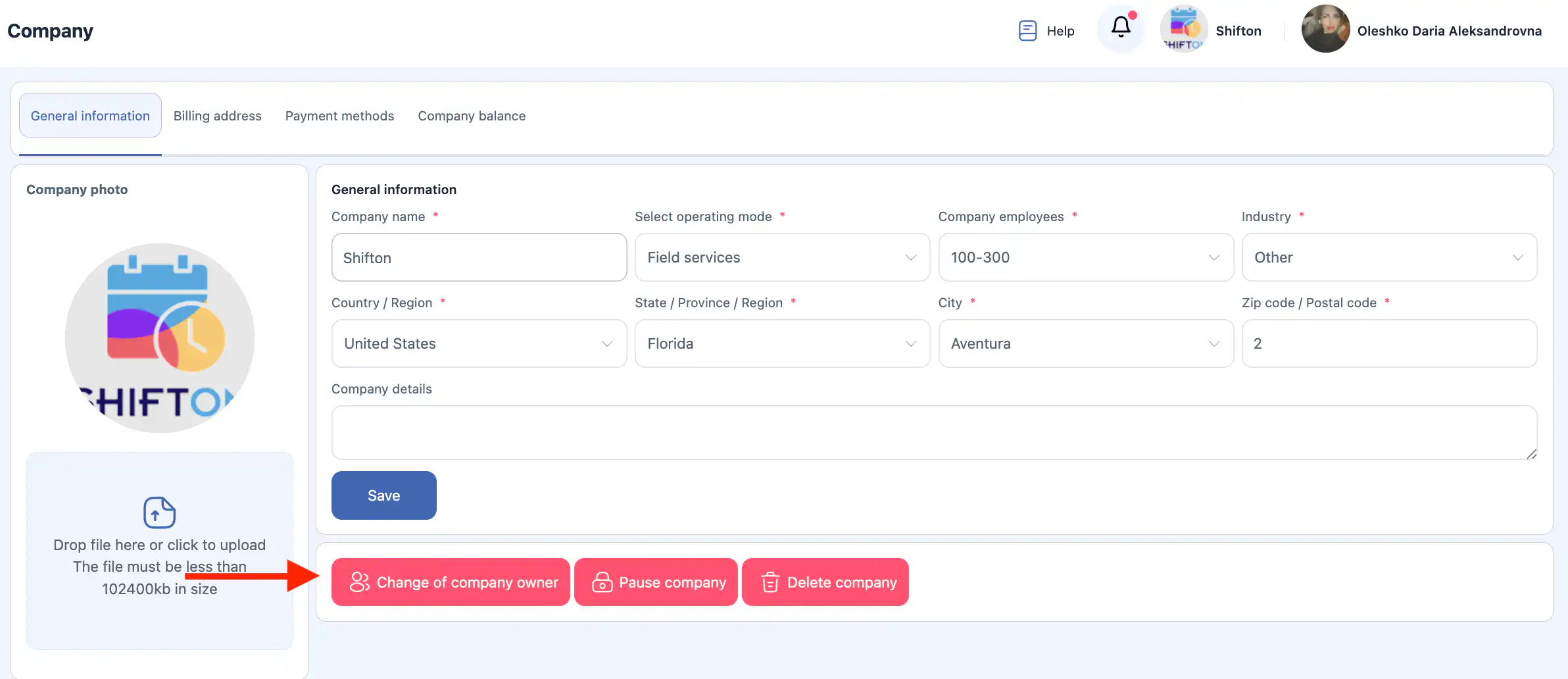
Click “Change Owner.”
-
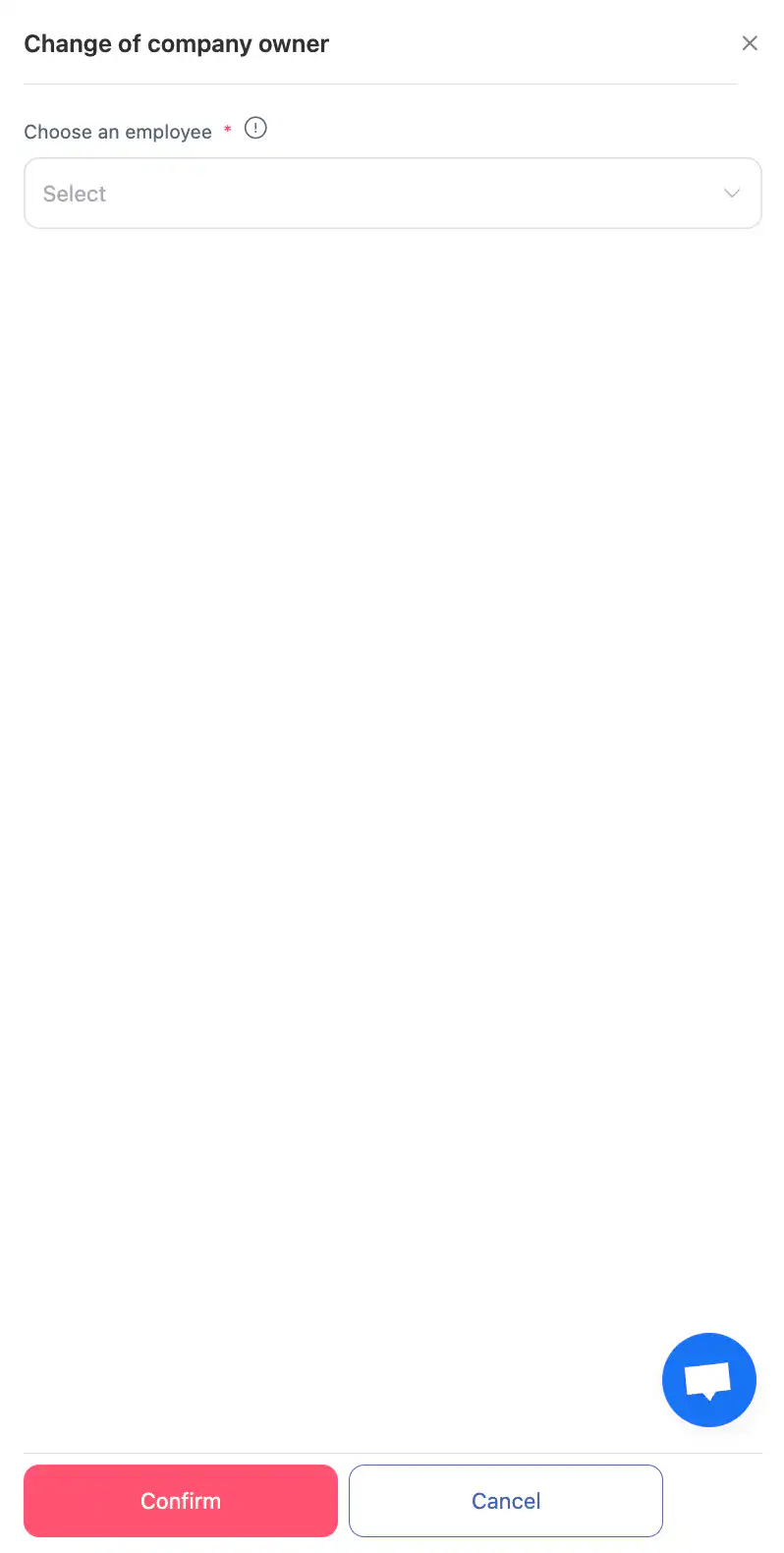
In the side panel, select the employee who will become the new owner.
-
Confirm the action by clicking “Confirm.”
-
To cancel, click “Cancel.”
This action is permanent.
Only the new owner will be able to give ownership rights back to you.
Pause Company
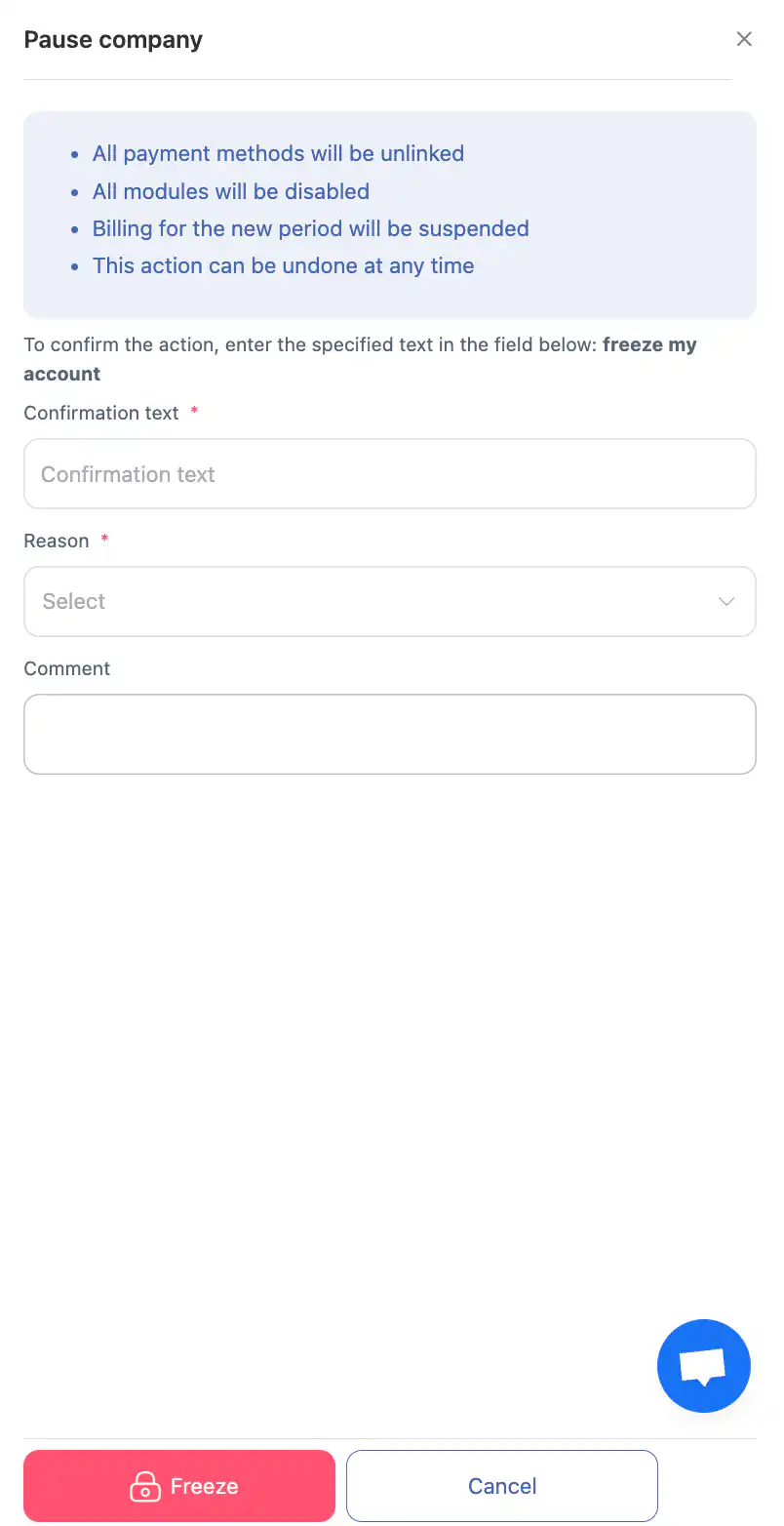
Pausing the company temporarily suspends its operation.
After pausing:
-
all payment methods will be unlinked;
-
all modules will be disabled;
-
billing for the new period will be suspended;
-
the action can be undone at any time.
To pause the company:
-
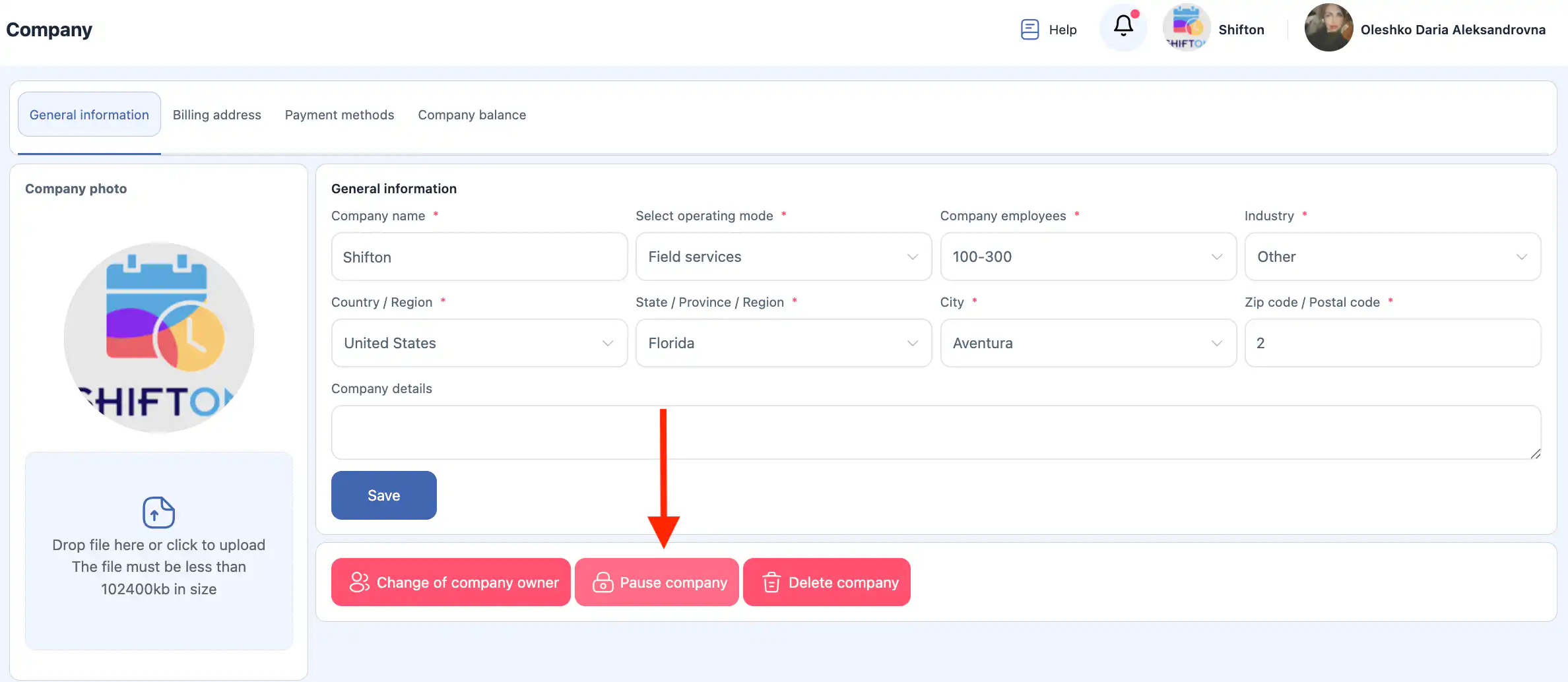
Click “Pause Company.”
-
In the side panel, enter the confirmation text in English
(you can copy and paste the required text into the field).
-
Select the reason for pausing.
-
Add a comment (optional).
-
Confirm the action by clicking “Confirm.”
-
To cancel, click “Cancel.”
Delete Company
A company can be deleted only if there are no outstanding invoices.
If there is unpaid debt, deletion will be available only after it is settled.
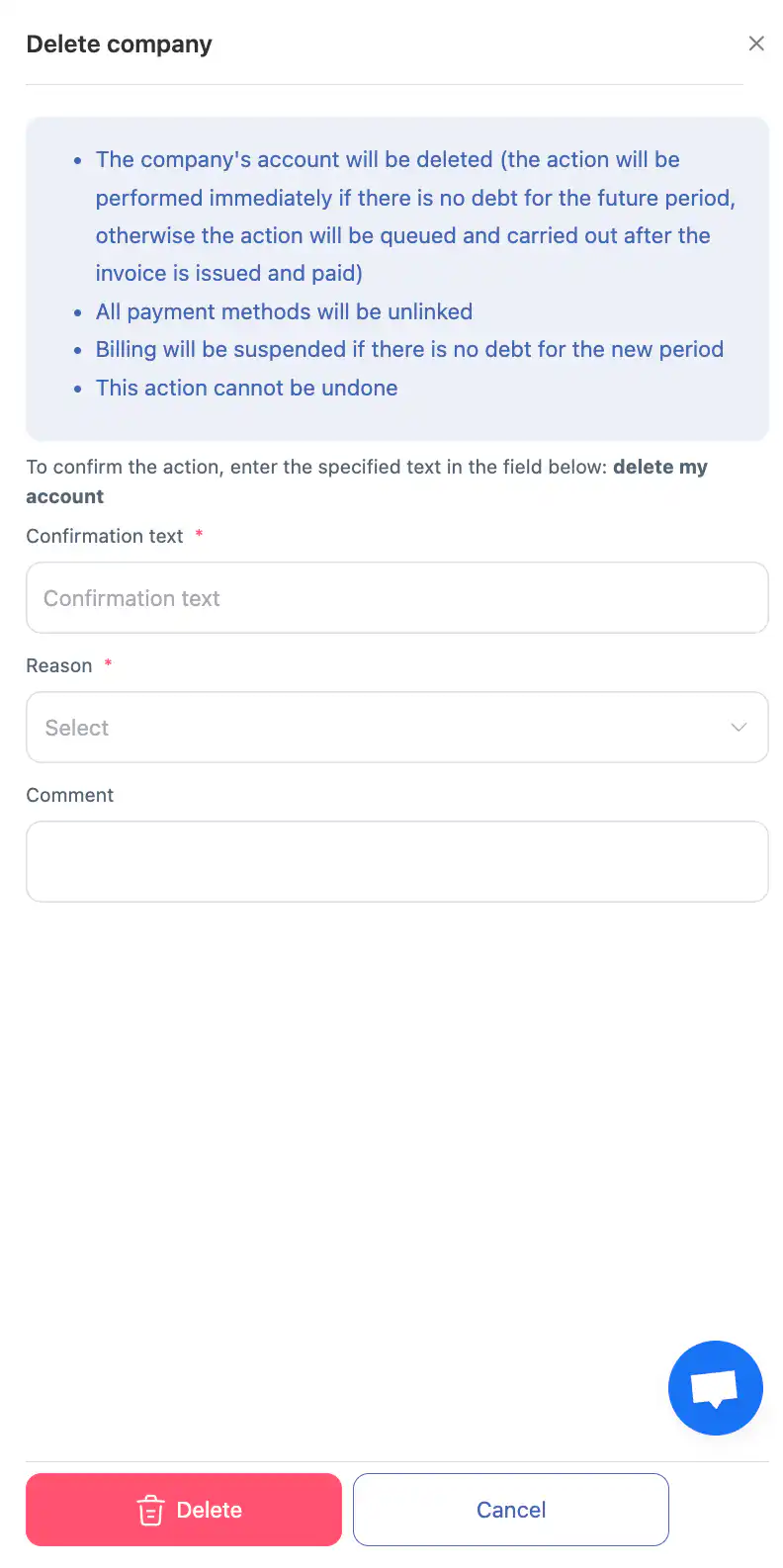
When deleting a company:
-
the company account will be deleted
(immediately if there is no future-period debt;
otherwise deletion will be queued until the invoice is issued and paid); -
all payment methods will be unlinked;
-
billing will be suspended if there is no debt for the new period;
-
this action cannot be undone.
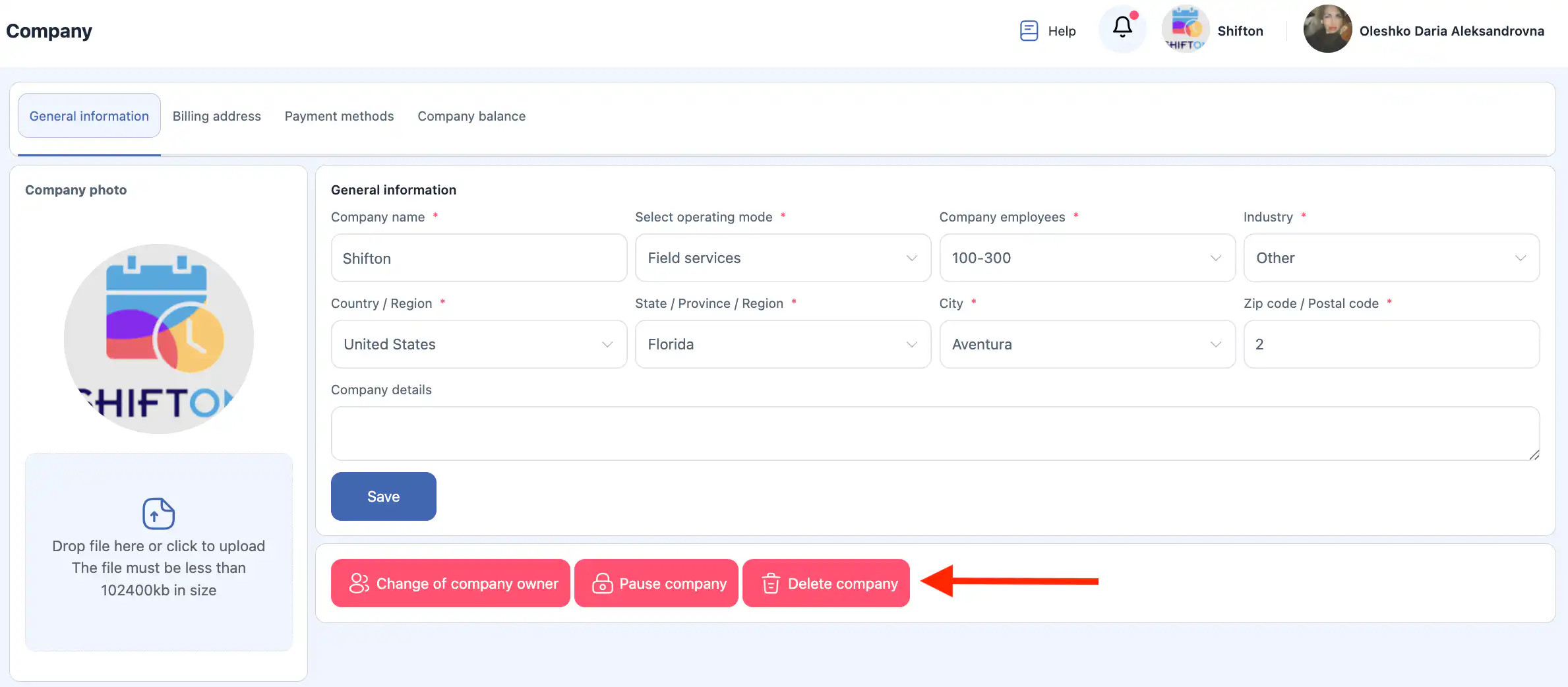
To delete the company:
-
Click “Delete Company.”
-
In the side panel, enter the confirmation text in English
(you can copy and paste the required text into the field).
-
Select the reason.
-
Add a comment (optional).
-
Confirm the action by clicking “Confirm.”
-
To cancel, click “Cancel.”
Billing Address
This section stores the information that will be used for invoice generation.
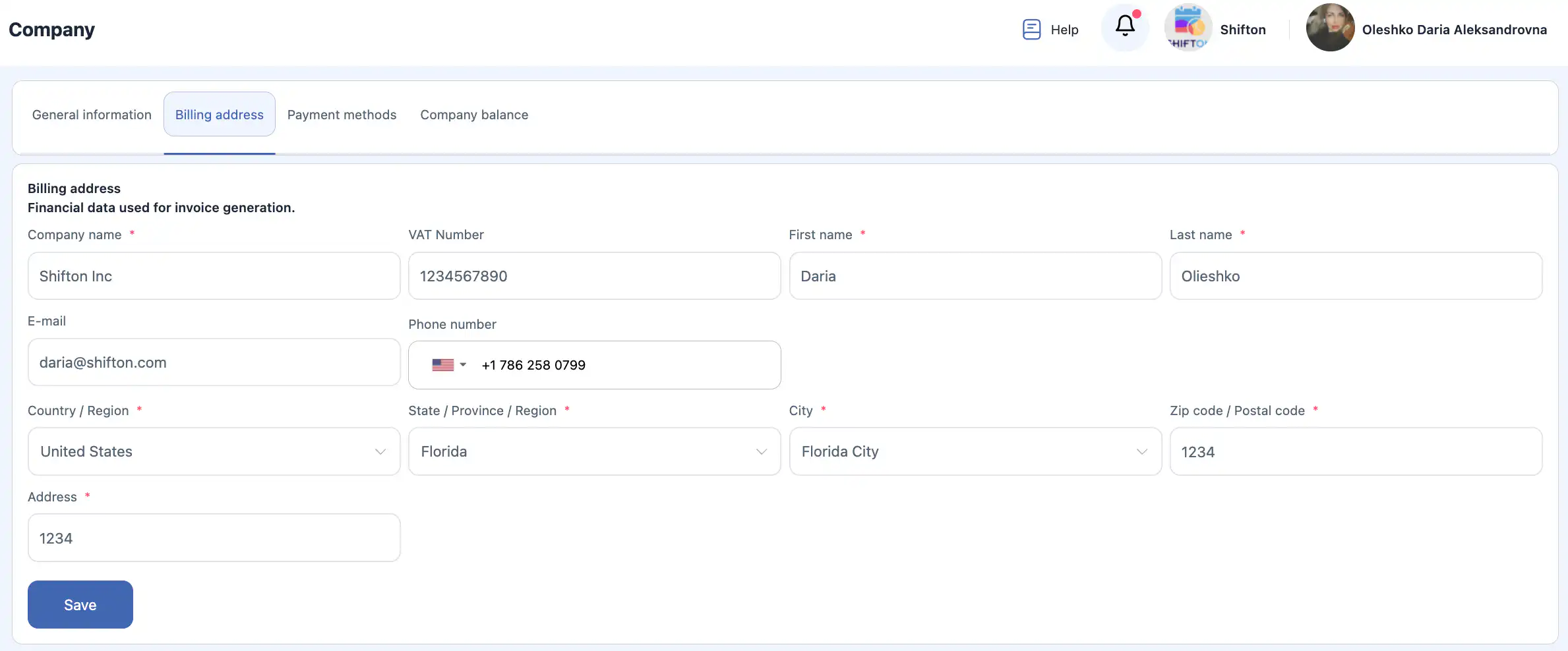
Important: changes do not apply to already generated invoices.
Update your billing information before the invoice is created if you want it to appear on the invoice.
You can fill in the following fields:
-
Company name *
-
VAT Number
-
First name *
-
Last name *
-
Email
-
Phone number
-
Country / Region *
-
State / Province / Region *
-
City *
-
Zip code / Postal code *
-
Address *
After filling in the information, click “Save.”
Payment Methods
In this section, you can add, edit, or remove a payment card.
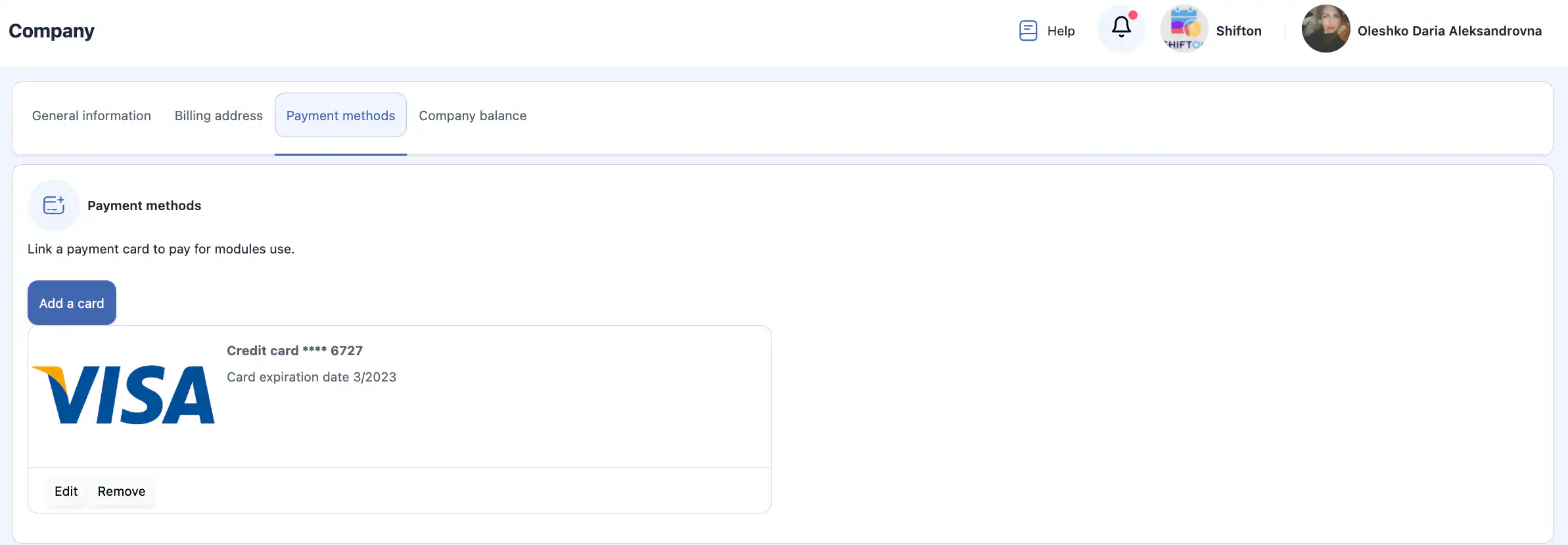
Add a card
-
Click “Add Card.”
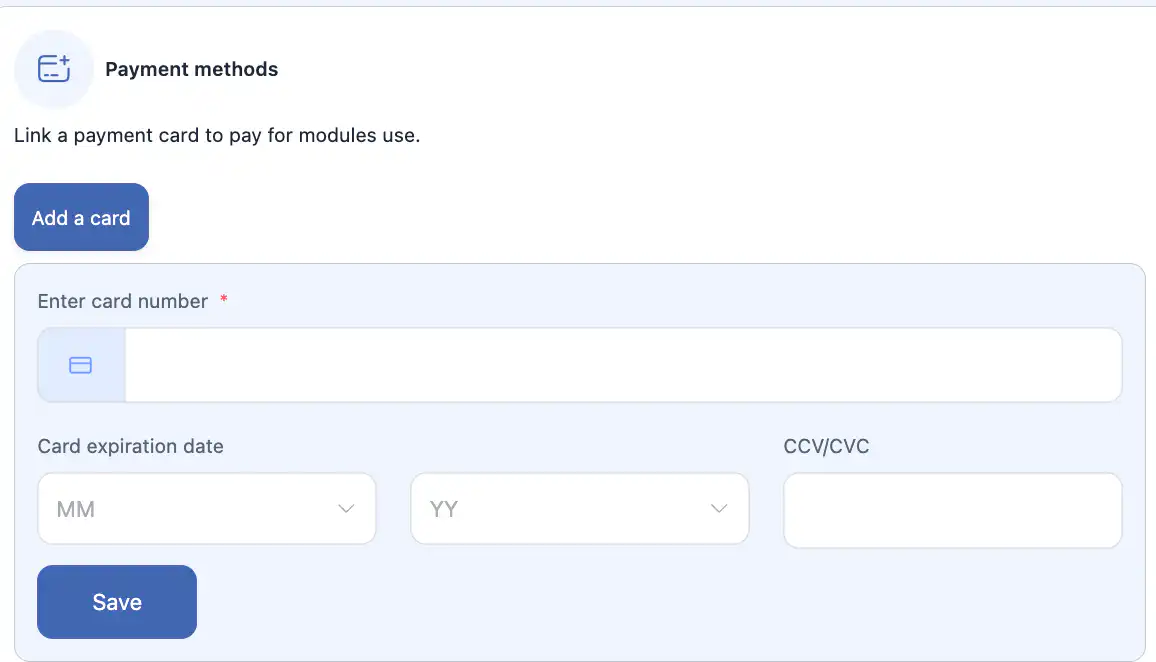
-
Enter card details.
-
Click “Save.”
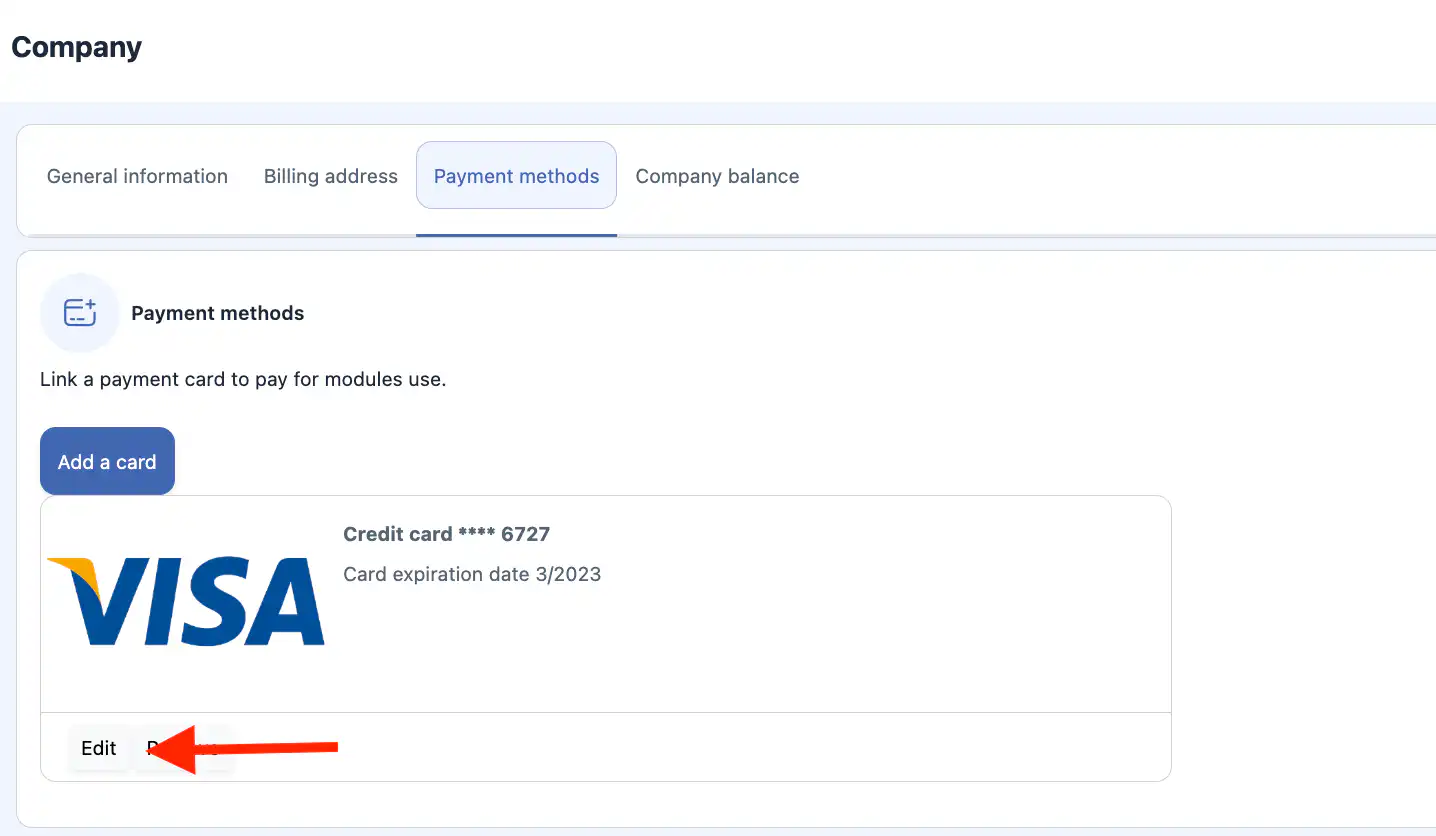
Edit a card
-
Click “Edit” next to the card.
-
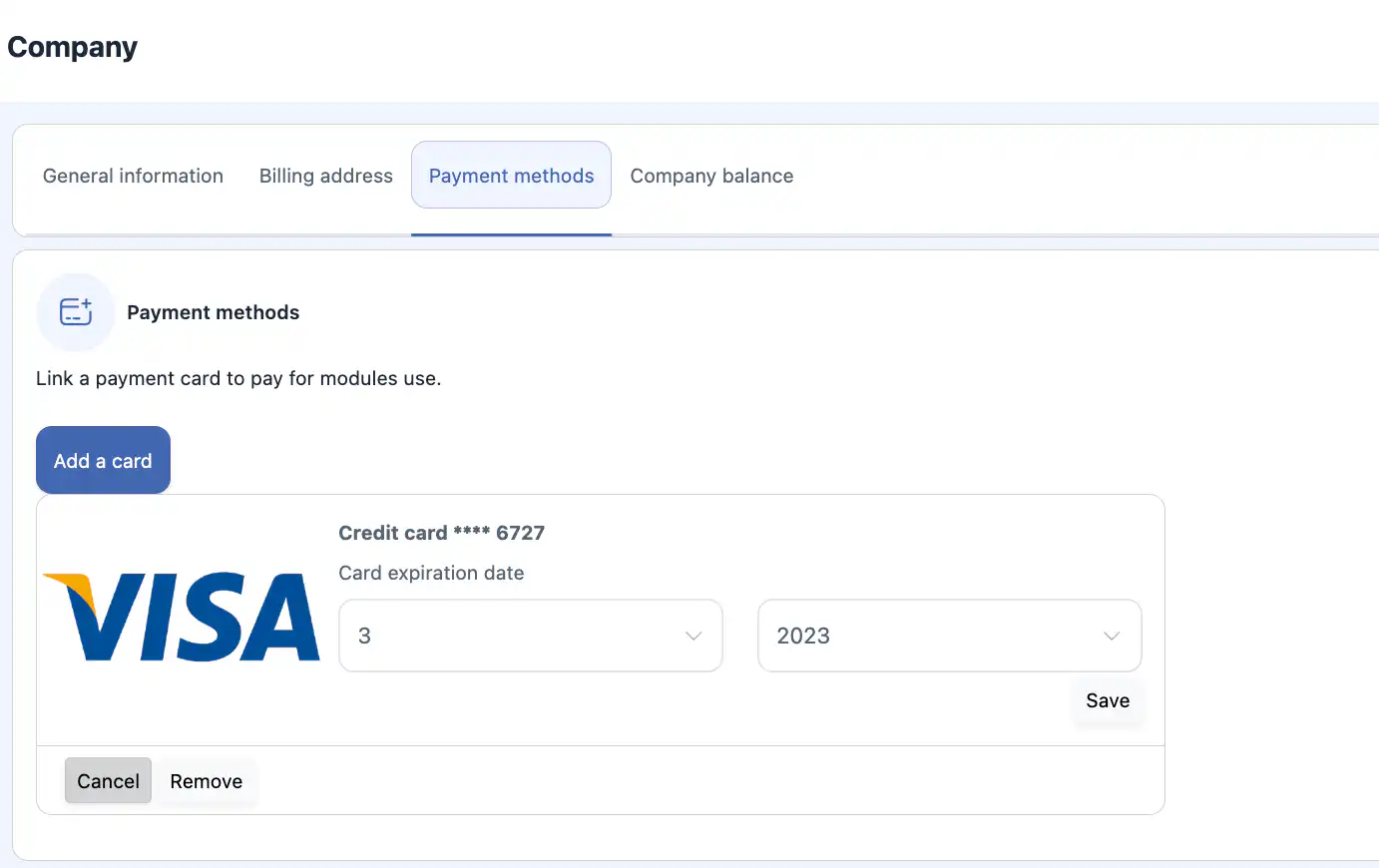
Update the expiration month and year.
-
Click “Save” or “Cancel.”
You can also delete the card by clicking “Remove.”
A valid card and an active monthly subscription are required to invite employees to the company.
Company Balance
Here you can view your current balance and activate a monthly subscription.
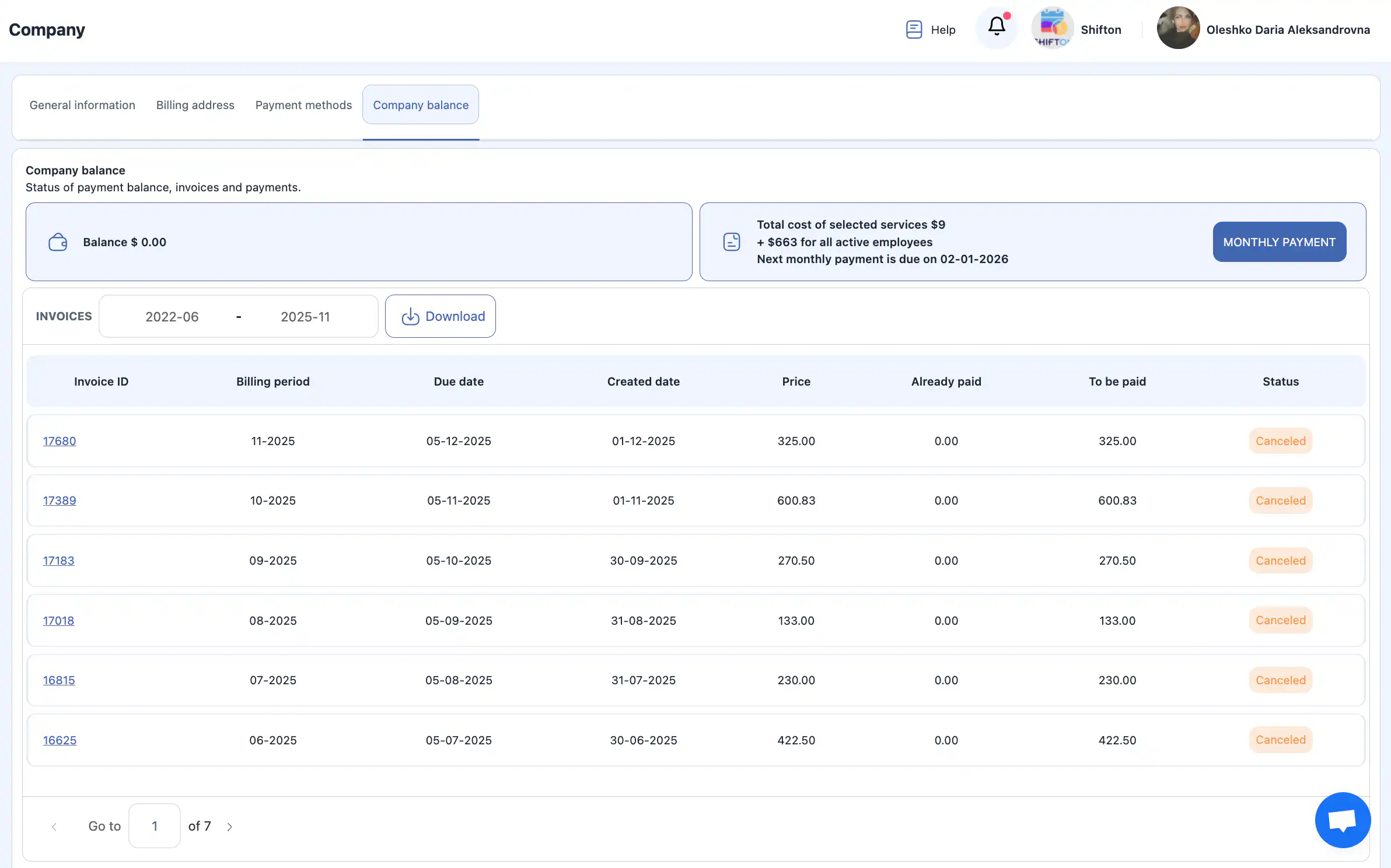
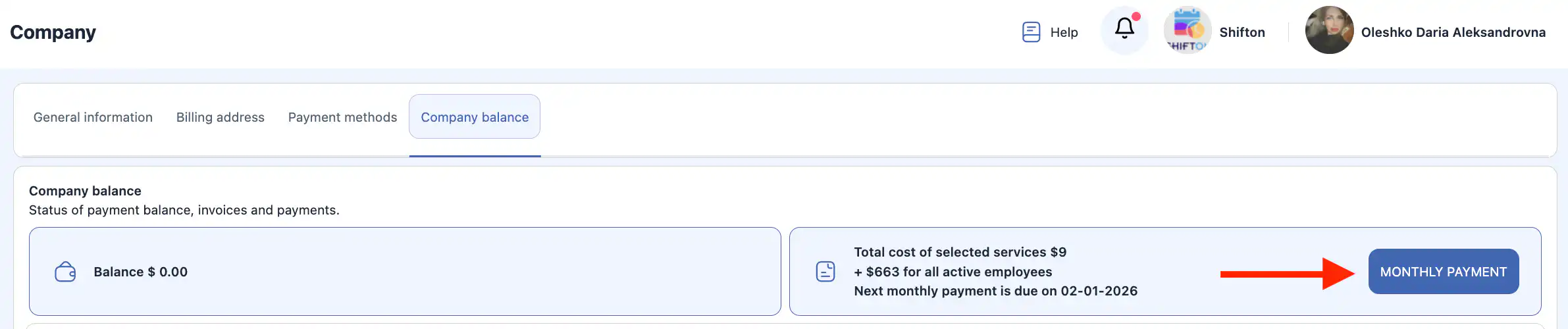
To subscribe:
-
Click “Monthly Payment.”
-
Select an existing card or add a new one.



-
Click “Save.”
INVOICES
This section contains all invoices issued to your company.
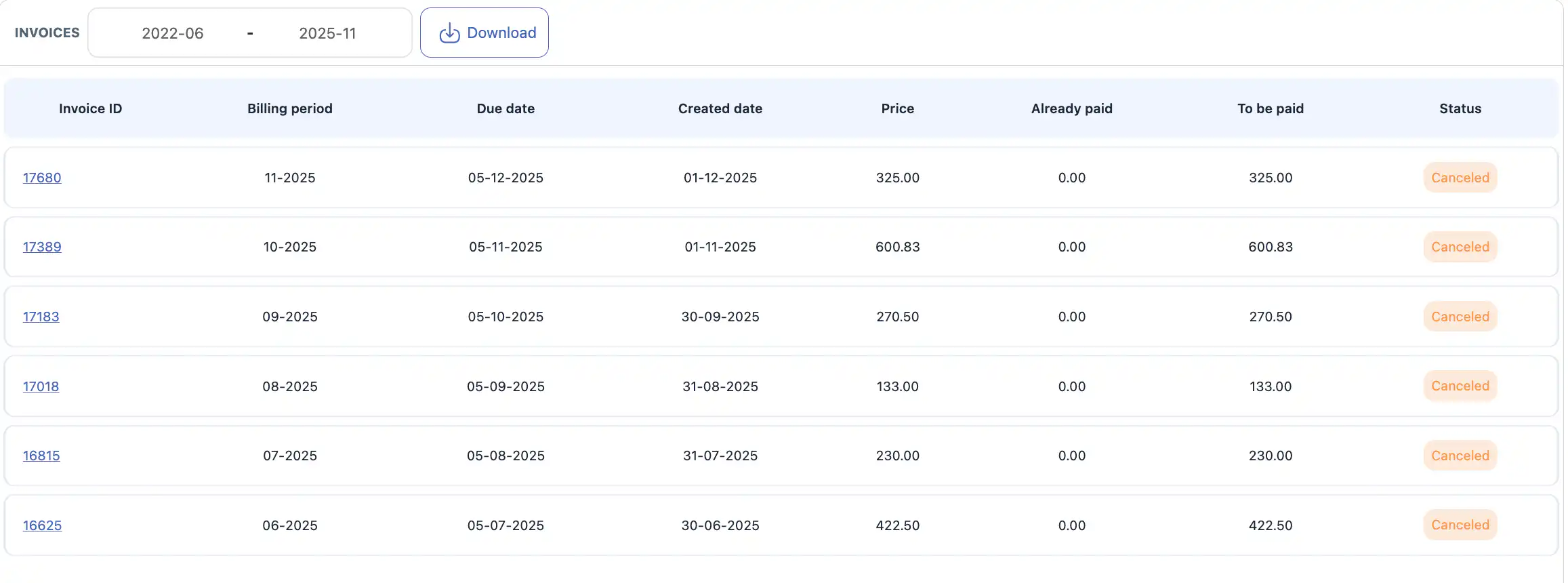
You can:
-
download an Excel file with payment amounts for various periods;
-
view details of each invoice.
The table includes:
-
Invoice ID
-
Billing period
-
Due date
-
Created date
-
Price
-
Already paid
-
To be paid
-
Status
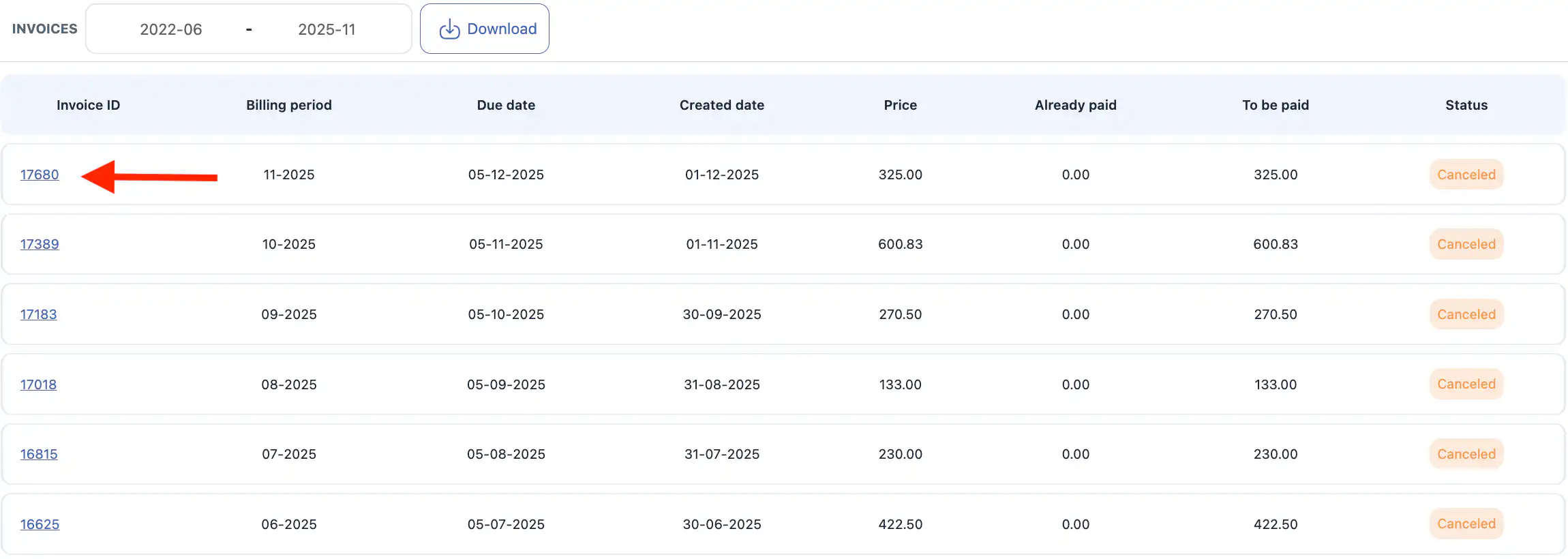
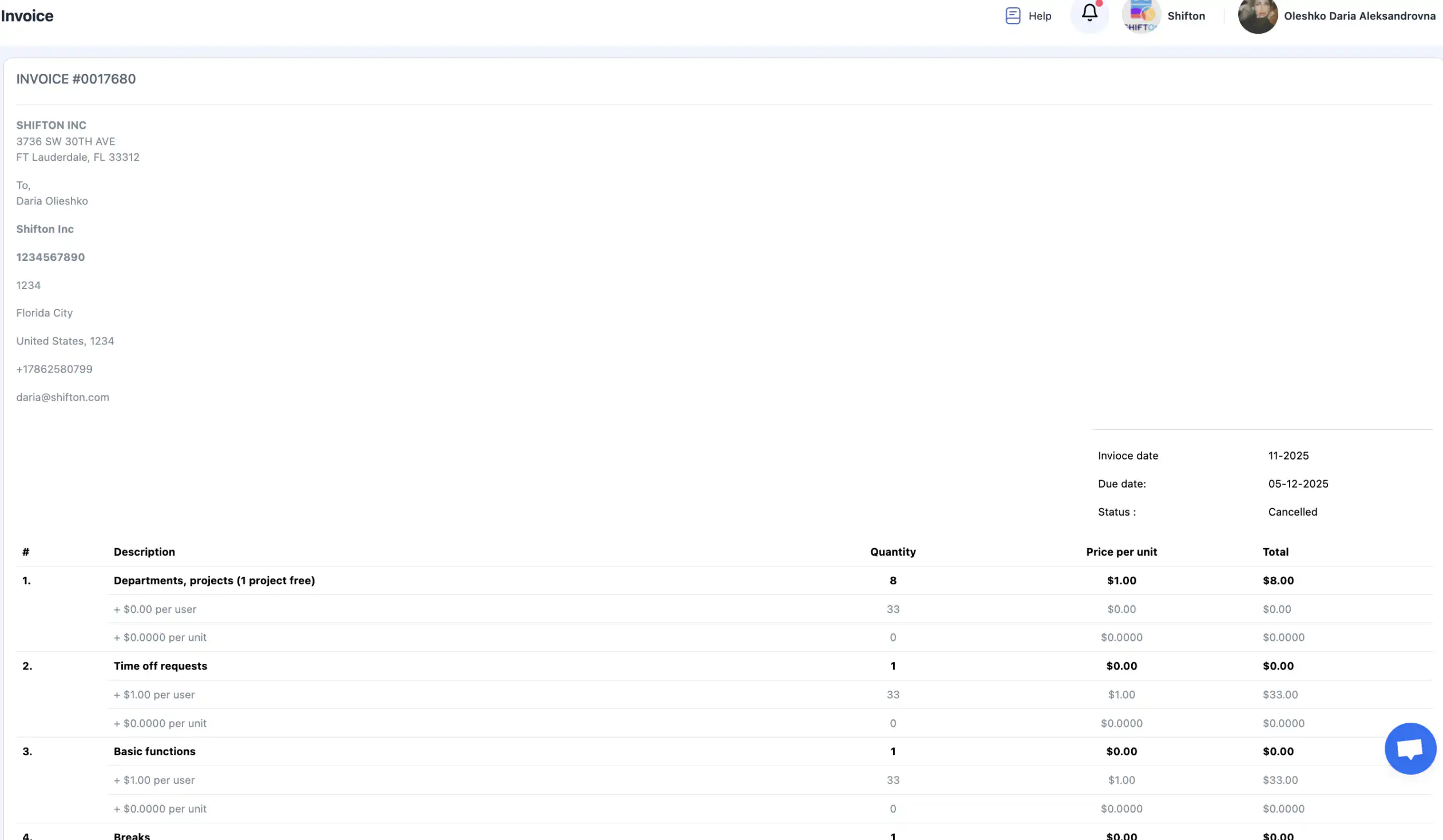
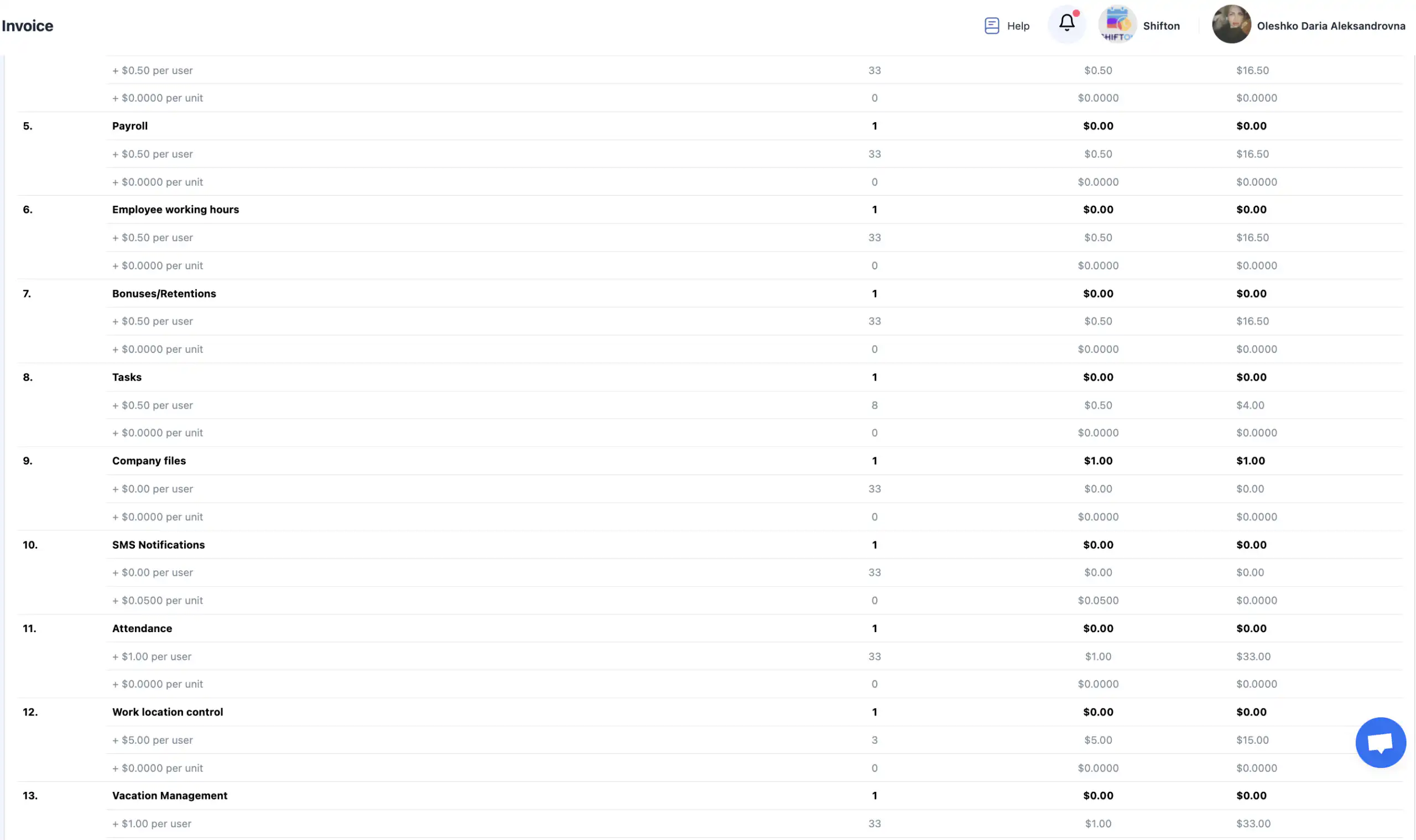
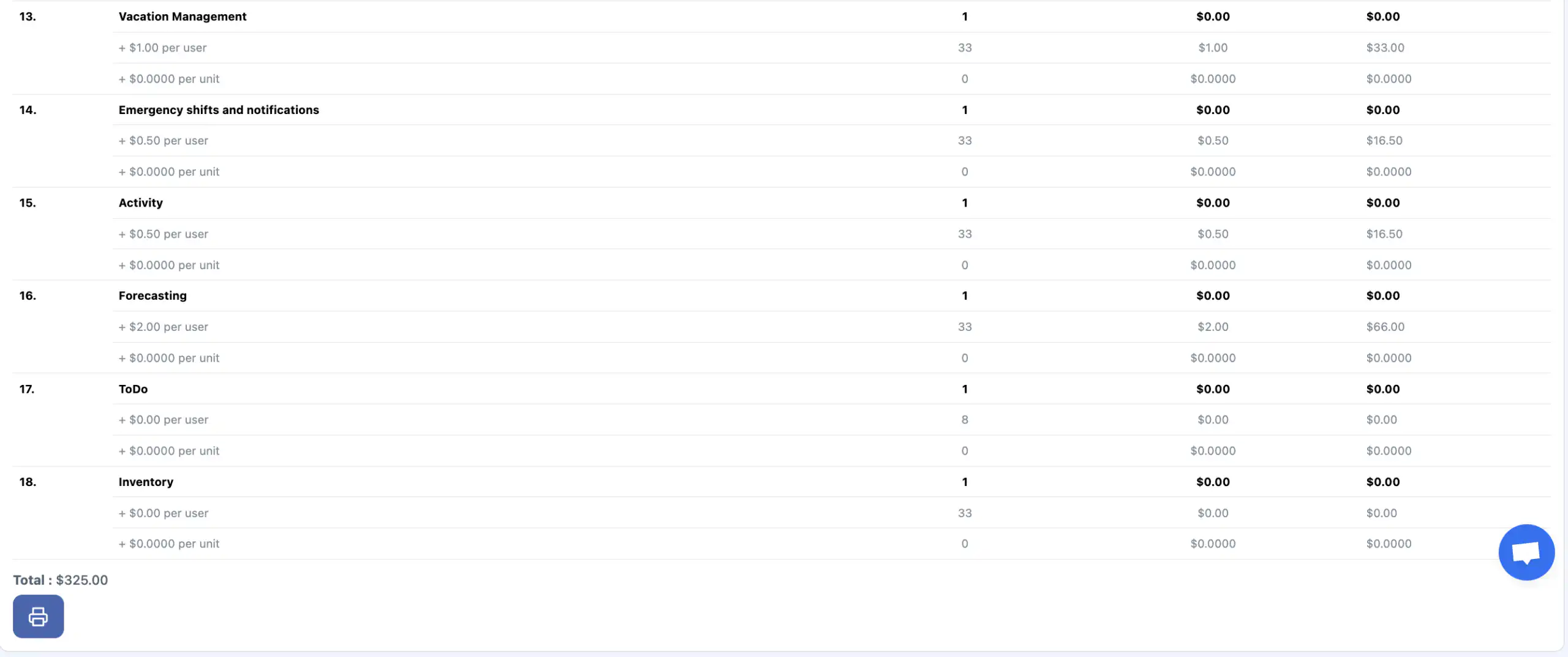
Clicking on Invoice ID opens full invoice details, including module charges, generated using the information from your Billing Address.
TRANSACTIONS
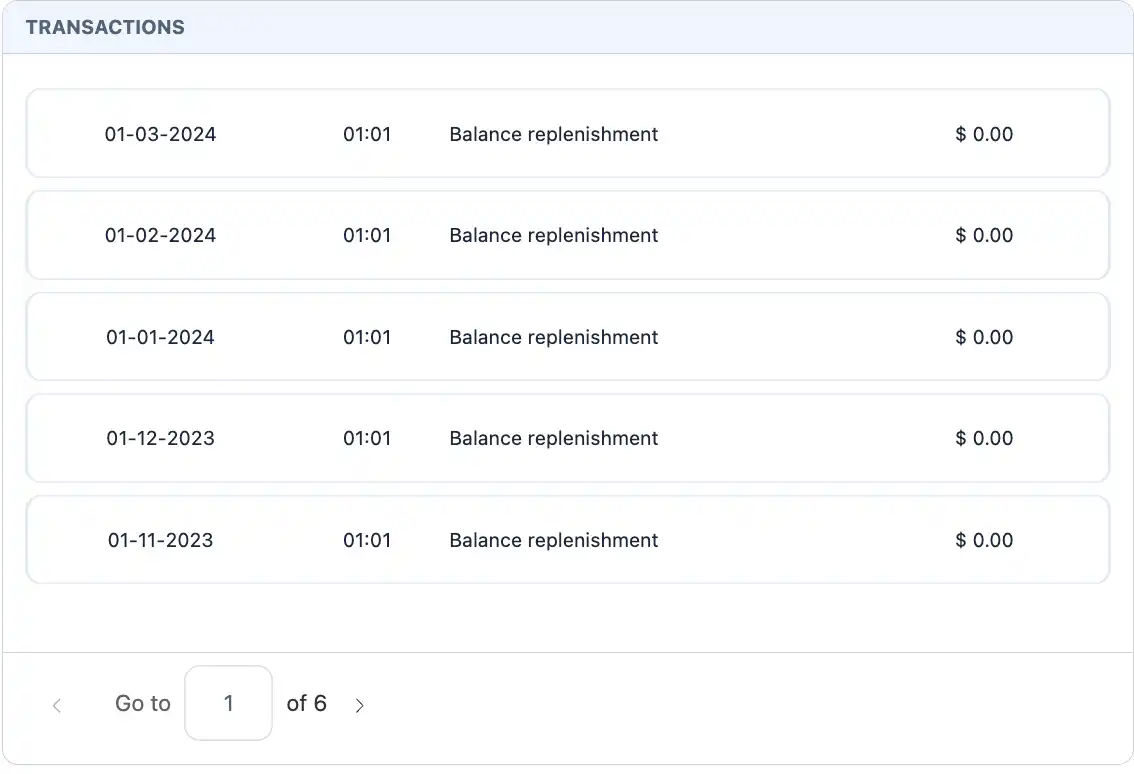
This section lists all transactions that affected the company balance.
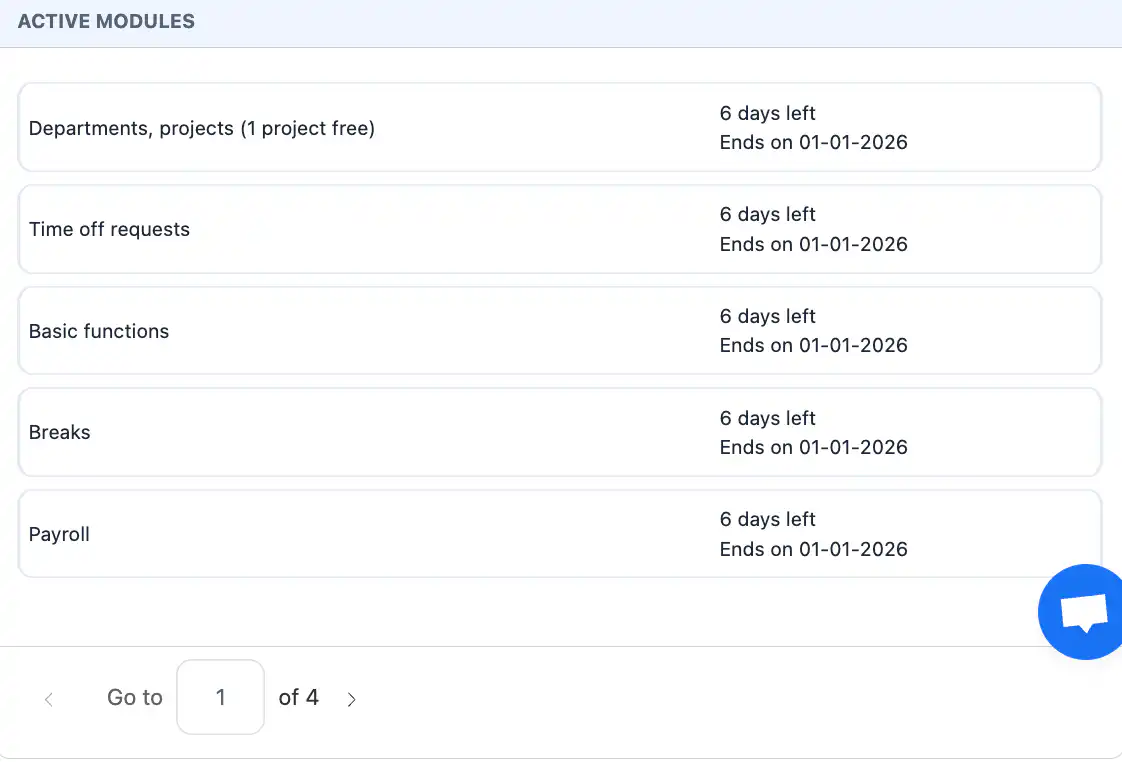
ACTIVE MODULES
Here you can see all active modules and their expiration dates.
Frequently Asked Questions (FAQ)
Q: Where do I open Company Settings in Shifton?
A: Click your company name at the top of the screen, then select “Company Settings.” This opens the general company configuration page.
Q: What information can I edit in Company Settings?
A: You can update general company details such as the company name, work mode, number of employees, country/region, state/province, city, and additional information. You can also upload a company logo here.
Q: Why should I upload a company logo?
A: The logo is included in task reports (PDF) and helps brand printed or shared reports.
Q: How do I save changes after editing company information?
A: After making any change to company fields, click “Save.” Without saving, changes won’t be applied.
Q: How can I transfer ownership of the company to another user?
A: In the Company Actions section, click “Change Owner”, select the employee who will become the new owner, and confirm the action. Once transferred, your access changes from Owner to Employee.
Q: Is the transfer of company ownership reversible?
A: No — ownership transfer is permanent. Only the new owner can reassign ownership back to you.
Q: What does “Pause Company” do?
A: Pausing your company temporarily suspends operations:
-
all payment methods are unlinked;
-
all modules are disabled;
-
billing for the new period is suspended.
You can undo this action at any time.
Q: How do I pause the company?
A: Click “Pause Company”, enter the required confirmation text, and select a reason for pausing.
Q: Can I delete my company?
A: Yes — but only if there are no unpaid invoices. If there is outstanding debt, deletion becomes available only after debts are settled.
Q: What happens when a company is deleted?
A: When deleting a company:
-
the company account is removed (immediately if no future debts, or after debts are paid);
-
all payment methods are unlinked;
-
billing is suspended for the next period.
This action cannot be undone.
Q: Can a company be deleted if it has modules enabled?
A: Yes — but the company deletion will proceed only after outstanding invoices are paid. Modules do not block deletion if billing conditions are resolved.
Q: What is “Work mode” in Company Settings?
A: Work mode indicates whether your company operates in Office mode or Field Service mode. This affects available modules and workflow structures.