

 English
  Español
  Português
  Deutsch
  Français
  Italiano
  日本語
日本語  中文
中文  हिन्दी
  עברית
עברית  العربية
  한국어
한국어  Nederlands
  Polski
  Türkçe
  Українська
  Русский
  Magyar
  Română
  Български
  Čeština
  Ελληνικά
  Svenska
  Dansk
Dansk  Norsk
Norsk  Suomi
Suomi  Bahasa
  Tiếng Việt
  Tagalog
  ไทย
ไทย  Latviešu
  Lietuvių
  Eesti
Eesti  Slovenčina
  Slovenščina
  Hrvatski
  Македонски
  Қазақ
Қазақ  Azərbaycan
  Afrikaans
  বাংলা
বাংলা Checklists are digital forms that employees complete while working on a task. They help collect structured feedback and capture all required information during the workflow.
You can create an unlimited number of checklists, but each task can contain only one checklist. For this reason, it is important to think through the structure and the type of data you want to receive before creating a new checklist.
How to Create a Checklist
-
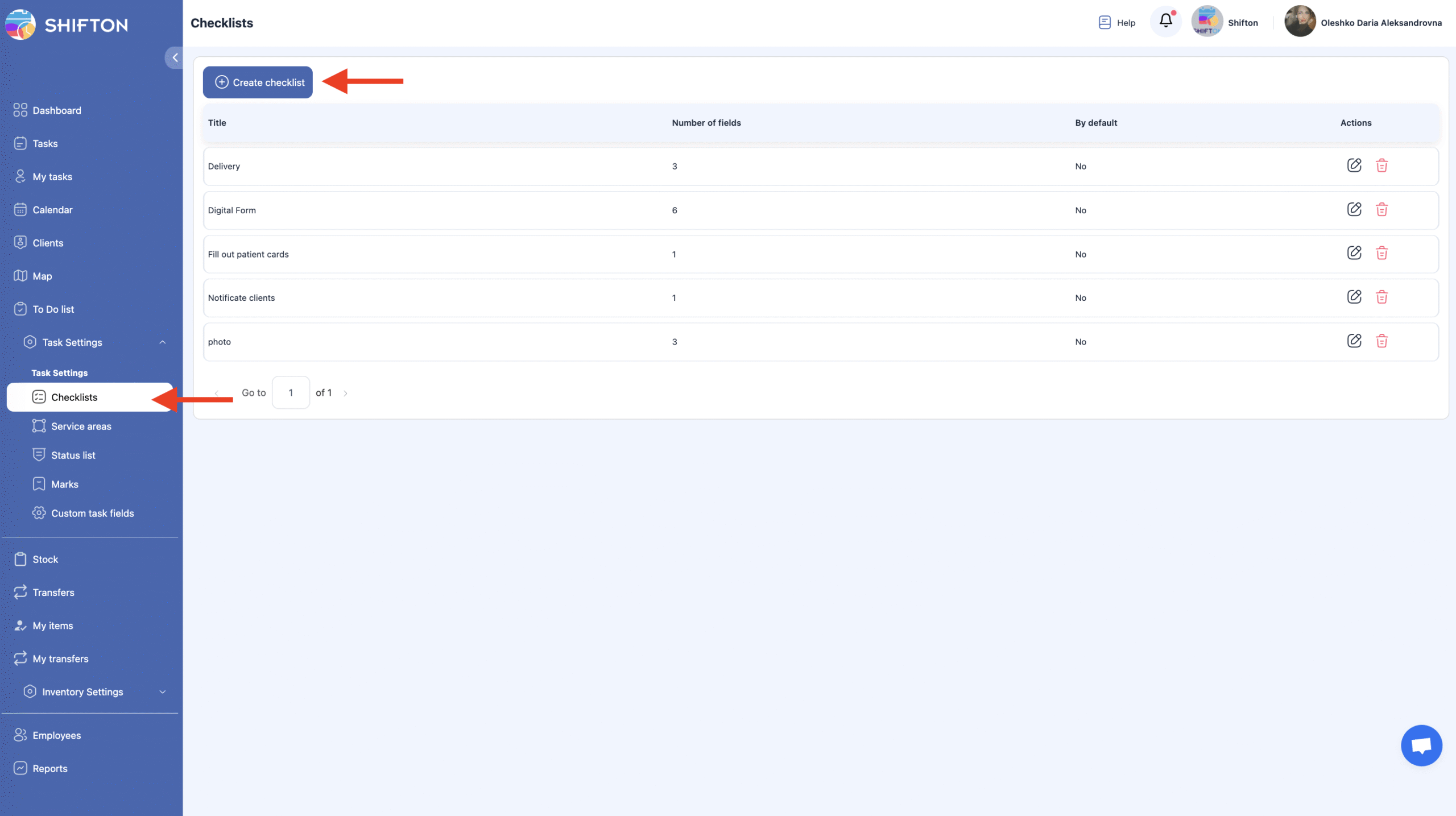
Open Task Settings.
-
Select the Checklists section.
This page contains all previously created checklists and provides the option to create new ones. -
Click Create Checklist.
-
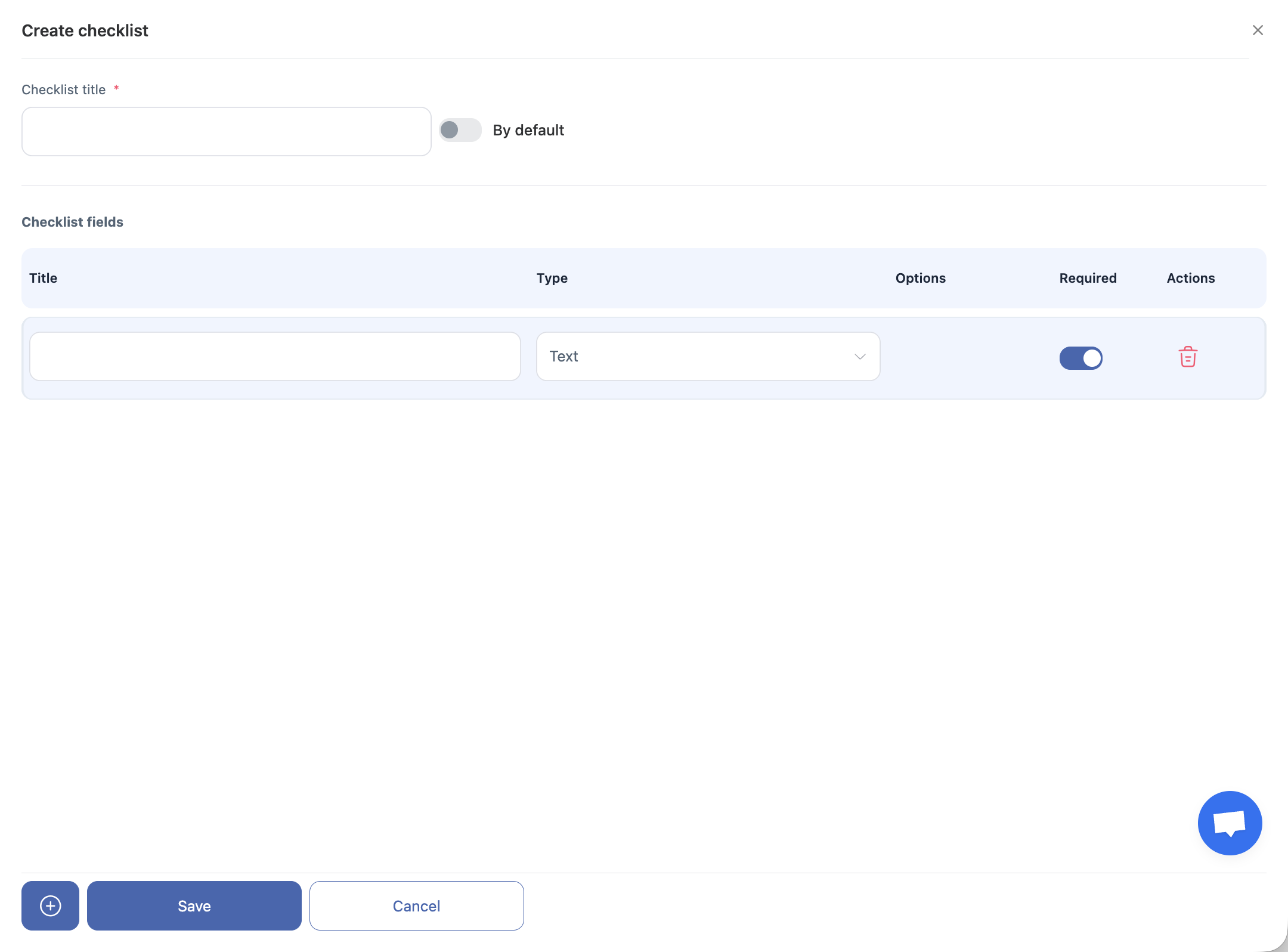
Enter the name of the checklist.
If needed, enable the Default Checklist option — this checklist will then be automatically attached to all new tasks. -
Add checklist items and select the data type for each item.
Available Data Types
-
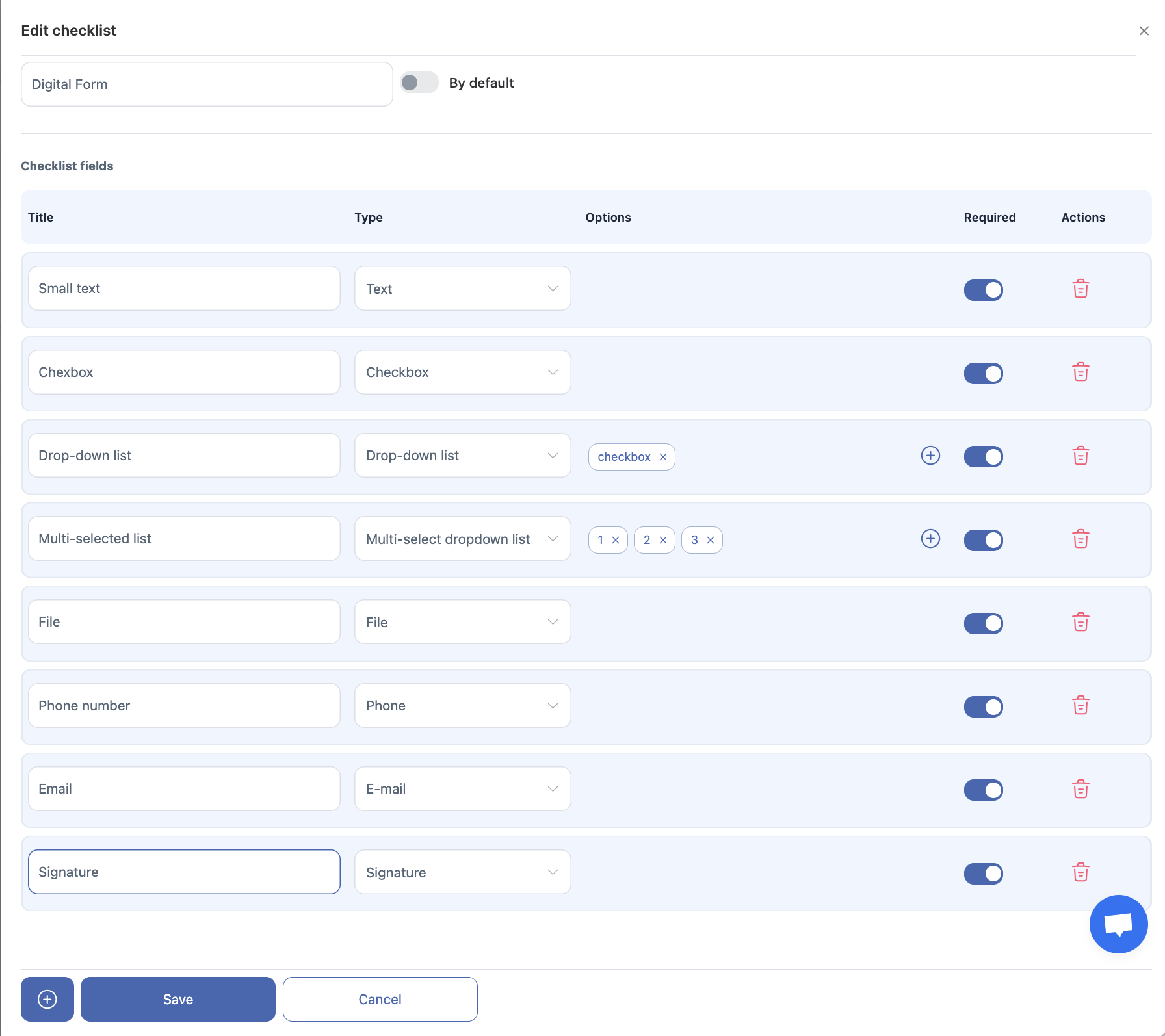
Text — a short text response.
-
Number — a numeric value.
-
Checkbox — one mandatory option that must be selected.
-
Drop-down list — select one option from several.
-
Multi-select drop-down list — select one or multiple options from the list.
-
File — upload a photo or take a picture using the camera.
-
Text field — a detailed, long text response.
-
Phone number — a field for entering a valid phone number.
-
Email — a field for entering an email address.
-
Signature — allows the employee to leave a digital signature (a white signature box appears in the web version and the mobile app).
How to Edit a Checklist
-
Click the pencil icon next to the checklist you want to edit.
-
Make changes and save.
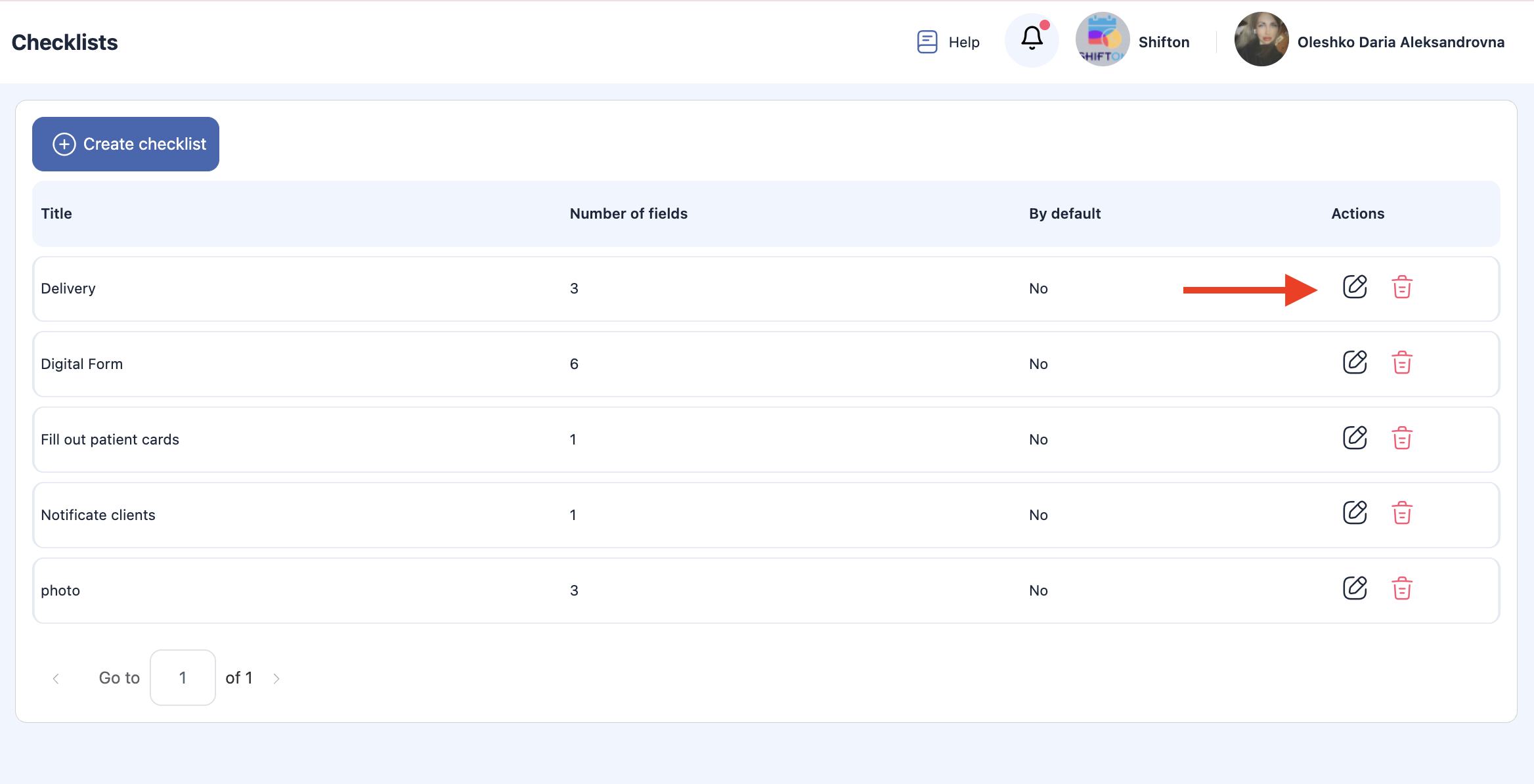
Note: Updates apply only to new tasks created after the checklist was edited. Existing tasks will keep the original version of the checklist.
How to Delete a Checklist
-
Click the trash bin icon next to the checklist you want to delete.
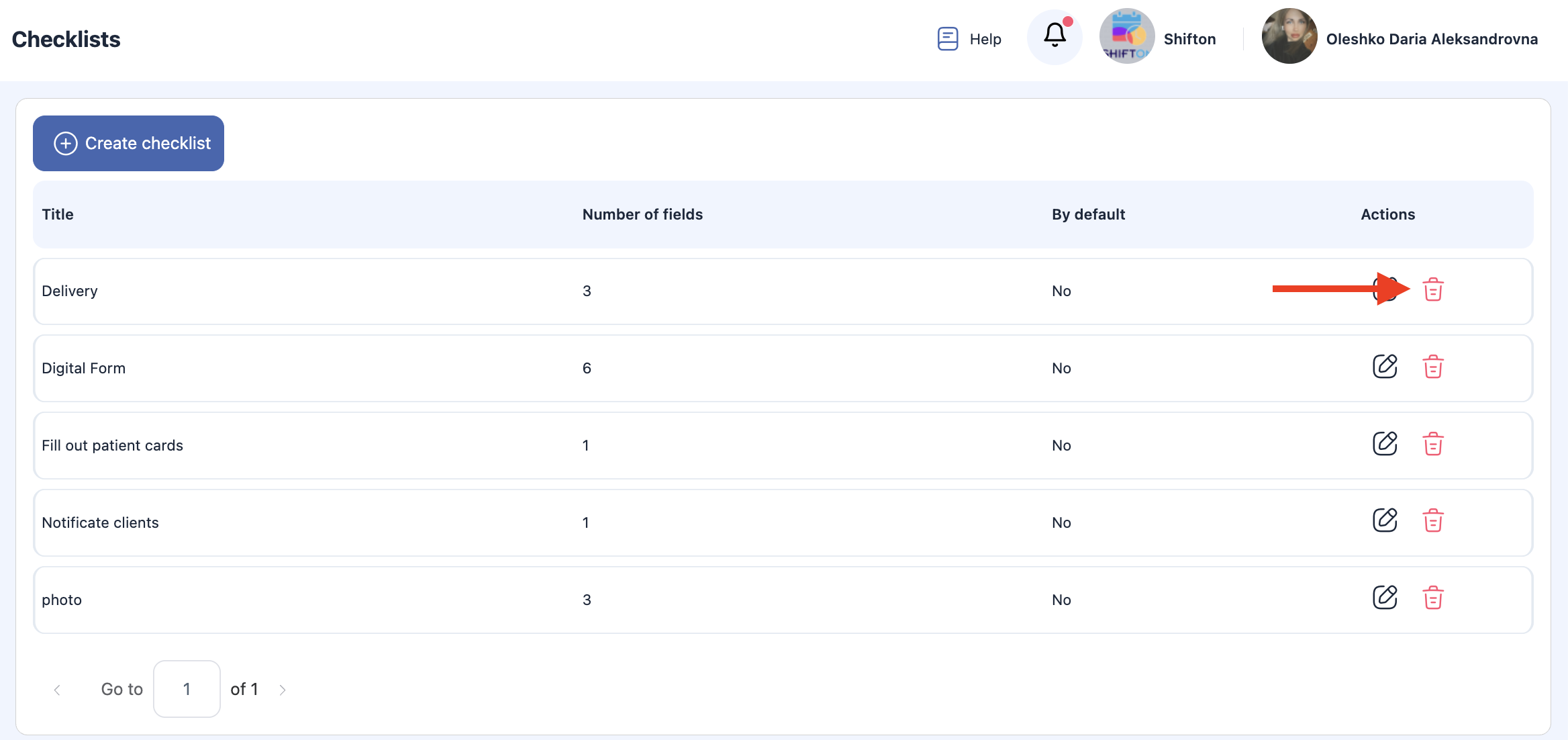
-
Confirm the action.
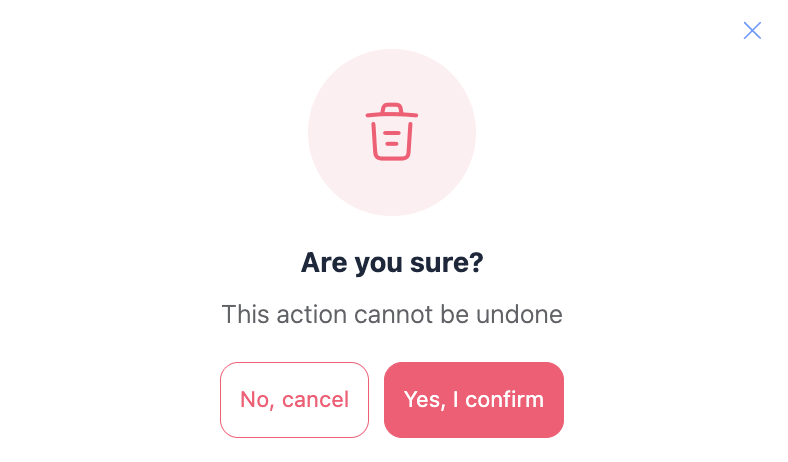
Important:
-
A checklist cannot be deleted if it is already assigned to any task.
-
Only checklists that are not used in any tasks can be removed.
-
Existing tasks retain their attached checklist and submitted data.
Frequently Asked Questions (FAQ)
Q: What are checklists in Shifton tasks?
A: Checklists are structured lists of items or verification steps that help standardize task execution. They ensure that each step of a task is completed consistently every time.
Q: Where do I find the checklist feature?
A: Checklists are available in the task editor, both when creating a task and when viewing an existing task. You can add one or more checklist items there.
Q: How do I add a checklist to a task?
A: In the task creation or edit panel, locate the Checklists section, click Add item, enter the name of the item, and repeat for each step you need to include.
Q: Can I change the order of checklist items?
A: Yes. Most checklist interfaces allow drag-and-drop reordering or arrows to move items up or down so you can prioritize steps in the desired sequence.
Q: Can checklist items be required or optional?
A: Yes — checklist items can be marked as required or optional depending on your operational needs. Required items usually must be checked before completing the task.
Q: Who can complete checklist items?
A: Assigned technicians or users with edit permissions on the task can check off items as they are completed.
Q: What happens when all checklist items are checked?
A: When all required checklist items are completed, the task can be marked as finished. Some workflows enforce checklist completion as a precondition for closing a task.
Q: Can I edit a checklist after a task is created?
A: Yes — if the task is still in a status that allows editing, you can modify the checklist (add, edit, remove items) in the task panel before completion.
Q: Is there a way to reuse checklists across tasks?
A: Some systems let you save checklist templates for reuse. If Shifton supports this, you’ll see options to create and apply templates when adding checklists.
Q: Do checklists appear in task reports?
A: Yes — checklists and their completed status are usually included in task reports (PDF or export), helping verify work done and compliance.
Q: Can I require photos or notes for each checklist item?
A: Depending on your settings, Shifton can enforce additional fields (photos, comments) for individual checklist items to enhance documentation and quality control.