

 English
  Español
  Português
  Deutsch
  Français
  Italiano
  日本語
日本語  中文
中文  हिन्दी
  עברית
עברית  العربية
  한국어
한국어  Nederlands
  Polski
  Türkçe
  Українська
  Русский
  Magyar
  Română
  Български
  Čeština
  Ελληνικά
  Svenska
  Dansk
Dansk  Norsk
Norsk  Suomi
Suomi  Bahasa
  Tiếng Việt
  Tagalog
  ไทย
ไทย  Latviešu
  Lietuvių
  Eesti
Eesti  Slovenčina
  Slovenščina
  Hrvatski
  Македонски
  Қазақ
Қазақ  Azərbaycan
  Afrikaans
  বাংলা
বাংলা You can change your password at any time in your profile settings.
How to open the Change Password settings
- Click the icon with your initials at the top of the interface (the rightmost icon).
- Select “Change password.”
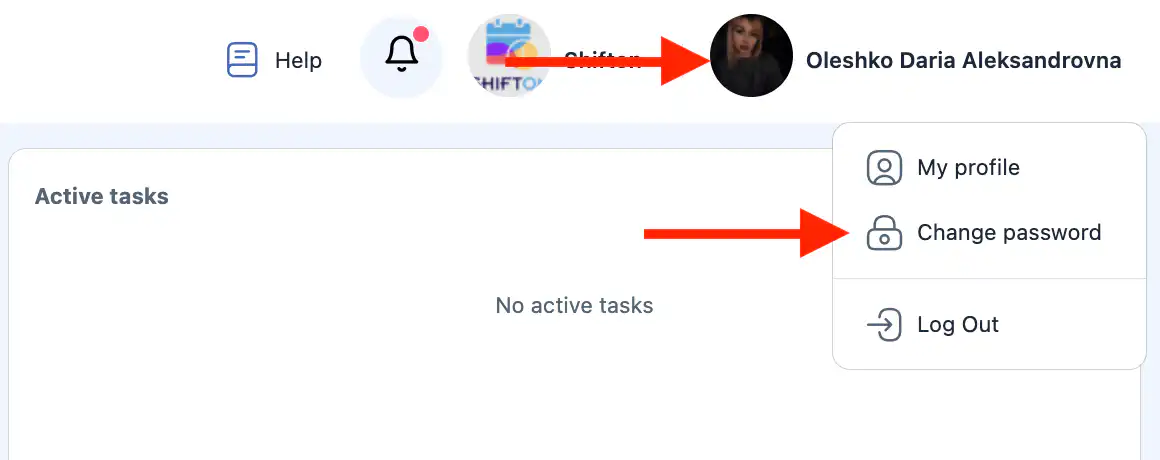
- A side panel for changing the password will open.
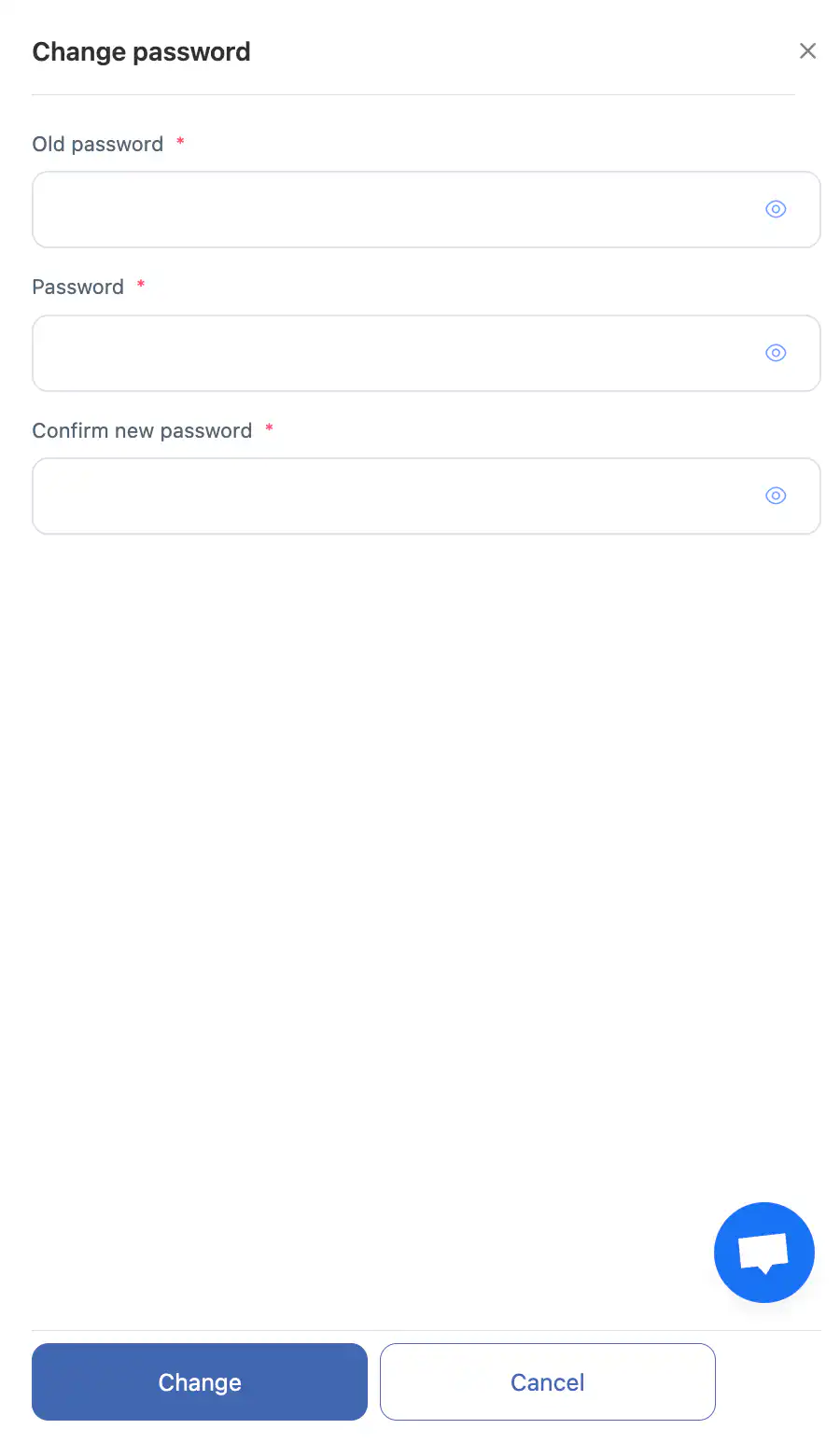
How to change your password
In the side panel:
- Enter your current password.
- Enter your new password.
- Confirm the new password.
You can use the eye icon to show or hide the password characters.
After filling in the fields, click:
- “Change” — to save the new password;
- “Cancel” — to exit without saving changes.
Password requirements
Your new password must:
- contain at least 8 characters;
- include numbers;
- include English letters only (A–Z, a–z, uppercase or lowercase).
-
Only Latin letters and numbers are permitted.
Important
- The new password takes effect immediately after saving.
- Use a strong password that is difficult to guess.
- Do not share your password with third parties.
Frequently Asked Questions (FAQ)
Q: Can I change my password without knowing the current one?
A: No. You must enter your current password to change it.
If you are not logged in and do not remember your password, use the “Forgot password?” option on the login page. You can request a password reset via the phone number or email address used to sign in to your account.
Q: What should I do if I forgot my current password?
A: Use the password recovery option on the login page.
Q: Why is my new password not accepted?
A: Make sure it has at least 8 characters, contains numbers, and uses only English letters and special characters.
Q: Will changes be saved if I close the panel without clicking “Change”?
A: No. Changes are applied only after clicking “Change.”