

 English
  Español
  Português
  Deutsch
  Français
  Italiano
  日本語
日本語  中文
中文  हिन्दी
  עברית
עברית  العربية
  한국어
한국어  Nederlands
  Polski
  Türkçe
  Українська
  Русский
  Magyar
  Română
  Български
  Čeština
  Ελληνικά
  Svenska
  Dansk
Dansk  Norsk
Norsk  Suomi
Suomi  Bahasa
  Tiếng Việt
  Tagalog
  ไทย
ไทย  Latviešu
  Lietuvių
  Eesti
Eesti  Slovenčina
  Slovenščina
  Hrvatski
  Македонски
  Қазақ
Қазақ  Azərbaycan
  Afrikaans
  বাংলা
বাংলা Categories are the foundation of correct inventory management.
Before adding tools or items, you need to create the categories they will belong to.
How to Open the Categories Section
To access the Categories section:
-
In the side menu, select “Inventory Settings.”
-
Open the “Categories” subsection.
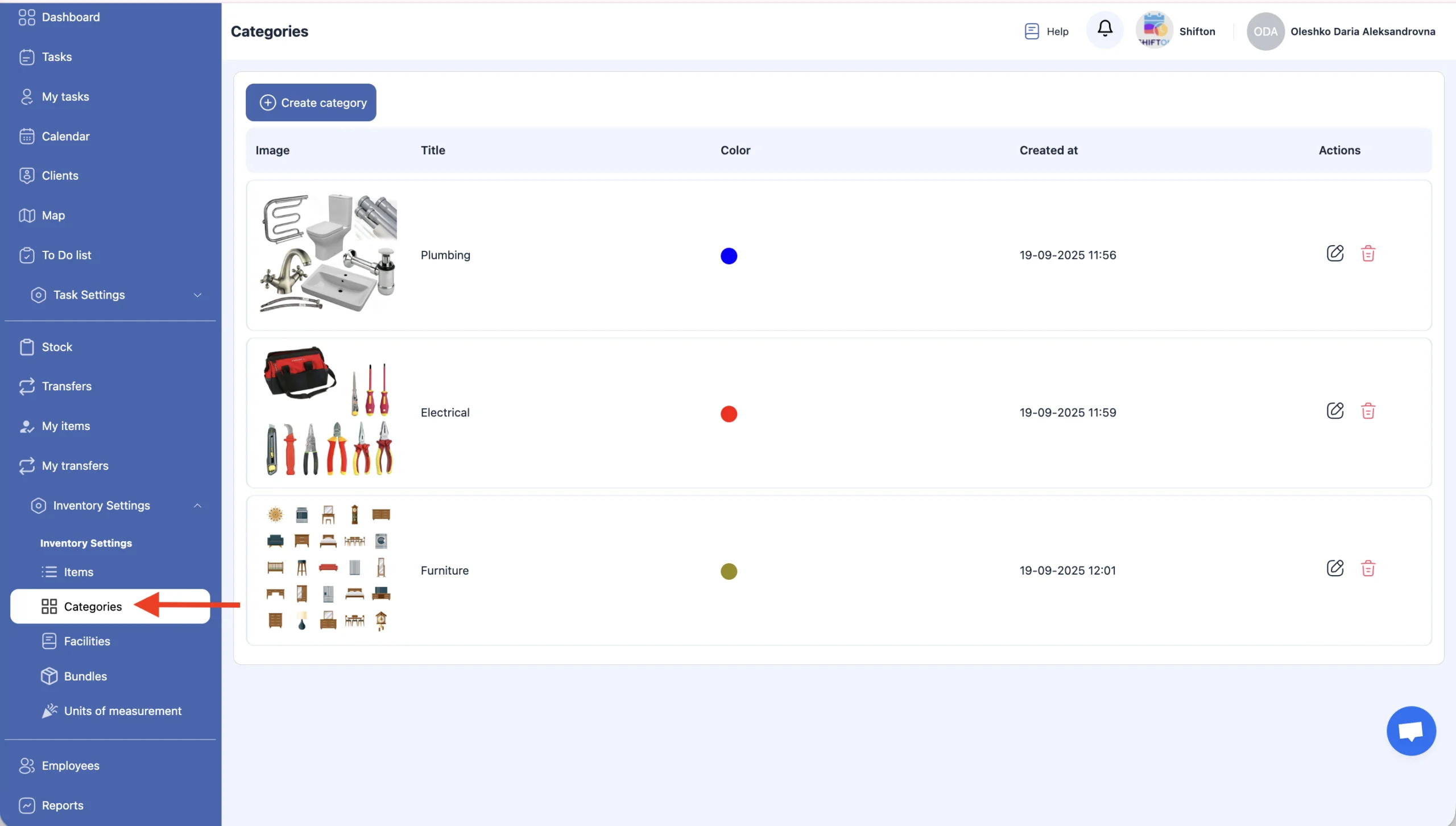
On this page, you can:
-
create a category;
-
edit a category;
-
delete a category.
Creating a New Category
-
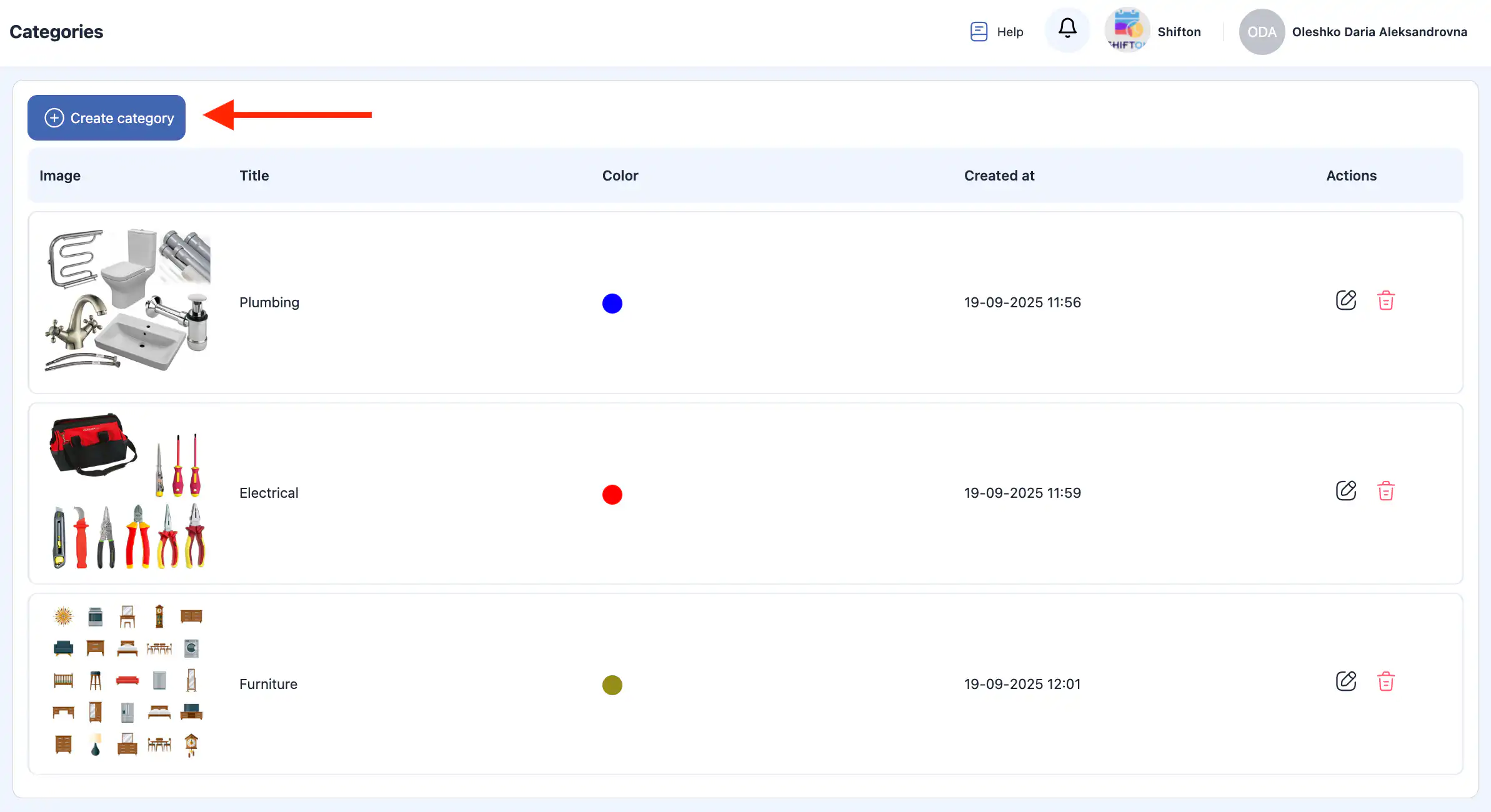
Click “Create Category.”
-
A side panel will open on the right.
-
Enter the following information:
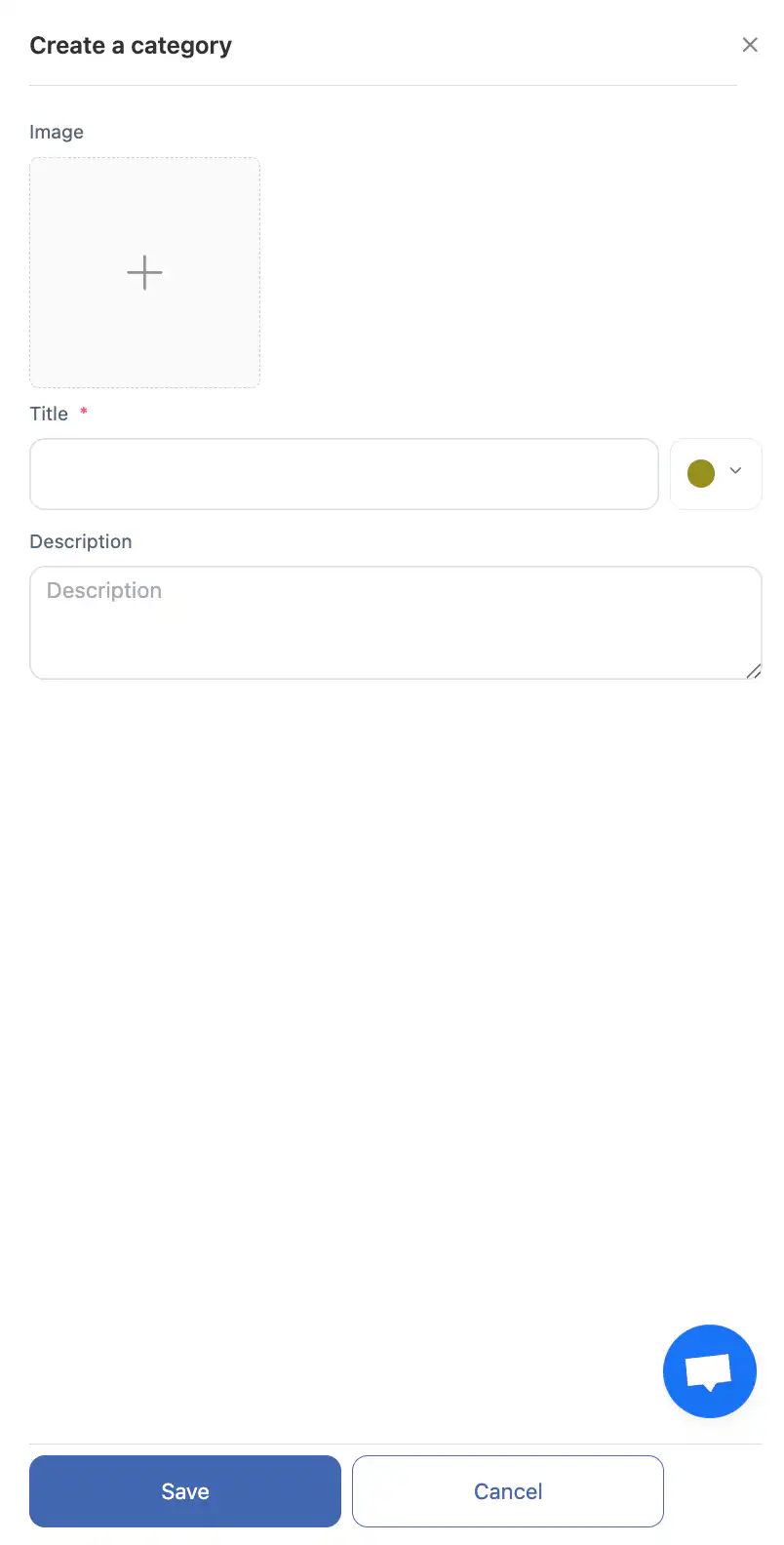
category name;
photo (optional);
color;
category description.
-
Click “Save.”
-
To cancel the action, click “Cancel.”
Editing a Category
-
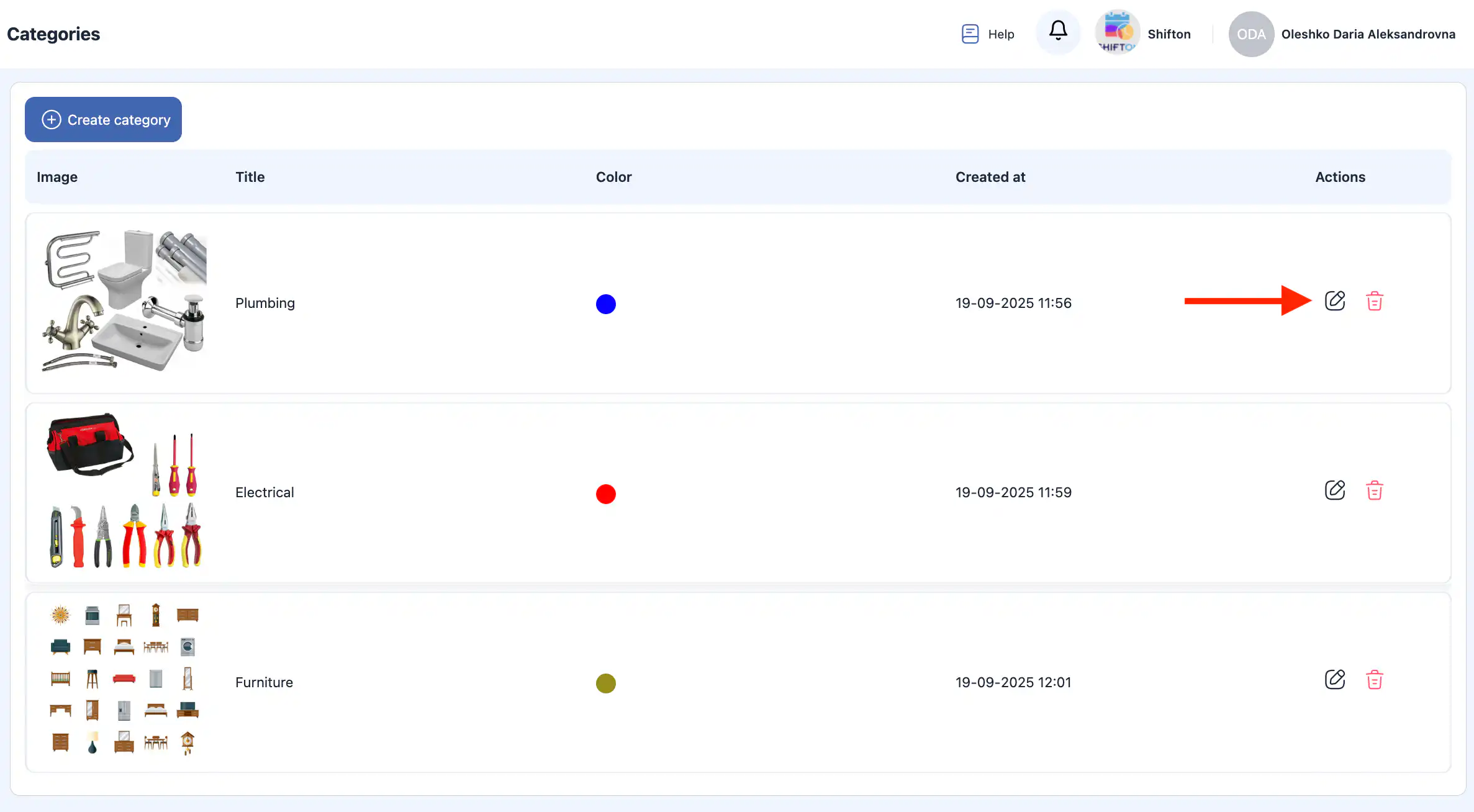
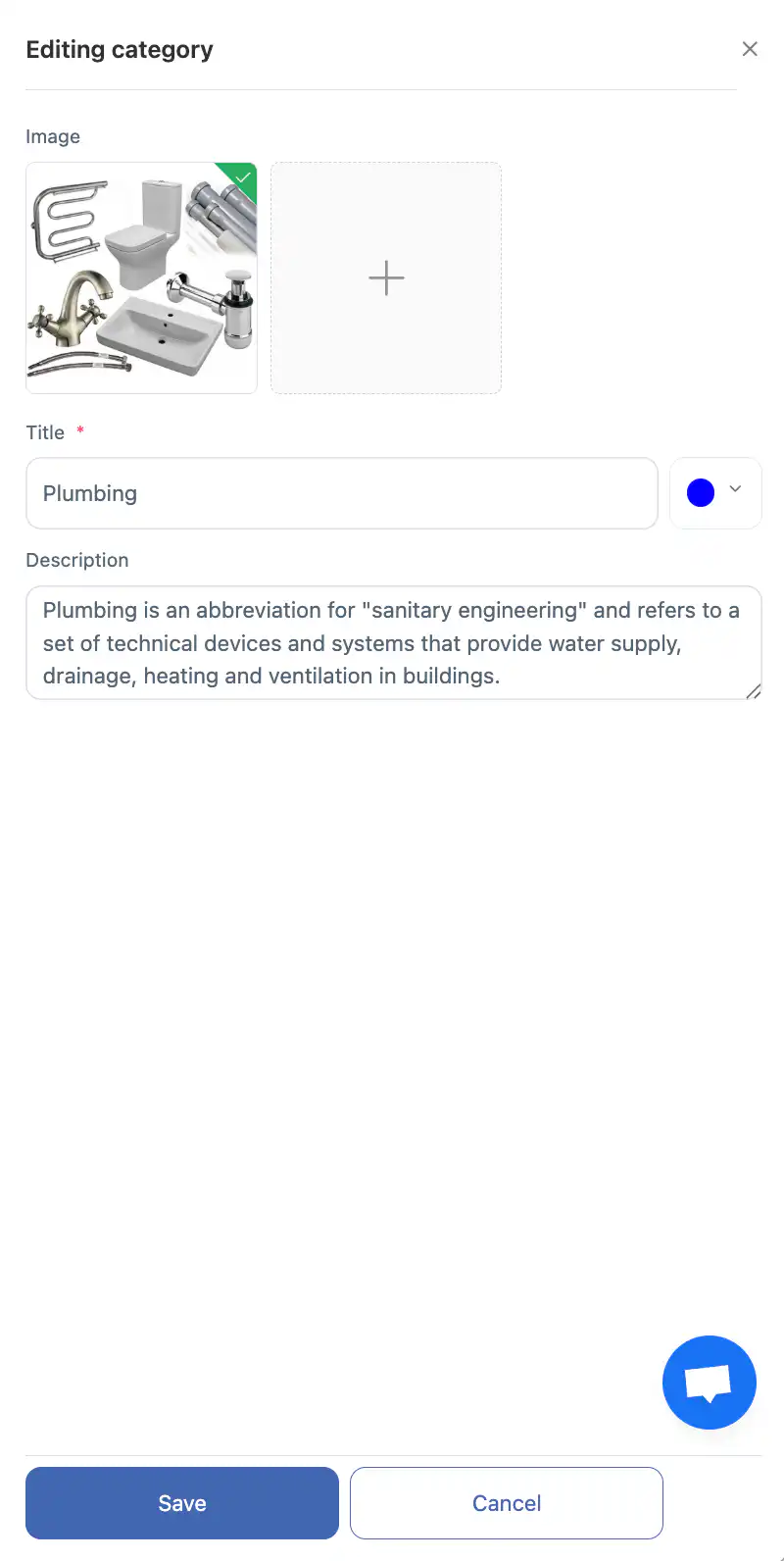
Click the pencil icon next to the category.
-
Update the required information in the side panel.
-
Click “Save.”
-
To discard changes, click “Cancel.”
Deleting a Category
-
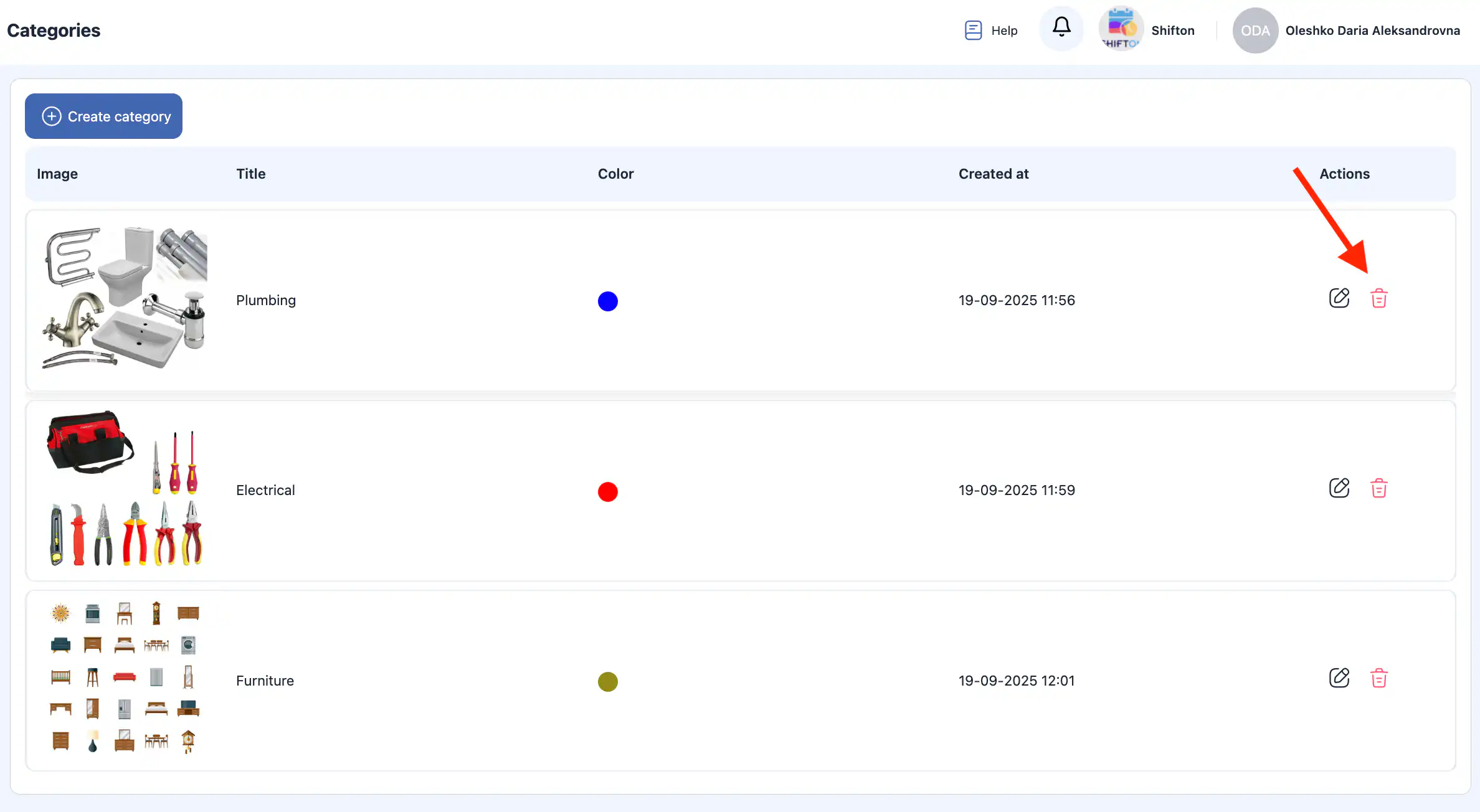
Click the trash icon next to the category you want to delete.
-
Confirm the action by clicking “Yes, confirm.”
-
To cancel deletion, select “No. Cancel.”
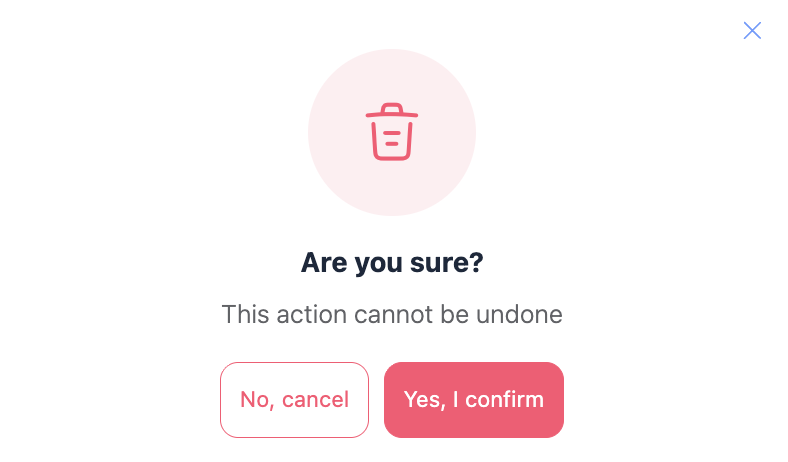
Important: Deleted categories cannot be restored.
Frequently Asked Questions (FAQ)
Q: What are categories in the Inventory module?
A: Categories help organize inventory items and tools into logical groups so you can manage and find them more easily. Before adding items or tools, categories should be created.
Q: Where do I find the Categories section in Shifton?
A: Go to Inventory Settings in the side menu and select the Categories subsection.
Q: How do I create a new category?
A: Click “Create Category,” fill in the category name, optionally add a photo, choose a color, and add a description. Then click “Save.”
Q: Can I cancel creating a category?
A: Yes — before clicking “Save,” you can click “Cancel” to discard the changes.
Q: How do I edit an existing category?
A: Click the pencil icon next to the category you want to change, update the fields in the side panel, and click “Save.”
Q: How do I delete a category?
A: Click the trash icon next to the category and then confirm the deletion.
Q: Can deleted categories be restored?
A: No. Deleted categories cannot be restored once removed.
Q: Does the category affect inventory organization?
A: Yes. Categories help group similar items and tools so you can sort, filter, and manage inventory more efficiently.
Q: Can I use categories to filter tools and items?
A: Yes — once assigned, categories can be used to filter inventory lists and help quickly locate items and tools in the system.
Q: What should I do if I remove a category that items are assigned to?
A: Before deleting a category, ensure you reassign or categorize affected items and tools appropriately so they remain organized after deletion.