

 English
  Español
  Português
  Deutsch
  Français
  Italiano
  日本語
日本語  中文
中文  हिन्दी
  עברית
עברית  العربية
  한국어
한국어  Nederlands
  Polski
  Türkçe
  Українська
  Русский
  Magyar
  Română
  Български
  Čeština
  Ελληνικά
  Svenska
  Dansk
Dansk  Norsk
Norsk  Suomi
Suomi  Bahasa
  Tiếng Việt
  Tagalog
  ไทย
ไทย  Latviešu
  Lietuvių
  Eesti
Eesti  Slovenčina
  Slovenščina
  Hrvatski
  Македонски
  Қазақ
Қазақ  Azərbaycan
  Afrikaans
  বাংলা
বাংলা Units of measurement are the second required element when working with inventory.
They are used to correctly categorize items and maintain a structured inventory system.
Examples of measurement units:
-
Length: meter (m), centimeter (cm), kilometer (km).
-
Mass: kilogram (kg), gram (g), ton (t).
-
Volume: liter (l), cubic meter (m³).
-
Area: square meter (m²).
How to Open the Units of Measurement Section
To manage units of measurement:
-
In the side menu, select “Inventory Settings.”
-
Open the “Units of Measurement” section.
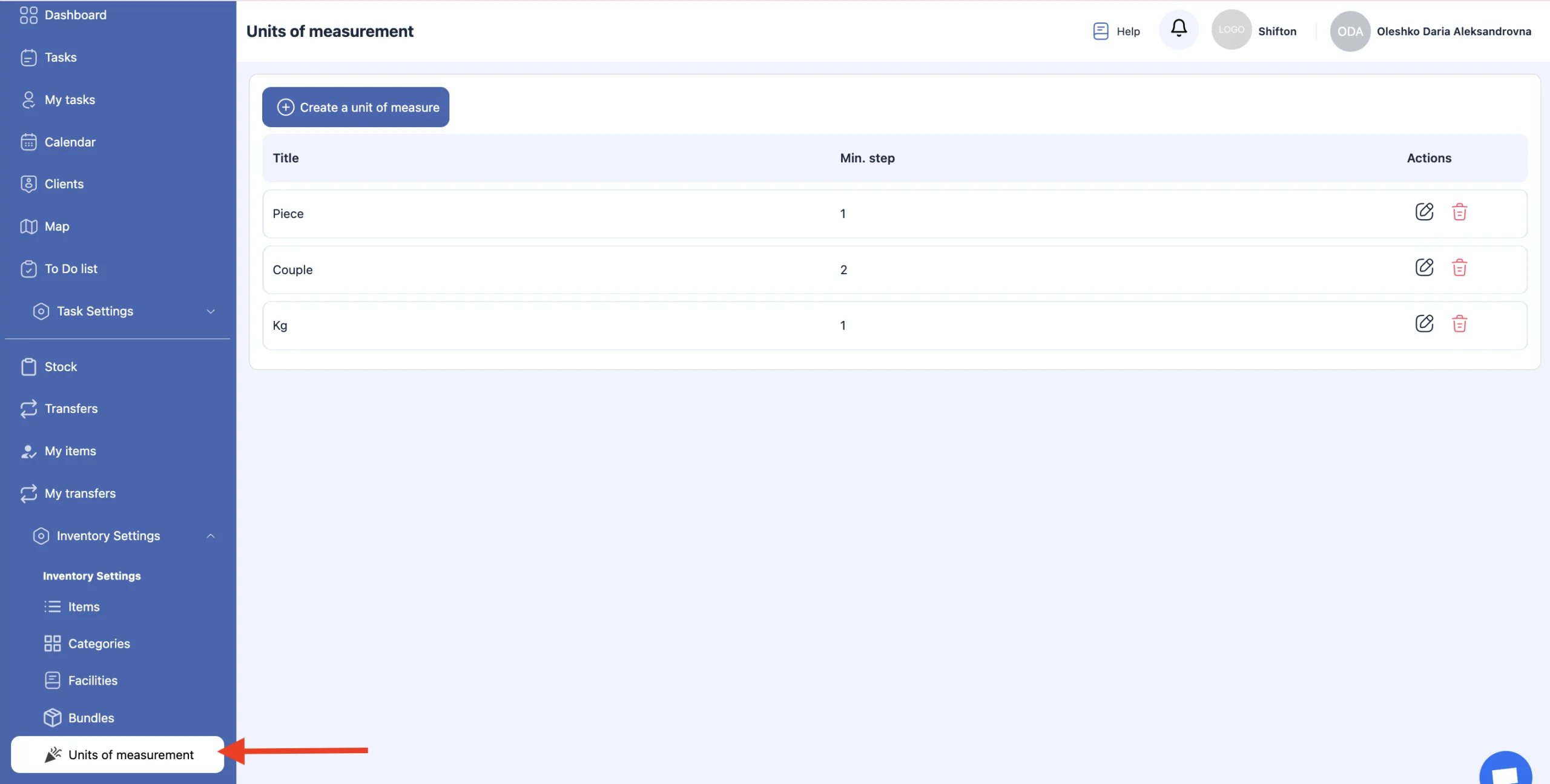
On this page, you can:
-
create a measurement unit;
-
edit a measurement unit;
-
delete a measurement unit.
Creating a Measurement Unit
-
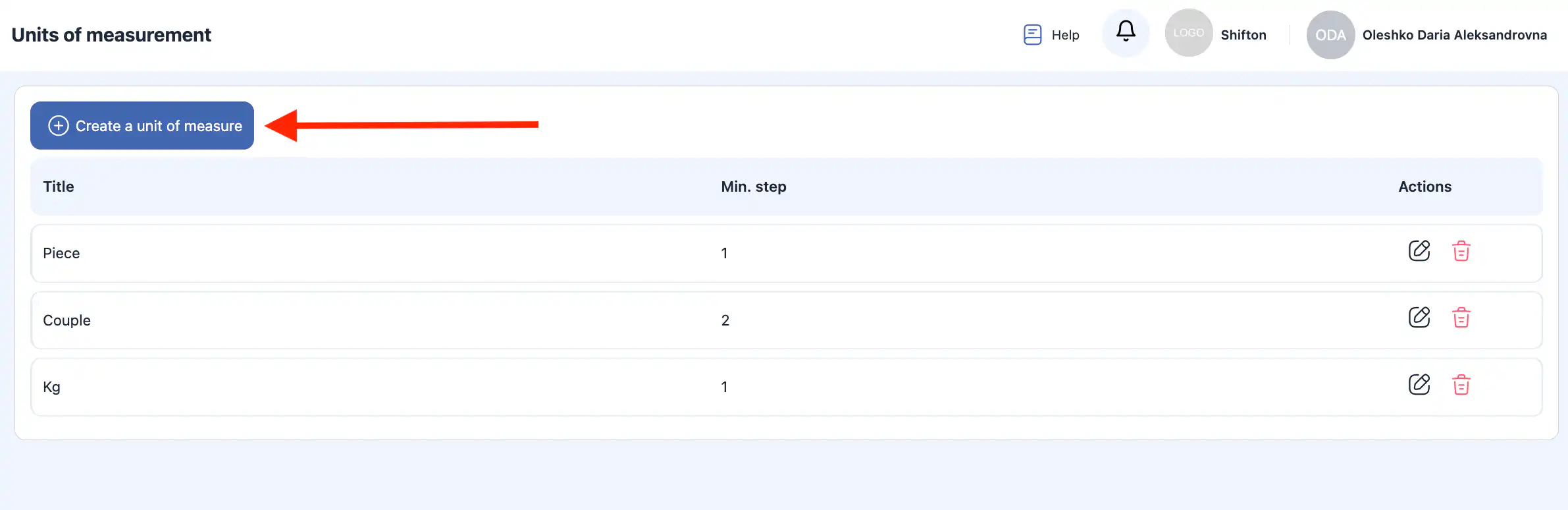
Click “Create Measurement Unit.”
-
A side panel will open on the right.
-
Enter:
the unit name;
the minimum change step (for example: Piece — step 1; Pair — step 2).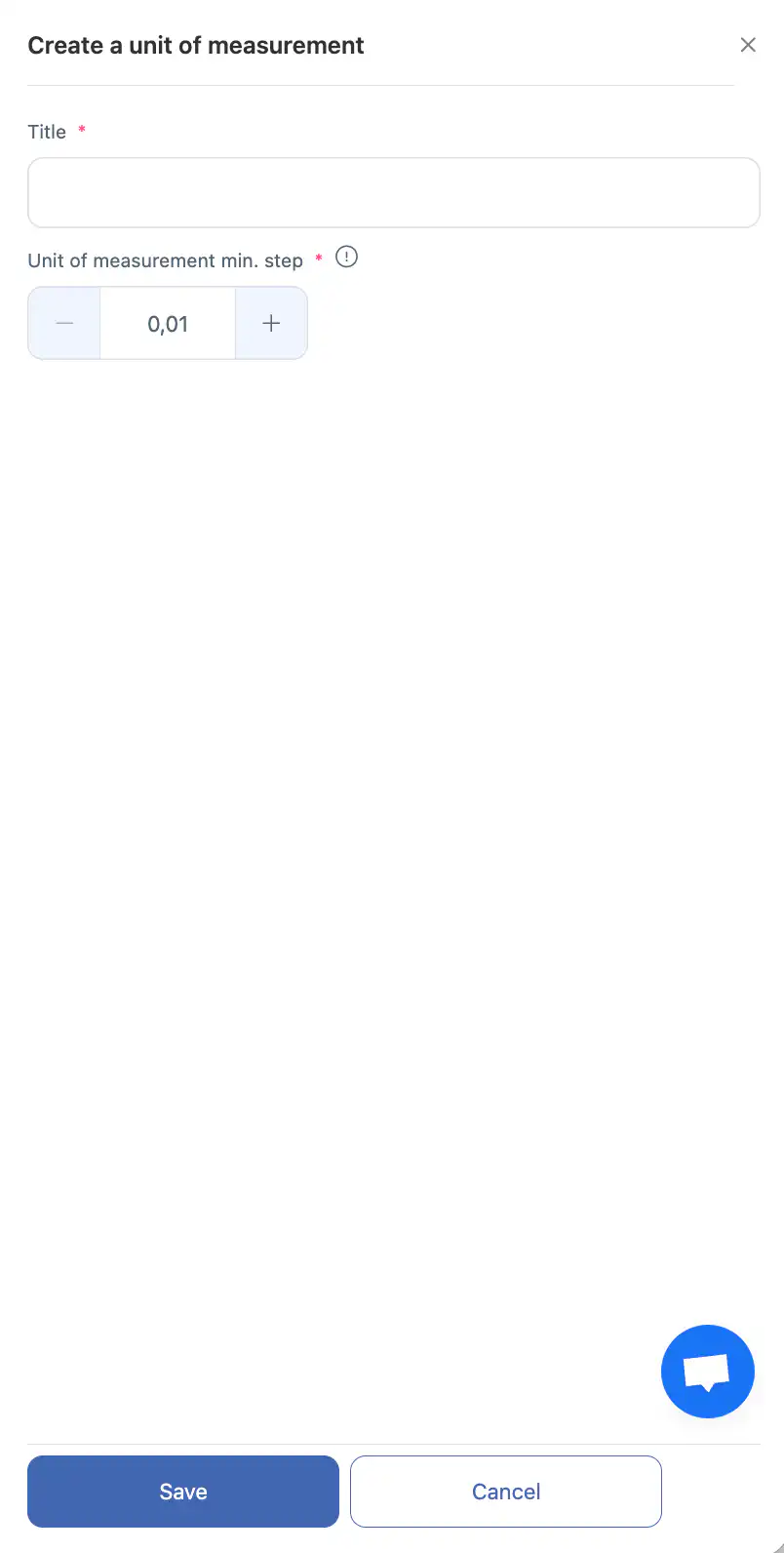
-
Click “Save.”
-
To cancel the action, click “Cancel.”
Editing a Measurement Unit
-
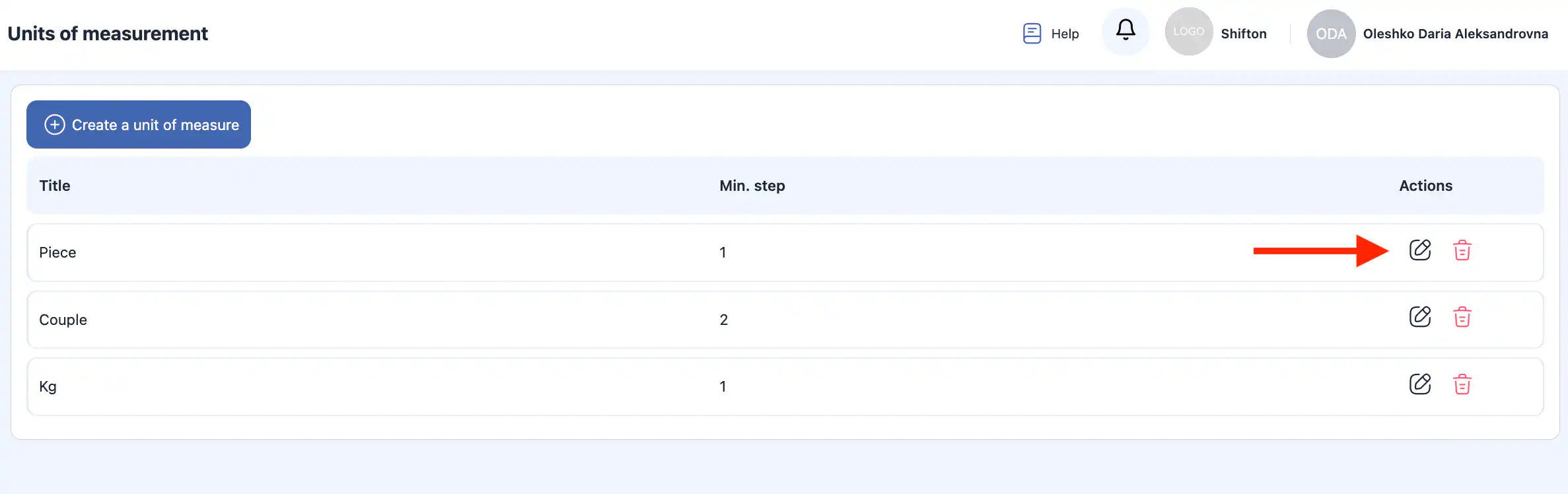
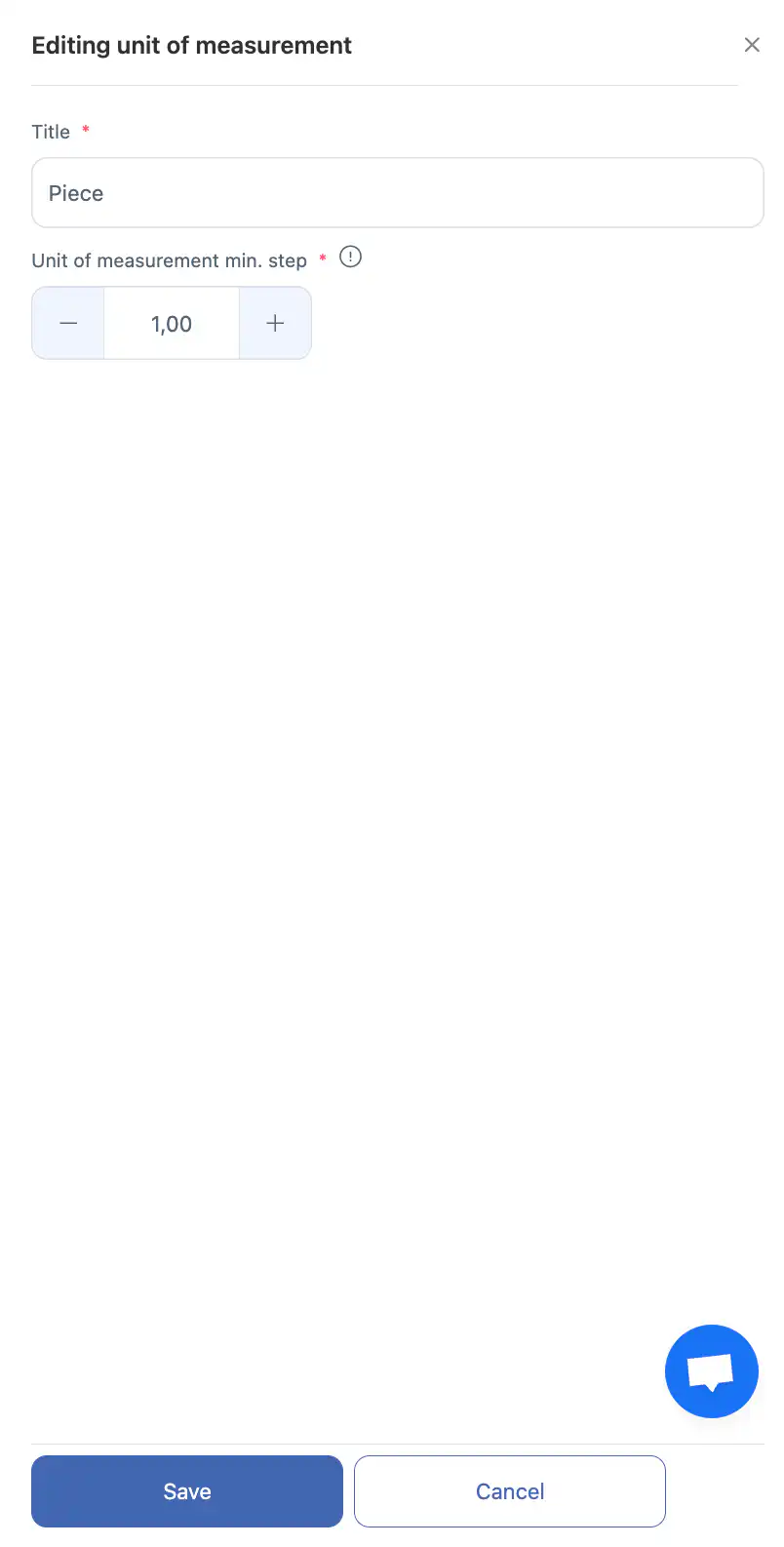
Click the pencil icon next to the unit you want to edit.
-
Update the unit name or minimum step in the side panel.
-
Click “Save.”
-
To discard changes, click “Cancel.”
Deleting a Measurement Unit
-
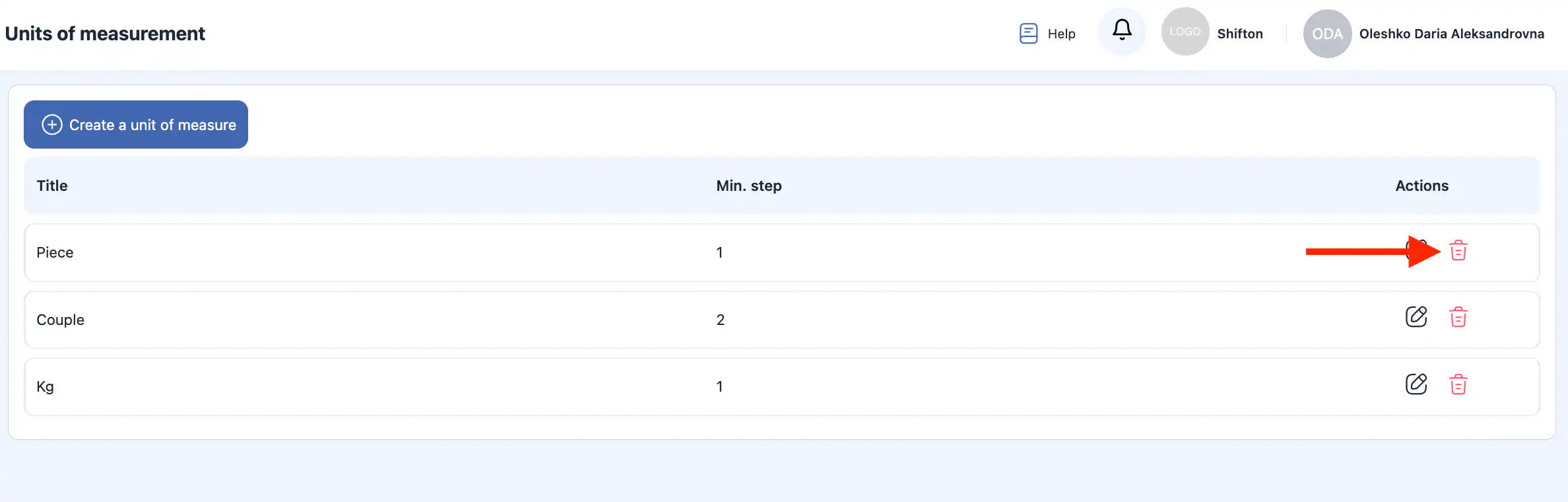
Click the trash icon next to the unit you want to delete.
-
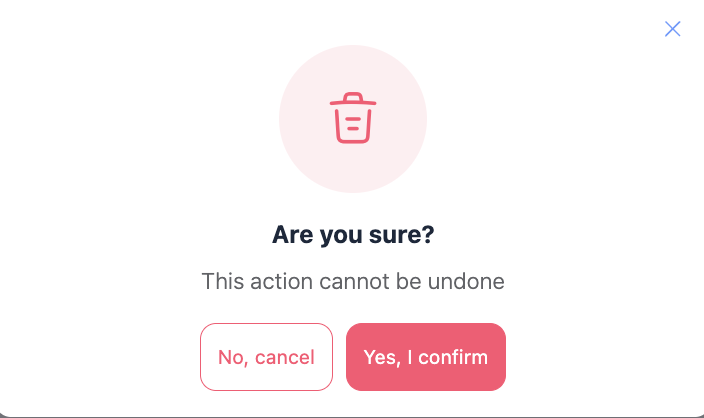
Confirm the deletion.
-
To cancel the action, click “Cancel.”
Important: This action cannot be undone.
Frequently Asked Questions (FAQ)
Q: What are units of measurement in the Inventory module?
A: Units of measurement define how inventory items are counted and quantified — for example, pieces, meters, kilograms, liters, etc. They ensure correct tracking of quantities for tools and materials in stock.
Q: Why do I need units of measurement?
A: Units allow the system to separate different types of items and handle quantities correctly. They help with inventory counts, transfers, reporting, and ensure consistency when adding or using items.
Q: Where can I manage units of measurement?
A: Go to Inventory Settings in the side menu and open the Units of Measurement section to add, edit, or delete measurement units.
Q: How do I create a new unit of measurement?
A: In the Units of Measurement section, click “Create Unit”, enter the name of the unit and a minimum step (e.g., “Piece” with step 1, “Pair” with step 2), then click Save.
Q: What does “minimum step” mean?
A: The minimum step defines the smallest increment in which the item can be counted. For example, if a unit is “Pair” with a step of 2, you cannot record half a pair.
Q: How do I edit an existing unit of measurement?
A: Click the pencil icon next to the unit you want to edit, update the name or minimum step in the side panel, and click Save.
Q: How do I delete a unit of measurement?
A: Click the trash icon next to the unit and confirm the action. This will permanently remove the unit.
Q: What happens if I delete a unit that’s used by items?
A: If a unit is currently assigned to inventory items, you may need to reassign those items to another unit before you can delete it.
Q: Can I use multiple units for one item?
A: An item can only have one defined unit of measurement at a time in its inventory settings. If you need alternate units (e.g., selling by box but storing by piece), configure the appropriate unit and conversion within your item setup.
Q: Do units affect how inventory reports are generated?
A: Yes. Reports use assigned units to display quantities correctly. Consistent measurement settings help ensure accurate inventory and reporting output.
Q: Are there common examples of units I might use?
A: Typical units include piece (pcs), meter (m), kilogram (kg), liter (l), set, pack, box, etc., depending on your business and inventory items.