

 English
  Español
  Português
  Deutsch
  Français
  Italiano
  日本語
日本語  中文
中文  हिन्दी
  עברית
עברית  العربية
  한국어
한국어  Nederlands
  Polski
  Türkçe
  Українська
  Русский
  Magyar
  Română
  Български
  Čeština
  Ελληνικά
  Svenska
  Dansk
Dansk  Norsk
Norsk  Suomi
Suomi  Bahasa
  Tiếng Việt
  Tagalog
  ไทย
ไทย  Latviešu
  Lietuvių
  Eesti
Eesti  Slovenčina
  Slovenščina
  Hrvatski
  Македонски
  Қазақ
Қазақ  Azərbaycan
  Afrikaans
  বাংলা
বাংলা In the Employees section, you can add new employees, send invitations, import employee lists, dismiss employees, and remove employees from the company.
To open the section, click “Employees” in the side menu.
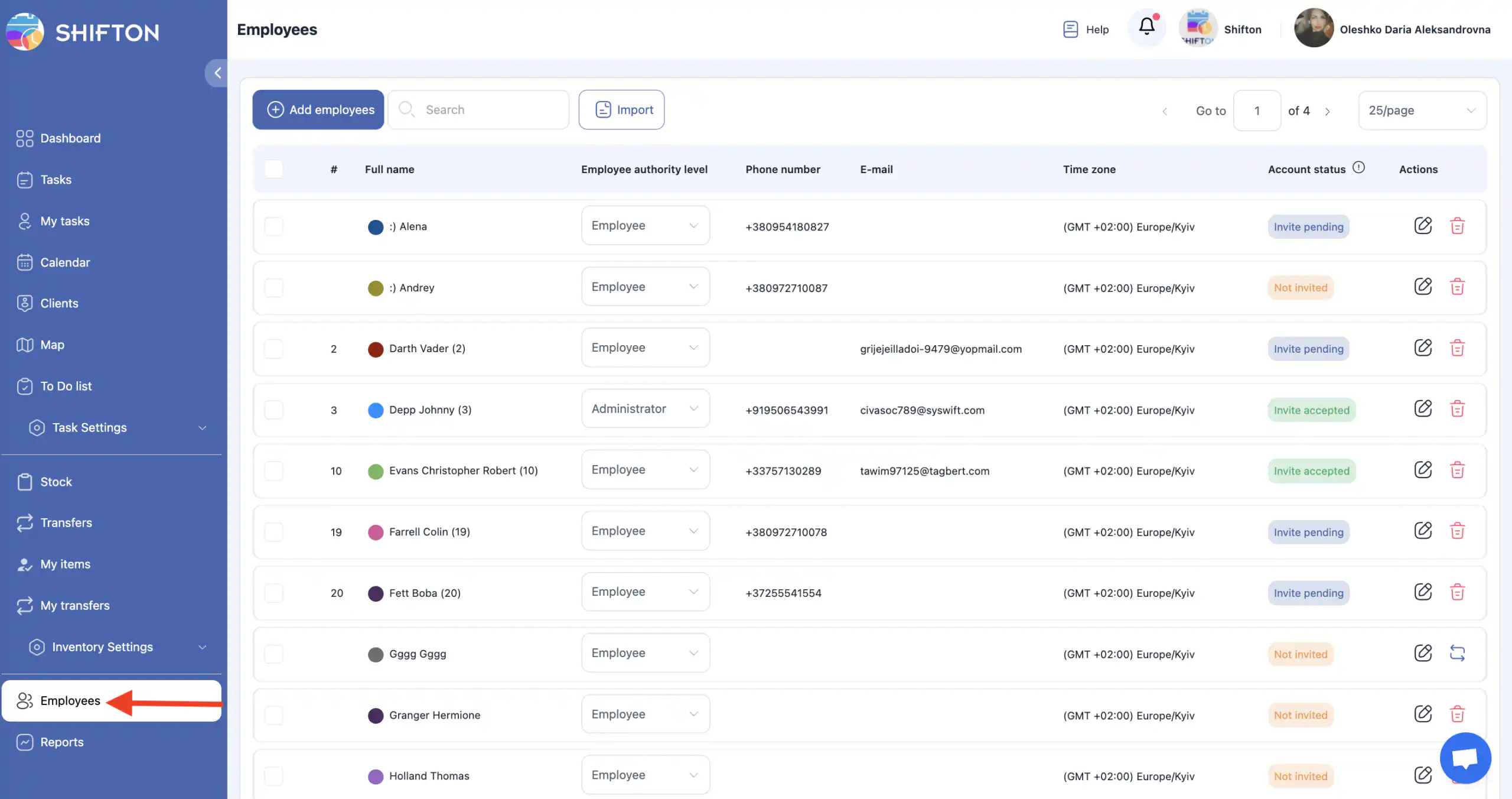
The page displays employees with the following statuses:
-
Invited — the employee has access to their account.
-
Invitation pending — the invitation was sent but not yet accepted.
-
Not invited — no invitation has been sent; you must provide a phone number or email.
Adding an Employee Manually
-
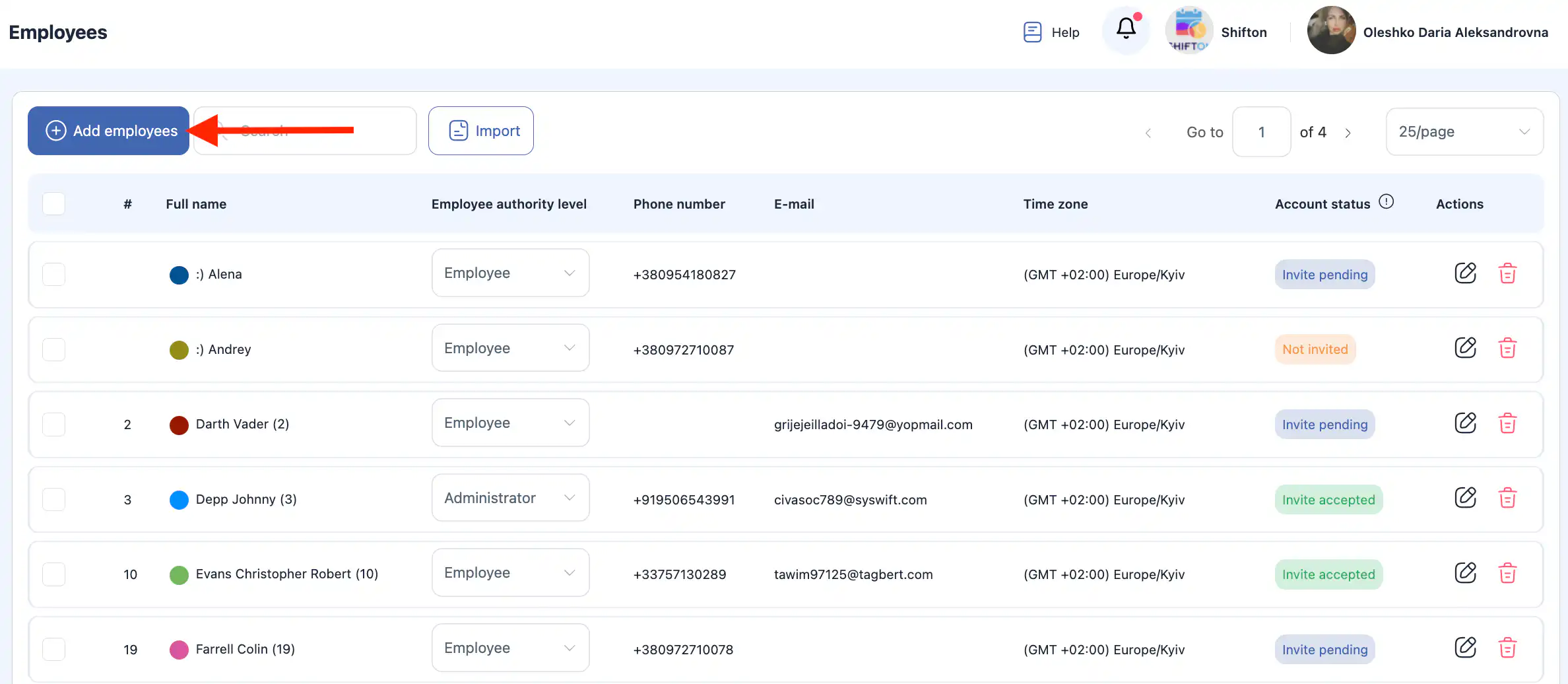
Click “Add Employee.”
-
In the side panel, fill in the following fields:
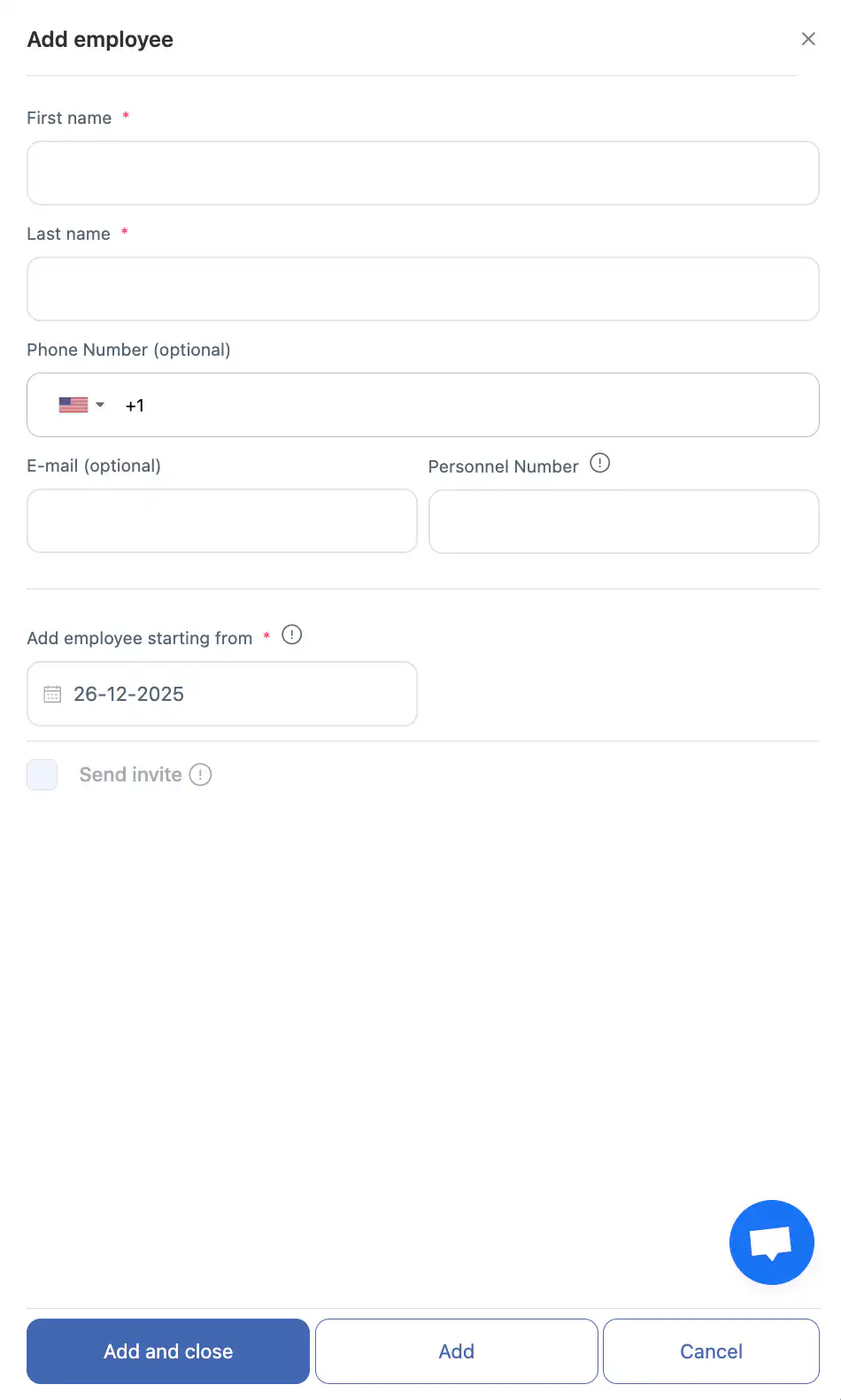
first name and last name;
mobile phone number;
email address.
add an employee starting from -
Click “Send invitation.”
Invitation rules:
-
If the employee is already registered, the invitation will be sent to their email.
-
If they are not registered, they will receive a registration link by SMS or email.
-
No more than 3 SMS per day can be sent to one phone number.
-
To send invitations, your phone number must be verified, and you must have a payment card added with an active monthly subscription.
After clicking “Add”, employee profiles will be created.
Employees will gain access to their accounts after completing the registration process.
Adding Employees via File Import
-
Open the Employees section.
-
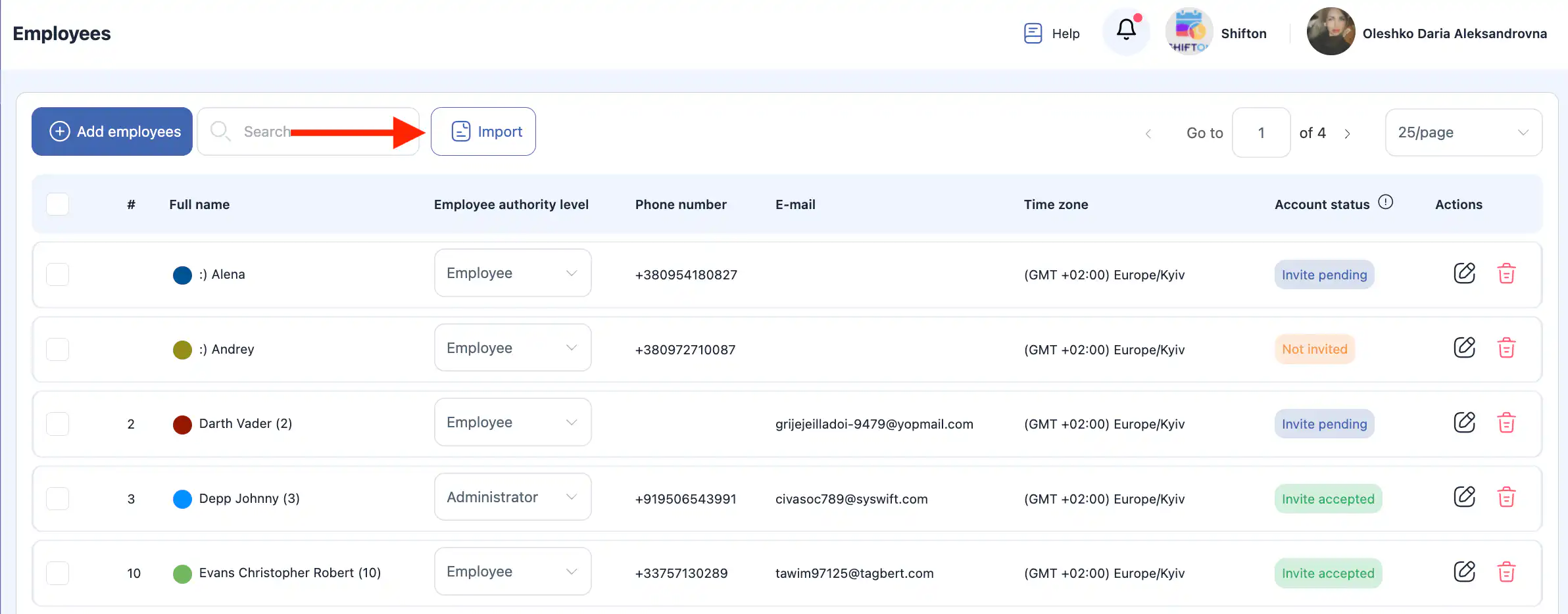
Click “Import.”
-
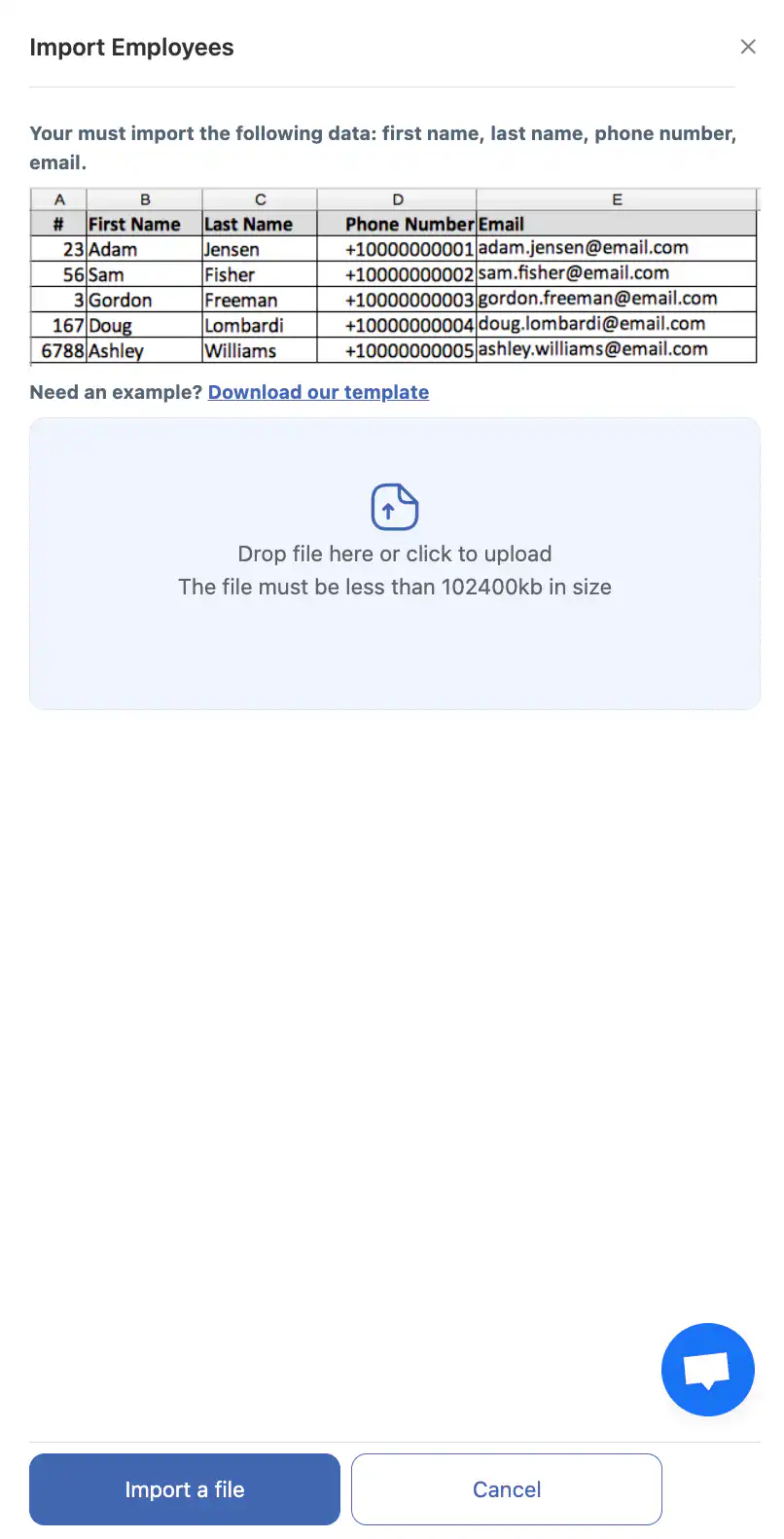
In the side panel, you will see an example of the required data format.
-
Download the template using “Download Template” and fill it in if needed.
-
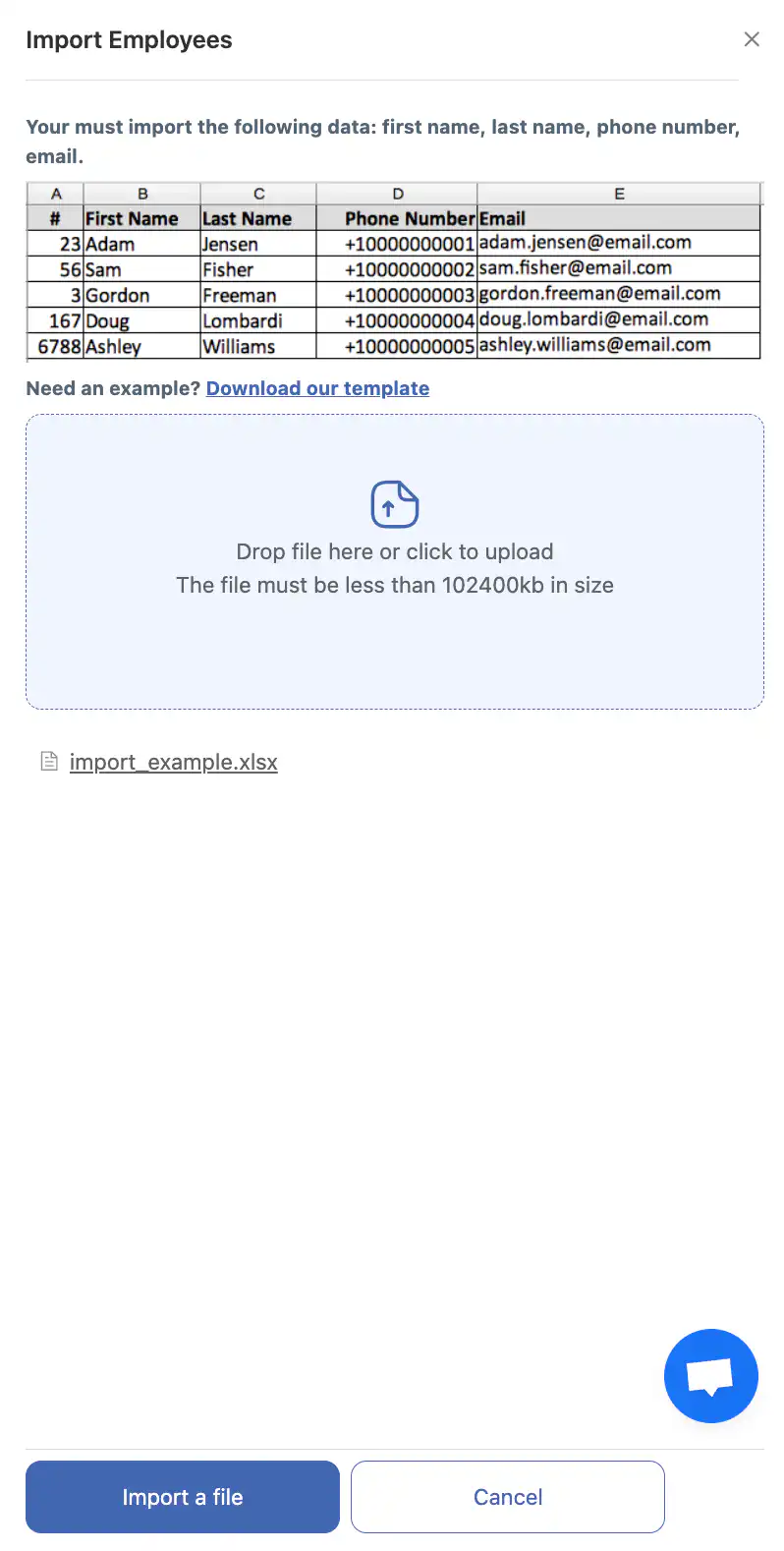
Click “Choose File” and upload a file in .CSV or .XLSX format.
-
Click “Import List.”
-
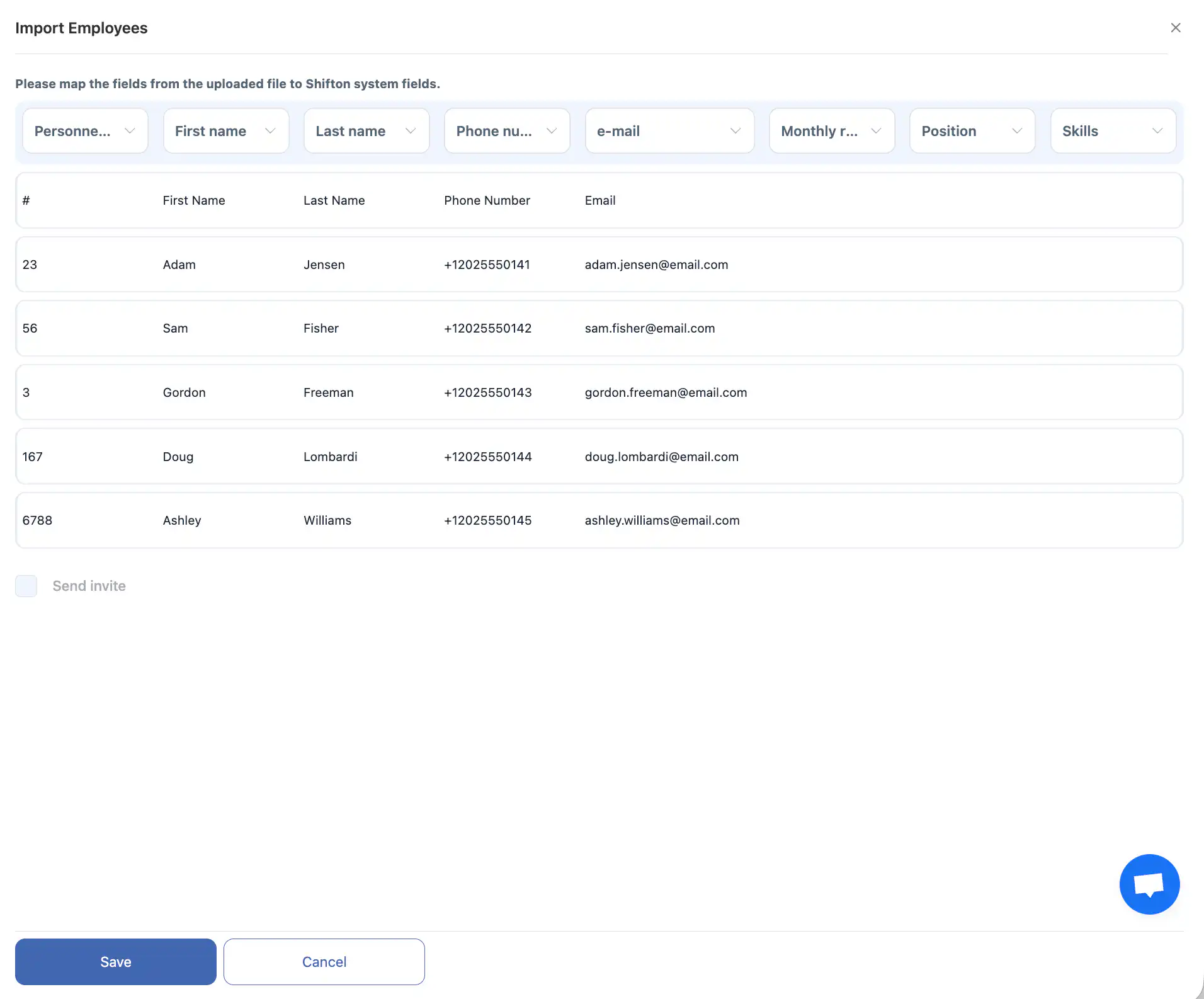
Match the columns from your file to the system fields in Shifton.
-
Check the box if you want to send invitations immediately.
-
Click “Save.”
After saving, employee profiles will be created.
They will be able to log in once they complete the registration process.
Dismissing an Employee
Only the company owner or an administrator can dismiss an employee.
-
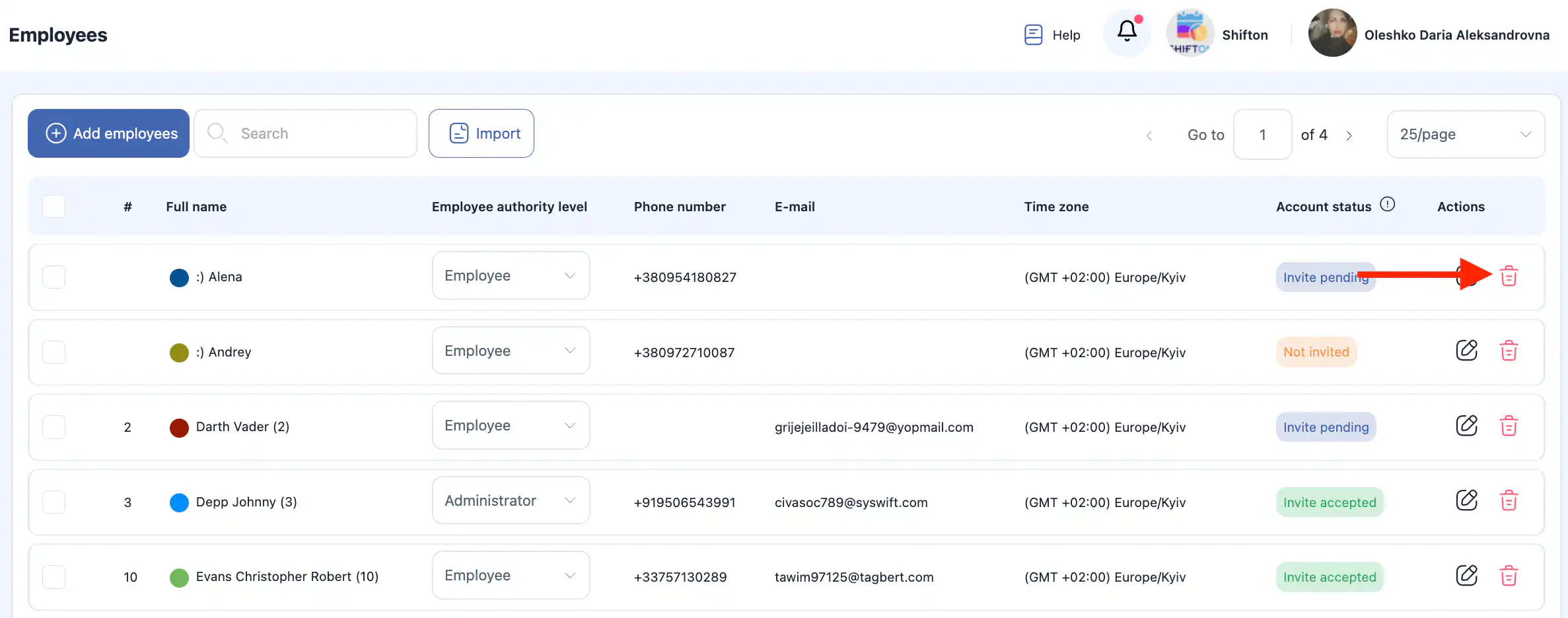
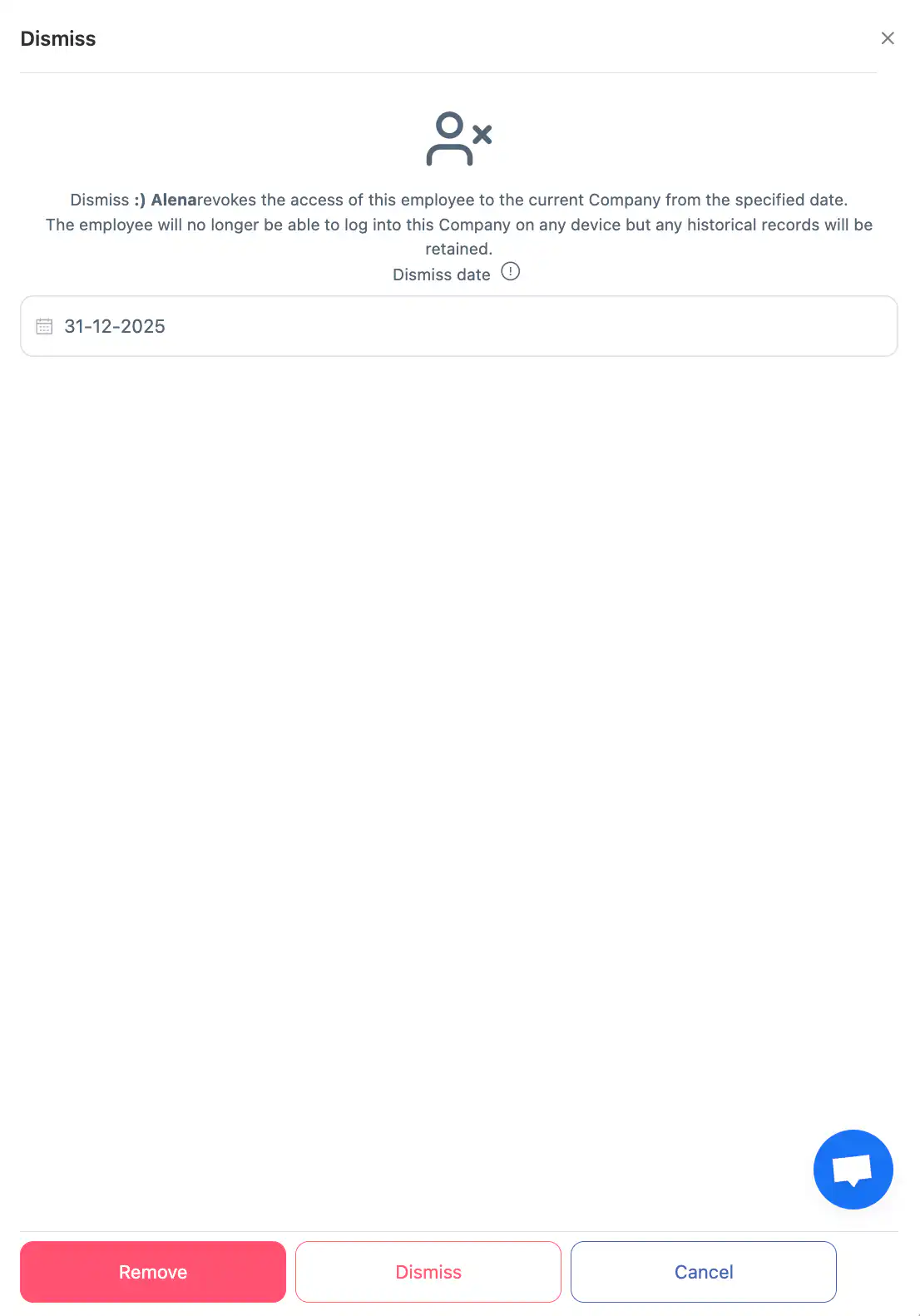
Click the trash icon next to the employee.
-
Select the dismissal date.
-
Click “Dismiss.”
After dismissal:
-
The employee’s access to the company account is revoked.
-
They will not be able to log in from any device.
Removing an Employee from the Company
Only the company owner or an administrator can remove an employee.
-
Click the trash icon next to the employee.
-
Click “Delete.”
Removing an employee permanently deletes their profile from the company’s employee list.
Frequently Asked Questions (FAQ)
Q: Where do I find the section to add employees?
A: Go to the Employees section in the side menu of your Shifton account.
Q: How do I manually add a new employee?
A: Click “Add Employee”, fill in their first and last name, mobile phone number, and email address, then click “Send invitation.”
Q: What happens after I add an employee?
A: After you send the invitation, Shifton creates the profile. The employee can log in once they complete the registration process.
Q: What statuses can an employee have in the list?
A: Employees can be shown as:
-
Invited — invitation accepted;
-
Invitation pending — invitation sent but not accepted;
-
Not invited — no invitation sent yet.
Q: How does the invitation work if the employee already has an account?
A: If the employee is already registered in Shifton, the invitation is sent to their email.
Q: How are invitations sent to unregistered users?
A: If they are not registered, they receive a registration link by SMS or email.
Q: Is there a limit to SMS invitations per phone number?
A: Yes — no more than 3 SMS invitations per day can be sent to a single phone number.
Q: What requirements exist to send invitations via Shifton?
A: Your phone number must be verified and a payment card must be added with an active subscription to send invitations.
Q: How do I add multiple employees at once?
A: Use the Import function: download the template, fill in employee details, upload a CSV or XLSX file, match columns, then click “Save.”
Q: Can I choose whether to send invitations immediately during import?
A: Yes — there is an option to check a box to send invitations immediately as part of the import process.
Q: How do I dismiss an employee?
A: Click the trash icon next to their name, select a dismissal date, and click Dismiss. This revokes their access.
Q: How do I remove an employee from the company?
A: Click the trash icon next to the employee and choose Delete. This permanently deletes their profile from the company list.
Q: Who can dismiss or remove employees?
A: Only the company owner or an administrator can dismiss or remove employees.
Q: What’s the difference between dismissal and removal?
A: Dismissal revokes access but keeps the employee profile; Removal permanently deletes the employee from the company list.