

 English
  Español
  Português
  Deutsch
  Français
  Italiano
  日本語
日本語  中文
中文  हिन्दी
  עברית
עברית  العربية
  한국어
한국어  Nederlands
  Polski
  Türkçe
  Українська
  Русский
  Magyar
  Română
  Български
  Čeština
  Ελληνικά
  Svenska
  Dansk
Dansk  Norsk
Norsk  Suomi
Suomi  Bahasa
  Tiếng Việt
  Tagalog
  ไทย
ไทย  Latviešu
  Lietuvių
  Eesti
Eesti  Slovenčina
  Slovenščina
  Hrvatski
  Македонски
  Қазақ
Қазақ  Azərbaycan
  Afrikaans
  বাংলা
বাংলা The Activity Logs section allows you to view all actions performed within your company for any selected period of time. This helps you monitor system changes, track employee activity, and analyze the history of operations.
How to open Activity Logs
-
Click your company name at the top of the interface.
-
Select Activity Logs from the dropdown menu.
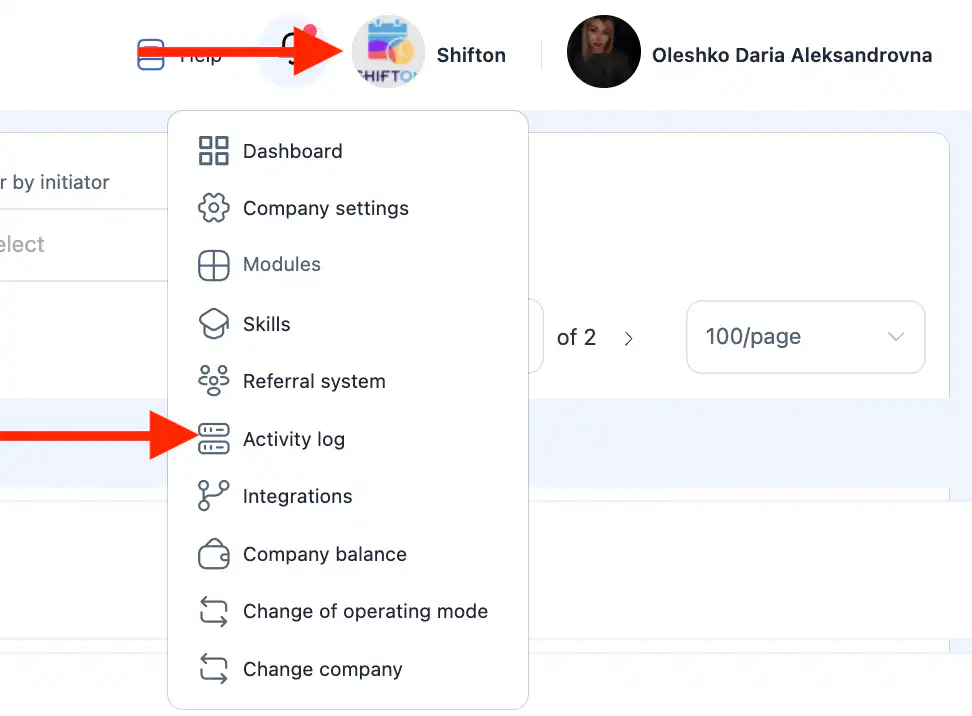
The page with all recorded actions will open.
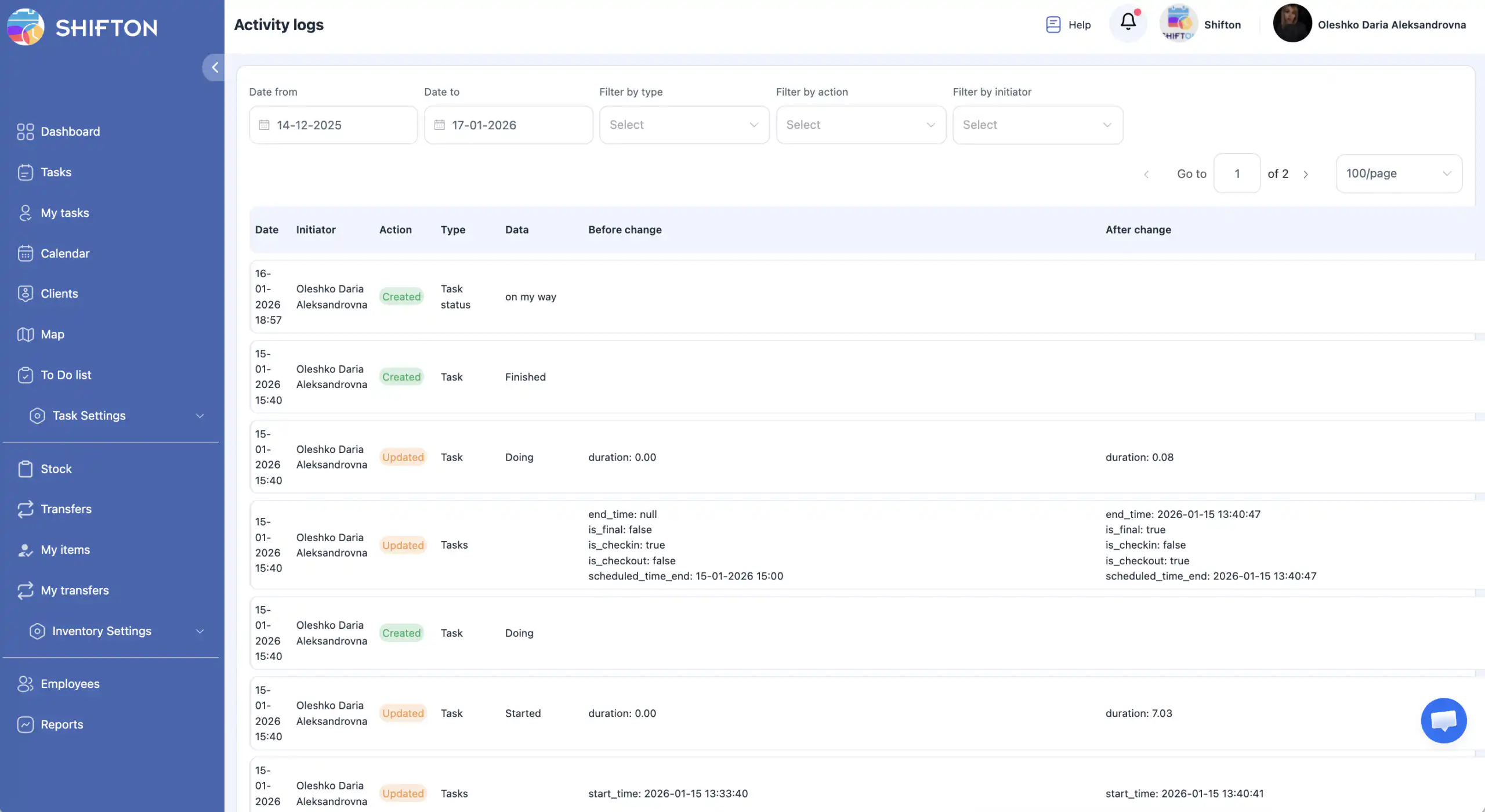
What information is displayed in the logs
The activity logs record the following data:
Action type
-
created
-
updated
-
deleted
-
restored
System section (feature)
-
tasks
-
checklists
-
inventory
-
employees
-
statuses
-
clients
-
To Do
-
service areas
Action initiator
The employee who performed the action.
Date and time
When the action was performed.
Data filtering
You can filter activity logs by:
-
time period;
-
action type (created, updated, deleted, restored);
-
system section (feature);
-
initiator (employee).
This makes it easy to find specific events even in large volumes of data.
Access to Activity Logs
By default, Activity Logs are available only to the company owner.
The owner can grant access to any employee.
How to grant access to an employee
-
Open the Employees section in the side menu.
-
Click the pencil icon next to the required employee.
-
In the side panel, enable “Access to activity logs.”
-
Click Save.
If you do not click Save, the changes will not be applied.
Frequently Asked Questions (FAQ)
Q: Who has access to Activity Logs by default?
A: Only the company owner.
Q: Can access be granted to a regular employee?
A: Yes. The company owner can grant access to any employee through their profile settings.
Q: Why don’t I see the Activity Logs section?
A: Most likely, you do not have the required permissions. Contact the company owner to request access.
Q: How long is activity history stored?
A: Activity logs are stored for the entire period of the company’s operation in the system.
Q: Can I see who changed a task or an inventory item?
A: Yes. Each log entry shows the initiator — the employee who performed the action.
Q: Can I filter logs to show only inventory or task-related actions?
A: Yes. Use the system section filter to display only the required type of events.
Q: Are activity logs updated in real time?
A: Yes. New actions appear in the logs automatically immediately after they occur in the system.