

 English
  Español
  Português
  Deutsch
  Français
  Italiano
  日本語
日本語  中文
中文  हिन्दी
  עברית
עברית  العربية
  한국어
한국어  Nederlands
  Polski
  Türkçe
  Українська
  Русский
  Magyar
  Română
  Български
  Čeština
  Ελληνικά
  Svenska
  Dansk
Dansk  Norsk
Norsk  Suomi
Suomi  Bahasa Indonesia
  Tiếng Việt
  Tagalog
  ไทย
ไทย  Latviešu
  Lietuvių
  Eesti
Eesti  Slovenčina
  Slovenščina
  Hrvatski
  Македонски
  Қазақша
  Azərbaycan
  Afrikaans
  বাংলা
বাংলা Free Printable Weekly Employee Schedule Template [Excel]
If you're still creating work schedules manually with a pencil and paper, you're spending valuable time and energy that could be better used for training employees, engaging with customers, enhancing your products and services, or tackling other tasks that contribute to the growth and success of your business.
*คุณสามารถรับเทมเพลตฟรีหลังจากลงทะเบียน
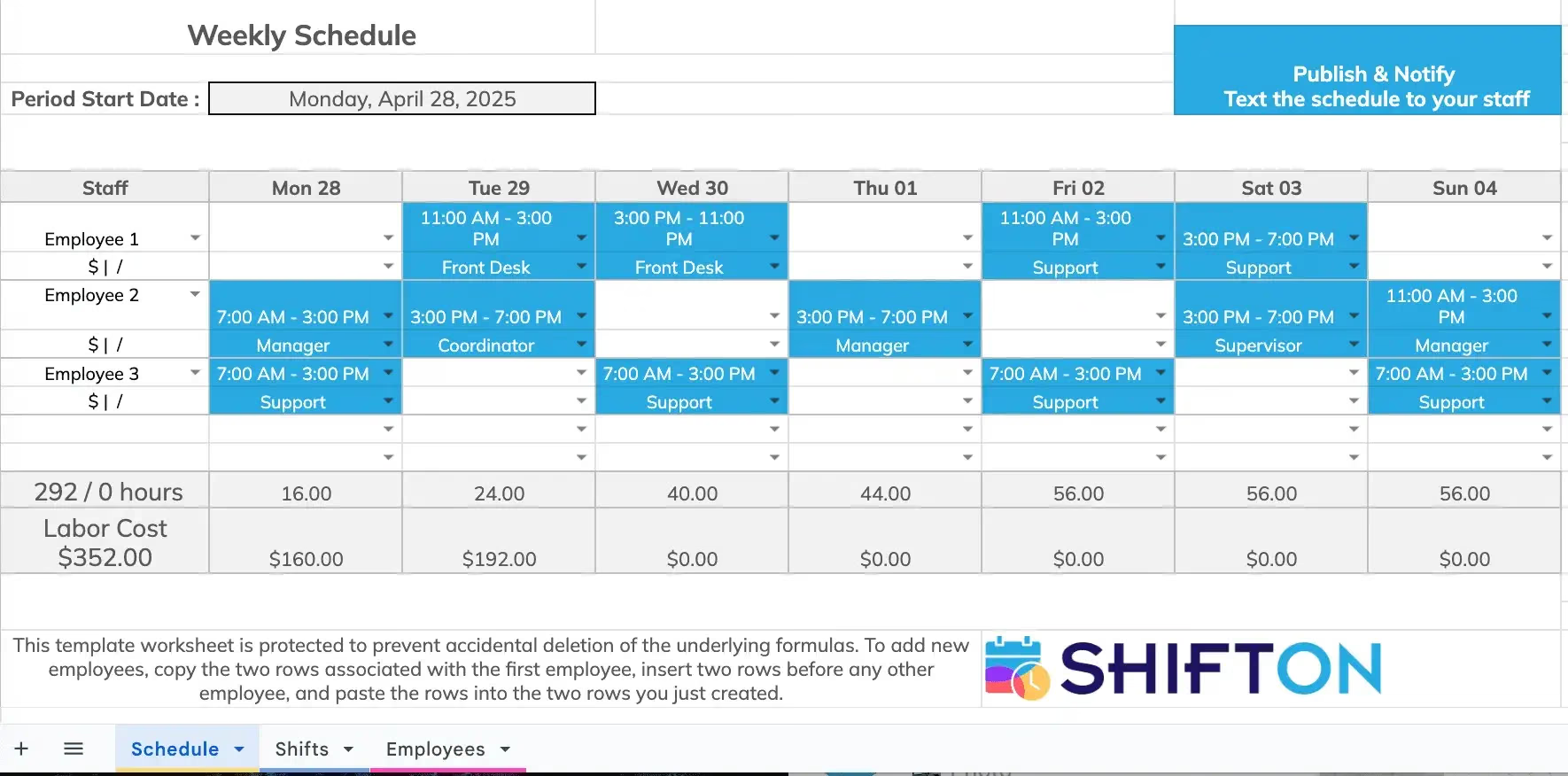
How to Use This Template
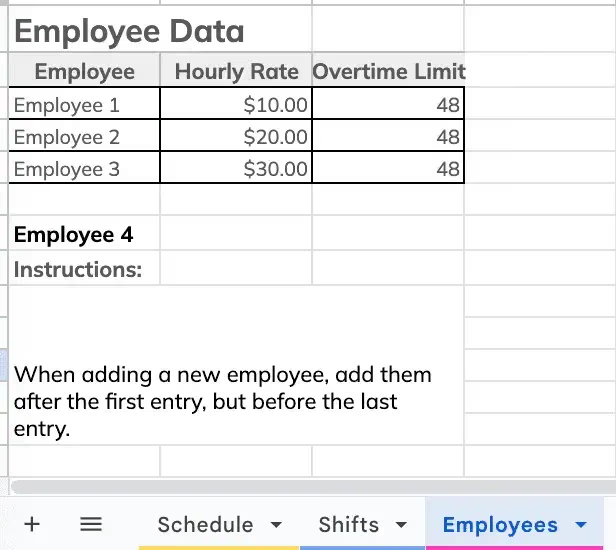
STEP 1Enter Employee Information
Step 1: Enter Employee Information On the pink tab labeled Employees, enter the names of all your staff members. You can also include additional information like contact details or position.
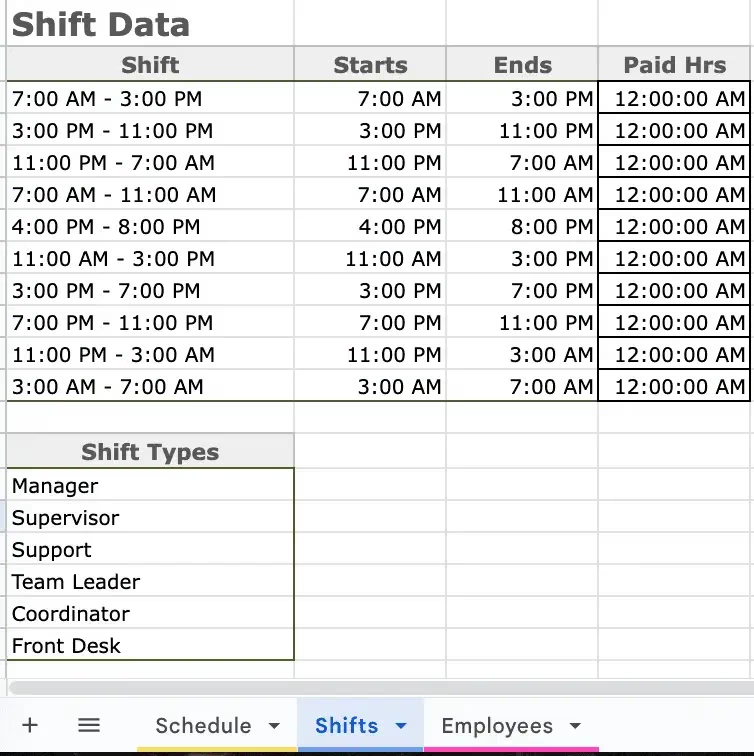
STEP 2Create Shifts and Roles
Step 2: Create Shifts and Roles On the blue tab labeled Shifts, enter the start and end times for shifts. In the Shift Types section, list the names of each type of shift (e.g., manager, server, host, team lead, etc.).
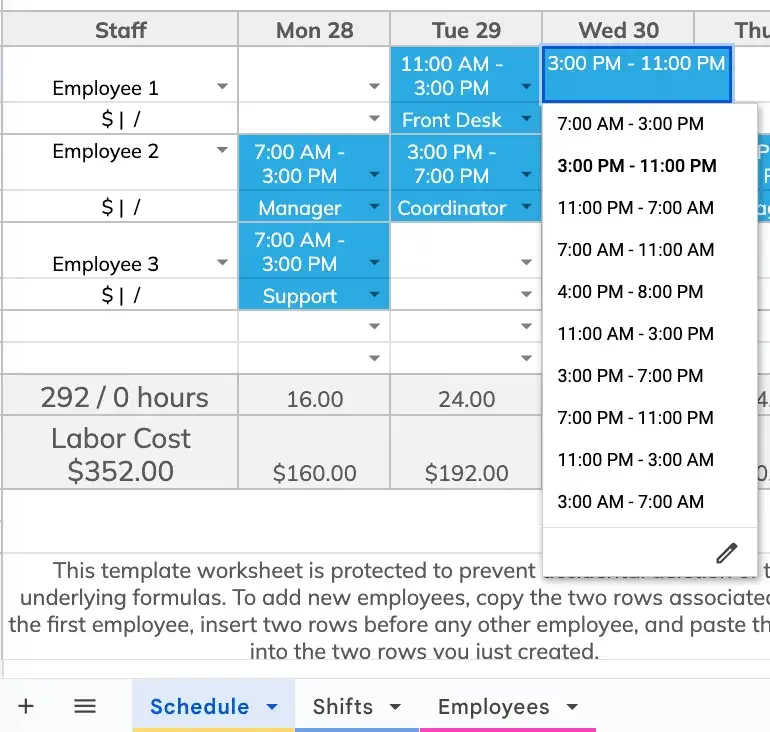
STEP 3Start Scheduling
Step 3: Once employees and shifts are set up, use the dropdown menus to assign shifts to employees for each day. To adjust the week, simply update the start date at the top of the schedule.
Creating schedules for employees can be a daunting task. To reduce confusion and save time, you can use our free work schedule templates. In the article below, we'll explain how to use and create them more effectively.
เรียนรู้เพิ่มเติมเกี่ยวกับเทมเพลตตารางเวลา
เทมเพลตตารางเวลาพนักงานคืออะไร?
เทมเพลตตารางเวลาพนักงานเป็นเครื่องมือธุรกิจที่ช่วยจัดสรรกะได้ง่ายขึ้น ใช้เทมเพลต Excel ฟรีของเรา
ควรรวมอะไรในเทมเพลตตารางเวลา
เมื่อสร้างเทมเพลต คำนึงถึงผู้ใช้ปลายทาง — พนักงาน:
- ชื่อพนักงานทุกคนและข้อมูลติดต่อผู้จัดการ
- วันที่เริ่มต้นและสิ้นสุดที่ชัดเจน
- เวลาเริ่มและสิ้นสุดกะ
- ช่วงพักและมื้ออาหาร
- บทบาทหรือหน้าที่เฉพาะสำหรับแต่ละกะ
วิธีใช้เทมเพลตตารางเวลาพนักงาน
การใช้เทมเพลตตารางเวลาฟรีนั้นง่ายมาก:
- กรอกข้อมูลพนักงาน: กรอกจำนวนพนักงาน ชื่อ ความต้องการ และข้อมูลติดต่อ
- จัดสรรกะ: จัดสรรกะตามความพร้อม ความต้องการ และปริมาณงาน
- ตรวจสอบและปรับเปลี่ยน: ตรวจสอบความขัดแย้งเช่น การจัดซ้ำซ้อนหรือกะที่ขาดหายไป
- ตรวจสอบให้แน่ใจว่าทุกคนได้เห็นแล้ว: ตรวจสอบให้แน่ใจว่าทุกคนเห็นตารางหรือได้รับสำเนา
สร้างตารางกะใน Excel ได้อย่างไร?
Excel มีเครื่องมือในตัวที่เหมาะสำหรับเทมเพลตฟรี เริ่มต้น:
- เปิด Excel: เปิด Excel และสร้างสมุดงานใหม่
- เลือกเทมเพลต: ค้นหาเทมเพลตฟรีที่เหมาะกับธุรกิจ
- กรอกข้อมูลที่จำเป็น: กรอกรายละเอียดทั้งหมด เช่น ชื่อ กะ และเวลา
- ใช้สูตร: คุณสามารถใช้สูตร Excel เพื่อคำนวณชั่วโมงและความพร้อม
- ปรับแต่งเทมเพลตของคุณ: ปรับคอลัมน์และเลย์เอาต์ตามความต้องการ
- บันทึกและพิมพ์: บันทึกเอกสารและพิมพ์หากจำเป็น
ทดสอบเทมเพลตตารางเวลาของคุณ
เมื่อตารางพร้อม อย่าลืมทดสอบ:
- ตรวจสอบให้แน่ใจว่าข้อมูลทั้งหมดแสดงถูกต้องและสูตรทำงานได้ดี
- ให้พนักงานตรวจสอบตาราง หากค้นหาข้อมูลใช้เวลามากกว่า 30 วินาที ต้องทำให้ง่ายขึ้น
ขอให้การจัดการกะราบรื่นด้วยเทมเพลต Excel ฟรีของเรา