

 English
  Español
  Português
  Deutsch
  Français
  Italiano
  日本語
日本語  中文
中文  हिन्दी
  עברית
עברית  العربية
  한국어
한국어  Nederlands
  Polski
  Türkçe
  Українська
  Русский
  Magyar
  Română
  Čeština
  Български
  Ελληνικά
  Svenska
  Dansk
Dansk  Norsk
Norsk  Suomi
Suomi  Bahasa
  Tiếng Việt
  Tagalog
  ไทย
ไทย  Latviešu
  Lietuvių
  Eesti
Eesti  Slovenčina
  Slovenščina
  Hrvatski
  Македонски
  Қазақ
Қазақ  Azərbaycan
  Afrikaans
  বাংলা
বাংলা Departments and Projects is a mandatory module that activates automatically after company registration. It cannot be disabled.
Module Purpose
The module allows you to divide employees into departments or operational units.
For example, you can create separate projects for:
-
Different call center departments
-
Restaurant or café locations
-
Hospital branches
-
Teams working in different cities
Each project becomes an independent workspace with its own structure, participants, and schedules.
Roles in a Project
-
Manager — manages schedules and employee requests within their project.
-
Employee — project participant available for inclusion in schedules created in this project.
-
Observer — has view-only access to project schedules and shifts.
-
Does not receive notifications about time-off requests.
-
Cannot perform any shift-related actions.
-
Managers of projects where the observer is not assigned as an employee do not receive their requests.
-
Number of Projects
After registration, one project is created automatically.
You can add additional projects or reduce their number.
To change the number of available projects:
-
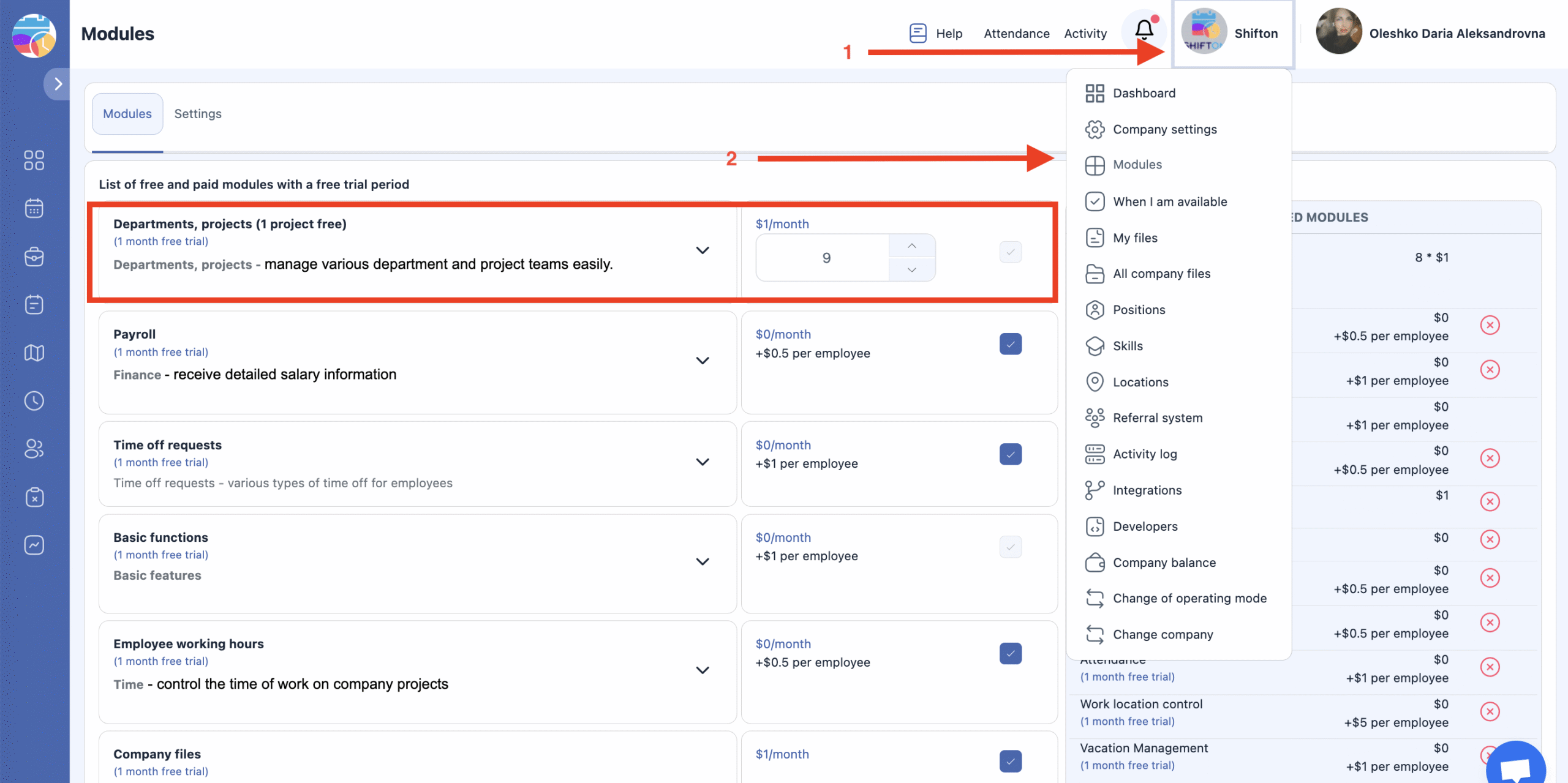
Click the profile icon in the top-right corner.
-
Go to “Modules.”
-
Find the “Departments and Projects” module.
It activates automatically and cannot be disabled. -
Enter the required number of available projects in the corresponding field.
Creating a Project
To create an additional project:
-
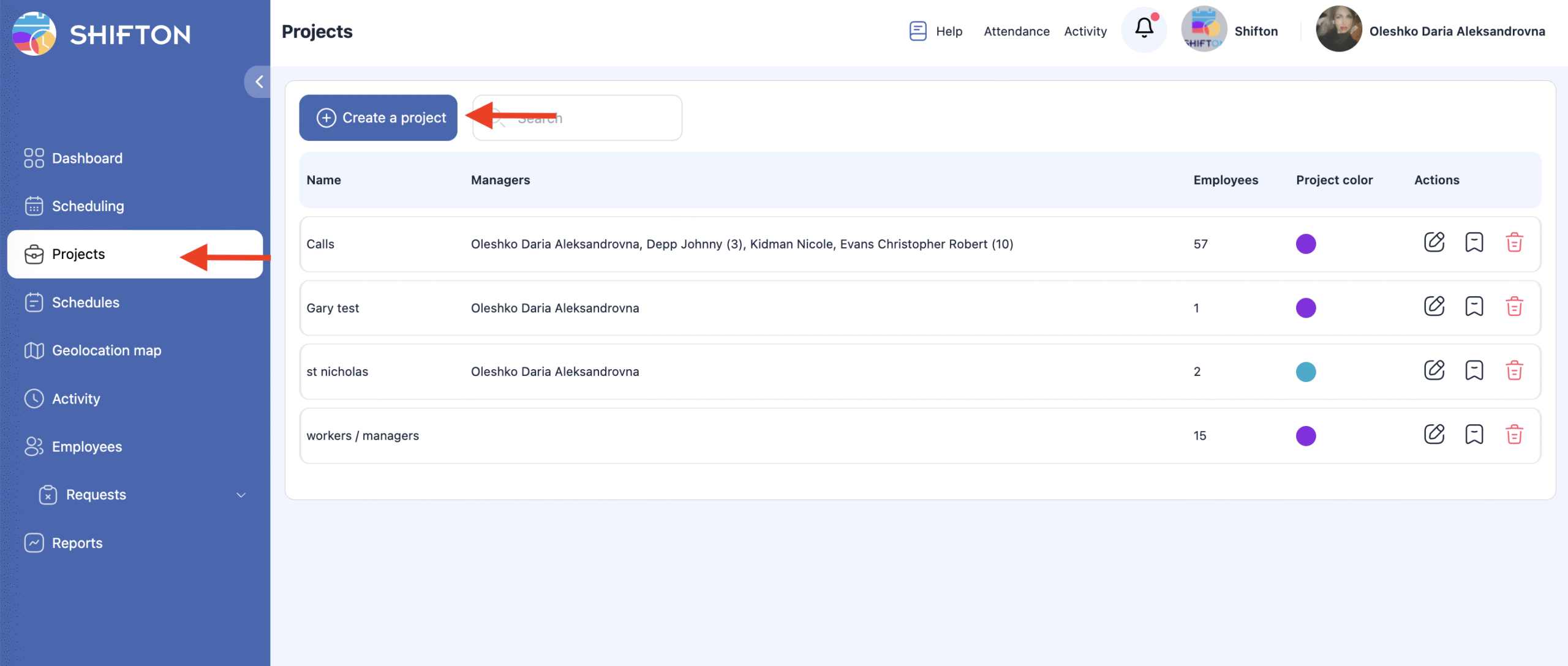
Open the “Projects” section in the sidebar.
-
On the page, click “Create Project.”
-
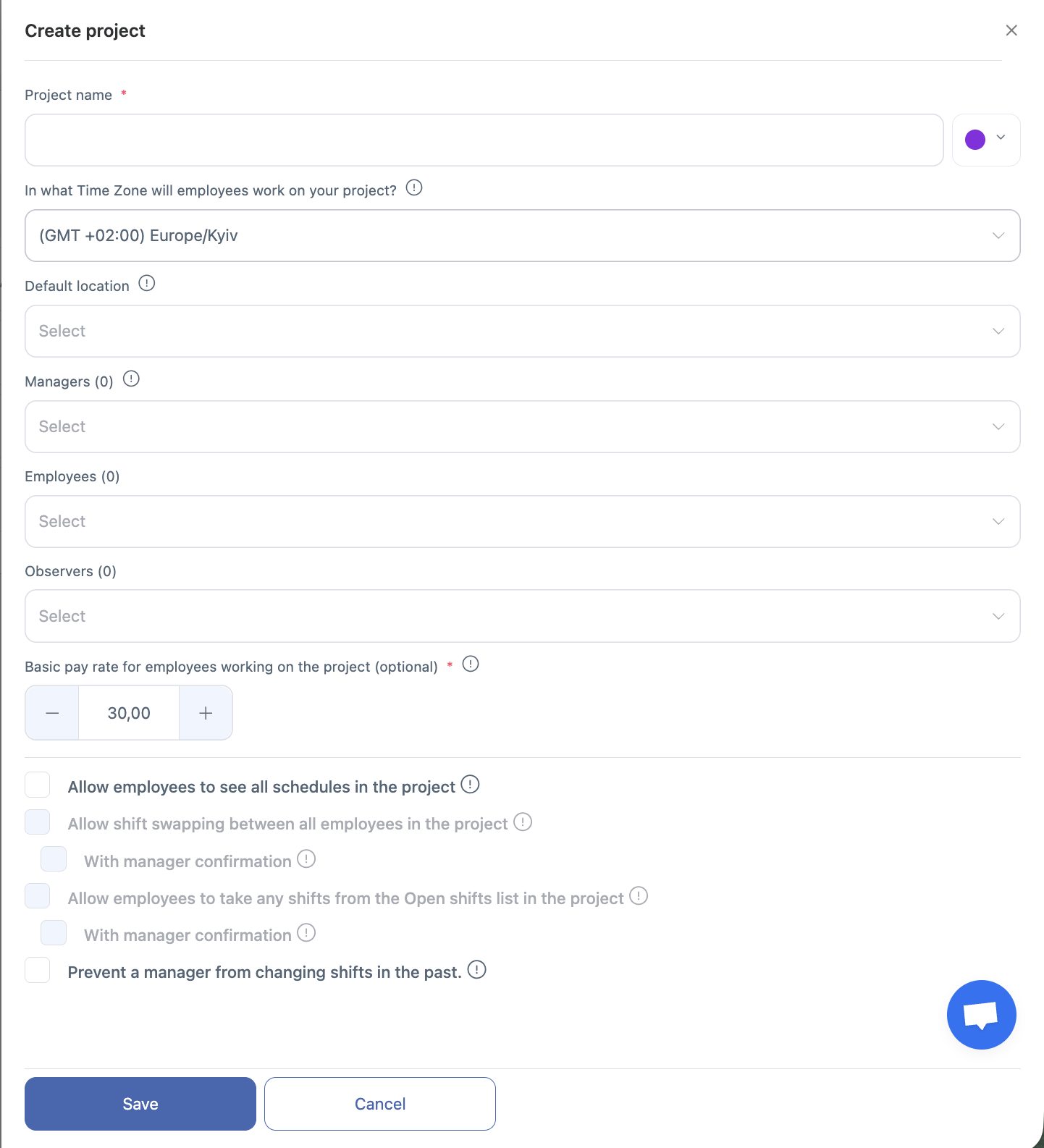
Enter the project name and adjust the necessary parameters.
Editing a Project
The first project is created automatically upon registration.
You can edit its settings as follows:
-
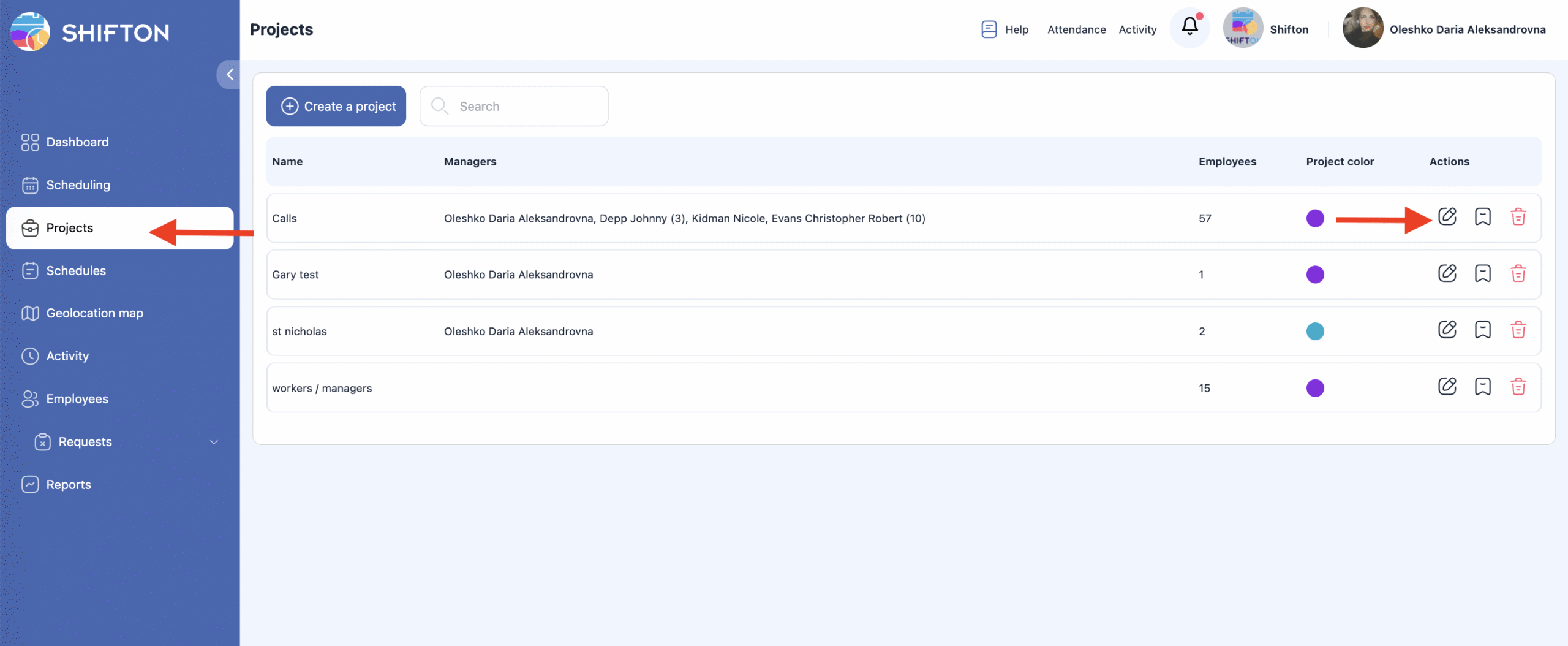
Open “Projects” from the sidebar menu.
-
Click the pencil icon next to the desired project.
In the pop-up window, you can:
-
Rename the project
-
Select a color for its statistics on the Dashboard
-
Set a base pay rate for employees assigned to the project
-
Choose the project’s time zone
⚠️ If a schedule already exists for this project, the time zone cannot be changed.
-
Add or remove employees
-
Add or remove managers
-
Add or remove observers
After editing, click “Save.”
To discard changes, click “Cancel.”
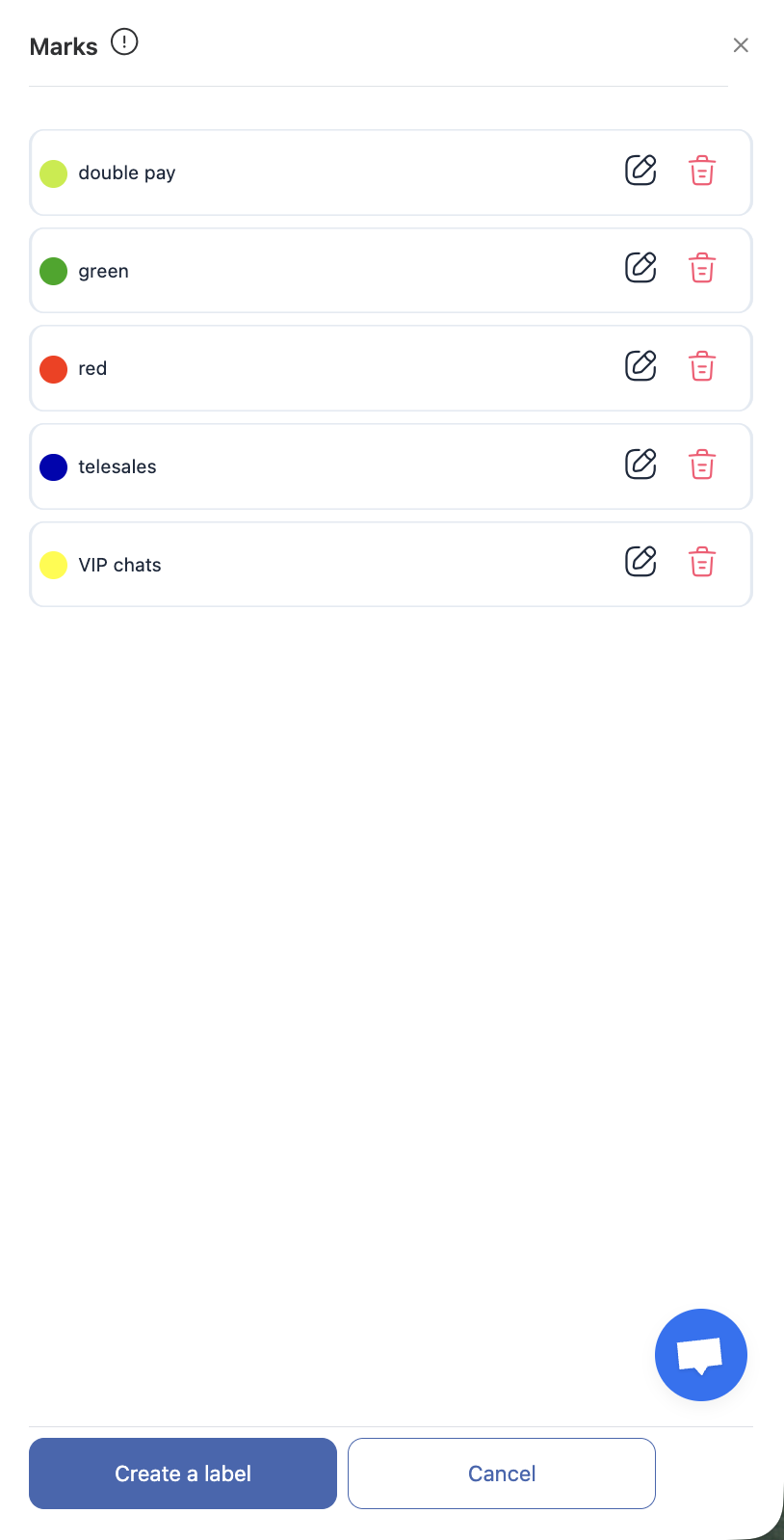
Project Labels
Each project can have its own labels for marking shifts or employees.
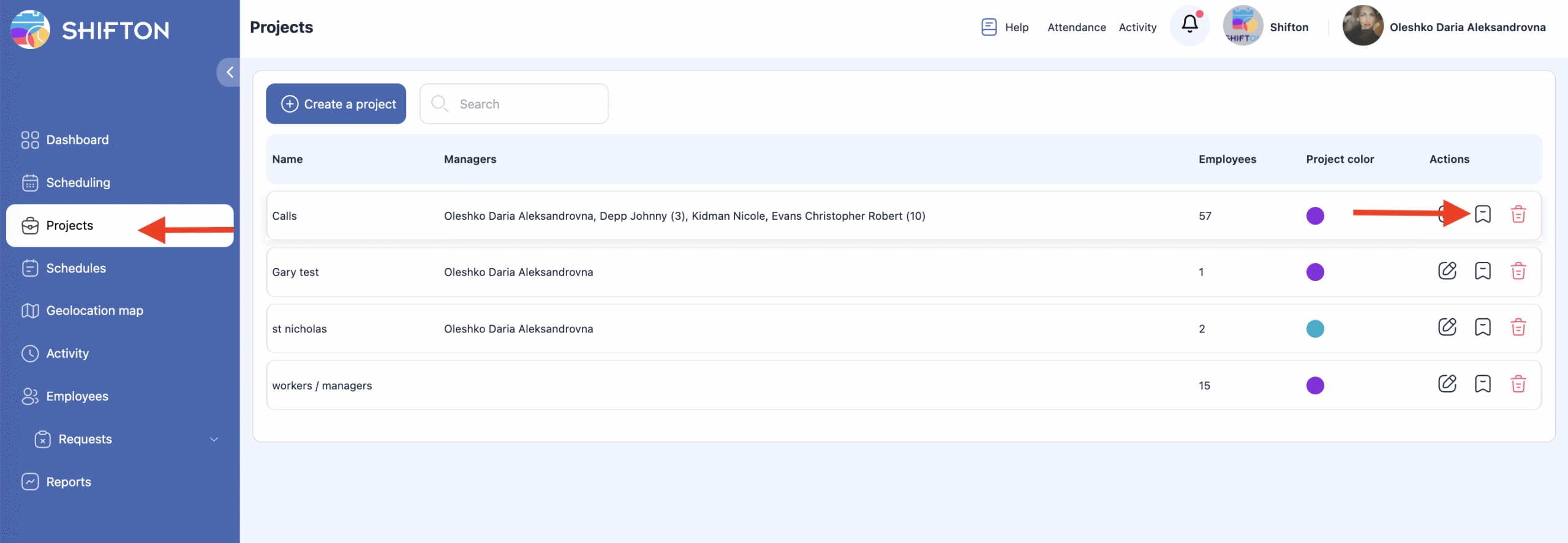
To create, edit, or delete labels:
-
Click the bookmark icon next to the project name.
-
In the opened window, you can:
-
View the list of existing labels
-
Edit or delete them
-
Create a new one by specifying its name and color
-
Deleting a Project
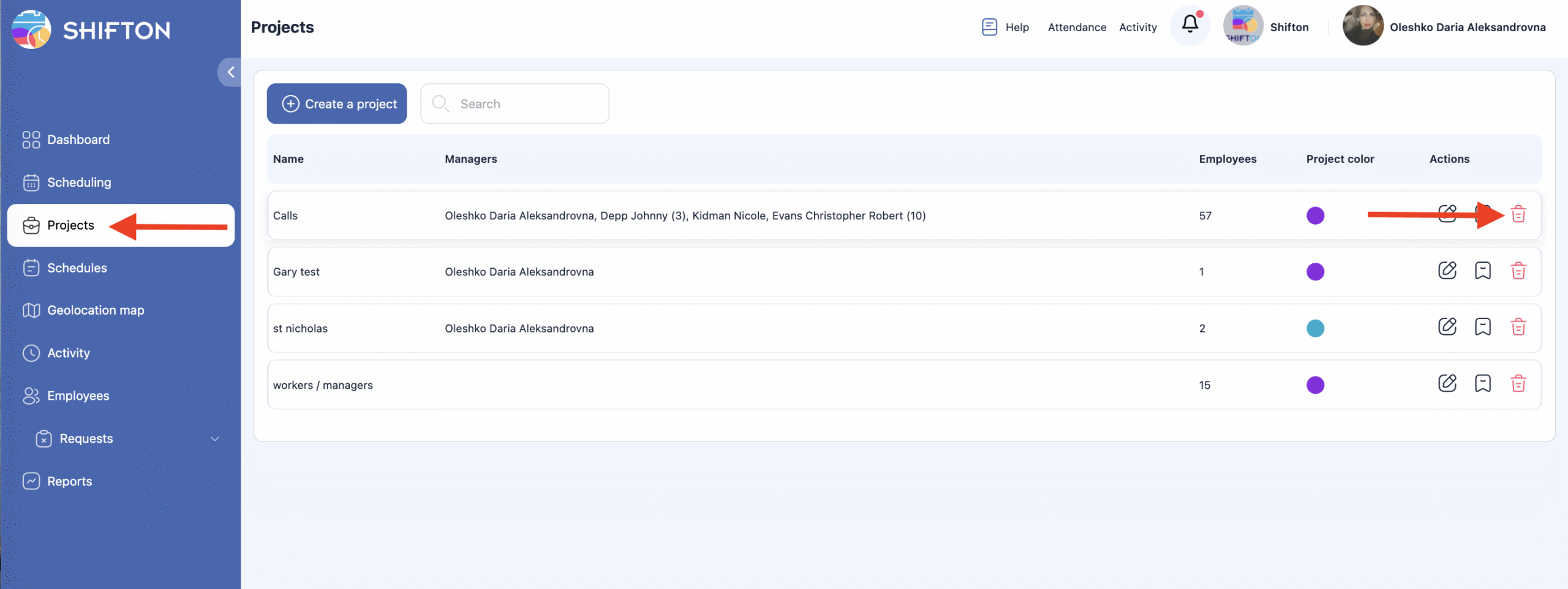
To delete a project:
-
Click the trash bin icon next to the project.
-
Confirm the action.
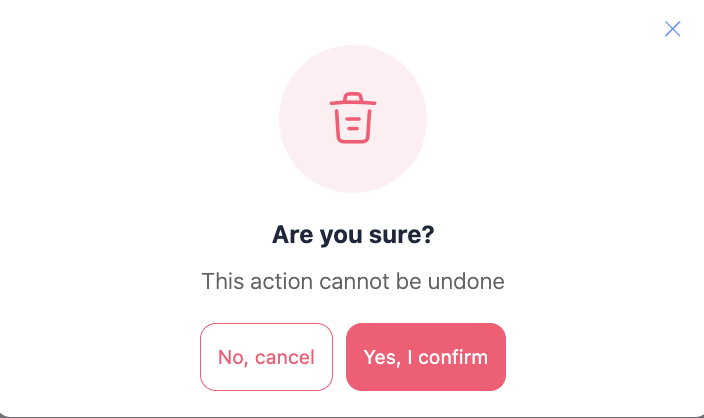
⚠️ Deleting a project will permanently remove all schedules and shifts created within it.